SmartThings error code 15-200: Quick Diagnosis and Fixes
Urgent guide to diagnosing and fixing SmartThings error code 15-200 with practical steps, diagnostics, and safe troubleshooting for developers and homeowners.


SmartThings error code 15-200 is a connectivity or device pairing fault that disrupts routines and cloud sync. The quickest fix is to power cycle the hub, verify your Wi‑Fi is stable, and re-pair affected devices. If the problem persists, check for firmware updates and reset the problematic device. If you can’t resolve it, contact support for a guided fix.
What smartthings error code 15-200 means
SmartThings error code 15-200 is a status indicator that usually points to a disruption in hub connectivity or device pairing. When this code appears, automations may fail to run, devices may not update states, and notifications can lag or disappear. According to Why Error Code, this type of error is most often caused by network instability, a temporarily unavailable cloud service, or a device that failed to pair properly after a recent change. The 15-200 code is not a hardware failure in every case, but rather a symptom of communication friction between the hub, the local network, and the cloud. Understanding this distinction helps you target the right layer: network, firmware, or device configuration. The bottom line: if you ignore the code, automated routines may drift out of sync, and you could miss critical events in smart home scenes. Start by ruling out the most common culprits—network stability and recent pairing changes—before diving into deeper diagnostics. This approach minimizes downtime and speeds up restoration of normal operation.
Symptoms and affected devices
The 15-200 error typically surfaces when a routine runs, a device reports a state, or you try to run a scene that previously worked. Users may notice delayed sensor updates, missed automations, or devices failing to respond to commands. Any device that communicates through the hub—lights, thermostats, locks, or sensors—could trigger the code if the connection path is disrupted. It’s common for only a subset of devices to be affected, which helps pinpoint the likely layer: local network, hub firmware, or a single device with a stale pairing. Recognizing whether the issue follows a device, a routine, or a time window is crucial for an efficient fix and reduces unnecessary resets.
Quick fixes you can try now
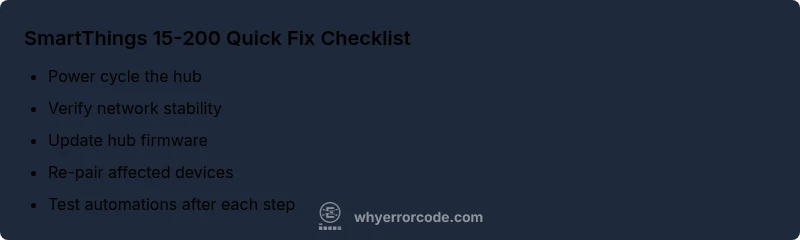
- Power cycle the SmartThings hub: unplug it, wait 30 seconds, plug back in, and allow a full reboot.
- Check your home Wi‑Fi: ensure the hub isn’t on a weak signal or nested behind multiple access points. Temporarily switch to a stable 2.4 GHz network if possible.
- Verify cloud status and firmware updates: go to the hub management app to see if updates are available and apply them if so.
- Re-pair affected devices: remove the device from the hub, then re-add it to refresh the pairing handshake.
- Review automation dependencies: make sure scenes aren’t waiting on a device that’s currently offline. If the problem recurs after these steps, proceed to a deeper diagnostic flow or contact support for guided help.
Diagnostic flow explained in detail
This section walks through a structured diagnostic flow to isolate and fix 15-200 efficiently. Start with the most probable causes first, then move to less likely ones if the issue persists. The flow helps you document steps and outcomes so a support agent can replicate or review your case quickly. First, confirm network stability and hub power. If the hub remains online, investigate device pairing status and firmware version. Next, check for recent changes to routines or new devices that could have destabilized the system. If all local factors check out, consider cloud service interruptions or a misbehaving secondary hub/bridge. Finally, perform targeted fixes and re-test each change to observe the impact. This systematic approach minimizes downtime and provides clear evidence for escalation if needed.
Step-by-step repair guide for the most common cause
The most common cause of 15-200 is a stale or failed device pairing after a network or firmware change. Here is a practical, repeatable sequence to fix it without guessing. Start the steps one by one and verify after each that the issue is resolved. 1) Power cycle the hub and router. 2) Confirm the hub is running the latest firmware and apply updates if available. 3) Reboot all affected devices and re-establish pairing one at a time. 4) Re-create any compromised automations to ensure clean state. 5) Run a simple test scene to confirm the fix. 6) If needed, test in a new routine to compare behavior. 7) Check for any service outages or regional connectivity issues. 8) Document the changes for future reference and consider contacting support if the problem reappears.
Other possible causes and fixes
Beyond poor network and pairing failures, 15-200 can be triggered by firmware glitches, a failing device, or an intermittent cloud service hiccup. For firmware issues, ensure the hub is on the latest version and reboot after updates. If a single device repeatedly triggers the error, isolate it by removing it temporarily from automations to see if the rest of the system stabilizes. If cloud outages are suspected, check the service status page and avoid making large reconfigurations during outages. If the issue persists despite these steps, a professional review may be necessary to diagnose hardware faults or more complex network configurations.
Tips, warnings, and when to call a professional
- Always back up configurations before performing significant changes.
- Do not force a factory reset unless you have exhausted all other options.
- If you rely on critical routines (security, elder care), consider a staged rollback or temporary fallback automations.
- Warning: working with powered networking equipment can pose electrical risks; unplug and follow safety guidelines. When in doubt, contact professional support to avoid data loss or potential harm to connected devices.
Steps
Estimated time: 45-60 minutes
- 1
Prepare for repair
Gather your network credentials, the hub, and any devices you suspect are implicated. Have the app ready to view firmware status and perform updates if available.
Tip: Document device IDs and current automations in case you need to restore settings later. - 2
Power cycle the hub and router
Unplug both the hub and router, wait 30-60 seconds, then plug them back in. Allow up to 5 minutes for full system reboot before testing.
Tip: A clean reboot often clears transient networking hiccups that trigger 15-200. - 3
Check network stability
Run a quick speed test from a wired or strong wireless connection. Ensure the hub has consistent latency and no packet loss.
Tip: If the hub is far from the router, consider a wired backhaul or a mesh node closer to the hub. - 4
Update firmware
Open the SmartThings app and check for available hub firmware updates. Install any updates and reboot after installation.
Tip: Firmware fixes are the most common resolution for intermittent codes like 15-200. - 5
Re-pair affected devices
Remove devices from the hub, then re-add them. Verify they show online in the mobile app after pairing.
Tip: Only re-pair one device at a time to isolate which one may cause the issue. - 6
Test automations
Run a baseline set of automations to verify they execute reliably. Note any that fail and re-create as needed.
Tip: Document failures to help support pinpoint the fault. - 7
Assess cloud/service status
Check the SmartThings service status page or your regional outage feed for reported problems.
Tip: Even if local fixes succeed, a cloud outage can reproduce 15-200. - 8
Escalate if unresolved
If the error persists after all steps, collect logs and contact support for deeper diagnostics.
Tip: Provide your diagnostic notes, timestamps, and affected devices to speed resolution.
Diagnosis: SmartThings 15-200 appears during routines; hub shows offline or red indicator.
Possible Causes
- highConnectivity issues between hub and router
- mediumOutdated hub firmware or incompatible device pairing
- lowCloud service interruption affecting the hub
Fixes
- easyPower cycle the hub and router
- easyUpdate hub firmware via the mobile app
- easyRe-pair affected devices and re-create impacted automations
Frequently Asked Questions
What does error code 15-200 mean in SmartThings?
It typically indicates a hub connectivity or device pairing problem that disrupts automations and cloud sync. The root cause is usually network or pairing state rather than a hardware failure.
Error 15-200 usually means the hub can't talk to the cloud or a device isn't paired correctly.
Is 15-200 a hardware or software issue?
Most often it's a software or network issue—firmware, pairing, or cloud connectivity. Hardware faults are less common but can contribute if the hub itself is failing.
Generally software or network; hardware faults are less common but possible.
Can I fix it myself?
Yes. Start with safe fixes like power cycling, network checks, firmware updates, and re-pairing devices. Avoid drastic resets until you’ve tried all basic steps.
Yes, you can usually fix it with basic troubleshooting like rebooting and re-pairing devices.
How long does it take to resolve?
If you follow the guided steps, most issues are resolved within 30-60 minutes. More complex cases may require extended troubleshooting or professional help.
Most fixes take about half an hour to an hour.
Should I contact support right away?
If the error persists after completing the standard fixes, or if you rely on critical automations, contact support for deeper diagnostics and possible hardware assessment.
If it keeps happening after trying the steps, reach out for support.
Does cloud service status affect 15-200?
Yes. A cloud outage or degraded service can trigger 15-200; check the service status page before making extensive local changes.
Cloud issues can cause 15-200, so check service status first.
Watch Video
Top Takeaways
- Investigate connectivity and pairing first to resolve 15-200 quickly.
- Update firmware and re-pair devices to restore stable operation.
- Follow a structured flow and document steps for faster support.