Fixing Unable to Connect to VS Code Server Error in Request
A practical, urgent guide to diagnose and fix the 'unable to connect to vs code server error in request' across SSH, remote containers, and WSL. Includes quick fixes, diagnostics, logs, and prevention tips for developers and IT pros.


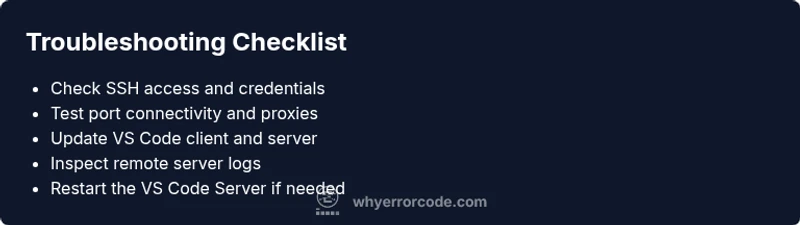
The error is most often caused by a network or authentication mismatch between your client and the remote VS Code Server. Start with a quick reset: verify SSH access, confirm host/port, and restart the remote VS Code Server. If that fails, update both client and server to compatible versions and re-establish the connection in a clean session.
Common causes of unable to connect to vs code server error in request
The message "unable to connect to vs code server error in request" usually hides a few core issues: SSH authentication problems or expired keys, a blocked network port by a firewall or proxy, mismatched versions between the VS Code client and the remote server, or problems with container/WSL environments. Misconfigurations in your remote hostname, user, or path to the server can also trigger this error. Understanding these root causes helps you target fixes quickly and reduce downtime, especially for developers working across multiple machines or cloud hosts.
In practice, you’ll often see this error when a remote server denies your connection, when the remote process cannot start, or when the VS Code Server binary cannot be loaded due to permissions. The Why Error Code team emphasizes that most connectivity failures are repeatable with a small set of checks, so plan a short diagnostic window and document what you changed for future incidents.
Verifying your environment and prerequisites
Before diving into fixes, confirm your environment aligns with the remote setup requirements. Check that your SSH client configuration matches the server’s expectations (host, username, port, and identity file). Ensure the remote host reachable from your network, and verify there are no policy rules blocking the connection (corporate proxies, VPNs, or firewall rules).
Also confirm you’re using a supported VS Code version on the client and that the remote server has a compatible VS Code Server binary. If you’re working with containers or WSL, ensure the right backend is selected and that the container or subsystem isn’t in a paused or restricted state. The configuration drift across environments is a common trigger for this error.
Basic connectivity checks you should run
Start with simple network diagnostics: ping the remote host and test DNS resolution. Use telnet or nc to check port 22 (SSH) or the port your remote server uses for VS Code Server connections. If you rely on a proxy, verify the proxy settings are correct and that the remote host is allowed through. On the client side confirm that your SSH agent is running and has the correct key loaded. On the server, confirm there is adequate disk space and that the VS Code Server process is permitted to start under the user account you’re using. If any step fails, address it before proceeding.
Inspecting VS Code Server logs and remote diagnostics
Logs are your best friend when tracking this error. On the remote host, locate the VS Code Server logs (often under the user’s home directory in a hidden folder like .vscode-server or .cache/vscode-server). Look for startup errors, permission issues, or out-of-memory messages. If the server starts but immediately exits, the log will usually show the reason. Also review any proxy or VPN logs on the client side that might indicate a blocked handshake or certificate validation failure. Cross-reference timestamps between client logs and server logs for alignment.
How to rebuild or restart the VS Code Server (the most common fix)
If the remote server is reachable but the server component isn’t responding, a rebuild can clear stale state. SSH into the remote host, stop the existing VS Code Server process, and remove old server folders if safe. Then allow VS Code to reinstall the correct server binary upon next connection. This process is often enough to restore connectivity, but you should back up any local server state if you rely on extension data stored on the remote side. After reinstall, reconnect from VS Code and monitor the log output for errors.
When to consider container or WSL-specific fixes
If you’re using containers or WSL, the problem can lie in the container’s network namespace or the WSL distro configuration rather than the host. Ensure the container exposes the right port and that the VS Code Server is started inside the container with the expected user permissions. For WSL, confirm that your Windows firewall or Defender settings aren’t blocking inter-process communication and that the WSL integration is up to date. In some cases, switching from a container-based workspace to a direct SSH connection temporarily helps isolate the root cause.
Preventive measures to avoid this error in the future
Establish a standard remote access workflow that includes: version pinning for VS Code and its server, periodic key rotation and SSH config audits, and automated connectivity tests after updates. Maintain a shared incident log with each fix and its outcome to shorten future troubleshooting. Regularly review firewall and proxy rules that could intermittently block VS Code Server handshakes, and keep backups of critical server state in case a rebuild is needed.
Steps
Estimated time: 40-60 minutes
- 1
Validate basic network and SSH
Confirm you can reach the remote host and that the SSH service is listening on the expected port. Use ssh -v to get verbose detail about the handshake and identify any authentication failures. Verify the host, user, and path to the private key in your SSH config.
Tip: Pro tip: Keep a separate SSH config per environment to avoid cross-environment mistakes. - 2
Test SSH outside VS Code
From your local machine, run a direct SSH command to the remote host. If this fails, resolve the SSH issue before attempting VS Code Server connection. If it succeeds, proceed to check VS Code specifics.
Tip: Pro tip: Use the -p flag if your SSH port differs from the default 22. - 3
Restart or rebuild the VS Code Server on the remote
SSH into the remote and stop the vscode-server process if running. Remove stale server files if you can safely do so, then initiate a fresh server install by reconnecting with VS Code. Monitor the remote logs during the restart.
Tip: Pro tip: Avoid killing processes indiscriminately; ensure you’re stopping the correct vscode-server instance. - 4
Synchronize client and server versions
Update the VS Code client to the latest stable release and ensure the remote server binary matches the expected version for your environment. A mismatch commonly triggers the error in request.
Tip: Pro tip: Check release notes for breaking changes that affect server compatibility. - 5
Review logs and diagnose resource issues
Inspect remote logs for startup errors, permission issues, or memory constraints. Free up memory or increase allocated resources if the server process complains about limits.
Tip: Pro tip: Enable verbose logging temporarily to capture more detail about failures. - 6
Consider alternate access methods
If the issue persists, test via WSL/containers or a different access path to isolate whether the problem is host, network, or container-related. Document what you tried and the results.
Tip: Pro tip: Record the exact sequence of steps you used so you can reproduce the fix later.
Diagnosis: Unable to connect to VS Code Server: error in request
Possible Causes
- highSSH authentication issues (keys, user, host mismatch)
- highNetwork restrictions (firewall, proxy, VPN)
- mediumVersion mismatch between client and remote server
- lowServer-side resource constraints or startup failure
Fixes
- easyVerify SSH credentials, host, and port; test with ssh -v to confirm authentication succeeds
- easyOpen the necessary ports in the firewall or proxy, and ensure the remote host is reachable from the client network
- mediumUpdate both VS Code client and remote server to compatible versions, then reconnect
- mediumCheck remote server logs, restart the vscode-server process, and free up resources if needed
Frequently Asked Questions
What causes the error 'unable to connect to vs code server error in request'?
Typical causes are SSH authentication failures, blocked network ports, and version mismatches between the client and the remote server. Container or WSL environments can also contribute. Start with the simplest check first and work your way through the flow.
This usually happens because of authentication, network blocks, or version mismatches. Start with SSH and port checks, then update clients if needed.
How can I verify SSH access to the remote host?
Run an explicit SSH command with verbose output (ssh -v user@host) to see where the handshake fails. Confirm the host, username, and key path are correct, and ensure the remote SSH service is active.
Use ssh -v to debug the connection and verify credentials and host details.
Is it safe to restart the VS Code Server on the remote side?
Yes, restarting the server after stopping the process can clear stuck states. Make sure you don’t disrupt active sessions and that you can reconnect afterward.
Restart the server carefully to clear stuck state and try reconnecting.
What should I do if the remote host runs out of memory or CPU?
Check remote resource usage and free up memory or allocate more resources to the server. This is a common cause of startup failures for the VS Code Server.
Check memory and CPU; free up resources or adjust limits to allow the server to start.
Should I adjust firewall settings to fix the issue?
Only open the necessary ports for SSH and VS Code Server traffic. After testing, revert unnecessary openings to maintain security.
Open only the needed ports and close extras after testing.
When should I contact professional support?
If you’ve methodically followed the steps and still cannot isolate the cause, or if this affects production systems, seek expert assistance with remote diagnostics.
If you’re stuck after thorough checks, consider professional help.
Watch Video
Top Takeaways
- Check SSH and network first; most fixes are connectivity-related.
- Review remote server logs for startup or permission errors.
- Keep VS Code client and remote server in sync to avoid version conflicts.
- Document fixes and prevention practices to reduce future downtime.