Windows security update error 0x80070643: Quick Fix Guide
Learn what 0x80070643 means during Windows updates, common causes like corrupted .NET Framework, and proven steps to diagnose, repair, and prevent this error across Windows 10/11.


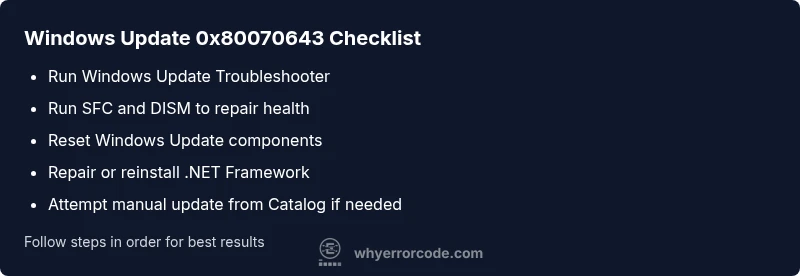
Windows update error 0x80070643 means a fatal Windows update installation failure in Windows. The most common causes are corrupted .NET Framework components, MSI package errors, or antivirus interference. A quick fix is to run the Windows Update Troubleshooter, repair or reinstall .NET Framework, and reset Windows Update components. If that doesn’t resolve it, follow the step-by-step fixes below.
What the error code 0x80070643 means for Windows Update
If you're seeing Windows Update stall with error 0x80070643, you're not alone. This error signals a fatal problem during the update installation process and prevents the system from completing the patch. In practical terms, it stops Windows from applying critical security updates, leaving your device potentially exposed. The root cause often lies in underlying component health, rather than a single corrupted file. According to Why Error Code, the most common triggers are corrupted .NET Framework components, MSI package issues, or interference from third-party security software. Understanding the meaning helps you prioritize the right fixes: begin with short, safe steps that restore the health of core update components before attempting more invasive repairs. The good news is that many cases resolve with built-in tools and standard maintenance commands, so you rarely need to reinstall Windows. With the insights in this guide, you’ll assess symptoms, apply a proven sequence of repairs, and recover the ability to install updates reliably across Windows 10 and Windows 11.
Quick symptoms you might notice
- Failure notices during Windows Update with error code 0x80070643
- Update history shows a single failed patch or recurring failures
- System prompts to restart but updates fail to install after reboot
- Slow update checks or unexpected Windows Defender or .NET prompts
- Event Viewer logs indicating MSI or COM component errors
These signals help you map to likely causes and prioritize fixes, especially if you’re managing multiple machines in a small network.
Primary causes (most likely, in order)
- Corrupted or out-of-date .NET Framework components (high)
- MSI package corruption or a faulty update package (medium)
- Antivirus or security software interfering with installation (medium)
- Outdated Windows Update components or a corrupted servicing store (low)
Addressing the top causes first usually yields the fastest resolution. If you’re unsure, start with built-in troubleshooters and then progress to targeted repairs.
Quick fixes you can try right now
- Run the Windows Update Troubleshooter and apply any recommended fixes.
- Temporarily disable antivirus/security software and try updating again (re-enable afterward).
- Clear the Windows Update cache: stop the wuauserv service, delete contents of C:\Windows\SoftwareDistribution, then restart the service and try again.
- If you know the exact KB, try downloading and installing the update from the Microsoft Update Catalog.
- Reboot after each fix to ensure changes take effect. If failures persist, move to deeper repairs listed below.
In-depth repairs for the most common cause (corrupted .NET Framework or servicing store)
Begin with system health checks that repair underlying Windows components before re-attempting the update. Run the System File Checker and DISM to restore integrity, then repair or reinstall .NET Framework components if needed. These steps address the core health of Windows components that Windows Update relies on.
- Open an elevated Command Prompt and run: sfc /scannow. This scans and repairs corrupted system files that can block updates.
- Run: DISM /Online /Cleanup-Image /RestoreHealth. This reverses component store corruption and prepares Windows for a clean update.
- If you suspect .NET Framework issues, use the official .NET Framework Repair Tool or re-enable/reinstall .NET Framework components via Windows Features. Reboot and attempt the update again.
- After repairs, run Windows Update again to confirm success. If the update still fails, proceed to additional troubleshooting steps.
Other potential causes and how to address them
- Servicing store corruption: Reset Windows Update components and re-register Windows Update DLLs.
- Incorrect date/time or time zone: Verify clock settings to avoid signature verification errors during install.
- Pending updates or software incompatibilities: Install previously pending updates or temporarily remove problematic software.
- Driver conflicts: Update critical drivers, particularly those related to storage and security devices, which can block patch installation.
If you still face issues, you may consider a clean boot to isolate software conflicts and re-test updates in a minimal environment.
Safety, backups, and when to call a professional
Always back up important data before performing repair operations that modify system components or services. For most users, the built-in tools (SFC, DISM, Update Troubleshooter) are sufficient and cost-free. If updates continue to fail after completing the recommended steps, or if you suspect a hardware issue or complex configuration problem, it’s time to seek professional help. Typical professional repair costs for this kind of Windows update issue range from roughly $50 to $150 for basic remediation, with higher costs for on-site diagnostics or extensive repairs. The risk of data loss makes professional support reasonable in persistent cases.
Quick wrap-up
By following a structured approach—identify the symptom, target the most likely causes, apply quick fixes, then progress to deeper repairs—you can resolve the Windows security update error 0x80070643 effectively. Prioritizing component health (especially .NET Framework and the servicing store) typically yields the fastest path back to normal update behavior and robust security coverage.
Steps
Estimated time: 60-120 minutes
- 1
Back up important data and create a system restore point
Before you begin, ensure data safety and create a restore point in case something goes wrong during repairs.
Tip: A restore point can save you from potential data loss if a repair causes issues. - 2
Run Windows Update Troubleshooter
Open Settings > Update & Security > Troubleshoot > Additional troubleshooters, then run Windows Update. Apply any recommended fixes and restart.
Tip: If fixes require a restart, do so before proceeding to the next step. - 3
Run SFC and DISM
Open an elevated Command Prompt and run: 1) sfc /scannow 2) DISM /Online /Cleanup-Image /RestoreHealth. Reboot after completion.
Tip: Do not interrupt these operations; they can take several minutes. - 4
Reset Windows Update components
Stop services (wuauserv, cryptsvc), rename SoftwareDistribution and Catroot2, then restart services and retry update.
Tip: Resetting components often resolves corrupt update stores. - 5
Repair .NET Framework
If issues remain, repair .NET Framework using the official repair tool or re-enable via Windows Features, then retry the update.
Tip: Ensure you download the correct .NET version for your OS. - 6
Manual update installation
If a specific KB is failing, download it from Microsoft Update Catalog and install manually.
Tip: Manual install can bypass certain package-related errors. - 7
Test again and monitor
After applying fixes, run Windows Update again and verify that updates install cleanly. Check Event Viewer for lingering MSI errors.
Tip: If it still fails, consider a repair reinstall as a last resort.
Diagnosis: Windows Update fails with error 0x80070643
Possible Causes
- highCorrupted or out-of-date .NET Framework components
- mediumMSI package corruption or faulty update package
- mediumAntivirus or security software interfering with installation
- lowOutdated Windows Update components or servicing store corruption
Fixes
- easyRun Windows Update Troubleshooter and apply fixes
- easyRun SFC /scannow to repair system files
- easyRun DISM /Online /Cleanup-Image /RestoreHealth
- mediumReset Windows Update components (stop services, delete SoftwareDistribution, Catroot2)
- mediumRepair or reinstall .NET Framework components if corrupted
- hardManually install the failed update from Microsoft Update Catalog (if a specific package)
Frequently Asked Questions
What does error code 0x80070643 mean in Windows Update?
0x80070643 indicates a fatal Windows Update installation failure, usually caused by component health issues like .NET Framework or MSI package problems. It blocks updates from installing properly.
Error 0x80070643 means a fatal update install failure, often due to core component problems such as the .NET Framework or MSI packages. Start with basic health checks and then proceed with repairs.
Is 0x80070643 related to .NET Framework?
Yes. Corrupted or outdated .NET Framework components frequently contribute to this error. Repairing or reinstalling .NET Framework is often part of the fix.
Yes. Corrupted .NET Framework components commonly cause 0x80070643 and repairing them is a common fix.
Should I disable antivirus to fix the error?
Antivirus software can interfere with installs. Temporarily disabling it during the update attempt is sometimes advised, but re-enable it immediately after testing.
Sometimes you need to disable antivirus temporarily while updating, but always turn it back on after testing.
Can I fix this without reinstalling Windows?
Most cases can be resolved with built-in tools like SFC, DISM, and update component resets. A clean reinstall is rare and usually a last resort.
Most people fix this with built-in tools and component resets; a reinstall is rarely necessary.
When should I contact a professional?
If updates continue to fail after all recommended steps or you suspect hardware problems, professional help is advised. Expect potential costs in the general support range.
If updates still fail after all steps or you suspect hardware issues, seek professional help.
Does this issue affect Windows 10 and Windows 11 the same?
The error can occur on both Windows 10 and Windows 11. The repair sequence is largely the same, though specific steps may vary by OS version.
It can happen on both Windows 10 and 11; the repair steps are similar with minor version differences.
Watch Video
Top Takeaways
- Back up data before system changes
- Start with built-in troubleshooters
- Use SFC and DISM to repair health
- Reset update components if stuck
- Seek pro help if failures persist