Update Error Code 0x800f0805: How to Fix Fast
Urgent guide to fix update error 0x800f0805. Learn causes, quick checks, step-by-step repairs (DISM, SFC, update components), and when to call a pro. Why Error Code breaks down the issue and provides practical, safe resolutions.


update error code 0x800f0805 means Windows encountered a problem with the component store or system files during an update installation. The quickest path to relief is to run the Windows Update Troubleshooter, repair the component store with DISM and SFC, then retry the update. If the problem persists, reset Windows Update components or seek professional help.
What update error code 0x800f0805 means and why it happens
update error code 0x800f0805 is a servicing failure that Windows surfaces when the component store (the CBS, DISM servicing stack, and related components) is not in a healthy state. In plain terms, the update can’t be installed because some required files, manifests, or packages are corrupt or mismatched. This error often signals deeper integrity issues in the Windows image or lingering conflicts from prior updates. According to Why Error Code analysis, these problems are commonly addressed by repairing the component store, verifying system files, and ensuring the update foundation is pristine before retrying. Understanding the underlying cause helps you pick the right repair path and avoid unnecessary tinkering.
Symptoms often associated with 0x800f0805
- Windows Update fails with error 0x800f0805 during installation
- The update history shows a failed installation and a diagnostic code
- Event Viewer logs reference CBS or servicing failures
- System performance slows during update attempts and reboot prompts appear
- Post-failure, Windows may show warnings about component store integrity
These symptoms hint at a component store or system-file issue rather than a simple network glitch. The Why Error Code team recommends focusing on image health first, then validating the update chain, to restore a clean update state.
Quick checks you can perform before diving into repairs
- Verify the current date/time and time zone are correct; misconfigured time can disrupt update validation.
- Ensure disk space is sufficient for the update and that your PC isn’t running on a low-capacity volume.
- Temporarily disable nonessential third-party antivirus or firewall software that could block update processes.
- Run the built-in Windows Update Troubleshooter to catch common misconfigurations and queued updates.
- If a restart is pending, complete the reboot before attempting to install updates again.
These quick checks can resolve simple blockers and save you from heavier repair steps. The Why Error Code approach prioritizes fast wins and safe retries before escalating.
Most likely causes, in order
- Component store corruption (CBS) or servicing stack issues — high likelihood when 0x800f0805 appears after a failed patch.
- Outdated DISM/servicing stack or conflicting updates — high likelihood if multiple updates failed in sequence.
- Pending reboot or blocked updates due to policy or driver state — medium likelihood that interrupts newer packages.
- Corrupted system files or mismatched manifests — medium to low likelihood, often revealed by SFC scans.
- Third-party software interference or network-related blocking — low likelihood but worth ruling out.
Identifying the most probable cause helps you tailor the steps you take next and reduces trial-and-error.
STEP-BY-STEP FIX: The most common cause
- Open an elevated Command Prompt or PowerShell window. Run as administrator to grant full rights for repair commands.
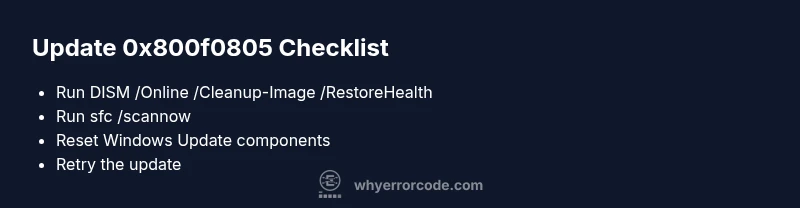
- Execute DISM /Online /Cleanup-Image /RestoreHealth to repair the component store. This step can take 10–20 minutes and may require an active internet connection.
- Run sfc /scannow to verify and repair corrupted system files. Wait for the scan to complete and address any found issues.
- Run the Windows Update Troubleshooter to detect and fix update sequencing problems. Reboot if prompted.
- Reset Windows Update components by stopping the update services, renaming SoftwareDistribution and Catroot2 folders, and restarting services. This clears stuck update state.
- Attempt the update again. If it fails, consider an in-place upgrade/repair install as a last resort.
Pro tip: perform these steps in a clean boot environment to minimize third-party interference and ensure stable component access.
Additional fixes for other causes
- If a pending reboot remains after repairs, reboot and retry the update. Some updates require a fresh boot to complete installation.
- Check device drivers and optional features that may conflict with new packages; enable legacy features only if explicitly required by a known issue.
- Temporarily disable VPNs or proxies that may block package retrieval from Microsoft servers.
- Review Windows Update policy settings (especially in corporate or managed devices) that might defer or restrict installs.
These fixes address secondary causes and help stabilize the update environment for future attempts.
Safety, backups, and when to contact a pro
- Always back up important files before performing repair operations on the OS image. While most steps are non-destructive, a failed repair can affect system stability.
- If you’re uncomfortable running DISM or performing in-place upgrades, consider seeking professional help or Microsoft Support.
- Do not interrupt a repair process mid-run; let commands complete to avoid partial writes or inconsistent image states.
When to call a pro: if the error persists after multiple passes, if you see data loss signs, or if your device is mission-critical, professional assistance can prevent further damage and provide escalation options.
Prevention and best practices
- Keep Windows Update components healthy by applying monthly cumulative updates and servicing stack updates promptly.
- Run periodic SFC/DISM checks to catch corruption early, especially after software installations or large updates.
- Maintain a clean boot environment for troubleshooting to isolate conflicts quickly.
- Enable automatic backups and System Restore points so you can roll back changes if an update causes issues in the future.
Following these best practices reduces the likelihood of 0x800f0805 recurring and speeds up recovery when it does happen.
How to read update logs and plan next steps
- Review the Windows Update log and CBS logs for error codes, module names, and timestamps to pinpoint the failing component.
- Correlate events with recent software installations or driver updates to identify potential conflicts.
- Use a methodical retry approach: quick checks, targeted repairs (DISM/SFC), update resets, then a controlled reattempt.
- If the error recurs after all standard steps, you may need an in-place upgrade or a fresh Windows install as a last resort.
A calm, numbers-based approach helps avoid guesswork and reduces the risk of data loss.
Troubleshooting flow recap
- Symptom: Windows update fails with 0x800f0805.
- Common causes: CBS corruption, servicing stack issues, pending reboot, broken system files.
- Quick fixes: run Troubleshooter, DISM, and SFC; reset update components.
- Advanced path: in-place upgrade or repair install if necessary.
- Prevention: keep image health routines, backups, and monitor update activity.
Steps
Estimated time: 60-120 minutes
- 1
Open elevated prompt
Launch Command Prompt or PowerShell as Administrator. This grants the necessary permissions to modify the OS image and update components.
Tip: Use the Search box to find Command Prompt, then right-click and choose Run as administrator. - 2
Run DISM health check
Execute DISM /Online /Cleanup-Image /RestoreHealth to repair the Windows component store. This step can take 10–20 minutes depending on system speed and network access.
Tip: Ensure you have a stable internet connection or use a wired Ethernet for faster repair. - 3
Check/system scan with SFC
Run sfc /scannow to verify integrity of system files and repair any corrupted components found. Allow the scan to complete without interruption.
Tip: If SFC reports issues it cannot fix, re-run DISM first, then re-run SFC. - 4
Reset Windows Update components
Stop the Windows Update service and rename SoftwareDistribution and Catroot2 folders, then restart services. This clears stuck updates and cached data.
Tip: Perform these steps in a single elevated session to avoid partial changes. - 5
Retry the Windows Update
Run Windows Update again and monitor progress. If it still fails, collect logs and consider an in-place upgrade if advised.
Tip: If a specific update repeatedly fails, you can try installing it standalone via the Microsoft Update Catalog. - 6
Consider repair install if needed
A repair install (in-place upgrade) preserves apps and personal data while reinstalling Windows components. This is typically a last-resort option.
Tip: Backup data before starting a repair install, and ensure you have a valid Windows activation state.
Diagnosis: Windows Update fails with error code 0x800f0805 during installation
Possible Causes
- highComponent store corruption (CBS) or servicing stack issues
- highOutdated DISM servicing stack or conflicting updates
- mediumPending reboot or blocked updates
- mediumCorrupted system files or mismatched manifests
Fixes
- easyRun DISM /Online /Cleanup-Image /RestoreHealth
- easyRun sfc /scannow to repair system files
- easyUse Windows Update Troubleshooter
- mediumReset Windows Update components and cache
- hardPerform an in-place upgrade/repair install
Frequently Asked Questions
What does error 0x800f0805 mean in Windows Update?
This error typically indicates corruption in the Windows component store or servicing stack that prevents the update from installing correctly. It often requires repairing the image with DISM and SFC and resetting update components.
Error 0x800f0805 means the Windows component store is corrupted, blocking updates. Repair with DISM and SFC, then retry the update.
Can I fix this without professional help?
Yes. Most cases resolve with built-in tools: DISM, SFC, Windows Update Troubleshooter, and resetting Windows Update components. If problems persist after these steps, you may consider a repair install with backups.
Most cases can be fixed using built-in tools; a repair install is an option if the issue persists.
Should I perform a system restore?
System Restore can revert the system to a previous state before the problematic update, which may resolve the error. This is recommended if recent changes coincide with the problem.
A system restore might help if the error started after a recent change.
When is it time to contact Microsoft Support?
If the error persists after DISM/SFC and update component resets, especially on critical devices or enterprise environments, contact Microsoft Support for guided remediation and potential escalation.
If repairs fail after standard steps, reach out to Microsoft Support for assistance.
Will this affect security updates?
Yes, if the fix requires updating the component store or servicing stack, security updates may be delayed until the issue is resolved. Prioritize repairing image health to restore normal update flow.
The issue can block security updates until fixed, so repair image health promptly.
Watch Video
Top Takeaways
- Diagnose with a methodical, health-first approach.
- DISM and SFC are the core repairs for 0x800f0805.
- Reset update components to clear stuck states.
- Escalate to repair install if needed, with backups.
- Prevent recurrence with routine image health checks.