Microsoft Store error code 0xc0ea000a: How to fix fast
Facing Microsoft Store error code 0xc0ea000a? Learn what it means, the fastest fixes, and a step-by-step recovery plan to restore app installs and updates on Windows.


Microsoft Store error code 0xc0ea000a generally signals a disruption in communicating with Store services during an app install or update. The error's meaning can vary, but most outages come from a combination of local store cache corruption, unstable network connectivity, or authentication issues with your Microsoft account. According to Why Error Code Team, treat this as a layered problem: start with quick checks, then move to targeted repairs. A structured flow helps you identify the root cause quickly and reduces repeat failures.
Understanding What 0xc0ea000a Means
The Microsoft Store error code 0xc0ea000a typically indicates a disruption in communicating with Store services during installation or update. The exact meaning can vary, but most outages come from a combination of local store cache corruption, unstable network connectivity, or authentication issues with your account. According to Why Error Code Team, treating this as a layered problem helps you fix it faster: start with quick checks, then move to targeted repairs. By following a structured flow, developers and everyday users can identify the root cause without unnecessary steps and reduce failures over time.
Symptoms You Might Notice
- The Microsoft Store app fails to install or update with code 0xc0ea000a and no progress.
- Apps pause during download, then error out after a few seconds.
- Store page loads slowly or prompts you to verify your account or region.
- The system shows occasional network timeouts, or glitches appear on the Store home screen.
- Quick fixes provide temporary relief, but the same error may recur on a subsequent attempt. According to Why Error Code, symptoms often cluster around cache corruption and connectivity issues. If you see repeated prompts to sign in or licensing checks, verify date/time and region settings as a precaution.
Immediate Quick Fixes You Can Try
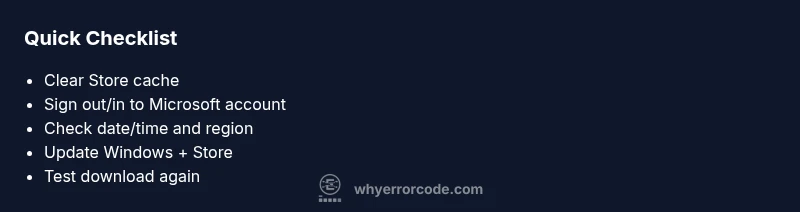
- Sign out of Microsoft Store, then sign back in to refresh your session.
- Run WSReset to clear the Store cache and reopen the app.
- Reset the Microsoft Store app via Settings > Apps > Microsoft Store > Advanced options > Reset.
- Check for Windows updates and install any pending patches.
- Ensure a stable internet connection (prefer a wired connection for large downloads) and disable VPNs temporarily if active.
- Restart your PC after applying fixes to ensure changes take effect.
Diagnostic Considerations: Likely Causes
- Cache corruption in the Microsoft Store data cache (high likelihood)
- Network connectivity issues or DNS resolution problems (high likelihood)
- Account authentication or licensing problems (medium likelihood)
- An outdated Windows version or Store app (medium likelihood)
- Software conflicts with firewall or third-party security software (low likelihood)
Why Error Code Analysis shows that cache and connectivity are the top culprits. Regularly updating Windows and the Store helps prevent recurrence over time.
Step-By-Step Fix Overview
This section outlines a practical recovery path: clear and refresh Store data, verify identity, check system time, and ensure Windows is up to date. The full, detailed, step-by-step guide is in the dedicated STEP-BY-STEP block to avoid duplication. Following a layered approach minimizes downtime and avoids unnecessary OS changes.
Safety, Warnings, and When to Call a Professional
Avoid making sweeping changes to your system unless you have recent backups. If the error persists after exhausting quick fixes and a repair install, consider seeking professional support. Cost ranges for professional help vary by region but typically fall within a broad spectrum, roughly $50–$250 for guidance or on-site troubleshooting. The Why Error Code Team recommends starting with vendor-supported diagnostics before paid assistance.
Steps
Estimated time: 20-40 minutes
- 1
Open Windows Settings
Open the Start menu and choose Settings. Go to Update & Security to check for pending Windows updates and ensure your system is current before proceeding with store-specific fixes.
Tip: Having a current system reduces unexpected compatibility issues. - 2
Reset Microsoft Store Cache
Open Settings > Apps > Microsoft Store > Advanced options and click Reset. Alternatively, run wsreset from the Run dialog to clear the cache without affecting installed apps.
Tip: Resetting can fix stale data that blocks new installs. - 3
Sign Out/In to Microsoft Store
Open the Microsoft Store, sign out of your Microsoft account, and sign back in. This refreshes licensing and authentication state for Store services.
Tip: Ensure you sign in with the account that owns the apps you’re trying to install. - 4
Check Date/Time and Region
Verify that your system clock is correct and that your region settings match your location. Incorrect time can cause authentication failures in Store services.
Tip: Automatic time synchronization is recommended. - 5
Update Windows and Store App
Run Windows Update and install any pending updates for the Microsoft Store itself. Reboot after updates complete.
Tip: A known Store bug is often fixed with the latest patch. - 6
If Needed, Consider a Repair Install
If the error persists, you may perform a repair install (in-place upgrade) to refresh system components while keeping files intact. This is a more advanced option.
Tip: Back up critical data before attempting a repair install.
Diagnosis: Error code 0xc0ea000a appears when installing or updating apps from Microsoft Store.
Possible Causes
- highCached data or store cache corruption
- highNetwork connectivity or DNS issues
- mediumAccount authentication or licensing problem
- mediumOutdated Windows/Store app or system time drift
- lowSoftware conflicts or third-party firewall blocking store
Fixes
- easyReset Microsoft Store cache and sign back in
- easyRun WSReset and verify network state
- easyCheck date/time and region settings
- mediumUpdate Windows and the Store app
- hardRepair or reset Windows components if needed
Frequently Asked Questions
What does error code 0xc0ea000a mean in Microsoft Store?
It generally signals a disruption in Store service communication during app installs or updates. Causes include a corrupted cache, connectivity issues, or authentication problems.
It usually means the Store couldn't communicate properly during installation or updates, often due to cache, network, or login issues.
Can I fix this myself without reinstalling Windows?
Yes. Start with cache reset, sign-in refresh, date/time verification, and updating Windows and the Store. If unresolved, proceed to more advanced repair steps.
Yes. Begin with simple fixes like clearing the store cache and updating Windows; then escalate if needed.
Will clearing the Store cache delete my apps?
No. Clearing the Store cache removes temporary data only; your installed apps remain intact. You may need to sign back in afterward.
No, clearing the cache only removes temporary data; your apps stay installed. You might need to sign in again.
How long does it typically take to fix this error?
Simple cache or sign-in fixes can take 10-20 minutes. More involved steps like a repair install could take longer and may require a backup.
Most fixes take under half an hour; deeper repairs can take longer and need backups.
When should I contact Microsoft support?
If the error persists after standard fixes, or you encounter licensing or account issues, contact Microsoft support or a professional technician for guidance.
If issues persist after fixes or involve licensing, reach out to Microsoft support.
Watch Video
Top Takeaways
- Identify root cause with a diagnostic workflow.
- Start with quick fixes before deep repairs.
- Verify account and date/time settings early in the process.
- Keep Windows and Store updated to prevent recurrence.
- If unresolved, seek professional help with a clear cost expectation.