Update Error Code 407: Proxy Authentication Troubleshooting
Urgent guide to resolve update error code 407 (Proxy Authentication Required). Learn why it happens and how to fix quickly with step-by-step instructions, diagnostics, and pro tips.


Error code 407 means Proxy Authentication Required. It signals the client must authenticate with a proxy server to access the requested resource. This can occur during software updates or API calls when a corporate or network proxy requires credentials. To fix quickly, verify proxy settings, supply correct credentials, refresh tokens, and ensure the update tool uses the right proxy. If in doubt, contact your IT admin.
What update error code 407 means
Error code 407, Proxy Authentication Required, is defined in the HTTP specification to indicate that a request to access a resource via a proxy can't proceed without authentication. When the proxy demands credentials, the update client, build system, or API call will be blocked until proper authentication is supplied. This is different from 401 Unauthorized, which is the origin server asking for credentials; 407 means the gatekeeper (the proxy) is blocking access. In corporate networks or managed environments, you will regularly encounter 407 during software updates because the updater routes traffic through a proxy gate that enforces login. The common causes are missing credentials, expired tokens, or misconfigured proxy URL. The practical fix is to verify credentials, confirm proxy settings, and reattempt the update. If credentials are managed by IT, request a credential reset or a temporary bypass.
Note: In many environments, proxy settings differ by platform and user role, so a single fix might not apply everywhere. This is why a methodical diagnostic flow helps identify the exact failure point and limits guesswork.
Why you might see it during an update
During software updates, the updater often routes traffic through a corporate proxy. If the proxy requires user credentials and the updater hasn’t provided them, you’ll see 407. Other triggers include updated proxy policies, token expiration, and environment changes that removed or invalidated credentials. On Windows, macOS, or Linux, different tools manage proxy settings, so you may encounter 407 even if other network services work. The symptom is a stalled update, a credential prompt from the proxy, or an explicit 407 response in logs. The resolution starts with confirming you have valid credentials and that the updater is configured to use the right proxy address, port, and authentication method. If your organization rotates credentials, coordinate with IT to obtain a fresh password or token to restore access.
Quick fixes to try right now
- Verify you are behind a proxy and that the updater is pointed to it; skip if you’re not supposed to go through a proxy.
- Re-enter or refresh proxy credentials in the updater settings or system proxy configuration.
- Update the environment variables HTTP_PROXY and HTTPS_PROXY to the correct proxy URL and credentials; restart the updater.
- Check whether the proxy expects Basic, Digest, NTLM, or another authentication method and adjust accordingly.
- If you have a cached credential store, clear it to force a fresh login prompt.
- If policy allows, temporarily bypass the proxy for the update, or use a direct connection, then re-run the update.
- Review firewall or security software that might be blocking the proxy handshake and allow traffic on the proxy port.
These quick fixes focus on getting credentials aligned and ensuring the updater can reach the proxy with the right authentication method. If the issue persists, proceed to the step-by-step fix section.
Step-by-step fix for proxy authentication issues
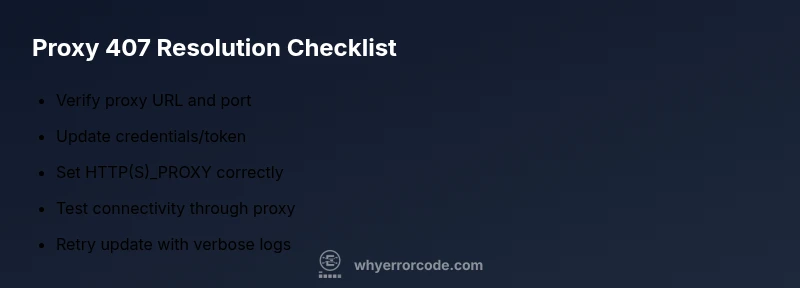
- Open proxy settings and confirm current values
- Navigate to your system’s network or browser proxy configuration and record the proxy address, port, and any authentication method in use. Ensure the updater references the same values.
- Tip: Take a screenshot of the current settings before making changes.
- Verify credentials and authentication method
- Ensure the username and password (or token) are correct and not expired. Confirm whether your proxy uses Basic, Digest, NTLM, or another method and set the updater accordingly.
- Tip: Use a password manager to store credentials securely and avoid pasting them into logs.
- Update environment variables and client configuration
- If your updater honors HTTP_PROXY/HTTPS_PROXY, set these variables to the correct proxy URL including credentials if supported. Persist changes and restart the updater.
- Tip: On Windows, consider using the system proxy settings to avoid duplicating credentials in multiple places.
- Test connectivity through the proxy
- Run a controlled test: curl -x http://user:pass@proxy:port http://example.com to verify proxy authentication works in practice. If this fails, fix credentials or proxy policy first.
- Tip: Do not expose credentials in shell history; use environment variables or a secure vault when possible.
- Retry the update with proxy enabled
- Re-run the update after applying fixes. Enable verbose logging if available to capture 407-specific messages and analyze server replies.
- Tip: Note the exact error codes and timestamps for IT or network admin troubleshooting.
- Escalate if the issue persists
- If the update still fails, contact IT or your network administrator to reset credentials, adjust proxy rules, or grant a temporary bypass for updates. Share logs and test outcomes.
- Tip: Prepare a concise incident packet: device name, OS, updater version, proxy details, and logs.
Other potential causes and remedies
Beyond credential problems, several other factors can trigger 407 during updates. An expired or revoked proxy token will block access just as credentials would. A misconfigured proxy URL or port, especially after policy changes, can also cause 407 responses. Some proxies support multiple authentication methods; if the updater uses an unsupported method, the proxy may reject the request. DNS misresolution for the proxy hostname can lead to failed authentication attempts, as can firewall rules that block the handshake. If the proxy uses TLS/SSL interception, certificate trust issues may surface as authentication failures. Finally, ensure your update server’s certificate chain is trusted by the client’s trust store.
Pro tip: Keep a small, documented changelog of proxy settings and renewal dates so you can reproduce the state quickly when problems arise. In enterprise networks, changes are frequent; a policy-aligned change-control process reduces repeat problems.
Safety, privacy, and when to call a professional
Working with proxy credentials requires caution. Never store passwords in plain text within scripts or logs; use a secure credential store or vault. When credential rotation occurs, coordinate with IT to update all dependent clients so updates don’t fail silently. If you suspect the proxy is misbehaving or if credential resets are behind security policies, involve your network team. For large environments or managed service providers, a professional assessment may be necessary to evaluate firewall rules, TLS settings, and authentication backends. Budget considerations vary by organization; expect that formal support may incur a fee and could take from several hours to a day for full remediation.
Prevention and best practices
- Document proxy settings and credential renewal cycles; review them quarterly.
- Use centralized patch management or deployment tools to standardize proxy configuration across devices.
- Avoid storing credentials in local scripts; prefer secure vaults and MSI-based or enterprise config profiles.
- Implement robust logging for proxy authentication events to detect failures early.
- Test changes in a staging environment before rolling them out to production.
- Schedule updates during maintenance windows to minimize impact if 407 arises again.
By following these practices, you reduce the likelihood of disruptions during updates and speed recovery when failures occur.
Steps
Estimated time: 30-45 minutes
- 1
Open proxy settings
Navigate to your system’s network or browser proxy configuration. Note the current proxy URL, port, and authentication method. This establishes the baseline before changes.
Tip: Take screenshots of the current configuration for quick rollback. - 2
Verify credentials and authentication
Confirm that the username, password, or token are correct and not expired. If your proxy uses a non-Basic method, set the updater to use that method.
Tip: Use a password manager to securely store credentials. - 3
Update environment variables and client config
Set HTTP_PROXY and HTTPS_PROXY to the correct proxy URL. Persist changes and ensure the updater reads these values on startup.
Tip: Restart the terminal or application after changing environment variables. - 4
Test connectivity through proxy
Run a test connection through the proxy (for example, curl -x http://user:pass@proxy:port http://example.com). Confirm the proxy accepts authentication and traffic passes.
Tip: Avoid exposing credentials in logs or shell history. - 5
Retry the update with logging
Attempt the update again with verbose or debug logging enabled to capture 407-related messages and handshake details.
Tip: Capture and save logs for IT diagnostics. - 6
Escalate if needed
If 407 persists, contact IT or a network admin to reset credentials or adjust proxy rules. Provide logs and the exact steps you’ve taken.
Tip: Offer a concise incident report to speed resolution.
Diagnosis: Error code 407 appears during a software update or API request, blocking progress.
Possible Causes
- highProxy server requires authentication
- mediumIncorrect or missing proxy credentials
- lowExpired or revoked credentials or token
Fixes
- easyEnter valid proxy credentials in the update client or system proxy settings
- easyUpdate HTTP_PROXY/HTTPS_PROXY environment variables and restart the update tool
- mediumCoordinate with IT to reset credentials or bypass the proxy temporarily for the update
Frequently Asked Questions
What does HTTP 407 Proxy Authentication Required mean?
407 means the proxy server requires authentication before forwarding your request. It’s distinct from 401 in that the proxy, not the origin server, is blocking access. Ensure credentials are valid and the proxy configuration is correct.
407 means the proxy requires authentication to proceed. Check credentials and proxy settings.
How can I fix 407 quickly on Windows or macOS?
Update proxy credentials, verify the proxy URL and port, and make sure the updater uses the right authentication method. If credentials are managed by IT, request a credential reset.
Update credentials and proxy settings; contact IT if credentials are managed by your organization.
Can I bypass the proxy to perform updates?
Only if your policy allows it. Bypassing a proxy in a corporate environment can violate security rules. Use a direct connection or approved exception if permitted.
Only bypass if your admin approves it; otherwise, fix credentials and retry.
Is 407 the same as 401?
No. 401 is an authentication error from the origin server; 407 means the proxy itself requires authentication before granting access.
407 means the proxy needs login; 401 is the server asking for login.
When should I contact IT or a network admin?
If credentials are centrally managed or you cannot configure the proxy securely. IT can reset credentials or adjust rules to restore access.
If credentials are managed centrally, involve IT for credential resets or proxy changes.
Watch Video
Top Takeaways
- Verify proxy credentials before updates.
- Configure environment variables correctly.
- Test connectivity and capture logs for troubleshooting.
- Escalate promptly when credentials are centrally managed.