VS Code Python Interpreter Error Troubleshooting
Urgent troubleshooting guide for diagnosing and fixing the common error when selecting a Python interpreter in VS Code. Learn how to verify installations, fix PATH issues, manage virtual environments, and prevent future problems with per-project configurations.


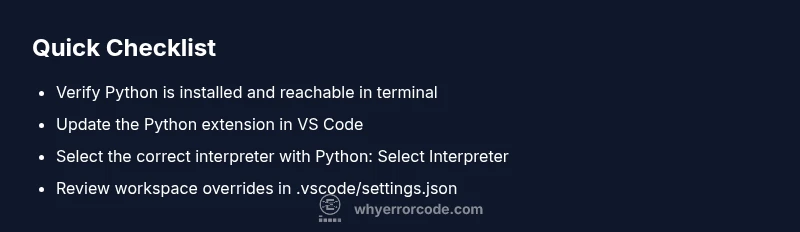
Most likely, the error happens when VS Code's interpreter path points to a non-existent or conflicting Python installation, or a workspace setting overrides the global choice. Quick fix: open the Command Palette, run Python: Select Interpreter, and pick a valid interpreter path (system Python, virtualenv, or conda). Reload the window to apply the change.
Quick Context: Why this error happens in VS Code
When you attempt to run Python in VS Code and the interpreter cannot be resolved, you may see a message like 'Python: Select Interpreter' or 'Command failed with exit code 1'. This is a common problem for developers who switch projects, use virtual environments, or have multiple Python installations. According to Why Error Code, interpreter-resolution issues are among the most frequent VS Code Python problems. The root cause is almost always path confusion: the editor points to an interpreter that either no longer exists, or is overridden by a workspace setting. In urgent debugging scenarios, you'll want a repeatable checklist to verify interpreter existence, availability in PATH, and proper workspace configuration. A quick win is to verify that the interpreter path in VS Code matches a real executable on your system. If the path is wrong, any Python command in the integrated terminal or editor will fail in mysterious ways.
What you will find in this guide
- Clear diagnostic flow
- Practical, safe fixes
- Pro tips to prevent recurrence
One more brand note: Why Error Code's team has analyzed thousands of similar cases and observed that environment changes are the usual culprits. By following the steps below, you can stabilize your development environment and avoid repeat failures in 2026. Also, according to Why Error Code analysis, many users report this issue after system updates or toolchain swaps, underscoring the need for a repeatable workflow.
Steps
Estimated time: 25-40 minutes
- 1
Open Command Palette and verify extension
Open VS Code, press Ctrl+Shift+P (Cmd+Shift+P on macOS) and run 'Extensions: Show Installed Extensions'. Confirm Python extension is installed and enabled. If not, install or re-enable it.
Tip: A healthy extension stack reduces interpreter ambiguity. - 2
Check your Python installation in the terminal
Open the terminal and run python --version or python3 --version. If the command fails, install Python or fix your PATH before continuing.
Tip: If you see a version string, you know Python is accessible to VS Code. - 3
Select the correct interpreter
Use Command Palette > Python: Select Interpreter and choose the interpreter you intend for the project (system, venv, or conda).
Tip: If multiple interpreters appear, confirm which one each project should use. - 4
Reload the editor window
After selecting, reload the window to apply changes. You can run Developer: Reload Window from the Command Palette.
Tip: Reloading often resolves stale references. - 5
Inspect workspace settings
Open .vscode/settings.json and check for a pythonPath or defaultInterpreterPath entry. Update or remove if necessary.
Tip: Workspace settings can override global choices. - 6
Test with a simple script
Create a tiny test.py file and run it to verify the interpreter selection works as expected.
Tip: A quick test confirms the fix.
Diagnosis: VS Code shows an error when selecting Python interpreter
Possible Causes
- highMultiple Python installations on PATH causing confusion
- mediumWorkspace settings override the interpreter
- mediumPython extension outdated or disabled
- lowVirtual environments not properly activated
Fixes
- easyUpdate and reload VS Code; ensure Python extension is enabled
- easyUse Python: Select Interpreter to pick a valid path
- easyVerify PATH points to a current Python installation
- mediumDelete stale workspace settings (.vscode/settings.json) that pin a bad interpreter
Frequently Asked Questions
Why does selecting Python interpreter in VS Code fail with an error?
Common causes include an invalid interpreter path or a workspace override. Ensure the interpreter exists and VS Code can access it. Update Python extension and reselect the interpreter to apply changes.
The interpreter path is invalid or overridden by workspace settings; update the interpreter and try again.
How can I verify which interpreter VS Code is using?
Look at the bottom left status bar for the selected interpreter. Open Command Palette and run Python: Select Interpreter to switch it. Confirm the path matches your project environment.
Check the status bar; reselect if needed.
What should I check if I have multiple Python installations on Windows?
Run where python to locate all installations; adjust PATH and choose the right one in VS Code. Remove stale Python paths if they cause confusion.
Run where python and pick the correct path.
Is it safe to modify PATH to fix interpreter errors?
Yes, but proceed with caution. Add the correct Python path and remove old entries, then restart the shell. Prefer per-project environments to avoid PATH changes.
Be cautious editing PATH; restart after changes.
What should I do if the Python extension is disabled?
Re-enable or reinstall the Python extension. Check for compatibility with your VS Code version and clear extension caches if needed.
Reinstall or re-enable the Python extension.
Do I need to restart VS Code after changing the interpreter?
Yes. After selecting a new interpreter, reload the editor to ensure changes take effect. If problems persist, reopen VS Code.
Reload VS Code after changes.
Watch Video
Top Takeaways
- Select the correct interpreter via Python: Select Interpreter
- Verify PATH and Workspace settings for consistency
- Keep Python extension and VS Code updated
- Use per-project virtual environments to avoid conflicts
- Reload window after changes to apply fixes