VS Code Pytest Discovery Error — Troubleshooting Guide
Comprehensive troubleshooting guide to diagnose and fix the VS Code Pytest discovery error. Learn common causes, practical steps, and best practices to restore reliable test discovery in Python projects.


Most likely cause: misconfigured Python interpreter or path, or missing pytest in the active environment. Quick fix: switch to the correct interpreter in VS Code, install pytest in that environment, and enable pytest integration in the Python extension. If discovery still fails, set python.testing.pytestArgs to point to your tests folder, then restart VS Code.
What is the vs code pytest discovery error?
A 'vs code pytest discovery error' occurs when the Python extension in VS Code cannot detect tests with pytest during the Test Explorer's discovery pass. This blocks test listing and can make developers assume tests are missing or broken. In practice, the problem often traces back to an environment mismatch: a different Python interpreter than the one used to install Pytest, or an active virtual environment that doesn't contain Pytest. According to Why Error Code, such misconfigurations are the most common culprits across teams and projects, especially in multi-project setups where multiple interpreters exist. The error message may appear as 'No tests were collected' or 'Error: cannot locate tests'. While frustrating, this situation is highly solvable with a methodical checklist. The goal is to create a stable, reproducible environment where VS Code’s test discovery aligns with the actual Python runtime that houses your test files and dependencies. Once alignment is achieved, Pytest discovery becomes predictable again, accelerating feedback in development cycles.
How pytest discovery works in VS Code and where things go wrong
The Python extension for VS Code delegates test discovery to the pytest framework, driven by settings such as python.testing.pytestEnabled and python.testing.pytestArgs. When you open a test file, VS Code runs pytest in the selected interpreter to identify tests, collects their names, and surfaces them in the Test Explorer. If the extension cannot locate pytest or cannot run under that interpreter, discovery fails. In some projects, a separate test runner configuration or a local install of Python distinct from the dev environment can cause confusion. In these cases, VS Code may show a red warning banner or a 'No tests found' message despite tests existing in the repository. The root cause is often a mismatch between VS Code's environment and where pytest resides, or a misconfigured test path. This nuance underscores the need for a clean, reproducible environment for reliable test discovery.
Common causes of vs code pytest discovery error
The most frequent culprits fall into a few categories: interpreter mismatch, missing pytest in the active environment, and misconfigured test discovery patterns. Interpreters can drift when you switch projects or virtual environments; VS Code may keep pointing to a global interpreter that lacks Pytest, or to a different virtual environment than the one where your dependencies live. Another frequent issue is test discovery patterns: pytest looks for test files matching test_*.py by default, or for tests declared in conftest; if your test filenames deviate or you place tests in nested folders without proper testpaths, discovery fails. Pytest.ini or pyproject.toml configurations can override defaults and inadvertently exclude tests or point to the wrong directories. OS-specific path handling, such as Windows vs Unix-style separators, can also trip up discovery in edge cases. Why Error Code analysis shows interpreter misconfigurations and environment splits as leading causes, so start there when you see 'vs code pytest discovery error'.
Quick checks you can perform before diving deeper
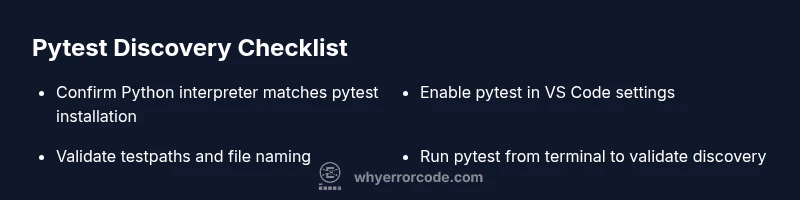
- Confirm the active Python interpreter in VS Code by using the Command Palette (Ctrl/Cmd+Shift+P) and selecting 'Python: Select Interpreter'. Ensure it points to the environment that has pytest installed. - Run 'pytest --version' in an integrated terminal to verify Pytest is accessible in the current interpreter. - Check the VS Code settings: make sure python.testing.pytestEnabled is true and python.testing.pytestArgs correctly reflect your test location pattern (for example, ['tests']). - Verify your project layout: are tests under a top-level 'tests' directory and named test_*.py? If not, adjust testpaths or file naming. - Reload the VS Code window to ensure changes take effect. If the problem persists, try invoking pytest from the terminal within the same interpreter to confirm discovery works outside VS Code.
Step-by-step fixes: aligning environment and configuration for reliable discovery
- Verify the active Python interpreter in VS Code and ensure it matches the environment where Pytest is installed. 2) Install pytest in that environment if it isn't present. 3) Enable pytest in the Python extension and set relevant arguments to point at your tests directory. 4) Confirm that your test files follow the default Pytest naming conventions or adjust testpaths accordingly. 5) Clear any cached configurations by restarting VS Code or using the 'Reload Window' command. 6) If you use a pyproject.toml or pytest.ini, ensure there are no conflicting exclusions. 7) Run a local pytest run from the terminal to validate discovery separately from VS Code. 8) Document the configuration so future changes don’t reintroduce the problem.
Handling pytest configuration: pytest.ini, pyproject.toml, and testpaths
A misconfigured pytest.ini or pyproject.toml can silently override Pytest defaults and break discovery in VS Code. Ensure testpaths (or equivalent) points to the correct directories and that any test deselection patterns (like -k filters) don’t exclude your tests unintentionally. If your project uses an umbrella configuration for multiple environments, consider splitting the config or using per-environment sections. The goal is to have a single source of truth for test discovery that works consistently with the VS Code Python extension. Always validate your configuration by running pytest directly after changes.
Running commands to isolate the problem: terminal-focused checks
Begin by running pytest directly in the terminal within the same interpreter VS Code uses. Commands like python -m pytest -q can confirm whether discovery works outside VS Code. If tests are discovered in the terminal but not in VS Code, the issue is almost certainly VS Code-specific (interpreter, environment, or extension settings). If the terminal also fails, the problem is broader, possibly with Pytest or Python installation. In that case, reinstall Pytest or recreate the environment to achieve a clean slate.
Prevention: best practices to avoid future vs code pytest discovery errors
Adopt a stable development workflow where each project uses its own virtual environment, and consistently select that interpreter in VS Code. Store executable environments in a known location and document the setup in a README for new contributors. Keep pytest and related tooling pinned to compatible versions, and consider using pytest.ini or pyproject.toml for deterministic discovery rules. Regularly verify that your test files follow Pytest conventions and that your VS Code settings reflect the current project structure.
Steps
Estimated time: 45-90 minutes
- 1
Identify the problem and confirm environment
Check which Python interpreter VS Code is using and verify that pytest is installed there.
Tip: Use Command Palette > Python: Select Interpreter to switch environments. - 2
Verify pytest presence in the active env
Open an integrated terminal and run pytest --version to ensure pytest is installed in the active interpreter.
Tip: If not present, install via the environment's package manager (pip install pytest). - 3
Inspect VS Code Python extension settings
Ensure python.testing.pytestEnabled is true and python.testing.pytestArgs reflects your test layout.
Tip: Prefer explicit paths like ['tests'] for clarity. - 4
Check test file naming and layout
Make sure tests are named test_*.py and placed in a directory recognized by Pytest (commonly tests/).
Tip: Avoid non-standard prefixes that Pytest might ignore. - 5
Run pytest from terminal and compare results
If terminal discovery succeeds but VS Code fails, focus on VS Code settings and environment alignment.
Tip: Remember to run in the same interpreter as VS Code. - 6
Review pytest configuration files
Inspect pytest.ini or pyproject.toml for exclusions and path definitions that could block discovery.
Tip: A minimal config can help isolate issues. - 7
Reset and re-scan in VS Code
Reload Window, clear any caches, and re-run the Test Explorer to re-detect tests.
Tip: Sometimes a clean start resolves hidden state issues. - 8
Decide on next steps and escalate if needed
If discovery remains broken, consider resetting the workspace Python environment or seeking expert help.
Tip: Document the exact steps taken for faster support.
Diagnosis: VS Code signals pytest discovery error or tests are not discovered
Possible Causes
- highActive Python interpreter does not have pytest installed
- highVS Code uses a different virtual environment than where pytest is installed
- mediumpytest is installed but not in PATH or environment PATH not updated
- mediumTest discovery pattern or testpaths misconfigured
- lowConflicting pytest.ini/pyproject.toml configurations exclude tests
Fixes
- easySelect the correct interpreter in VS Code's bottom-left status bar
- easyInstall pytest in the selected interpreter's environment
- easyAdd or adjust python.testing.pytestArgs to specify the tests path
- easyReload Window and run pytest from the terminal to confirm discovery
- mediumEnsure pytest.ini/pyproject.toml is correctly configured and not excluding tests
- mediumConsider upgrading/downgrading pytest to match VS Code extension compatibility
Frequently Asked Questions
What causes Pytest discovery errors in VS Code?
Pytest discovery errors in VS Code are usually caused by an incorrect Python interpreter, a missing pytest installation in the active environment, or misconfigured test discovery patterns. Environmental or configuration mismatches frequently lead to 'No tests found' messages even when tests exist. Always verify the active interpreter and test path configuration.
Most causes are interpreter or path-related. Verify your interpreter and test paths to fix it quickly.
How do I check which Python interpreter VS Code is using?
Open the Command Palette and run 'Python: Select Interpreter' to view and switch the active environment. The chosen interpreter is shown in the VS Code status bar; make sure it points to the environment that contains pytest.
Use Python: Select Interpreter to confirm the right environment.
Why is pytest not discovered even though tests exist?
Discovery can fail if the testfiles are not named or placed in the expected locations, or if the pytestArgs/testpaths configuration excludes them. Also ensure Python extension settings enable pytest and point to the correct test folder.
Check test naming, paths, and extension settings.
Should I prefer pytest.ini or pyproject.toml for configuration?
Both can configure Pytest; pytest.ini is older, while pyproject.toml is modern. Use whichever fits your project, but make sure there are no conflicting rules that could disable discovery.
Choose one and keep it consistent.
When should I seek professional help?
If discovery issues persist after validating interpreters, environments, and configs, and you work in a complex multi-repo setup, expert guidance can help isolate deep integration problems.
If it stays unresolved after basics, consider expert help.
Can reinstalling VS Code fix a Pytest discovery error?
Reinstalling VS Code is rarely necessary for Pytest discovery issues. Focus on the Python environment, extension settings, and Pytest configuration first.
Reinstalling is usually unnecessary if environment and settings are correct.
Watch Video
Top Takeaways
- Verify the active interpreter before debugging
- Keep pytestArgs and testpaths consistent across config files
- Run pytest in-terminal to isolate VS Code issues
- Document fixes to prevent future discovery problems