How to Fix Module Not Found Error in VS Code
Learn how to diagnose and fix the 'module not found' error in VS Code across Python and Node projects. From interpreter checks to environment configuration, follow practical steps to get your code running again.


This guide helps you resolve a module not found error in VS Code by verifying your runtime, reinstalling the missing module, and aligning your workspace and environment settings. You’ll learn how to identify the language context (Python, Node, or other), check the interpreter or runtime path, and apply targeted fixes so your code runs cleanly again. According to Why Error Code, most fixes hinge on matching the right interpreter with the correct project environment.
Understanding the Module Not Found Error in VS Code
A module not found error in VS Code occurs when the runtime cannot locate a module by the name you request. This can happen for several reasons: the module isn’t installed in the active environment, the interpreter selected by VS Code isn’t the one that owns the module, or the project’s path configuration misguides the runtime to look in the wrong place. In VS Code, the mismatch between your workspace environment and the terminal or code runner often triggers this issue. The error messages you see are highly contextual: Python typically raises ModuleNotFoundError, while Node.js usually reports Cannot find module. Understanding where the runtime looks for modules—whether in a virtual environment, the global Python installation, or the local node_modules directory—is the first step toward a robust fix. Why Error Code’s analysis shows that many developers trip over environment boundaries when switching between the integrated terminal and external shells, or when a project’s interpreter changes without a corresponding VS Code setting update. Being deliberate about your environment clarifies the path forward and saves debugging time.
Contextual Clues and Quick Checks
Before you dive into code fixes, gather clues from a few quick checks. Identify the language you’re using (Python, Node, or another runtime). Confirm that the error message refers to a module name you expect to import or require. Check the bottom-left VS Code status bar to see the active interpreter or runtime and compare it with the one you use in your project’s documentation or virtual environment. If you’re running tests or scripts in a different terminal profile, ensure that profile uses the same environment as VS Code. These steps help confirm whether the problem is a missing installation, a misconfigured path, or an environment mismatch.
The Role of Your Project’s Dependency Manager
Dependency managers (pip, npm, yarn, etc.) govern which modules exist in your project. A module may exist in a global installation but not in the project’s environment, or vice versa. When VS Code runs your code using a specific interpreter, it looks for modules relative to that interpreter’s environment. If the module isn’t installed where the interpreter expects it, you’ll see a not found error. Ensure you run the install command in the correct context (e.g., activate a virtual environment before running pip install, or run npm install inside the project folder). This alignment is critical to a stable development workflow.
Editor Settings and Workspace Configuration
VS Code settings can override or shadow your runtime’s module search paths. Check your settings.json for PythonPath (or the Python interpreter path) and ensure it points to the right environment. For Node.js, make sure
Practical Signals from Real-World Scenarios
Researchers and practitioners consistently report that misaligned environments are the leading cause of module not found errors in VS Code. If you migrated projects between machines, upgraded Python or Node versions, or added new extensions without updating the project settings, you’re at higher risk. The fix often involves a combination of reinstalling dependencies in the correct environment, selecting the right interpreter in VS Code, and cleaning up path references that point to stale locations. Adopting a repeatable setup process—such as a shell script to set up the environment and a documented VS Code workspace configuration—reduces the likelihood of future occurrences.
Final Thought: A Diagnostic Mindset
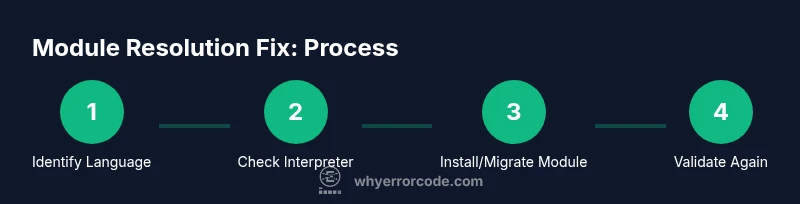
Adopt a methodical approach: reproduce the error, identify the language context, verify the active environment, reinstall as needed, and re-test. This mindset aligns with Why Error Code’s best practices for error resolution: isolate the root cause, verify environment boundaries, and validate with a minimal reproducible example. With consistent checks, you’ll not only fix the current error but also prevent similar issues as your project evolves.
Tools & Materials
- VS Code (latest)(Install the latest version and enable relevant extensions (Python, Node) for proper module resolution.)
- Python interpreter / Node.js runtime(Identify which runtime your project uses and ensure VS Code points to the same one.)
- Package managers (pip, npm, yarn)(Use the appropriate manager to install missing modules.)
- Project environment (virtualenv/conda)(Isolate dependencies to avoid system-wide conflicts.)
- Integrated Terminal in VS Code(Run commands within the same environment as your code.)
- Project files (requirements.txt, package.json)(Source of declared dependencies for installation.)
Steps
Estimated time: 25-40 minutes
- 1
Identify language and reproduce the error
Pin down whether the error comes from Python, Node, or another language. Run a minimal snippet or script that triggers the error to confirm the exact module name and error type. This helps you distinguish between a truly missing package and a misnamed import or a circular dependency.
Tip: Use a small test script that imports only the suspected module to isolate the issue. - 2
Check the active interpreter or runtime in VS Code
Look at the bottom status bar for the current interpreter or runtime. Open the Command Palette and choose the appropriate interpreter installer if needed. Ensure VS Code is using the same environment where the module is installed.
Tip: If you use multiple environments, select the one tied to your project’s virtual environment. - 3
Install or reinstall the missing module in the correct environment
Activate the project’s environment (e.g., source venv/bin/activate or conda activate env), then install the module with the correct package manager (pip install modulename or npm install modulename). Check for typos in the module name and confirm compatibility with your runtime version.
Tip: Prefer a local install within the project rather than a global install to avoid cross-project conflicts. - 4
Verify module resolution and path settings
Inspect PYTHONPATH for Python or NODE_PATH for Node to ensure the module search path includes your project’s site-packages or node_modules. If needed, add a startup script to export the path, or adjust your IDE settings to include the correct paths.
Tip: For Python, printing sys.path inside a short script can reveal current search paths. - 5
Review workspace and project configuration
Check for workspace-level settings that override interpreter paths. Inspect tsconfig.json or path alias settings for TypeScript projects. Ensure root folders and relative paths align with where modules are installed.
Tip: If you’re in a mono-repo, confirm each package has its own node_modules and proper import paths. - 6
Validate by running and re-testing
Run the code or tests again in the integrated terminal and in the VS Code Run/Debug panel to confirm the fix. If the error persists, re-check all steps or try a clean environment setup as a fallback.
Tip: Use a minimal reproducible example to confirm the issue is resolved across environments.
Frequently Asked Questions
What causes a module not found error in VS Code?
The error typically arises from missing installations, a misconfigured interpreter, or path issues that prevent the runtime from locating the requested module. Context matters: Python vs Node have different resolution rules, and editor settings can amplify or obscure the problem.
This error usually comes from missing libraries, wrong interpreter, or path problems that stop the runtime from finding the module.
How can I verify which interpreter VS Code uses?
Open the status bar at the bottom of VS Code to see the current interpreter. You can switch interpreters via the Command Palette (Python: Select Interpreter) or by editing the workspace settings to point to the correct environment.
Check the bottom bar for the interpreter, and change it with the Python: Select Interpreter command if needed.
Why does the error persist after installing the module?
The most common cause is a mismatch between the environment used in VS Code and where you installed the module. Activate the same environment in VS Code and reinstall if necessary, ensuring the import path includes the module.
Often it’s because VS Code is not using the same environment where the module was installed.
Is this related to Node.js or Python only?
Both Node.js and Python have module resolution rules that can trigger this error. In Node, the issue is usually Cannot find module; in Python, ModuleNotFoundError. The fix patterns are similar but rely on the respective package managers.
It can happen in both Node and Python; the fixes depend on the language-specific package manager and import system.
Can path aliases or tsconfig cause this issue?
Yes. Incorrect path mapping or tsconfig paths in TypeScript can cause modules to appear missing, even when installed. Verify path aliases and moduleResolution settings align with your project structure.
Yes—path alias settings can hide where the module actually is located, so check your tsconfig fields.
Watch Video
Top Takeaways
- Identify language context before fixes.
- Align VS Code interpreter with project environment.
- Install or reinstall dependencies in the correct environment.
- Verify PYTHONPATH / NODE_PATH for proper module lookup.
- Test with a minimal example to confirm resolution.