VS Code Python Extension Install Error Troubleshooting
Facing a VS Code error while installing the Python extension? This guide provides a fast, structured troubleshooting flow with quick checks and a step-by-step fix to restore your Python development.


The VS Code Python extension install error is usually caused by an outdated VS Code version, a blocked internet connection, or a missing Python interpreter in PATH. Start by updating VS Code, ensuring Python is installed and accessible, and reinstalling the Python extension. If the error persists, clear the extension cache and disable conflicting extensions, then try again.
Why this error happens and who it affects
Developers and IT pros frequently encounter a VS Code error while installing the Python extension when the IDE can't reach the Marketplace, the Python interpreter isn't found, or security software blocks the download. For teams, misconfigured proxies or corporate networks compound the issue. According to Why Error Code, most fixes are straightforward and involve verifying prerequisites, then applying targeted configuration changes. This guide is designed for developers, operations engineers, and enthusiasts who want an actionable path to get back to coding quickly.
Common causes and quick diagnosis
- Outdated VS Code version: new extensions require current runtime features. - Proxy or firewall blocks: corporate networks often block npm-style downloads used by the marketplace. - Python not installed or not in PATH: the Python extension relies on a valid interpreter, and VS Code may fail early if it can't locate one. - Corrupted extension cache or partial install: stale or broken files can block installation. - Conflicting extensions or antivirus interference: other tools may intercept downloads. Why Error Code notes that understanding these causes accelerates resolution.
Quick checks you can perform before deep troubleshooting
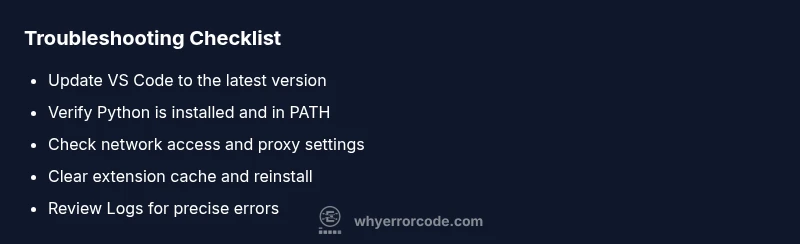
- Verify you have internet access and that any VPN or corporate proxy is configured correctly. 2) Update VS Code to the latest stable build and restart. 3) Confirm Python is installed and accessible via command line: python --version or python3 --version. 4) Clear the extension cache and temporary data: delete the .vscode/extensions folder and relaunch VS Code. 5) Temporarily disable antivirus or firewall to test if they block the extension download. 6) Try installing from the Marketplace again, or install from a VSIX if needed.
How the Python extension interacts with VS Code and Python
The Python extension integrates with the editor by using the interpreter detected in your environment and by pulling language server features from Microsoft’s Python tools. If VS Code cannot resolve the Python path, it will report install-time errors or fail to activate after installation. This section helps you understand the dependency graph so you can target the right component during troubleshooting.
Step-by-step fixes for the most common scenario
Following the diagnostic flow, apply fixes in order of impact and difficulty. This section maps to the STEP-BY-STEP block and provides actionable steps you can perform in about 20–45 minutes. It emphasizes safety and best practices, and it reminds you when professional help is appropriate. The goal is to restore a working Python development environment in VS Code with minimal downtime.
Steps
Estimated time: 20-45 minutes
- 1
Check prerequisites
Verify you have a supported VS Code version and a Python interpreter installed. Open a terminal and run python --version to confirm Python is accessible.
Tip: If Python isn't found, install Python from python.org and add it to PATH. - 2
Update and restart
Update VS Code to the latest stable release and restart your computer if needed. Reopen VS Code after reboot.
Tip: Always close all VS Code processes before installing updates. - 3
Test network access
Temporarily disable VPNs or proxies and attempt installation again. Check your firewall settings to ensure VS Code can reach the marketplace.
Tip: Run a quick network ping to marketplace.visualstudio.com. - 4
Clear extension cache
Navigate to your user data folder and delete the .vscode/extensions folder. Restart VS Code to rebuild the cache.
Tip: Back up your existing extensions if you want to reuse them. - 5
Reinstall the Python extension
From the Extensions view, search for Python and choose Uninstall, then reinstall. Alternatively, install via Command Palette: Extensions: Install from VSIX.
Tip: If you have multiple Python-related extensions, disable others first. - 6
Check Logs
Open View > Output and select Extensions to view error messages. Copy the exact error and search for clues.
Tip: Error codes like ERR_NETWORK might indicate connectivity or proxy issues. - 7
Disable security software temporarily
Temporarily disable antivirus or firewall rules that may block downloads. Re-enable after testing.
Tip: Only disable temporarily and with caution. - 8
Fallback install
If all else fails, download the Python extension VSIX from a trusted source and install via Extensions: Install from VSIX.
Tip: Verify the VSIX source integrity before installing.
Diagnosis: VS Code reports an error when installing the Python extension from the Marketplace
Possible Causes
- highOutdated VS Code version
- highNetwork restrictions (proxy/firewall)
- mediumPython interpreter not found or not in PATH
- mediumCorrupted extension cache or installations
- lowConflicting extensions or antivirus interference
Fixes
- easyUpdate VS Code to the latest stable release
- easyEnsure Python is installed and added to PATH
- easyCheck internet access and temporarily disable VPN/proxy blocking
- easyClear extension cache and reinstall the Python extension
- mediumDisable conflicting extensions and antivirus temporarily to test
- mediumInstall the extension via VSIX as a fallback
- easyReview logs in Output/Extensions panel for specifics
Frequently Asked Questions
What causes the VS Code error while installing the Python extension?
Most errors stem from an outdated VS Code version, network restrictions, or a missing Python interpreter. Check these first before deeper diagnostics.
The common causes are outdated software, network blocks, or missing Python in PATH.
Do I need Python installed before installing the extension?
Yes. The Python extension requires a Python interpreter on your system. Install Python from python.org and ensure it is in your system PATH.
Yes, install Python and add it to PATH before or during extension setup.
How can I reinstall the Python extension in VS Code?
Open the Extensions view, locate Python, uninstall, then reinstall. You can also install from a VSIX file if needed.
Uninstall and reinstall the Python extension, or use a VSIX file.
Why is my internet connection blocking the extension download?
Firewalls, proxies, or VPNs can block marketplace access. Try a direct connection or configure the proxy correctly.
Check firewall/proxy settings; try a direct connection.
What should I do if the error persists after trying fixes?
Check the Output panel for detailed error messages, review logs, and consider a clean reinstall of VS Code if necessary.
Look at logs and consider a clean reinstall if needed.
Where can I find logs for VS Code extensions?
Use View > Output and select Extensions to see extension-specific error messages and debugging info.
Open Output > Extensions to view errors.
Watch Video
Top Takeaways
- Update VS Code and Python to current versions
- Check network/proxy settings early in the flow
- Clear caches and reinstall to fix corrupted installs
- Use logs to pinpoint the exact failure point
- If unresolved, try VSIX installation as a last resort