What is Error Code 404 in Easypaisa: Quick Fix Guide
Understand what error code 404 means in Easypaisa, why it happens, and proven steps to fix it quickly. Expert guidance from Why Error Code with practical, safe fixes for developers, IT pros, and everyday users.


An HTTP-style 404 error in Easypaisa means the requested page or resource could not be found on the server. This usually happens when a URL is outdated, a resource was moved, or the app’s routing is misconfigured. The quickest fix is to verify the URL, refresh the link, and retry; if it persists, inspect app settings and server routes for misdirection or missing resources.
What 404 Means for Easypaisa Users
A 404 error in the Easypaisa ecosystem signals that the specific page, endpoint, or resource you’re trying to reach does not exist at the expected location. While not a fault of your device, it interrupts a transaction or navigation flow. Understanding this error helps you distinguish between user-side issues (typos, cached links) and server-side issues (moved resources, misrouted requests). According to Why Error Code, 2026 analysis, fintech 404s often originate from broken links, moved endpoints, or routing gaps in integration points. Recognizing the pattern lets you apply targeted fixes quickly and safely, reducing downtime and frustration for developers and end-users alike.
Why This Happens in Easypaisa: Common Scenarios
In Easypaisa, a 404 can occur during merchant payments, bill payments, or login flows when the app tries to fetch a resource that the server no longer hosts at the requested path. It can be caused by: (a) URLs that have changed after an update, (b) redirects that no longer point to a valid destination, or (c) server-side routing rules that fail to match a request. For developers, mismatched API endpoints during a deploy can also trigger 404 responses. The best approach is to verify resource availability and ensure routing is consistent with the current API structure.
Quick Checks You Can Do (User Perspective)
- Re-enter or copy-paste the URL to avoid typos.
- Refresh the page or perform the action again from within the app.
- Clear browser or app cache to rule out stale redirects.
- Try an alternative network (mobile data vs Wi‑Fi) to rule out local routing issues.
- Check for any known service status updates from Easypaisa.
These steps can often resolve transient 404s without needing technical support.
Fixes You Can Apply Immediately (Non-Technical)
- Use the app’s built-in navigation instead of external links.
- Return to the main dashboard and re-open the intended flow from scratch.
- If you received an email or SMS link, navigate by typing the destination URL manually rather than using the link.
- Sign out and sign back in to refresh session context, which can affect redirects.
If the 404 persists, move to deeper server-side checks described in the next sections.
Layered Troubleshooting: What to Inspect First
The most common root cause is an outdated or renamed resource. This can happen after a backend update or a third-party integration change. Next, examine whether the request path matches the current API routing rules. Finally, verify there are no misconfigured proxies or firewall rules that block legitimate resources. Starting with the simplest checks can save time and preserve user trust.
Safety, Privacy, and Professional Guidance
Keep personal information safe: do not reveal credentials or sensitive data in URL parameters or logs when diagnosing 404s. If you’re not the service owner, avoid making changes to server configurations. If 404s appear consistently for critical flows (payments, receipts), escalate to your security or devops team. When in doubt, consult official Easypaisa status dashboards and reach out to support channels.
Prevention: Reducing 404s in Easypaisa Flows
- Standardize resource naming and URL schemas across apps and APIs.
- Implement robust redirects for moved resources and maintain link integrity in all user communications.
- Regularly audit internal references and external links used in merchant and customer flows.
- Use feature flags during deployments to minimize broken routes during transitions.
- Monitor error logs and set up alerts for 404 spikes tied to payment or authentication endpoints.
Real-World Scenarios: Troubleshooting Examples
Example 1: A user taps a payment receipt link and gets 404. Check whether the receipt resource was archived or relocated, and verify that the transaction ID in the URL matches the server's records. Example 2: A merchant URL used in a webhook returns 404. Confirm the webhook is pointing to the current API path and that the endpoint exists in the latest deployment. These patterns illustrate how precise routing checks prevent long downtimes.
Troubleshooting Checklist (At a Glance)
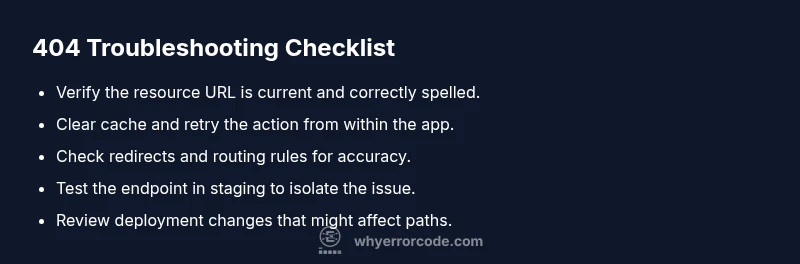
- Confirm the URL is current and correctly spelled.
- Clear caches and retry on a different network.
- Verify redirects point to a live resource.
- Check server routing and API endpoint availability.
- Review deployment changes for moved or removed resources.
- Escalate if the problem affects critical flows.
Steps
Estimated time: 45-60 minutes
- 1
Reproduce the error and collect details
Attempt the action again and capture the exact URL, timestamp, user agent, and any headers. Note whether the error occurs on mobile or desktop, and whether it happens consistently or sporadically.
Tip: Use a screenshot or log snippet to preserve the URL and response code. - 2
Verify URL correctness
Manually type or copy-paste the URL into a fresh browser or in-app browser. Ensure there are no typos, trailing slashes, or encoded characters that could cause a mismatch.
Tip: Compare with the latest official link from Easypaisa docs. - 3
Clear caches and retry
Clear browser or app cache and cookies, then retry the action. Caches can hold stale redirects or old routes that lead to 404s.
Tip: On mobile, clear app cache via system settings and reopen the app. - 4
Check resource availability
If you control the resource, confirm the file or endpoint exists on the server and has the correct path. If it’s a dynamic resource, verify the backend service is up and reachable.
Tip: Use server logs to confirm the endpoint is being requested and returns 404. - 5
Inspect redirects and routing
Test any redirects involved in the flow. Ensure redirects lead to valid destinations and that routing rules match the request path.
Tip: Temporarily disable a problematic redirect to see if the 404 resolves. - 6
Check integration points
If your flow relies on third-party APIs or webhooks, verify those services are up and offering the expected endpoints.
Tip: Check status dashboards for any outages or maintenance windows. - 7
Test across environments
Replicate the issue in staging or test environments to determine if the problem is environment-specific.
Tip: Ensure environment configurations mirror production where applicable. - 8
Document and escalate
Document findings and escalate to engineering or hosting provider if the issue persists beyond quick fixes.
Tip: Provide logs, timestamps, and affected user flows to speed up resolution. - 9
Validate fix and monitor
After applying a fix, re-test the full flow and monitor error logs to ensure no new 404s appear.
Tip: Set up a lightweight alert for sudden 404 spikes in critical paths.
Diagnosis: User sees a 404 error when accessing an Easypaisa page or API endpoint
Possible Causes
- highOutdated or renamed resource (URL) in the client or script
- mediumIncorrect server routing or missing endpoint after deployment
- lowBroken redirects or misconfigured proxies/firewalls
Fixes
- easyVerify the resource URL against the current API/docs; update links if necessary
- mediumCheck server routing rules and ensure the endpoint exists and is reachable
- mediumTest redirects and proxies; adjust configurations to ensure valid destinations
Frequently Asked Questions
What does a 404 error mean in Easypaisa?
A 404 error means the requested resource cannot be found on the server. In Easypaisa, this often happens when a URL points to a page or endpoint that has moved or been removed. Verify the URL and confirm the resource exists in the current system.
A 404 means the page isn’t found on the server. Check the URL and resource availability to fix it.
Why do 404s occur after an update?
Updates can rename or relocate resources, or misconfigure redirects. If a resource path changes, existing links may point to a non-existent location, triggering a 404.
After updates, links may break if paths change. Check and update references.
Can 404 errors affect transactions in Easypaisa?
Yes, if a payment page or API endpoint returns 404 during a transaction flow, the user may be unable to complete the operation. Work with engineering to ensure endpoints are live and reachable.
A 404 can interrupt a payment flow; ensure the endpoint exists and is reachable.
What quick checks fix a 404 fast?
Re-enter the URL, refresh caches, try a different network, and navigate from within the app rather than external links. These steps cover many transient 404s.
Try reloading, clear caches, and use in-app navigation to fix common 404s.
When should I contact support for a 404?
If the 404 persists across devices or blocks critical flows like payments, contact support with details such as timestamps, URLs, and user IDs to expedite resolution.
If it keeps happening, contact support with details and logs.
Is a 404 always a backend issue?
Not always. Sometimes it’s a frontend navigation mistake or a misconfigured redirect. Distinguish between client-side path errors and server-side routing to pinpoint the fix.
404s can come from both front and back ends; check both sides to find the root cause.
Watch Video
Top Takeaways
- Verify URLs before diagnosing server issues
- Most 404s are due to moved or renamed resources
- Use layered checks: client URL, redirects, server routing
- Escalate when critical flows are affected
- Prevent 404s with consistent path naming and redirects