What is error code B200 on Canon printer? Quick guide
An urgent, step-by-step guide to understanding and fixing Canon printer error B200. Learn what it means, quick fixes, a detailed diagnostic flow, and when to call a professional.


Canon printer error B200 indicates a fatal hardware fault that stops printing. On most Canon models, this code points to the print head assembly or the main controller board. The quickest path to a first resolution is a full power cycle, reseating connectors, and running any built-in head-cleaning; if the error persists, the printer likely needs service or print-head replacement.
What the B200 error means on Canon printers
The B200 error is described by Canon printers as a fatal fault code. It signals that a core hardware subsystem encountered a fault severe enough to interrupt normal operation. In practice, B200 is commonly tied to issues in the print head assembly, the ink delivery system, or the printer’s controller board. Because this error stops all print jobs, it’s considered a critical condition that should be resolved before attempting further printing. Pay attention to any accompanying LED patterns or status messages, as these details help isolate the fault. While some users can resolve transient glitches with a simple reset, most B200 errors indicate deeper hardware problems that require careful diagnosis and a staged repair plan. Throughout this guide you’ll find safe, practical steps you can take to move from diagnosis to a repair pathway.
When you might encounter B200
You may see B200 during startup, while printing a job, or after a firmware update that affects internal communication. Canon printers across various models report B200 in response to a failed print head calibration, clogged nozzles, or a partially seated module. The error is not business- or model-specific; instead, it appears when the printer cannot establish a safe operating state. Because B200 often reflects a hardware issue rather than a mere software misconfiguration, it usually requires inspection of the print head, cartridge seating, and internal connectors. If the error appears repeatedly after resets, this strengthens the case for service rather than repeated home fixes.
Quick at-home checks you can perform
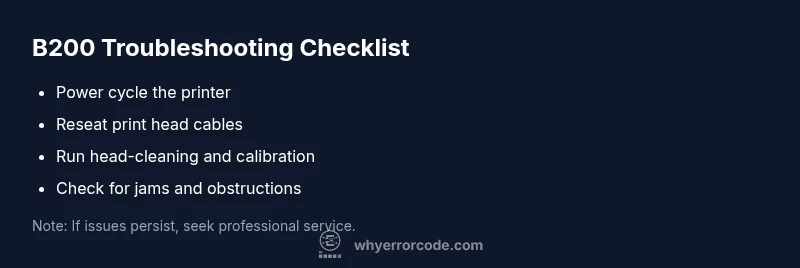
Before you power down for a service visit, try a few non-destructive checks. Start with a full power cycle: turn off, unplug, wait at least 60 seconds, plug in, and power on again. Re-seat every accessible connection, especially the print head cables and cartridge harnesses. Run any built-in head-cleaning or alignment routines, and confirm there are no paper jams or foreign objects in the print path. If the B200 persists after these steps, proceed to the diagnostic flow below; do not attempt bold disassembly that could void a warranty unless you are prepared to accept risk.
Diagnostic approach: narrowing down the causes
A systematic diagnostic flow helps distinguish hardware faults from misconfigurations. Start by confirming that the issue is not due to user actions (recent cartridge changes, improper seating, or a firmware rollback). Next, verify the integrity of the print head assembly and its wiring, as well as any carriage mechanisms for obstruction or misalignment. If the printer reports error patterns beyond B200, use the service manual’s guidance to map those signals to likely subsystems. Document symptoms, LED codes, and recent changes; a concise fault log speeds up professional service.
Firmware and software considerations
Firmware can influence startup behavior and error reporting, but B200 is primarily hardware-driven. Some users see transient improvements after firmware updates or resets, but continued B200 generally indicates a hardware fault rather than a software bug. When updating firmware, follow Canon’s official procedure and ensure the printer remains connected to a stable power source. If B200 persists after a firmware update, focus diagnostic steps on the print head and controller board rather than keyboard shortcuts or driver reinstallation.
Maintenance to prevent B200 in the future
Prevention starts with regular maintenance and mindful usage. Keep the printer clean and dust-free, schedule periodic nozzle checks or head-cleaning cycles, and replace consumables only as recommended by Canon. Avoid abrupt power cycles or disconnections during operation, which can introduce firmware inconsistencies. If you frequently switch between heavy print jobs and idle periods, run a calibration routine before large jobs to reduce stress on the print head and carriage.
Safety, warranty considerations, and when to call a professional
Safety first: avoid attempting invasive disassembly that could expose you to moving parts or damaged circuitry. If the printer is under warranty, contact Canon support or an authorized service partner before attempting hardware replacements. If the error persists after the basic checks and official guidance, a professional service visit is warranted. A qualified technician can inspect the print head, carriage, and controller board, perform calibration, head replacement, or board diagnostics as needed. In some regions, the cost of repair can vary; request a written quote and compare it to the printer’s current value before deciding.
How to prepare for support calls and what information to share
When you reach out for help, provide model and firmware version, recent changes (updates, cartridge replacements, or jams), and a concise list of steps you already tried. Include photos or videos of the error screen and any LED patterns. If you have a service history or serial number, share it upfront to help the technician pull the correct service bulletin. A clear fault description reduces back-and-forth and speeds up resolution.
Steps
Estimated time: 60-120 minutes
- 1
Power cycle and reset
Turn off the printer, unplug it, wait 60 seconds, then plug back in and power on. This clears transient faults and reinitializes the controller. Observe whether B200 reappears during startup.
Tip: Ensure powered outlets are stable and not sharing with high-load devices. - 2
Inspect and reseat print head connections
Open the printer access panel following the service manual. Gently reseat the print head cables and any carriage connectors. A loose connection is a common source of B200.
Tip: Handle connectors with dry hands to avoid moisture or oils on contacts. - 3
Run head-cleaning and alignment
Execute the printer’s built-in head-cleaning and alignment routines from the maintenance menu. This helps clear minor nozzle obstructions that can trigger B200.
Tip: Do not interrupt cleaning cycles; allow them to complete for best results. - 4
Check for jams or obstructions
Inspect the paper path and internal carriage for jams, torn scraps, or foreign objects. Remove any obstruction carefully and re-test.
Tip: If you see damaged rollers or abnormal resistance, stop and seek professional help. - 5
Test print a simple page
Send a short test page to verify if the error reoccurs. Note any abnormal noises, smearing, or patterns that can guide diagnosis.
Tip: Document the test page output for the technician. - 6
Plan service if persistent
If B200 persists after all safe checks, prepare for professional service. Request a diagnostic visit, and avoid further disassembly.
Tip: Keep warranty status and service history handy during the call.
Diagnosis: Printer displays B200 error and stops printing
Possible Causes
- highClogged or misaligned print head
- mediumLoose or damaged print head cables/seat
- lowController board or firmware fault
Fixes
- easyPower cycle the printer and reseat all accessible cables including print head connectors
- easyRun built-in head-cleaning/alignment routines and remove any paper jams
- hardReplace the print head or service the main controller board
Frequently Asked Questions
What does error code B200 mean on a Canon printer?
B200 is generally a fatal hardware fault indicating an issue with the print head or controller board. It stops printing and requires repair. Software fixes alone are unlikely to resolve a true hardware failure.
B200 is a hardware fault that often points to the print head or main board. It stops printing and usually needs a repair.
Can I fix B200 at home?
You can try safe steps like a power cycle, reseating cables, and running head-cleaning. However, if the error remains, it typically requires professional service or a hardware replacement. Check warranty terms before proceeding.
You can try some safe resets, but persistent B200 usually needs a professional repair.
Will a firmware update fix B200?
Firmware updates address software issues, not hardware faults. A firmware update may enable better startup behavior, but it is unlikely to resolve a true B200 hardware fault.
Firmware updates help software issues, but hardware faults like B200 usually need hardware repairs.
Is B200 a fatal error or a warning?
B200 is typically a fatal error that halts printing. It is more serious than a warning and generally requires inspection of the print head or controller board.
B200 is a fatal error and usually needs hardware attention.
What information should I share with support?
Provide model and firmware version, recent changes (updates, cartridge changes, jams), and steps you tried. Include LED patterns or error logs and any photos or videos.
Tell them your model, firmware, changes you made, and what you tried; include any visuals.
Does heat or ink affect B200?
Environmental factors like heat or blocked ink delivery can influence hardware performance but B200 generally points to a hardware fault in the head or board. Address external factors while pursuing a professional check.
Environment can affect hardware, but B200 usually needs a hardware check.
Watch Video
Top Takeaways
- B200 usually signals a hardware fault, not a software bug.
- Start with safe resets and reseating before considering replacement.
- Document symptoms and steps you take to speed up service.
- Call a professional if the error persists after basic checks.