What to Do When You Get an Error Code: A Practical Troubleshooting Guide
A practical, step-by-step guide to diagnose and fix error codes quickly, with a proven troubleshooting flow, safety tips, and pro tips from Why Error Code.


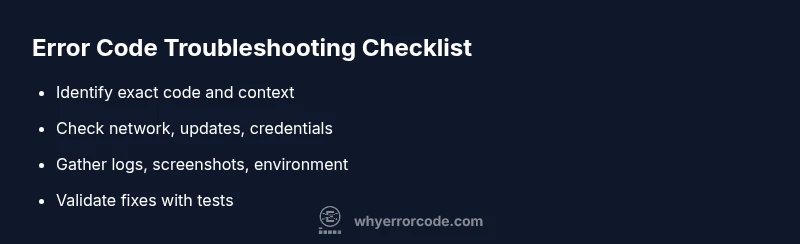
Start by identifying the error code and its context, then follow these quick steps: 1) note the exact code and where it appears; 2) check common causes such as network issues, permissions, or outdated software; 3) perform a quick restart of the device or service; 4) re-test. If the issue persists, move to deeper diagnostics.
Understanding Error Codes
Error codes are signals that a system, app, or device uses to indicate a problem. They are not the problem themselves, but a hint about where to look. For developers and IT pros, the first step is translating the numeric or alphanumeric code into a meaningful description: what component is involved, what operation failed, and under what conditions. According to Why Error Code, the most effective fixes begin with isolating the error to a specific layer—user input, application logic, data, or infrastructure. Without this context, you risk chasing symptoms rather than the root cause. Keep a habit of recording the exact code, the moment it appeared, and any preceding actions. Over time this makes pattern recognition easier and bug triage faster.
Immediate checks you can perform in minutes
When an error code first appears, start with quick, universal checks. Verify the exact code text, where it appears, and the user action that triggered it. Check for obvious misconfigurations in settings, permissions, or access controls. Ensure the device or service has a stable connection, is running a supported version, and that recent updates didn’t introduce a breaking change. Why Error Code analysis shows that many issues are resolved by fixing the most obvious faults first—often a mismatch in environment, a stale session, or a blocked resource. If you can reproduce the issue after these checks, you have a cleaner starting point for deeper diagnostics. Document outcomes as you go to avoid revisiting the same steps.
Collecting evidence: logs, screenshots, and environment
As you troubleshoot, gather evidence that will help you reason about the fault and accelerate escalation if needed. Capture the exact error code and any accompanying message, screenshot the screen, and note the user action and timestamp. Collect context about the environment: operating system, software version, network conditions, and recent changes. Store relevant logs (application logs, system logs, audit trails) in a centralized place. This data not only speeds up internal triage but also makes it possible to share a precise report with support. When you have a consistent record, you reduce back-and-forth and keep the issue moving toward a solution. The Why Error Code Team emphasizes disciplined evidence collection as a force multiplier for resolution.
A practical diagnostic flow: from symptom to solution
Start with the symptom: what exactly happened, when did it occur, and what changed before the error appeared? Based on that, generate a short hypothesis about the likely causes (for example, a network drop, a permissions issue, or a data mismatch). Then test each hypothesis with a focused check. If testing one hypothesis would disrupt others, isolate the test in a safe environment or a staging copy. As you test, update your notes and adjust your hypothesis. If testing reveals a root cause, prepare a targeted fix plan; if not, broaden the scope to dependencies, configuration, and recent deployments. A systematic, documented approach prevents circular fixes and helps when you need to involve teammates or vendors.
Common root causes and practical fixes
Most errors boil down to a few familiar culprits: network instability, outdated software, misconfigured permissions, or corrupted state/data. Start by confirming network reachability and DNS, then verify credentials and permission scopes. If the environment relies on data, check integrity and recent mutations. For each potential cause, apply a focused change rather than a broad reset, and re-test after every adjustment. Maintain versioned backups and ensure configuration files are under proper access controls. This measured approach reduces risk and helps you learn from each incident for faster resolution in the future.
Safety, warnings, and when to bring in help
Troubleshooting can involve changes to live systems; proceed with caution. Do not perform risky edits on production data without a fallback or a rollback plan. Always back up critical data before making configuration changes or software updates. If an error code recurs after your best efforts, escalate to a more experienced teammate or a vendor with the exact code, logs, and reproduction steps. When in doubt, request a paired-debug session or a support ticket. The goal is a reliable fix, not a rushed workaround, and professional help is recommended if the code points to a fundamental flaw in the platform or data integrity.
Steps
Estimated time: 60-90 minutes
- 1
Identify the error code and context
Record the exact code, where it appeared, and what you were doing. Note timestamp, user action, and recent changes. This gives you a precise starting point.
Tip: Keep the code visible and capture a screenshot if possible. - 2
Check basics (network, updates, credentials)
Test connectivity, verify the device/service is online, check for updates or patches, and confirm credentials/permissions are correct.
Tip: Restarting the service after updates can clear caches and reset state. - 3
Reproduce in a safe environment
If possible, reproduce the issue in a staging or test environment to avoid affecting production.
Tip: Use a controlled dataset that mirrors production to get realistic results. - 4
Apply the simplest fix first
Implement the smallest change that addresses the most probable cause; avoid sweeping changes. Re-test after each change.
Tip: Document every change you make for audit trails. - 5
Validate the fix with checks
Run unit/regression tests or manual checks to confirm the error does not reappear under typical scenarios.
Tip: Automated checks save time and catch edge cases. - 6
Document and monitor
Log the resolution, update runbooks, and set up monitoring to detect recurrence. Share findings with stakeholders.
Tip: Schedule a post-mortem or debrief to capture lessons learned.
Diagnosis: User reports a persistent error code during operation after basic checks.
Possible Causes
- highTemporary network issue
- mediumOutdated software or firmware
- highIncorrect user input or misconfigured settings
- lowData corruption or inconsistent state
Fixes
- easyCheck network stability and retry operation
- mediumUpdate software/firmware to latest supported version
- easyReview and correct user input, settings, and permissions
- easyClear caches or reset state to a clean baseline
Frequently Asked Questions
What should I do first when I see an error code?
Begin by recording the exact code and where it appeared, then verify the basic environment: network, credentials, and software version. This frames the problem and guides your next actions.
First, note the code and where it showed up, then check network, credentials, and software updates.
Are all error codes a sign of a real problem?
Not always. Some codes indicate warnings or transient conditions. Use context and recent changes to determine whether a fix is needed or if the issue will resolve itself after a restart.
Not every code means a critical fault; some are warnings or transient issues.
How can I reproduce the issue safely?
Try to replicate the error in a staging or test environment using a mirrored dataset. This avoids impacting production while you validate fixes.
Reproduce in a safe test environment to avoid disrupting production.
When should I escalate to professional help?
Escalate when the error persists after basic checks, involves critical data, or suggests a platform-wide fault. Provide the exact code, logs, and steps to reproduce.
Escalate if the error keeps happening after checks or involves critical data.
What if the error code changes after I attempt a fix?
If the code shifts, re-run the diagnostic flow with the new code and update your evidence. The root cause may have shifted to a related subsystem.
If the code changes, re-evaluate with the new code and update notes.
How can I prevent future error codes?
Implement monitoring, standardized runbooks, and regular software updates. Document common fixes so teams can respond quickly when codes reappear.
Set up monitoring and runbooks to prevent repeats.
Top Takeaways
- Identify the exact error code and context.
- Start with the simplest, proven fixes.
- Document every action and outcome.
- Escalate when necessary with complete evidence.
- Prevent recurrence with monitoring and updated runbooks.