Windows error code 2755: Urgent fixes and step-by-step guide
Urgent guide to Windows error code 2755—The Windows Installer service could not be accessed. Learn quick fixes, diagnostic flow, and safe steps to resolve MSI installation errors fast. Includes re-registration, service startup, and professional guidance if needed. Why Error Code analysis supports these methods (2026).


windows error code 2755 means the Windows Installer service could not be accessed during MSI installation. This usually happens when the msiserver service is stopped, not registered correctly, or blocked by security software. The quickest fixes are to start the Windows Installer service, re-register MSIEXEC with msiexec /unregister and /regserver, and run a quick health check with admin privileges. If the issue persists, move to more advanced repairs like SFC/DISM repairs and registry checks.
What Windows error code 2755 means
The Windows error code 2755 is an MSI (Microsoft Installer) related error that appears when the Windows Installer service cannot be accessed during a software installation. In practical terms, it points to the msiserver service not being available or properly registered, which stops the MSI package from unpacking files, registering components, and writing to the product registry. The user-facing message often reads, simply, that the Windows Installer Service could not be accessed. This error can crop up on Windows 10, Windows 11, and server editions when the installer cannot reach the service or the MSIEXEC registration has become corrupted.
Understanding this error helps you prioritize fixes that restore MSI functionality rather than chasing unrelated problems. The root causes typically fall into service status, registration state, and interference from security software. By addressing these areas in a logical sequence, you can restore normal MSI operation and avoid repeating the issue on future installations.
Quick fixes you can try now
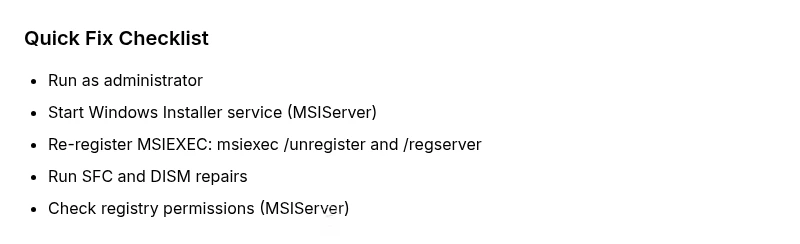
If you’re facing immediate failure with error 2755, start with no-regret steps that have a high probability of success:
- Run as Administrator: Right-click the installer and choose Run as administrator to ensure you have the necessary privileges.
- Start the Windows Installer service: Open Services (press Windows+R, type services.msc, press Enter). Find "Windows Installer" (msiserver), set Startup Type to Automatic, and click Start.
- Re-register MSIEXEC: Open an elevated Command Prompt and run:
msiexec /unregistermsiexec /regserver
- Retry the MSI installation using the original setup file.
If these do not resolve the issue, continue with deeper repairs:
- Run System File Checker and DISM: open an elevated Command Prompt and execute
sfc /scannowfollowed byDISM /Online /Cleanup-Image /RestoreHealth. - Update Windows: install any pending Windows updates, which can fix underlying service interactions.
- Temporarily disable antivirus or endpoint security that might block MSI processes, then re-run the installer.
These steps are designed to be reversible and safe for most users, with the option to escalate if the problem persists.
Diagnostic flow: Symptom → causes → fixes
When you encounter error code 2755, begin with the symptom: the MSI installation halts with a message that the Windows Installer service cannot be accessed. This guides you toward the most probable causes in order:
- high: Windows Installer service (msiserver) is not running or is disabled
- high: MSIEXEC is not properly registered or has become corrupted
- medium: Registry entries for MSIServer are damaged or misconfigured
- low: Security software or group policies block MSI installations
Corresponding fixes, in the same order, are:
- Start the Windows Installer service and set it to Automatic
- Re-register Windows Installer using msiexec /unregister and /regserver
- Repair related registry entries or permissions with caution
- If needed, perform a repair install or in-place upgrade to restore MSI health
By following this diagnostic flow, you isolate the most common causes first and apply safe, reversible fixes before moving to more invasive methods.
Step-by-step fix: Re-register and start the Windows Installer service
- Verify the Windows Installer service status
- Ensure the service exists and is not disabled. If it isn’t listed, you may need system repairs or Windows updates to recreate msiserver.
- Tip: Always perform changes with an admin account and back up critical data.
- Start the Windows Installer service and set to Automatic
- Open Services (services.msc), locate "Windows Installer". Right-click, choose Properties, set Startup type to Automatic, and click Start.
- Tip: If Start fails, check for dependent services or group policy restrictions.
- Re-register MSIEXEC
- Open an elevated Command Prompt and run:
msiexec /unregisterthenmsiexec /regserver. - Tip: If commands fail, ensure you’re running in 64-bit vs 32-bit context matching your OS edition.
- Run system file repairs
- Execute
sfc /scannowand, if issues persist,DISM /Online /Cleanup-Image /RestoreHealth. - Tip: Do not interrupt DISM; ensure you have stable network connectivity for health restore.
- Check MSIServer registry keys and permissions
- Inspect HKEY_LOCAL_MACHINE\SYSTEM\CurrentControlSet\Services\MSIServer for correct ImagePath and permissions. Edit only with caution and backups.
- Tip: Only modify the registry if you have a recent restore point; otherwise, seek expert help.
- Retry installation and test with a simple MSI
- Re-run the same MSI package, ideally from a local drive or a trusted network path. If it still fails, capture the exact error and delays for next steps.
- Tip: If the installer is large, consider a smaller test package to isolate issues.
estimatedTimeStateKeyedByBlockSuffixForClarityCannotBeUsedHere":"60-120 minutes" ,
Steps
Estimated time: 60-120 minutes
- 1
Verify service status
Open Services (services.msc) and confirm the Windows Installer service (msiserver) exists and is not disabled. If it’s missing, you may need to perform system repairs or a Windows update. Ensure the service startup type is set to Manual/Automatic as appropriate.
Tip: Backup a restore point before making changes to services or registries. - 2
Start the Windows Installer service
If the service is stopped, right-click the Windows Installer entry and select Start. If Start fails, check dependent services and policy settings that might block startup. After starting, set Startup type to Automatic for resilience.
Tip: A successful start is a strong signal your issue is not service-wide. - 3
Re-register MSIEXEC
Run Command Prompt as administrator and execute: msiexec /unregister followed by msiexec /regserver. This refreshes the MSI registration and often resolves access issues.
Tip: Run these commands one at a time and verify each reports success. - 4
Repair system files
Run sfc /scannow to detect and repair corrupted system files, then run DISM /Online /Cleanup-Image /RestoreHealth to repair component store integrity.
Tip: If sfc finds irreparable issues, proceed to DISM and consider a repair install. - 5
Check registry keys and permissions
Inspect MSIServer keys under HKEY_LOCAL_MACHINE\SYSTEM\CurrentControlSet\Services to ensure ImagePath points to C:\Windows\system32\msiexec.exe and permissions allow service operation.
Tip: Modifying registry is risky—only proceed with a restore point in place. - 6
Retry installation and test
Attempt the MSI again after completing the above steps. If the error reappears, capture exact error messages and event IDs to guide further action.
Tip: Document the exact MSI path and user context for support.
Diagnosis: Error code 2755 appears during MSI installation, indicating the Windows Installer Service could not be accessed.
Possible Causes
- highWindows Installer service not running or disabled
- highMSIEXEC not registered correctly or corrupted
- mediumCorrupted MSIServer registry entries
- lowSecurity software blocking MSI or group policies restricting installations
Fixes
- easyStart the Windows Installer service and set to Automatic
- easyRe-register Windows Installer with msiexec /unregister and /regserver
- easyRun SFC and DISM to repair system files
- mediumRepair registry entries and permissions for MSIServer
- hardPerform an in-place upgrade/repair install if issues persist
Frequently Asked Questions
What does Windows error code 2755 mean exactly?
Error 2755 indicates the Windows Installer service cannot be accessed when installing an MSI package. It usually points to the Windows Installer service not running, MSIEXEC registration issues, or security software interference. The fixes focus on restoring MSI service access and re-registration.
Error 2755 means Windows Installer can’t be accessed during MSI installation; fix by re-registering MSI and starting the service, then re-trying the installer.
Can error 2755 occur on Windows 11 and Windows 10?
Yes, error 2755 can occur on Windows 10, Windows 11, and server editions when the Windows Installer service is unavailable or misconfigured. The same set of fixes generally applies across supported Windows versions.
This error can appear on Windows 10 and 11; apply the standard MSI service and registry fixes.
Is it safe to re-register MSIEXEC?
Re-registering MSIEXEC is a common, safe repair step when guided by troubleshooting steps. Always run commands from an elevated prompt and back up important data or create a restore point beforehand.
Re-registering MSIEXEC is a standard repair step. Do it from an admin prompt and back up first.
What if the installer package is corrupted?
If the MSI package is corrupted, download a fresh copy from a trusted source and verify checksums if available. A corrupt file can trigger error 2755 even after MSI service fixes.
If the MSI is corrupted, redownload it and try again after fixing the installer service.
When should I seek professional help?
If repeated attempts fail after performing all standard steps, or if registry edits and service configurations feel risky, contact a professional IT technician or use a trusted support service. They can perform in-place OS repair if needed.
Call a professional if the problem persists after all standard steps are completed.
Watch Video
Top Takeaways
- Start with the Windows Installer service and MSI re-registration
- Use SFC/DISM for deeper system repair if needed
- Securely adjust security software and policies only temporarily
- Back up registry and create restore points before risky edits