Error Code WIN 1603: Urgent Troubleshooting Guide
Urgent guide to diagnose and fix Windows error code 1603 during MSI installations with practical steps, diagnostics, and safety tips for IT pros and everyday users.


Win 1603 means the Windows Installer failed to complete. Quick fix: run the setup as Administrator, clear temporary files, free disk space, and temporarily disable antivirus before retrying. If that fails, repair the Windows Installer service or use the Microsoft troubleshooter.
What error code win 1603 means
Error code win 1603 is a generic Windows Installer failure that prevents an MSI package from installing. In practice, this means the installer could not complete the operation due to a blocked action, a conflicting old installation, or a misconfigured system state. The impact is immediate: the setup stops, and you may see an error dialog with code 1603 and sometimes a brief submessage.
According to Why Error Code, diagnosing this error should start with isolating whether the failure arises from the MSI package itself, the Windows Installer service, or the environment (permissions, disk space, antivirus). By focusing on the most likely root cause first, you can reduce downtime and prevent cascading issues in your deployment process. The goal is a repeatable, safe fix that you can apply across machines and environments. This guide is designed to help developers, IT pros, and everyday users—whether you’re testing a software installer or performing batch deployments.
Why this error happens: common causes
The error code win 1603 can be produced by several scenarios. The most common cause is a conflicting or incomplete prior installation leaving Windows Installer in a bad state. Low disk space, long path names, or corrupted Temp folder contents can also trigger 1603. Another frequent reason is antivirus or security software blocking MSI operations. Finally, a misconfigured Windows Installer service or insufficient user permissions can derail an install.
We rate likelihood: high for conflicting installations and insufficient disk space; medium for antivirus interference and service issues; low for user permissions in certain domain environments. For organizations, group policy and software restriction policies can also contribute. By mapping symptoms to these causes, you’ll know where to intervene first and how to validate fixes across reboot cycles.
Quick fixes you can try now
Before diving into a full repair, try these fast wins. Take care to back up important data and ensure you’re performing actions with administrative credentials. Then follow the steps in this block if you’re facing error code win 1603.
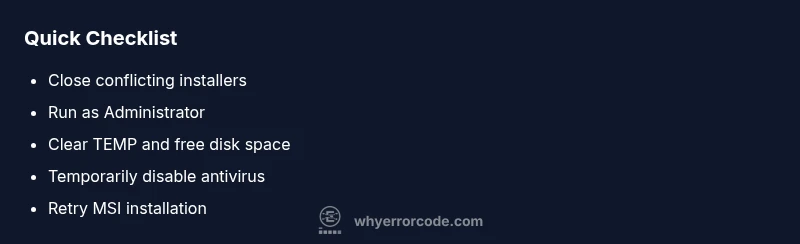
- Run the installer as Administrator: right-click the setup file and choose Run as administrator. This ensures the installer can write to protected locations.
- Clear temporary data and free disk space: delete contents of %TEMP% and C:\Windows\Temp, then retry the install after a fresh reboot.
- Temporarily disable antivirus and firewall: some security tools block MSI operations; re-enable after you finish installation.
- Check for and resolve pending reboots or blocked updates: restart the system to ensure a clean slate for Windows Installer.
Step-by-step repair: the most common scenario
- Prepare the environment: save work, close all apps, verify admin rights, and confirm there is sufficient disk space. 2) Re-register Windows Installer: run msiexec /unregister and then msiexec /regserver. 3) End conflicting processes: use Task Manager to terminate any active msiexec.exe or setup.exe processes. 4) Clear MSI cache: delete or rename the C:\Windows\Installer folder contents if safe, or use a standard cleanup tool. 5) Reboot and retry installation with elevated rights (Run as administrator). 6) If still failing, run the Microsoft Program Install and Uninstall Troubleshooter and consider a targeted repair of Windows Installer. Tip: capture installer logs to identify exact failing moments.
Other potential causes and fixes
If the previous steps don’t resolve the issue, consider these alternate causes and fixes. A corrupted Windows Update component can block MSI installations; repair via the Windows Update Troubleshooter or reset Windows Update components. A strong antivirus policy may block installer access; temporarily disable and test. Long file paths or special characters in the installation path can also trigger 1603—install to a short, simple path. If you’re deploying across multiple machines, test in a clean boot environment to isolate third-party software conflicts.
Safety tips and when to call a pro
Safety first: back up data and test in non-production environments before applying fixes to endpoints. Do not delete system folders or registry entries unless you know the impact. If the issue persists across devices, or if you’re dealing with enterprise deployments, consider professional support. Costs for professional repair can range from tens to a few hundred dollars depending on scope and needs, and may include a systems health check or a Windows Installer service repair.
The recommended approach is to follow a structured diagnosis, escalate when there is evidence of a corrupted OS or hard failures, and document steps for future incidents.
Prevention and best practices to avoid WIN 1603
Preventive steps include keeping Windows and dependent components up to date, maintaining free disk space, avoiding path length issues by using standard install directories, and configuring security software to allow MSI operations. Establish a clean baseline image for deployments and run periodic health checks on the Windows Installer service. Finally, maintain a robust change-management process to ensure reliable installations in development, testing, and production environments.
Steps
Estimated time: 30-60 minutes
- 1
Prepare the environment
Save work, close other installers, verify admin rights, and confirm enough disk space before starting. This reduces interference from background processes.
Tip: Document current state to compare after steps. - 2
Re-register Windows Installer
Open an elevated command prompt and run msiexec /unregister followed by msiexec /regserver to ensure the installer service is healthy.
Tip: Do not interrupt the commands; wait for completion. - 3
Terminate conflicting processes
In Task Manager, end any msiexec.exe or setup.exe processes that might be locking files.
Tip: If unsure, reboot and retry after a minimal boot. - 4
Clean MSI cache and TEMP
Clear the Windows Installer cache and TEMP folders to remove corrupted fragments that block installation.
Tip: Run Disk Cleanup or a trusted cleanup utility. - 5
Retry installation with admin rights
Run the installer again as Administrator and monitor for prompts or errors.
Tip: Enable verbose logging if the install fails again. - 6
Escalate if needed
If the issue persists, run the Microsoft Install/Uninstall Troubleshooter or contact support for a Windows Installer repair.
Tip: Collect logs and system information for faster support.
Diagnosis: Error code win 1603 appears during Windows software installation
Possible Causes
- highIncomplete or conflicting prior installations
- highInsufficient disk space or full TEMP directories
- mediumAntivirus or firewall blocking MSI operations
- mediumCorrupted Windows Installer service
- lowInsufficient user permissions or group policy blocks
Fixes
- easyRun installer as Administrator and close conflicting processes
- easyRe-register Windows Installer (msiexec /unregister, msiexec /regserver)
- easyFree disk space and clean TEMP folders before retry
- easyTemporarily disable security software and retry
- mediumUse the Microsoft Install/Uninstall Troubleshooter or repair Windows Installer
Frequently Asked Questions
What does error code WIN 1603 mean during installation?
Win 1603 is a generic Windows Installer failure that stops MSI installations. It often signals conflicts, permissions issues, or a corrupted installer. System-level fixes typically resolve the error if applied carefully.
Win 1603 is a generic installer failure caused by conflicts, permissions, or a corrupted installer. Try the standard fixes described here, and consult official tools if needed.
Is Windows Installer involved when I see 1603?
Yes. Error 1603 is tied to the Windows Installer service and its ability to complete the setup. Troubleshooting usually targets the installer state, service health, and environment conditions.
Yes, 1603 relates to Windows Installer. Focus on installer state and service health in troubleshooting.
Can antivirus software cause 1603?
Antivirus or firewall software can block MSI operations, leading to error 1603. Temporarily disabling protection during installation is a common workaround, but re-enable afterward and consider adding exceptions.
Antivirus can block MSI operations, causing 1603. Temporarily disable protection during install, then re-enable.
Do I need to reinstall Windows to fix 1603?
Reinstalling Windows is rarely required. Most 1603 issues are resolved by repairing the installer service, cleaning up temp data, and ensuring a clean installation path.
Reinstalling Windows isn’t usually required; most fixes are simpler and involve the installer service and cleanup.
Does disk space affect error 1603?
Yes. Low disk space can trigger 1603 by preventing proper file writes. Free up space and avoid near-full drives during installations.
Low disk space can trigger 1603. Free up space before retrying.
When should I contact professional support?
If multiple machines fail identically or the OS shows deeper corruption, contact professional support. They can perform a deeper Windows Installer repair and OS health checks.
If many machines fail or the OS is corrupted, get professional support.
Watch Video
Top Takeaways
- Verify admin rights and resolve conflicts first
- Clear temp data and check disk space
- Re-register Windows Installer and retry
- Escalate with official tools if needed