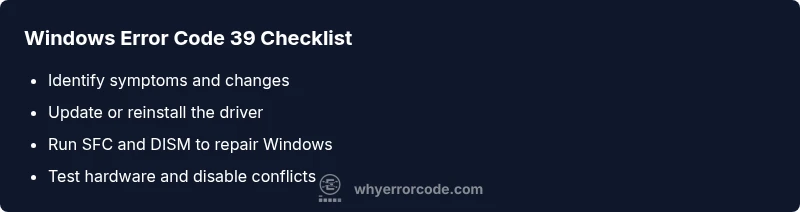
Windows error code 39: Fast Troubleshooting and Fixes
Urgent, step-by-step guide to diagnose and fix Windows error code 39, covering common causes, quick fixes, driver checks, SFC/DISM scans, and when to call a pro.


Windows error code 39 indicates a problem loading a device driver or its components, often caused by corrupted files or signature issues. The quickest path to relief is to reconnect the hardware, reinstall or update the driver, and run system checks like SFC and DISM. If the issue persists, review recent updates or malware scans.
What Windows error code 39 means
Windows error code 39 is an indication that the system failed to load a device driver or a component of a driver during startup or while initializing a device. In practical terms, you may see Error 39 when plugging in a peripheral, launching a program that relies on a driver, or after a driver update. Unlike some other errors, code 39 often points to issues with image hashes, driver signatures, or corrupted driver files, rather than a single defective device. The impact is typically reduced functionality, driver not loaded warnings in Device Manager, or device warnings in Event Viewer. The best approach is to confirm whether the problem is software-related (driver files, signatures, system image) or hardware-related (defective device, bad cable). This distinction drives the repair path: software repairs first, hardware replacements last. In all cases, treat code 39 as urgent, especially on workstations or servers where reliable peripherals or critical drivers are essential.
Common causes behind error code 39
Error code 39 can pop up for several reasons, but software issues head the list. Typical culprits include corrupted driver files or a damaged driver signature, a recently installed or updated driver that isn’t compatible with your Windows build, missing system files, or malware interfering with driver loading. Hardware problems—such as a failing device, loose connections, or faulty cables—can also mimic the symptom. In enterprise environments, policy updates or security software updates may flag drivers as untrusted, triggering code 39. Identifying the most likely cause is essential because it guides the repair path: software fixes first, hardware fixes later.
Quick checks you can perform safely
- Reboot the computer and unplug/replug the affected device to rule out a loose connection.
- In Device Manager, right-click the problematic device and choose Uninstall. Reboot, then reinstall the driver from the official vendor website.
- Run Windows Update to ensure you have the latest compatible drivers and system files.
- Temporarily disable nonessential third-party software that could interfere with drivers, then test again.
- If the device is external, try it on another port or another PC to determine if the issue is device-specific.
Deep-dive diagnostics: driver signatures, image hashes, and system files
Code 39 frequently ties to driver signatures or image hash problems. To diagnose, verify that you are using digitally signed drivers from reputable sources and check the digital signature on the driver file. Run System File Checker (SFC) to repair corrupted system files and DISM to fix Windows image health. Use Event Viewer and Reliability Monitor to correlate the error with changes such as Windows updates, driver installations, or security software events. If SFC/DISM repairs succeed but the problem recurs, the issue may be a mismatched driver for your specific hardware model or a conflicting software component.
Repair paths: when to re-install drivers, perform SFC/DISM, and clean boot
If driver issues are confirmed, the safest path is to update or reinstall the driver from the vendor’s site, ensuring you download the exact model and version compatible with your Windows version. Run SFC /scannow and DISM /online /cleanup-image /restorehealth to restore system integrity. A clean boot helps identify software conflicts: disable nonessential startup services and apps, then test. If the problem persists after these steps, consider hardware replacement or professional diagnostics, especially for mission-critical systems.
Preventing recurrence and best practices
Maintain driver hygiene: regularly check for driver updates, avoid unofficial sources, and sign drivers as required by your organization. Enable driver signature enforcement when appropriate and configure Windows Update to install only compatible drivers. Create a restore point before major driver updates and keep a current backup of important data. Finally, implement routine scans for malware, as infections can corrupt driver files and system images.
Steps
Estimated time: 60-90 minutes
- 1
Back up important data
Before performing system repairs, back up essential files to a secure location. This reduces the risk of data loss if a repair requires a reinstall or a Windows refresh. Confirm you have offline copies of any critical driver installers from official sources.
Tip: Create a System Restore Point to roll back changes if something goes wrong. - 2
Identify the affected driver
Open Device Manager and locate the device showing a problem. Right-click and view properties to confirm the device status and driver details. Note the driver version and publisher for clean, official reinstallation.
Tip: If multiple drivers show issues, focus on the most recently updated one. - 3
Boot into Safe Mode
Restart Windows into Safe Mode to minimize software conflicts. This environment helps you uninstall problematic drivers without interference from other services. In Safe Mode, try reinstalling the driver from the manufacturer’s website.
Tip: Safe Mode reduces risk of automatic driver restrictions during install. - 4
Reinstall or update the driver
In Device Manager, uninstall the driver, then reboot to allow Windows to reinstall it automatically. If needed, download the latest signed driver from the official vendor and install it. Verify the driver digital signature after installation.
Tip: Always prefer official vendor downloads over third-party sources. - 5
Run SFC and DISM
Open an elevated command prompt and run: sfc /scannow, then DISM /online /cleanup-image /restorehealth. These tools repair corrupted system files and fix image health that could trigger error 39.
Tip: If SFC finds issues but cannot repair, rerun after a reboot. - 6
Test with a clean boot
Perform a clean boot to disable third-party software and services that could block driver loading. Reproduce the error with minimal software, then re-enable components one by one to identify the culprit.
Tip: Document any conflicting software you disable for future reference. - 7
Check for malware and security software conflicts
Run a full malware scan using reputable tools. Temporarily disable security software to test whether it interferes with driver loading, but re-enable it immediately after testing.
Tip: Malware can masquerade as legitimate drivers to evade detection. - 8
Assess hardware health
If software repairs fail, test the device on another system or try a known-good replacement. Verify cables and connections are secure; hardware failure can mimic code 39 symptoms.
Tip: Document hardware tests to support escalation if needed.
Diagnosis: Error code 39 appears when loading a driver or device, often with a driver signature or hash issue.
Possible Causes
- highCorrupted or tampered driver files
- highUnsigned or legacy driver loaded on a newer Windows version
- mediumSystem file corruption or image hash mismatch
- lowMalware or security software interfering with drivers
Fixes
- easyUpdate or reinstall the device driver from the official vendor
- easyRun System File Checker and DISM to repair system files
- easyPerform a clean boot and test with minimal services
- mediumCheck for malware and disable conflicting security software
- hardIf hardware is failing, replace the device
Frequently Asked Questions
What is Windows error code 39 in plain terms?
Code 39 generally signals a problem loading a driver due to signature or image hash issues. It often requires driver updates, file integrity checks, or a hardware sanity test to resolve.
Code 39 usually means the driver couldn't load because of a signature or file issue. The fix is usually updating the driver and checking system files.
Can I fix Windows error code 39 myself?
Yes, many users fix code 39 by updating or reinstalling drivers, running SFC and DISM, and performing a clean boot. If the problem persists after software fixes, hardware replacement may be required.
You can try driver updates and system file checks. If it keeps happening, you might need hardware help.
What tools do I need to troubleshoot code 39?
You’ll need administrative access, Device Manager, SFC, DISM, a trusted driver from the vendor, and a reliable malware scanner. Keep backups and restore points handy.
Admin access, driver software, and system repair tools like SFC and DISM will get you started.
Does code 39 affect hardware stability?
Code 39 often points to software or driver issues, but it can stem from failing hardware. If symptoms persist after software fixes, test the device separately to confirm hardware health.
Usually software, but it can indicate hardware trouble if the device keeps failing after fixes.
How long does it take to fix code 39?
A typical software-focused fix can take 30–60 minutes. If hardware is involved or major OS repairs are needed, plan for 1–2 hours, possibly longer for complex environments.
Most software fixes are under an hour; hardware issues may take longer or require replacements.
Watch Video
Top Takeaways
- Back up data before fixes
- Update or reinstall drivers first
- Run SFC and DISM for system integrity
- Use Safe Mode to isolate issues
- Seek professional help if hardware replacement is needed