Xbox Error Code E101: Urgent Troubleshooting and Fixes
Urgent guide to diagnose and fix Xbox error code e101. Learn fast steps, common causes, and when to contact support to restore your gaming.


xbox error code e101 typically signals a startup or service issue that blocks normal boot. This urgent error is often caused by corrupted update data, a failed firmware install, or power-cycle problems. The fastest path to relief is a full power cycle and cache reset, followed by offline updates if available. If the issue persists, contact Xbox Support for guided recovery.
What xbox error code e101 Means
The xbox error code e101 is a startup/service issue that appears when the console cannot boot normally. It is frequently linked to software problems rather than a hardware fault. In plain terms, the error points to a disrupted update, a corrupted cache, or inconsistent power delivery during boot. According to Why Error Code, most e101-style issues reflect software integrity rather than an unavoidable hardware failure, which means you can often recover with careful software recovery steps and safe power practices.
Immediate Quick Fixes You Can Try Now
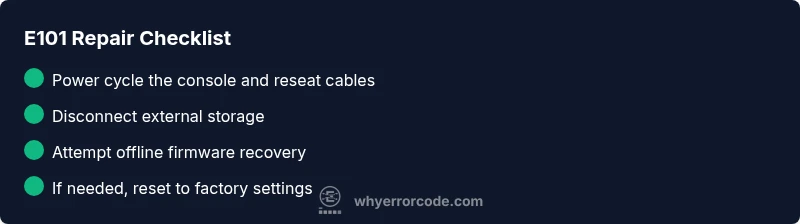
If you’re staring at a hard E101 boot problem, begin with non-destructive, fast steps. First, perform a full power cycle: press and hold the Xbox button for 10 seconds to completely shut down, unplug the console from power for 60 seconds, then plug it back in and power up. This clears transient cache and can resolve many boot-block issues. Next, disconnect any external hard drives or USB devices, as a faulty peripheral can trigger startup errors. Check all power cables and outlets; if you’re using a power strip, try a direct wall outlet to rule out surge issues or instability. If you have access to an offline update option in the recovery menu, attempt it to restore essential firmware without requiring a live network.
Why This Error Occurs: Common Causes (Most Likely First)
- Interrupted or corrupted update data during a firmware update (high likelihood). This is the most common software-related cause and can prevent boot if the update didn’t finish properly.
- Power supply instability or faulty cables causing improper boot signals (medium likelihood). A shaky power delivery can corrupt boot sequences.
- Peripheral conflicts or corrupted cache (low likelihood). External storage or saved data can interfere with startup on rare occasions. Understanding these causes helps prioritize fixes from quickest to most involved, reducing downtime.
Step-By-Step Repair for the Most Likely Cause
This section describes a thorough repair path for the most common cause: corrupted update data or firmware. Start with non-destructive steps, then progress to recovery options if needed. This sequence minimizes data loss while maximizing the chance of a clean boot.
- Power cycle with a clean shutdown and disconnect external storage.
- Re-seat all cables and verify outlet stability.
- Access the console’s recovery/Offline update option if available and run the firmware reinstallation.
- If offline update is not feasible or fails, prepare for a factory reset as a last resort.
- After any fix, run a boot test and verify system stability before resuming gaming.
- Restore saves from cloud if possible and re-connect peripherals carefully.
Other Potential Causes and How to Address Them
If the initial fixes don’t resolve E101, consider alternate factors. A degraded or faulty power supply can mirror software symptoms, so try a known-good power adapter and switch outlets. A recently attached external drive could conflict with boot; reformatting the drive on another device (if needed) or removing it entirely might help. If the issue persists after all software-recovery attempts, there may be a hardware fault requiring professional diagnostics or service.
Safety, Backups, and When to Call Support
Safety first: unplug the console when changing power cables or removing external drives. Back up saved data to the cloud where possible before performing factory resets. If you’re uncomfortable with any step or if your console shows signs of hardware failure (unusual heat, buzzing noises, or smoke), stop immediately and contact Xbox Support for guided recovery. Professional help is advised for suspected internal hardware faults or repeated boot failures that resist recovery attempts.
Steps
Estimated time: 25-45 minutes
- 1
Prepare and backup when possible
Safely power down the console and disconnect external storage. If you can access cloud saves, ensure your progress is backed up before performing major recovery steps.
Tip: Have a recent cloud save or backup ready in case you must reset. - 2
Perform a full power cycle
Hold the Xbox button for 10 seconds to turn off, then unplug from power for 60 seconds. Reconnect and power on to see if the boot sequence completes normally.
Tip: A longer power-down helps clear stubborn boot caches. - 3
Check cables and peripherals
Inspect power cables, HDMI, and any USB devices. Remove all external drives and try booting again with only essential cables connected.
Tip: Use the original power supply and avoid third-party adapters. - 4
Attempt offline firmware recovery
If the recovery menu offers an offline update, follow the prompts to reinstall firmware without an online connection. This can fix corrupted boot data.
Tip: Ensure you have a stable power source during recovery. - 5
Consider a factory reset if needed
A factory reset erases data but can restore boot integrity. Choose this only after trying software-only recovery options.
Tip: Note which saves are cloud-based to minimize data loss. - 6
Verify boot and test
Power cycle, boot the console, and run a test app or game to confirm stability before reconnecting peripherals.
Tip: Test with a single game to isolate issues quickly.
Diagnosis: Console displays error code E101 on startup and won’t boot.
Possible Causes
- highInterrupted or corrupted firmware/update data
- mediumPower supply instability or faulty cables
- lowPeripheral conflicts or hardware fault (rare)
Fixes
- easyPower cycle the console, unplug power for 60 seconds, and re-seat cables
- mediumDisconnect external drives and perform offline firmware recovery if available
- hardFactory reset or hardware diagnostics by a service professional
Frequently Asked Questions
What causes xbox error code e101?
E101 is usually software-related, often caused by interrupted firmware updates or corrupted boot data. Hardware issues are less common but possible. Start with quick software recovery steps before considering hardware diagnostics.
E101 is usually due to software problems like a bad update. Start with a power cycle and recovery options, then consider hardware checks if it persists.
Is E101 a hardware issue?
Most E101 instances are software-related, but persistent boot failures can indicate a hardware problem. If software recovery steps fail, seek professional diagnostics.
Mostly software, but if it won’t boot after fixes, it could be hardware—consult support.
Will a factory reset delete my games?
A factory reset can erase apps and local data. If possible, back up saves to the cloud before proceeding. You can reinstall games afterward.
A factory reset may erase local data; cloud saves help, but expect reinstallation of games.
Can I fix this without losing saves?
Yes, many fixes avoid data loss, especially power-cycle, cache clear, and offline firmware recovery. Cloud saves safeguard your progress.
Often you can fix it without losing saves, especially with recovery options and cloud saves.
Should I contact Xbox Support?
If software recovery steps fail or hardware symptoms appear, contact Xbox Support for guided recovery and potential repair options.
If fixes don’t work, reach out to Xbox Support for expert help.
Is offline update available for E101?
Offline firmware recovery is available on some consoles. If shown in the recovery menu, use it to reinstall core software without internet access.
Offline updates can fix boot data without needing the internet.
Watch Video
Top Takeaways
- Back up saves before major fixes.
- Start with a full power cycle and peripheral checks.
- Use offline firmware recovery before factory resets.
- Contact Xbox Support for hardware diagnostics if problems persist.