Xbox Error Code 12: Urgent Troubleshooting Guide for Players
An urgent, practical guide to fixing Xbox error code 12 quickly. Learn what it means, common causes, step-by-step fixes, safety tips, and when to contact support.


Xbox error code 12 generally indicates an authentication or network issue preventing sign-in or joining games. Start with quick fixes: check Xbox Live service status, verify your network connection, sign out of and back into your account, and power cycle the console. If the problem remains, try a different network and review account security settings before seeking official support.
What Xbox Error Code 12 Really Means
When you see error code 12 on your Xbox, the first thing to understand is that this isn’t a hardware failure. It points to authentication or network-related problems that block your device from establishing a trusted session with Xbox Live and Microsoft services. The result is that you can’t sign in, join multiplayer games, or access cloud saves and some apps until the authentication handshake completes successfully. Treat this as an urgent signal to re-establish connectivity and verify account status. While service outages or maintenance can trigger E12, the majority of cases resolve quickly once you reset connection details and re-authenticate. Knowing how sign-in verification, token refreshes, and service checks work helps you triage faster and minimize downtime.
Quick Diagnostics: Signs You'll See
Users encountering error code 12 often notice signs like: the sign-in screen repeatedly prompts for credentials, friends lists fail to populate, and multiplayer or cloud-connected features remain unavailable. You may also see intermittent loading errors or apps failing to verify your account. Network indicators may show a weak or unstable connection, and the console may report that it cannot reach Xbox Live servers. If you notice service outages or maintenance notices in the Xbox status page, that could be the root cause. The quicker you establish whether the issue is local or widespread, the faster you can apply the right fix.
Common Causes and Why They Happen
Several factors commonly cause Xbox error code 12. A faulty or intermittent network connection can prevent a secure authentication handshake. Outages or scheduled maintenance on Xbox Live can temporarily block sign-in attempts. Account-related issues—such as password changes, two-factor authentication prompts, or security holds—also trigger E12. Finally, outdated system software or apps can fail to validate certificates during sign-in. Each cause has a distinct remediation path, and understanding which is most likely helps you prioritize fixes to save time and reduce frustration.
First Quick Fixes You Can Try Now
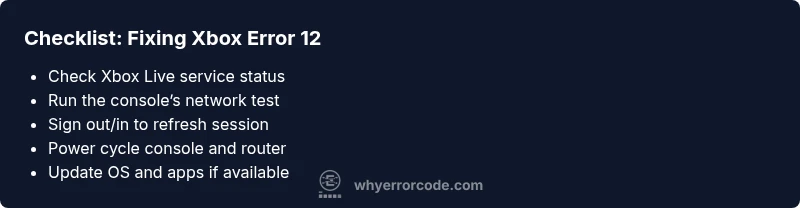
Before diving into deeper repairs, try these fast wins. First, check the Xbox Live service status to rule out outages. Then run a network connection test on the console to confirm connectivity. Sign out of your account and sign back in to refresh credentials. Power cycle the console by turning it off, unplugging for 30 seconds, and rebooting. If the problem persists, connect to a different network (such as a mobile hotspot) to determine if the issue is network-specific. Finally, review your account security settings to ensure no blocks are in place.
Step-by-Step Fix for the Most Likely Cause
- Verify Xbox Live service status and account health: Confirm there are no active outages and that your account isn’t flagged for security reasons. Update if needed.
- Test the network connection: Use the built-in network test and follow prompts to fix any detected issues; ensure your router isn’t blocking required ports.
- Re-authenticate: Sign out of your Xbox profile, wait a moment, then sign back in with the correct credentials and two-factor prompts completed.
- Power cycle: Completely power down the console, unplug the power for 60 seconds, plug back in, and start fresh to clear transient session data.
- If needed, reset network settings or consult support: As a last resort, reset network settings on the console or review router firmware and DNS settings before seeking official help.
Other Causes and How to Handle Them
If the quick fixes fail, broaden the investigation. DNS misconfigurations or strict parental controls can block authentication traffic. VPNs or proxies on your network may interfere with signing in. A misconfigured date/time on the console can also break certificate validation. In some cases, regional restrictions or misaligned account region settings cause persistent sign-in failures. Tackle these by adjusting DNS to automatic or a trusted DNS, temporarily disabling VPNs, and ensuring the console clock is synchronized with network time. If you’ve recently changed your account email or password, double-check the recovery options and security prompts.
Safety, Data, and When to Call a Pro
Troubleshooting should be orderly to protect your data. Back up cloud saves when possible, and avoid aggressive factory resets unless you’ve exhausted all other options. If you rely on professional service, costs vary by region and service scope; expect quotes to reflect visit fees and parts if hardware is implicated. If you still cannot sign in after all standard steps, contact Xbox Support for direct guidance. In urgent cases, your internet service provider may diagnose broader connectivity problems. Always document the steps you’ve taken to speed up the process and show you’ve attempted fixes before escalating.
Steps
Estimated time: 15-45 minutes
- 1
Verify service status
Begin by checking the Xbox Live status page and your region’s service alerts. If there is an outage, you’ll need to wait or follow official guidance. If services are up, proceed with local troubleshooting.
Tip: Note the time you checked the status for correlation with any outages. - 2
Test network connection
Run the built-in network test on your Xbox to identify failures in connectivity or port restrictions. Follow the suggested fixes, such as restarting the router or adjusting DNS settings, based on the test results.
Tip: Write down the test results to share when seeking help. - 3
Re-authenticate your account
Sign out of your Xbox profile, then sign back in. Complete any two-factor prompts and ensure your account is in good standing without security holds.
Tip: Avoid changing credentials during the sign-in process to reduce friction. - 4
Power cycle the devices
Turn off the console, unplug the power for at least 60 seconds, then plug back in and restart. Repeat the router/modem power cycle if needed for a clean refresh.
Tip: A proper power cycle clears cached sessions that may trap authentication tokens. - 5
Advanced steps or escalation
If issues persist, reset network settings on the console or test with a different network. If nothing works, capture the exact error behavior and contact support for a targeted resolution.
Tip: Contain the troubleshooting window to avoid unnecessary configuration changes.
Diagnosis: Sign-in attempts fail with error code 12 and Xbox Live features unavailable.
Possible Causes
- highPoor or unstable network connection
- highXbox Live service outage or maintenance
- mediumAccount authentication issue (password change, two-factor, security hold)
- lowOutdated console OS or apps
Fixes
- easyCheck Xbox Live service status and network health
- easyRun the Network Test on the console and fix detected issues
- easySign out of your account, then sign back in to refresh credentials
- easyPower cycle the console and networking gear (router/modem)
- mediumIf the issue persists, update the system software or contact support
Frequently Asked Questions
What does Xbox error code 12 mean?
Error code 12 generally indicates sign-in or authentication problems related to network connectivity and service verification. It blocks access to multiplayer features and cloud saves until authentication succeeds.
Error code 12 usually means authentication or sign-in issues tied to network connectivity, which stops you from signing in or joining games until fixed.
Can service outages cause error code 12?
Yes. Outages or maintenance on Xbox Live can trigger E12. Always check the official Xbox Live service status page before delving into device fixes.
Outages can trigger this error, so checking service status helps you avoid unnecessary steps.
Is error code 12 fixable without a technician?
In most cases, you can fix E12 with basic steps: check service status, test your network, re-authenticate, and perform a power cycle. Only escalate if these steps fail.
Usually you can fix it with simple steps before calling for help.
When should I contact Xbox Support for E12?
If service status is healthy and the error persists after all basic steps, contact Xbox Support for targeted troubleshooting and potential account review.
If it doesn’t clear after trying the basics, reach out to support for next steps.
Could this error affect saved games?
Access to cloud saves can be affected while sign-in is blocked. Offline play may still be possible, but syncing will resume once sign-in is restored.
Cloud saves may be unavailable until sign-in works again.
Watch Video
Top Takeaways
- Check Xbox Live status first
- Test both wired and wireless connections
- Re-authenticate and power cycle before deeper fixes
- Contact Support if none of the basic steps work