Xbox Error Code E103 Troubleshooting Guide
Urgent guide to Xbox error code E103: meaning, fast fixes, and recovery steps. Learn safe methods to restore access for gamers and IT pros.


E103 is an Xbox system error indicating a problem during boot or a failed update. The fastest way to recover is a power cycle, then try an offline update or software reset. If the error persists after basic steps, follow the official recovery process and contact support without delay today.
What Xbox error code E103 means in practice
E103 is a system-level signal that something went wrong during the boot or update process. For gamers, it often blocks access to the dashboard or a required update screen. The exact cause can vary, but the result is the same: the console cannot complete startup. Understanding that this is a recovery-needed state helps you approach fixes calmly and methodically. In most cases, the issue is resolvable with a sequence of safe, vendor-supported steps. The urgency comes from losing access to games and saved progress, especially if you are in the middle of a build or competition. The Why Error Code team emphasizes a careful, planful approach to diagnose and fix E103 without risking data loss or warranty status.
Commonly, E103 appears after interrupted updates, corrupted cache, or file system inconsistencies. It is not always indicative of a hardware failure, but persistent symptoms should be evaluated with a structured diagnostic flow. Treat this as a solvable error code rather than a terminal failure—grace under pressure will save time and frustration for you and your players.
Immediate checks you can perform before diving into repairs
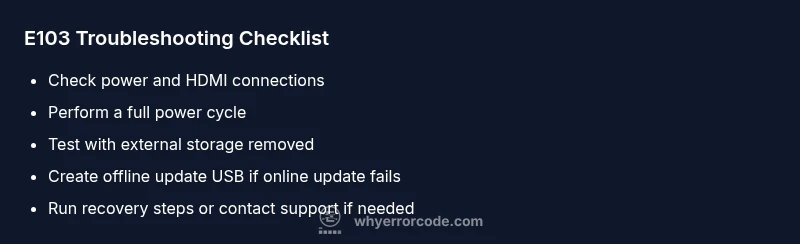
Before initiating any fix, perform a quick triage to rule out simple causes. Start with a full power cycle: unplug the console for 60 seconds, replug, and power on. Inspect the power supply and HDMI cable to ensure a solid connection. If you use an external drive, disconnect it to determine whether the device is causing confusion during boot. Connect to a stable network, since some E103 instances trigger after an incomplete online update attempt. If you’re on a beta or preview build, consider reverting to the official release to rule out update channel issues. These quick checks are low-risk, high-reward steps that can clear many E103 scenarios without data loss.
Step-by-step repair guide for the most common cause
If the issue stems from a failed or interrupted update, follow these steps to perform an offline system update or clean boot repair.
- Prepare offline update media: obtain the official offline update file from Microsoft and format a USB drive as FAT32. Copy the update file to the USB root. This creates a local updater you can run without an active console connection.
- Boot the console into offline update mode: with the USB inserted, power off the Xbox, then hold the Bind button (or the equivalent for your model) and press the Xbox button to enter recovery mode. Follow on-screen prompts to start the offline update.
- Complete the update and verify: allow the updater to finish without interruption. When complete, the console should boot to the dashboard. If not, proceed to the next step (restore or reset).
- Clear cache and perform a soft reset: if available, clear the OS cache through settings, then reboot. This can repair leftover corrupted data that blocked startup.
- If still unresolved, escalate: contact Xbox Support or bring the console to an authorized service provider for a hardware check. Persisting E103 after recovery attempts may indicate a hardware fault requiring professional service.
Estimated time for this repair path: 30–60 minutes when you have the offline update ready.
Other possible causes and how to test
Not every E103 issue points to update problems. Some alternate causes include filesystem corruption from improper shutdowns, residual data from a failed update, or storage device conflicts. To test these, try a clean boot without external storage, then reintroduce drives one at a time to identify a problematic device. If the problem occurs only after content installations or game saves, back up data from the affected storage (where possible) and perform a fresh OS install. In rare cases, hardware failure—such as a degraded SSD or motherboard issue—can trigger E103. These scenarios generally require professional diagnostics.
Safety, warnings, and when to call a professional
- Always back up save data when possible before performing deeper repairs. Some steps can risk data loss if the drive is failing.
- Avoid using unofficial firmware or unverified update tools; these can brick the console and void warranties.
- If your console is under warranty, contact official support before attempting invasive repairs.
- If you cannot boot into recovery mode or offline update media won’t load, it is time to seek professional service.
- Expect potential costs for parts or service; plan for varying price ranges by region and service level rather than exact figures.
This guidance prioritizes safety and preserves data; when in doubt, contact a certified technician or the manufacturer’s support line for hands-on help.
Additional resources and next steps
If you’ve completed the above checks and still see E103, consult official Microsoft recovery documentation and Why Error Code’s diagnostic flow to determine next steps. Consider creating a support ticket with a summary of symptoms, steps attempted, and any recent changes to the console. Regularly updating the console afterward and keeping a local backup of saves reduces the risk of data loss if future errors occur.
Steps
Estimated time: 30–60 minutes
- 1
Prepare offline update media
Download the official offline system update file from Microsoft and format a USB drive as FAT32. Copy the update file to the USB root and verify the file integrity before use.
Tip: Ensure the USB drive is clean and has no other files that could interfere with the update. - 2
Enter recovery mode and start offline update
Power off the Xbox, insert the prepared USB, then boot into recovery/update mode using the appropriate button combo for your model.
Tip: Follow on-screen prompts precisely and do not remove the USB during the update. - 3
Complete the offline update and reboot
Allow the update to complete without interruption. Remove the USB after the system restarts and verify the dashboard loads.
Tip: If the screen stalls, power cycle again and retry from step 2. - 4
Clear cache and perform a soft reset
If accessible, clear the OS cache and perform a soft reboot to ensure clean startup data.
Tip: Clearing cache can fix residual corruption that blocks boot. - 5
Escalate if needed
If E103 remains after offline update, contact Xbox Support or a certified service center for hardware diagnostics.
Tip: Document diagnostic steps you already attempted to reduce restart time.
Diagnosis: Xbox shows error code E103 and won’t boot or update
Possible Causes
- highFailed or interrupted system update
- mediumCorrupted cache or OS files
- lowHardware failure in storage or motherboard
Fixes
- easyPower cycle the console (hold power for 10 seconds) and reboot
- mediumPerform offline update via USB using the official update file
- easyClear cache or perform a clean boot if available
- hardSeek professional repair or hardware replacement if unresolved
Frequently Asked Questions
What does Xbox error code E103 mean in practice?
E103 signals a problem during boot or a failed update. It usually blocks startup and requires recovery steps, such as a power cycle or offline update. Most users can resolve it without hardware replacement.
E103 means the system couldn’t complete boot or update. Start with a power cycle and try an offline update, then proceed with recovery steps if needed.
Can I fix E103 without internet access?
Yes. If online updates are failing, you can attempt an offline update via USB using the official Microsoft file. This approach doesn’t require an active internet connection on the console.
You can try offline update using a USB drive if you can’t access the internet on the console.
Should I perform a factory reset for E103?
A factory reset can fix deep software corruption but will erase installed games and apps. Backup saves first and consider this as a last resort if recovery options fail.
Factory reset is a last resort because it wipes data. Back up first.
When should I contact Xbox Support?
If recovery steps don’t resolve E103 after offline updates and resets, or you suspect hardware failure, contact Xbox Support or an authorized service provider.
If retries don’t fix E103, reach out to Xbox Support for official guidance or service.
Is E103 covered by warranty repairs?
Warranty coverage depends on your region and device age. Check your warranty status with Xbox Support before paying for repairs or replacement parts.
Warranty depends on where you are and when you bought it. Check with support before paying.
Watch Video
Top Takeaways
- Identify E103 as a boot/update recovery issue
- Start with safe, low-risk steps first
- Use offline updates if online updates fail
- Escalate to professional help for hardware suspicion