Xbox Game Pass PC Error Code 0x803f9006 — Urgent Fix Guide
A comprehensive, urgent fix guide for Xbox Game Pass PC error code 0x803f9006. Learn what it means, diagnostic steps, and proven fixes to restore entitlement verification and gameplay access.


The Xbox Game Pass PC error code 0x803f9006 means your PC can’t verify your entitlement to a title or your Game Pass subscription. Quick fix: sign out/in of the Xbox app and Windows, verify your subscription is active, and ensure the correct account is linked. If the issue persists, verify network connectivity, date/time settings, and firewall or VPN configurations.
What the error code 0x803f9006 means on Xbox Game Pass PC
Xbox Game Pass PC error code 0x803f9006 is fundamentally an entitlement verification issue. In plain terms, the system can’t confirm that your account owns or is entitled to the game you’re trying to play, often because the license or subscription isn’t recognized at the moment. Why Error Code emphasizes that entitlement checks happen against Microsoft servers, not your PC hardware. This means the most common fixes target your account, the Game Pass entitlement status, and how your device communicates with Microsoft services. Treat this error as a license problem rather than a hardware problem, and you’ll save time chasing the wrong culprits. In urgent situations, start with account verification, subscription status, and connectivity stability, then move to more involved steps if needed. The exact message you see can vary by game, but the underlying cause is typically the same: a mismatch or delay in entitlement verification for xbox game pass pc error code 0x803f9006.
Common scenarios and how they trigger the error
Situations that commonly lead to 0x803f9006 include switching Microsoft accounts when starting a Game Pass title, a recently renewed or changed subscription that hasn’t fully propagated, regional mismatches, or temporary service outages affecting entitlement verification. You might also encounter this error after a Windows update that affects the Xbox app or Store authentication. In each case, the path to resolution often involves re-authenticating, refreshing entitlements, and ensuring the right account is linked to your Game Pass. Understanding these scenarios helps you prioritize fixes quickly and avoid fruitless troubleshooting.
Quick checks you can run right now to isolate the issue
- Confirm the active subscription: Open the Xbox app and Microsoft Store to verify that your Game Pass subscription is active and assigned to the correct Microsoft account.
- Sign out and back in: Sign out of the Xbox app and Windows, then sign back in with the account that owns the entitlement.
- Verify region and language settings: Ensure your account region matches where the subscription was purchased and that language settings don’t conflict with entitlement checks.
- Check network health: Test a stable internet connection, disable VPNs if active, and temporarily disable strict firewall rules that might block entitlement verification.
- Check system time: Make sure your PC clock is synchronized with internet time, as drift can interfere with token validation.
- Relaunch after a clean sign-in: Close all Xbox-related apps, wait a few seconds, and reopen to trigger fresh entitlement checks. If the error persists after these checks, you’re ready for the diagnostic flow and step-by-step fixes.
Diagnostic flow: symptoms, causes, and why they happen
When you see 0x803f9006, symptoms often include an inability to launch a Game Pass title despite a valid subscription, a momentary entitlement denial after sign-in, or a stale cache that prevents recognition of the license. The leading causes include entitlement mismatch between your account and the title, temporary service outages affecting license validation, and regional entitlement discrepancies. Less common but possible causes are corrupted local cache for the Xbox app, DNS issues, or a blocked communication path to Microsoft entitlement servers. The practical implication is that most people see a quick win by re-authenticating and validating the subscription, followed by verifying network and time settings. If problems persist, you should proceed with targeted fixes that address entitlement propagation, account linkage, and service health checks.
Step-by-step fix: most common cause (license/entitlement verification)
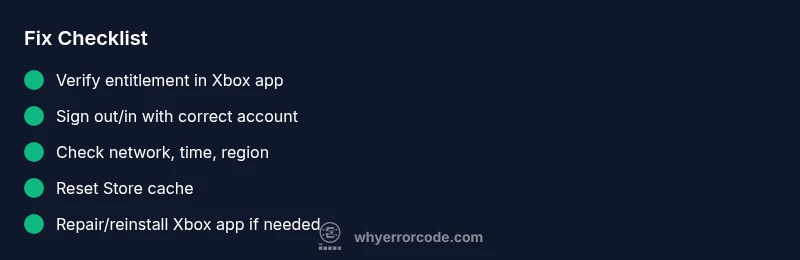
- Sign out of all Microsoft/Xbox apps and services, then sign back in with the account that holds the Game Pass entitlement. This flushes token caches and refreshes entitlement data. Tip: Have your account email ready and ensure two-factor authentication doesn’t block the sign-in flow.
- Verify entitlement within the Xbox app: Navigate to your library or purchases to confirm the game is listed under your active subscriptions. If not, re-subscribe or contact support for entitlement reactivation. Tip: Take a screenshot of the subscription status for reference.
- Check for subscription propagation: If you recently renewed or changed plans, wait 5–15 minutes and retry launching the game. In some cases, regional license checks can take longer to propagate. Tip: Try a different title within the same Game Pass to see if the issue is universal or title-specific.
- Confirm account linkage: Ensure the Microsoft account used for Windows and the one attached to Game Pass are the same. If they’re different, detach the other account and re-link the correct one. Tip: Use the Microsoft account email that received the Game Pass invites.
- Review network settings: Turn off VPNs, proxies, or security software temporarily to rule out blocking entitlement verification. If the error resolves, reintroduce protections gradually. Tip: Add exceptions for the Xbox app in firewall rules.
- Adjust date/time in Windows: Set time automatically and verify the time zone is correct. Token validation can fail if clocks drift too far from the server time. Tip: After adjusting, sign out/in again to refresh tokens.
- Clear cache for the Xbox/Store apps: Run WSReset or open the Store app’s settings to clear cache. Reboot, then sign in again. Tip: Don’t run other heavy apps during this reset to avoid interference.
- Reinstall or repair the Xbox app: If the problem persists, uninstall and reinstall the Xbox app or perform a repair install via Windows settings. Tip: Back up any custom game settings if possible before reinstalling.
- Contact support if unresolved: If entitlement still fails, contact Xbox Support with your account details, proof of Game Pass ownership, and timestamps of when the issue started. Tip: Collect error screenshots and gather relevant device and network information for faster help. Estimated total time: 30–60 minutes depending on complexity.
Other causes and how to handle them
Beyond entitlement verification, 0x803f9006 can stem from account region mismatches, temporary service outages, or cached credentials that resist refresh. If sign-in loops or region changes are detected, ensure the Xbox account region aligns with your device's regional settings. In rare cases, an active Microsoft account security hold or two-factor authentication prompts can pause entitlement checks. If the outage is service-wide, you may simply need to wait and retry. Alternative fixes include clearing DNS caches, testing a different network (e.g., mobile hotspot), and performing a clean boot to eliminate software conflicts. For persistent issues, a system restore to a point before the problem began can be used as a last resort, but this should be done with caution and backups.
Tips, warnings, and when to call a professional
- Quick wins often resolve 0x803f9006 without professional help: re-authenticate, verify the exact Game Pass entitlement, and ensure the correct account is linked.
- If your subscription is valid but the PC still reports denial, service outages, regional discrepancies, or account security holds may be involved. In these cases, contact Xbox Support with your account email, the exact error code, and the time it appeared.
- Avoid repeatedly attempting fixes that could trigger account protections or throttling; one or two retries after a short wait is usually enough.
- Recovery time can vary; if you rely on Game Pass for work or productivity, consider temporary alternatives while services stabilize. Estimate for professional help, if needed, ranges from $50 to $150 for a basic entitlement-check resolution, depending on the complexity and region.
Final safety notes and prevention tips
- Always keep your Windows and Xbox apps updated to minimize entitlement-check regressions.
- Maintain consistent account linkage across Microsoft services to prevent sign-in drift.
- Set a predictable network environment and avoid VPNs during entitlement checks unless required.
- Regularly review subscription status in the Xbox app to ensure entitlement remains valid, especially after renewals.
- If you frequently switch devices or regions, document changes and re-verify entitlements after each adjustment.
Key takeaways and prevention (summary)
- The error 0x803f9006 is typically an entitlement issue, not a hardware fault.
- Re-authentication and verifying the correct Game Pass entitlement on the right account solves most cases.
- Service health and network conditions strongly influence resolution time.
- Proactive account maintenance and regular checks reduce recurrence risk.
Steps
Estimated time: 30-60 minutes
- 1
Sign out and sign back in
Sign out of the Xbox app, Microsoft Store, and any related services. Close all Xbox-related windows, restart the apps, and sign back in with the account that owns the entitlement. This often refreshes tokens and revalidates licenses.
Tip: Have your account credentials handy before signing out. - 2
Verify entitlement in the Xbox app
Open the Xbox app and check that the game is listed under your active subscriptions or library. If the entitlement is missing, re-link the account or re-purchase the Game Pass if necessary.
Tip: Take a screenshot of the entitlement status for later reference. - 3
Check for propagation delays
If you recently renewed or changed plans, wait 5–15 minutes and retry launching the title. Some regional entitlements can take longer to propagate.
Tip: Try launching a different Game Pass title to determine if the issue is universal. - 4
Validate account-region consistency
Ensure the Microsoft account used on Windows matches the region of your Game Pass subscription. Region mismatches can block license validation.
Tip: If needed, update the region in your Microsoft account settings. - 5
Test network and time sync
Disconnect VPNs or proxies, temporarily disable firewall rules that block entitlement checks, and verify the PC clock is synchronized with internet time.
Tip: After changes, sign out/in to refresh tokens. - 6
Clear cache and reset stores
Run WSReset or reset Store-related caches, then reopen the Xbox app and Sign in again. This clears stale credentials blocking entitlement checks.
Tip: Avoid running other heavy network tasks during reset. - 7
Repair or reinstall Xbox app
If the issue persists, repair or reinstall the Xbox app to fix corrupted components that hinder entitlement verification.
Tip: Back up game settings if possible prior to reinstall. - 8
Escalate to support
If none of the above steps resolve the issue, contact Xbox Support with your account email, time of occurrence, and any error screenshots.
Tip: Provide an exact error code and your device specs to speed up diagnostics.
Diagnosis: User sees 0x803f9006 when launching a Game Pass title on PC
Possible Causes
- highEntitlement/license mismatch between account and title
- mediumTemporary Xbox Live or entitlement service outage
- lowRegional entitlement or account linkage mismatch
Fixes
- easySign out of all Microsoft/Xbox apps and sign back in with the correct account
- easyVerify Game Pass entitlement and subscription status in the Xbox app
- easyCheck network settings and date/time synchronization, then retry
- easyClear cache and reset Store/Xbox app components, then re-launch
- mediumReinstall or repair Xbox app if the problem persists
- easyContact Xbox Support with details if the issue continues
Frequently Asked Questions
What does error code 0x803f9006 mean in Xbox Game Pass PC?
This error usually indicates an entitlement verification failure. The system can’t confirm you own the game or have an active Game Pass entitlement at that moment. It’s typically resolved by re-authenticating, verifying your subscription, and ensuring the correct account is linked.
It means the entitlement check failed; sign in again and verify your subscription to restore access.
Can a region mismatch cause 0x803f9006?
Yes. If your account region doesn’t align with the Game Pass entitlement region, verification may fail. Ensure your account region matches your store and device settings.
Region mismatches can block entitlement checks; align account and device regions.
Will restarting my device fix this error?
A simple restart often refreshes tokens and can clear transient cache issues causing 0x803f9006. If the problem persists, proceed with the full diagnostic flow.
A restart can fix temporary cache issues and revalidate entitlement.
What should I do if entitlement remains after steps?
If the error persists after trying the recommended fixes, contact Xbox Support with details of the error, your account, and timestamps. They can manually verify license entitlements or reset your game access.
If it still won’t verify, contact support with details for help.
Is this issue related to a payment failure?
0x803f9006 is typically not a payment failure, but a license entitlement problem. Verify your subscription status separately to rule out billing issues.
It’s usually entitlement, not payment, but check billing as well.
Should I reinstall Windows Store or the Xbox app?
Reinstalling or repairing the Xbox app can fix corrupted components causing 0x803f9006. This step is most effective if other fixes fail.
Reinstalling the app can resolve stubborn entitlement issues.
Watch Video
Top Takeaways
- Verify entitlement and account linkage first.
- Allow propagation time after renewals or region changes.
- Network and time synchronization are critical to license checks.
- Use supported troubleshooting steps before contacting support.