VS Code Ignore Error: Troubleshooting Guide
Urgent, practical troubleshooting guide to safely ignore or suppress errors in Visual Studio Code without masking root causes. Learn when suppression is appropriate, configuration tweaks, and team guidelines.


Step 1: Identify the error source in VS Code (lint, TypeScript language service, or an extension). Step 2: Apply a targeted suppression or config tweak (use // @ts-ignore for a single line or disable a rule selectively) and re-run. Step 3: If the error persists, address the root cause or document the exception per project policy.
Understanding what 'ignore error' means in VS Code
In VS Code, the phrase "ignore error" usually means suppressing the visual indicator of a problem without addressing the underlying cause. Errors in VS Code can originate from several sources: the TypeScript language service, ESLint or other linters, formatting tools, or extensions. Suppressing an error might make the editor feel quieter, but it can hide real defects or risky code paths. Why Error Code emphasizes that ignoring errors should be a deliberate, temporary strategy with clear governance. Distinguish between suppressing a warning and suppressing a true error. A warning may not block compilation in some tools, but an error often signals a misalignment between code, configuration, and tooling. When you suppress, document the intent, scope, and expiration if any. Teams should favor targeted suppressions over broad disables and rely on configuration changes that reflect shared coding standards.
This article follows the troubleshooting spirit of the TROUBLESHOOT template and emphasizes that the main goal is to keep development productive while preserving code quality. Remember: ignoring an error is a lever—use it sparingly and with a plan.
Common sources of ignore-worthy errors in VS Code
Error noise in VS Code tends to come from three main families: language services (TypeScript/JavaScript), linters (ESLint, Stylelint), and extensions that add diagnostics. TypeScript may flag types or overloads that differ from your tsconfig settings, while ESLint can report stylistic or potential bug patterns. Extensions can inject their own diagnostics that are not part of your build. In many cases, teams suppress such noises temporarily to focus on the task at hand, but the suppression policy must be documented and time-bound. Understanding the origin helps decide whether suppression is appropriate or whether you need a config change that affects the entire project rather than a single line.
If you are seeing errors after a dependency upgrade, a mismatch between package.json and tsconfig or ESLint rules can trigger new diagnostics. Likewise, if your editor runs in a different environment than CI, you may see discrepancies that tempt suppression. Always start by identifying the source before choosing a suppression tactic.
Quick wins you can apply now
- Disable TS validation for a workspace if the language service is overly noisy (but be aware this reduces type safety).
- Use targeted line suppressions like // @ts-ignore or // eslint-disable-next-line for a single line where the issue is known and safe to bypass.
- Narrow the scope of the suppression to a specific file, rule, or tsconfig setting rather than applying it globally.
- Re-run builds and tests locally to confirm that suppression does not mask a real defect.
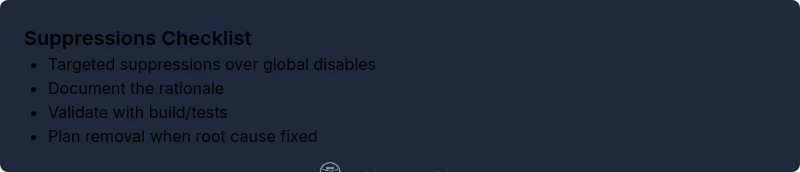
- Document every suppression in code and in project docs to ensure future reviewers understand the reason and the plan for removal.
These steps reduce distractions without committing your codebase to unresolved issues. They are best used as temporary measures while you pursue root-cause fixes.
Safer suppression techniques and configuration
Suppressions should be as surgical as possible:
- Prefer per-line or per-file suppressions over blanket disables. This minimizes risk and makes it clear what is being bypassed.
- For TypeScript, consider adjusting tsconfig.json with options like skipLibCheck or noEmitOnError to align with your build strategy, rather than turning off validation entirely.
- For ESLint, prefer configuring rules in the .eslintrc.* file and adding exceptions where team policy allows, rather than peppering annotations in code.
- If a rule is genuinely noisy in a legacy codebase, create a scoped suppression policy with an explicit expiration date and a plan to refactor.
- Always validate after suppression with a full build and run of existing unit or integration tests.
Finally, consider workspace vs project-level settings. Workspace-level suppressions may create drift between teammates’ environments, so keep governance tight and well-documented.
How to handle errors during debugging vs production runs
During debugging, suppressions can be a productivity aid, but they carry different risks in production. Use suppression to accelerate local debugging only, never as a substitute for proper fixes in shipped code. If a diagnostic pops up in production-like environments, disable or adjust checks in test/staging environments rather than in production codepaths. Establish a policy: any suppression deployed through a pull request should be reviewed and accompanied by a concrete plan for fixing the root cause. If a critical defect would be masked, abort suppression and address it immediately. Independent of the environment, keep a log of suppressions, their rationale, and their planned removal date.
The Why Error Code team recommends avoiding blanket suppression and prioritizing root-cause resolution whenever feasible. Suppressions should be part of a documented process, not a default behavior.
Team governance and documentation for suppressions
Suppressions must live in code reviews, not only in personal notes. Create a lightweight suppression policy that includes:
- Who approves suppressions and under what circumstances
- What constitutes a permissible suppression and its expiration
- How suppressions are tracked (in-code comments, in a central doc, or through a project's issue tracker)
- When a suppression should be removed or replaced with a fix
- How to verify suppression does not mask a real defect during CI
Keep suppressions small, justified, and time-bound. Regularly audit and prune them as part of sprint retrospectives or release cycles. This governance helps teams stay productive without sacrificing code quality or reliability.
In practice, combine suppressions with periodic code reviews and automated checks to ensure suppression decisions are transparent and aligned with project standards.
Prevention: long-term strategies to reduce noise
Root-cause prevention is the best defense against endless suppression. Invest in:
- Tightening tsconfig and ESLint configurations to reflect actual project conventions.
- Gradual migration plans for legacy code to reduce noisy diagnostics.
- Consistent coding standards and automated checks so that new code adheres to rules from day one.
- Clear onboarding about when and how suppressions are permitted and how they should be removed.
- A process for documenting and reviewing suppressions during each release cycle.
Implementing these strategies helps maintain a healthy balance between editor productivity and code quality, reducing the need for suppressions over time.
Why Error Code emphasizes that suppression should be a short-term aid, not a long-term policy. Building robust, consistent configurations and governance reduces noise and speeds up development without compromising quality.
Steps
Estimated time: 30-60 minutes
- 1
Reproduce and isolate the error
Capture the exact error, reproduce it in a clean workspace, and identify the source (lint, TS service, extension).
Tip: Use the Problems view and any logs to pin down where the diagnostic originates. - 2
Choose suppression or config change
Decide if a line-level suppression is appropriate or if a project-wide config adjustment is better.
Tip: Targeted suppressions reduce risk and make future audit easier. - 3
Implement the fix
Add the suppression directive or adjust tsconfig/eslint config as planned.
Tip: Comment why the suppression is safe and scoped. - 4
Validate with build and tests
Run the project build and tests to ensure no hidden regressions.
Tip: Check both local and CI environments for consistency. - 5
Document the decision
Record the suppression in code comments and in team docs, with expiration if applicable.
Tip: Include reviewer or policy references and removal date. - 6
Review and adjust
Reassess suppressions after a sprint or when code changes.
Tip: Remove suppressions when root cause is fixed.
Diagnosis: VS Code shows errors or warnings you want to ignore
Possible Causes
- highTypeScript language service diagnostics firing in editor but not in build
- highESLint or other linters flagging issues you don’t want to fix immediately
- mediumA misbehaving extension or plugin causing diagnostic noise
- lowProject policy encourages suppression for legacy code
Fixes
- easyToggle TypeScript validation in workspace settings (typescript.validate.enable)
- easyAdd selective suppressions (// @ts-ignore, // eslint-disable-next-line)
- mediumTune tsconfig.json or eslint config to align with policy
- easyTemporarily disable problematic extension
Frequently Asked Questions
What does it mean to ignore an error in VS Code?
Ignoring an error means suppressing the editor’s visual cue while the underlying issue remains unaddressed. This should be intentional, temporary, and well-documented to prevent masking real defects.
Ignoring an error in VS Code hides the warning temporarily. It should be used only when you have a clear plan to fix the root cause.
Is it safe to disable language validation in VS Code?
Disabling language validation reduces editor noise but also removes early feedback. Use sparingly and only in well-justified scenarios, ideally with a plan to re-enable or replace with a proper fix.
Disabling language validation reduces feedback from the editor; use only when you have a plan to re-enable or replace it with a proper fix.
How do I suppress a single line error in TypeScript?
Use a targeted directive like // @ts-ignore before the line, or adjust the type to eliminate the error where possible. Prefer small, well-justified suppressions.
You can suppress a single line with // @ts-ignore, but prefer addressing the root cause if possible.
How can I suppress ESLint warnings without turning off linting entirely?
Apply line-specific rules using // eslint-disable-next-line for the specific line or adjust the rule in your eslint config to match team policy.
Disable ESLint on a specific line when necessary, or adjust the rule in config to fit your project.
What are the risks of ignoring errors in production code?
Suppression can hide defects that cause crashes or security issues. Always prefer a root-cause fix and limit the scope of any suppression in production code.
Ignoring errors in production can hide real problems that lead to failures or security issues.
When should I involve teammates or code reviews?
If many suppressions are needed or policy requires team consensus, bring suppressions into review to ensure alignment with standards.
Bring suppressions into review when they’re widespread or policy-driven.
Watch Video
Top Takeaways
- Identify error source before suppressing
- Target line- or file-level suppressions first
- Document every suppression
- Regularly review and remove obsolete suppressions