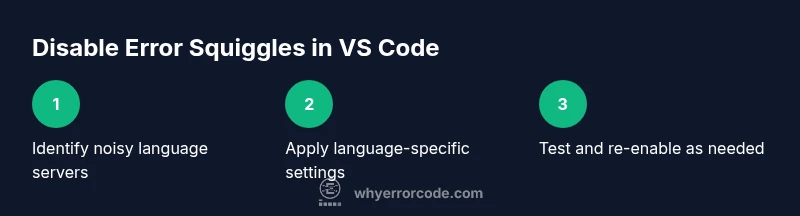
Disable Error Squiggles in VS Code: A Practical Guide
Learn how to safely disable error squiggles in Visual Studio Code. This step-by-step guide covers per-language settings, workspace overrides, and best practices to avoid hiding real issues while staying productive.


You will learn how to disable error squiggles in VS Code and manage when to suppress inline diagnostics. This guide covers workspace and user settings, language servers, and common extensions, with safety notes to avoid hiding real issues. By the end, you'll know when to suppress squiggles and how to re-enable diagnostics quickly.
What squiggles are in VS Code
According to Why Error Code, squiggles are visual indicators that VS Code renders in real time to flag potential issues detected by language servers and extensions. They can appear for syntax errors, type mismatches, undefined variables, or lint violations, and they help developers catch problems early as they type. VS Code uses a combination of language servers, built-in validators, and linting extensions to generate these inline diagnostics, which are shown as red, orange, or yellow underlines and highlighted tokens. While squiggles are valuable for catching issues quickly, they can become overwhelming in large projects or when the team agrees to tolerate certain known gaps during rapid iteration. Understanding what triggers these squiggles helps you decide when to suppress them safely and when to leave diagnostics enabled for quality control.
From a practical perspective, most squiggles originate from either the built-in language validators (like javascript.validate.enable) or from language servers that perform semantic analysis. When you suppress squiggles, you are effectively telling VS Code to hide certain diagnostics, which can reduce cognitive load but may also hide real bugs. The Why Error Code team emphasizes that suppression should be deliberate, targeted, and reversible, so you can quickly re-enable checks as projects mature or when you switch contexts (e.g., from development to code review). This section lays the groundwork for making informed choices about when and how to suppress inline feedback in VS Code.
A note on scope: squiggles can be global (affecting all languages) or language-specific (affecting only JavaScript/TypeScript, Python, etc.). Global suppression is generally discouraged because it hides broad categories of issues, while selective, language- or project-specific suppression is safer and easier to audit. In practice, teams use a combination of editor settings, language server configurations, and linting tool options to tailor the feedback loop to their workflow. As you read on, you’ll see concrete strategies for per-language tweaks, project-wide overrides, and structured re-enabling when needed.
note”:null} ,
Tools & Materials
- VS Code installed and updated(Use the latest stable release for reliable diagnostics behavior.)
- Settings access (UI or settings.json)(Know how to open User and Workspace settings and edit settings.json.)
- Language server extensions or linters you use in your project(Examples include ESLint, python-ts/python, or other language servers.)
- Project workspace(Having a dedicated workspace helps confine changes to a specific repo.)
- Backup plan(Use version control for settings or maintain a changelog of diagnostic changes.)
Steps
Estimated time: 25-40 minutes
- 1
Open VS Code settings
Open the Settings UI (File > Preferences > Settings on Windows/Linux, Code > Preferences > Settings on macOS) or edit the settings.json file directly. This initial step establishes whether you’ll apply edits globally or per-workspace. If you’re unsure, start with the UI to identify relevant keys and then move to JSON for exact overrides.
Tip: Use the search bar to quickly locate options like “diagnostics” or language-specific validators. - 2
Identify the language servers and extensions causing squiggles
Review the diagnostics you see in the Problems panel and inspect which language servers or linters are responsible. Disable or adjust settings only for the languages that show excessive or noisy squiggles. This helps you avoid blind suppression across the entire editor.
Tip: Disable one extension at a time to isolate the source of the squiggles. - 3
Edit user or workspace settings
Decide whether you want a global change or a project-scoped change by editing settings.json or using the Settings UI to add language-specific overrides. For a quick example, you might disable JavaScript validation and enable a per-project rule instead.
Tip: Prefer workspace settings for project-specific changes so teammates aren’t affected. - 4
Apply language-specific diagnostics controls
Add or adjust keys that control diagnostics for the target languages. Common keys include javascript.validate.enable, typescript.validate.enable, and eslint.enable. For Python, language servers offer diagnosticMode like openFilesOnly to reduce noise.
Tip: Check each language’s docs for the exact diagnostic keys and valid values. - 5
Reload VS Code and test
Reload the window to ensure your changes take effect. Open a file with a known, representative error to verify that the intended squiggles are suppressed. If issues persist, re-open settings and refine the overrides.
Tip: If changes don’t apply, try a full VS Code restart. - 6
Document and near-term re-enable plan
Document the suppression decisions and create a plan to re-enable diagnostics when the project reaches a stable phase or when code reviews resume. Store this plan in your repo’s docs or a dedicated settings changelog.
Tip: Use a Git commit or a settings changelog to track what was muted and why.
Frequently Asked Questions
What are VS Code error squiggles?
Error squiggles are inline diagnostics shown by VS Code, driven by language servers and validators. They highlight potential syntax or semantic issues as you code. Suppressing them should be done carefully, as it can hide real problems.
Error squiggles are real-time indicators of possible issues in your code, shown as colored underlines. You should disable them only when you understand the trade-off and plan to re-enable later.
Can I disable squiggles for a specific language?
Yes. You can target particular languages by turning off their validators or language server diagnostics. Use language-specific keys like javascript.validate.enable or python.analysis.diagnosticMode to tailor the behavior.
Yes, you can disable diagnostics for a language by adjusting its language-specific settings.
Will disabling squiggles affect code quality?
Disabling squiggles can reduce distractions but may hide real issues. It’s important to balance suppression with appropriate testing and code reviews to maintain quality.
Yes, suppressing squiggles can hide real bugs, so use tests and reviews to compensate.
How do I re-enable diagnostics after suppressing them?
Re-enable diagnostics by reverting the language-specific or global settings. You can reset keys to true or remove overrides in your settings.json, then reload VS Code.
Just revert the settings you changed and reload the editor to bring diagnostics back.
Are there safer alternatives to disabling squiggles?
Consider reducing diagnostic verbosity, adjusting severity, or filtering to show only critical issues. Some extensions allow fine-grained control without turning off all feedback.
You can tune how much feedback you receive instead of turning it off entirely.
Does disabling squiggles affect pair programming or code reviews?
Temporary suppression can help focus during fast iteration, but ensure teammates know what was muted and why. Revisit changes before reviews and merges.
It can help during fast work, but make sure the team knows what was muted and why.
Watch Video
Top Takeaways
- Suppress only what you need and only for as long as necessary
- Prefer language- or project-specific overrides over global rules
- Re-test code after changes to ensure you didn’t miss real issues
- Document diagnostic changes for team visibility and audits