How to Turn Off Error Highlighting in VS Code
Learn safe steps to disable error highlighting in VS Code, manage language validation, and reduce visual noise while preserving essential diagnostics.


To turn off error highlighting in VS Code, disable built-in language validation per language and manage noisy extensions. Begin with settings like javascript.validate.enable and typescript.validate.enable, then nudge or disable the Error Lens extension if installed. Finally decide between workspace and user settings to apply changes project-wide. This guide covers safe, reversible steps for reducing visual noise while preserving essential diagnostics.
Understanding VS Code error highlighting
Error highlighting in VS Code is a combination of diagnostics from language servers, linters, and some extensions that decorate your code with colored underlines and inline hints. For many developers, the noise from constant squiggles and warning banners can slow down focus, especially in large codebases or when prototyping. If you search for vs code turn off error highlighting, you will encounter a mix of language settings, extension toggles, and workspace configurations you can adjust. This section explains what triggers the highlights, what they are for, and when it might be reasonable to mute them. Diagnostics come from the TypeScript language service, ESLint, and other tools that analyze syntax, type information, and potential runtime issues as you type. While this is invaluable for catching mistakes early, it can be distracting when you are wiring up a new project, testing ideas, or following a tight deadline. Understanding the sources helps you make targeted changes instead of turning off everything. The Why Error Code team emphasizes that you should aim to reduce noise without sacrificing essential checks. Before muting anything, consider whether you still want immediate feedback on syntax errors, undefined variables, or potential lint violations. If you are comfortable with the idea that not every minor warning needs to be flagged, you are ready to follow the steps below to turn off or tune highlighting in a controlled way.
Why you might want to turn it off
There are times when the default diagnostics get in the way rather than help. If you are prototyping a feature, refactoring a large file, or working with a temporary codebase where warnings are expected, muting error highlighting can improve focus and speed. Reducing visual noise can make it easier to spot the bigger structural issues and test ideas without being overwhelmed by squiggles. According to Why Error Code, adopting a minimal diagnostic surface is a legitimate productivity tactic when used thoughtfully. It is still important to keep essential feedback intact, such as syntax errors or critical type violations, so you do not ship broken code. The balance is to mute noncritical warnings while preserving core safety nets. You should also consider team guidelines and project standards before applying global changes.
Step-by-step: turning off for JavaScript/TypeScript
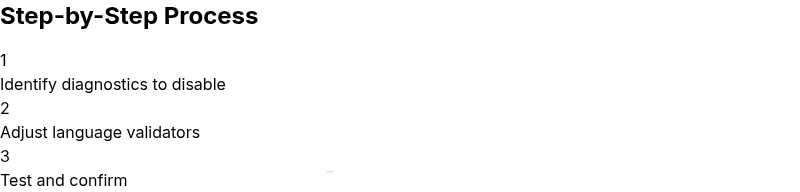
Disabling error highlighting for common web languages is a practical first step. Start by opening the VS Code settings and turning off the built-in validators for JavaScript and TypeScript. This reduces squiggles from the language service while you work on architecture or experimentation. Then assess whether extensions like ESLint or the Error Lens extension contribute additional highlights and adjust their behavior. Finally, choose between global user settings or project-specific workspace settings to apply changes consistently. After completing these steps, test by editing files and confirming that only critical problems are flagged. The goal is a calmer editing surface without losing essential correctness checks. Remember that changes should be reversible, so keep backups of your settings and be prepared to re-enable validation if necessary.
Adjusting settings for different languages
Not all languages use the same validation tools. To tailor the experience, locate language-specific sections in the settings or settings.json. For JavaScript and TypeScript, focus on turning off validation for the core language while leaving other diagnostics alive. You might also want to adjust the diagnostic mode for languages with strong language servers, such as Python or Go, to only show issues on save or on demand. The general approach is to identify the exact validator or language server responsible for the highlights and disable or constrain it. This prevents broader changes that could affect the whole editor while still reducing noise in your preferred languages.
Managing extensions that cause highlights
Extensions can aggressively decorate code with diagnostics, best-practice suggestions, or visual hints. Error Lens is a common example that many developers dislike for day-to-day editing. If you rely on this kind of guidance in some contexts but not all, consider disabling the extension globally or configuring it to show fewer hints. Similarly, linting extensions like ESLint or Stylelint can contribute persistent warnings. You can limit their effect by adjusting their settings or by excluding certain folders from linting. The key is to avoid blanket suppression and instead fine-tune which diagnostics are surfaced and where.
Workspace vs global settings
Decide whether changes should apply to a single project or across all projects by choosing workspace or user settings. Workspace settings ensure your team shares a consistent editing environment, while user settings let you tailor a personal workflow. If you frequently switch projects with different standards, lean toward workspace settings and keep a documented changelog. This helps prevent confusion and ensures that diagnostic behavior remains predictable across teammates. The flexibility of VS Code lets you keep both layers in balance, applying broad preferences at the user level and project-specific tweaks at the workspace level.
Troubleshooting common issues after turning off highlighting
Disabling highlighting can make it harder to catch real problems if you overdo it. If you notice new errors slipping through, re-check that essential validations are still enabled for the languages you care about. A quick way to verify is to intentionally introduce a known syntax error and confirm whether it surfaces. If not, revert the change or adjust the relevant language validators. If you rely on monitoring, keep the Problems panel visible for a few sessions to confirm that important warnings still reach you when needed. Finally, ensure you have a backup of your settings before making any sweeping changes so you can revert quickly.
Best practices and recommended defaults
A balanced approach often works best: keep critical validations enabled, but mute nonessential warnings that distract during heavy development phases. Consider per-workspace toggles for large features or refactors, and re-enable diagnostics as soon as the goal of the current work is achieved. Regularly review your extensions and validators to ensure they align with the project needs. The best practice is to maintain a sanity check for essential issues and rely on targeted tools for follow-up quality checks. The Why Error Code Team emphasizes that thoughtful defaults protect both speed and quality.
Tools & Materials
- Computer with VS Code installed(Use the latest stable release for best compatibility)
- Settings access (UI or settings.json)(You can edit via the UI or directly in settings.json)
- Optional: Error Lens extension(If installed, you may adjust its settings or disable it)
- Optional: ESLint or other linters(Disabling can reduce additional highlights)
- Backup of current settings(Always keep a copy before major config changes)
- Problems panel visibility(Useful to monitor the impact of changes)
Steps
Estimated time: 5-10 minutes
- 1
Open Settings
Open VS Code and navigate to settings using the gear menu or the shortcut. This is your first step to control how diagnostics are surfaced. You will decide whether to apply changes globally or per workspace.
Tip: Tip: Use the UI for quick changes or open settings.json for precise control. - 2
Disable JavaScript/TypeScript validation
In the search box, type javascript.validate.enable and typescript.validate.enable and set both to false. This stops the built-in JS/TS validators from producing error squiggles.
Tip: Tip: This reduces noise but preserve syntax checks if you still need basic syntax validation. - 3
Check for additional validators
Identify other validators like ESLint or TSLint and decide whether to disable their in-editor warnings or run them only on save.
Tip: Tip: Prefer per-project disables to avoid broad impact. - 4
Manage supporting extensions
If you have an extension that highlights errors more aggressively, consider disabling it or tuning its settings so it mirrors your desired level of feedback.
Tip: Tip: Keep a note of extensions you disable so you can re-enable later if needed. - 5
Decide scope: workspace vs user
Choose between applying changes to the entire editor (user) or just a project (workspace). Workspace settings help teams keep consistency across projects.
Tip: Tip: For teams, document the rationale to avoid misalignment later. - 6
Test changes
Make a small code edit that would normally trigger a diagnostic and verify whether the expected warnings are still shown. If not, adjust as necessary.
Tip: Tip: Use a known good baseline file to test the impact quickly.
Frequently Asked Questions
Can I disable error highlighting for specific languages without turning off all diagnostics?
Yes. Identify the language validators in settings and disable only those validators for the languages you want. This keeps essential checks active for other languages. Always test to ensure the change behaves as expected.
Yes, you can disable validators per language to reduce noise while keeping essential checks for others.
Will turning off error highlighting affect code quality or catching real issues?
Disabling diagnostics can reduce the chance of distraction but may allow real issues to slip through. Use targeted adjustments and keep critical validations enabled. Revisit the settings if you notice surprising behavior in your code.
It can affect catching issues, so use selective changes and monitor results.
How do I re-enable highlighting quickly if I need it again?
Open your settings again and revert the validators you turned off or reset the workspace to its default. You can also re-enable extensions and re-run your tests to confirm diagnostics are back.
Open settings and revert the changes to re-enable diagnostics.
What about linting and formatting extensions like ESLint?
Linting extensions can produce additional highlights independent of language validation. Adjust their settings to run on save or in the Problems panel, rather than in-editor squiggles, if supported.
Adjust how and when the linter shows feedback to reduce in-editor noise.
Is there a safe default configuration for teams?
Yes. Establish a shared workspace setting that enables essential diagnostics while reducing noncritical noise. Document the configuration and review it periodically to align with project goals.
Yes, set a shared workspace default and document it.
Does disabling diagnostics affect remote or multi-project setups?
Diagnostics may differ across environments. Use workspace settings to keep changes project-specific and avoid inconsistent behavior when switching projects or machines.
Workspace settings help maintain consistency across projects and environments.
Watch Video
Top Takeaways
- Disable only what is necessary to reduce noise
- Prefer workspace settings for team projects
- Validate essential diagnostics remain active
- Document changes and test to verify behavior