How to Ignore an Error in VS Code
Learn practical, safe ways to ignore non-critical errors in VS Code without masking real issues. This guide covers inline suppressions, editor settings, and best practices for debugging with confidence.


To ignore a non-critical error in VS Code without risking real issues, apply targeted inline suppressions, configure editor/workspace settings, and use language-specific ignore directives. This keeps development moving while ensuring you don’t mask genuine problems. Always document what you suppress and revert suppressions when the underlying issue is resolved.
What 'ignore' means in VS Code
When developers ask how to ignore an error in vs code, they are usually seeking a safe, temporary way to suppress non-critical feedback while focusing on debugging real issues. VS Code offers several mechanisms to dim or silence specific diagnostics without turning off helpful linting or type checks entirely. Ignoring an error does not mean you pretend it doesn't exist; rather it means you choose to treat it as a non-blocking observation while you work on a proper fix or assessment. In practice, ignoring is most effective when used as a temporary placeholder during experiments, migrations, or while awaiting a confirmatory fix. According to Why Error Code, disciplined ignoring is a temporary tool that helps you maintain momentum without compromising long-term code quality.
Safe scenarios to ignore errors
There are legitimate reasons to suppress certain messages during development. For example, when prototyping, you might encounter a warning from a library you don’t control yet, or a lint rule that flags a pattern you will adjust later. Similarly, in a large codebase with evolving APIs, you may see type-check complaints about a third-party module that you cannot immediately modify. Non-critical performance warnings, deprecation notices that don’t yet affect functionality, or console.warn statements during debugging can also be reasonable targets for temporary suppression. The key is to document why you suppressed and to plan a clear path to re-enable or fix the underlying issue once the related changes land. Why Error Code advocates using suppression sparingly and with intent to avoid drifting into a habit of ignoring real problems.
Inline suppression techniques (per-line and per-block)
Inline suppression is the most surgical way to silence a specific error. Language-specific comments can target a single line or a small block, leaving the rest of the file under normal scrutiny. Common approaches include language-native disable directives, lint disable comments, and selective type-check suppression. For instance, TypeScript users can use // @ts-ignore on the following line to bypass a type error, while ESLint allows // eslint-disable-next-line rule-name to suppress a single lint rule for the next line. These methods provide precise control and are easy to revert when the issue is resolved. Always prefer per-line suppression over global disables to minimize risk of masking real problems.
Project-wide vs file-specific suppression
Sometimes suppression needs to be scoped more broadly. A file-wide disable might be appropriate for legacy files with known, non-critical issues, while project-wide rules are riskier and generally discouraged. VS Code settings can influence how aggressively you are warned, but they should not replace proper fixes. For example, you can disable a particular lint rule for a subset of files using configuration files (e.g., .eslintignore or tsconfig.json) or by using per-file comments. The goal is to create a predictable, auditable path to suppression that is clearly documented in your codebase.
How to verify ignoring errors doesn't hide real issues
Verification is essential because suppression can hide root causes. Run your test suite, lint checks, and type checks after applying a suppression to ensure you’re not masking a critical problem. Use CI workflows to enforce a guardrail so that suppressions don’t accumulate unchecked. Pair suppression with targeted tests that cover the scenario you’re prototyping. If you notice regressions, re-evaluate the suppression immediately. In practice, combine local suppression with peer reviews to confirm the strategy aligns with team standards and project goals.
Best practices and pitfalls to avoid
A few best practices help maintain code quality while suppressing errors. Keep suppressions small and well-scoped, add a clear comment explaining why it’s needed, and link to an issue or ticket for traceability. Avoid suppressing core language or runtime errors; never suppress issues that affect security, correctness, or user-facing behavior. Be wary of cascading suppressions across multiple files, which can obscure the true scope of the problem. Finally, always plan for a reversion date or a milestone when the underlying issue will be addressed.
When to revert ignoring and fix the root cause
Suppressions should have a defined lifespan. If the root cause is resolved, remove the suppression immediately. If a workaround is adopted temporarily, add a task to the project backlog with a due date. Use code reviews to ensure suppressions are not accidentally reintroduced, and keep a changelog note describing the intent. The best practice is to treat suppression as a loan from future maintenance: you borrow time to proceed, but you must repay with a proper fix when possible. This disciplined approach preserves code quality and team trust.
Language-specific tips for common stacks
In JavaScript/TypeScript projects, prefer per-line suppressions and maintain a short rationale in comments. For Python, a simple # noqa remark can silence a warning in a controlled way, but it should be paired with a plan to address the message later. If you work in C# or Java, understanding your analyzer or compiler flags helps you decide between a temporary suppression and a permanent ignore. The central idea is to tailor suppression to the language’s tooling while keeping a clear path to remediation, not a blanket ban on validation.
Tools and settings in VS Code to support safe ignoring
Leverage VS Code’s built-in settings to manage the noise without disabling important checks globally. Use workspace settings to tailor rules for a project without affecting others. Regularly review the Problems panel to distinguish between ignored items and newly created ones. Pair your workflow with a lightweight task that nudges you to revisit suppressions periodically, ensuring you stay aligned with code quality goals.
Tools & Materials
- VS Code installed and up to date(Prefer the latest stable release for accurate diagnostics)
- Language extensions (e.g., ESLint, Pyright, TypeScript)(Enable proper diagnostics and suppression features)
- Sample project or code file (JS/TS or Python)(Practice suppressions safely on representative code)
- Inline suppression examples (code snippets)(Include language-specific directives (e.g., // @ts-ignore))
- Access to project settings (workspace or repo)(Used for broader, scoped suppression)
- Documentation template for suppressions(Record the rationale and review dates)
Steps
Estimated time: 60-90 minutes
- 1
Open the file and locate the error
Navigate to the exact line or block where the diagnostic is reported. Take a moment to understand the type and scope of the error so you can decide the appropriate suppression strategy.
Tip: Use the Problems pane and click the error to jump to its location. - 2
Assess whether the error is non-critical
Determine if the issue affects correctness, security, or user experience. If it does, plan a fix rather than suppressing. If it’s a false positive or a non-blocking warning, suppression may be appropriate.
Tip: Document your assessment in a code comment or issue tracker. - 3
Choose a suppression method
Select the most targeted approach: per-line suppression for a single issue, per-block suppression for a small region, or a short-term file-level disable if justified.
Tip: Prefer inline suppression over global rules to minimize risk. - 4
Apply inline suppression for the specific line
Add a language-specific ignore directive directly above or on the problematic line. Ensure the language and tooling support the directive you choose.
Tip: Pair the suppression with a concise comment explaining why it’s needed. - 5
Run checks to confirm the suppression works
Re-run the linter, type checker, and tests to ensure no new issues appear and that the suppression resolved only the intended warning.
Tip: If other related warnings appear, extend or adjust the suppression accordingly. - 6
Document the suppression clearly
Add a note in code or the linked issue describing the suppression rationale and the plan to revert. This helps teammates understand the intent and timing.
Tip: Link to a task or PR that will remove the suppression later. - 7
Schedule a review or reversion window
Set a reminder or milestone to revisit the suppression and remove it once the root cause is addressed.
Tip: Use CI to enforce re-checks before merging changes with suppressions. - 8
Validate across environments
If applicable, verify that the suppression behaves consistently in different environments (local, CI, staging).
Tip: Document any environment-specific caveats.
Frequently Asked Questions
Is it safe to ignore errors in VS Code?
Ignoring errors is safe only for non-critical issues and as a temporary measure. Do not suppress errors that affect correctness, security, or user experience. Always plan a proper fix and revert suppressions when possible.
Ignoring errors is safe only for non-critical issues and should be temporary; avoid suppressing problems that affect correctness or security.
What language-specific directives exist for suppression?
Most languages have inline ignore directives or lint directives, such as // @ts-ignore for TypeScript or // eslint-disable-next-line for JavaScript. Use these sparingly and document their purpose.
Many languages offer inline ignore directives; use them sparingly and document why.
How do I revert a suppression?
Remove the suppression directive once the root cause is addressed, and re-run checks to confirm the issue is resolved. Keep a note or issue linked to the change.
Delete the suppression once the root cause is fixed and re-run checks.
Will ignoring errors affect linting or tests?
Suppression can mask issues that would otherwise be caught by linting or tests. Ensure tests cover the scenario and that suppressed items are tracked and re-evaluated.
Suppression can hide problems flagged by linting or tests, so track and re-evaluate.
Can I ignore errors in production vs development?
Ignore in development is common; avoid leaving suppressions in production builds. Rework suppression during deployment or pre-release testing.
Suppressions are for development; ensure they’re not shipped to production.
Watch Video
Top Takeaways
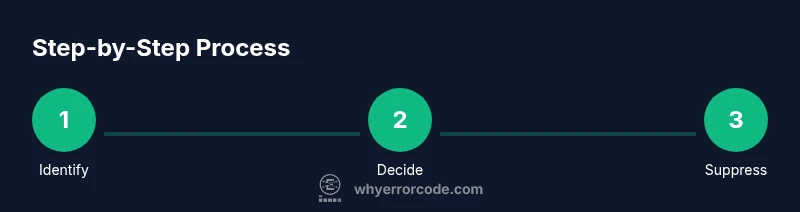
- Identify only non-critical errors to suppress.
- Prefer per-line suppression with clear rationale.
- Verify suppressions with tests and CI before merging.
- Document suppression decisions and reversion plans.