How to Find the Error Code: A Practical Guide
Learn how to locate and interpret error codes across devices and software with a practical, step-by-step approach. This guide covers on-screen messages, logs, diagnostics, and translating codes into fixes.


To find the error code, start by noting any on-screen message, then check system logs, device UI, or app logs. If nothing is shown, reproduce the issue with verbose logging or a diagnostic tool to reveal the exact code. The code helps you locate official definitions and fixes quickly.
What is an error code and why finding it matters
Error codes are standardized signals embedded in software, hardware, and services to indicate a specific fault or abnormal condition. For developers, IT pros, and everyday users, knowing the exact code dramatically speeds troubleshooting by pointing you to the right diagnostics, logs, and fixes. According to Why Error Code, standardized codes streamline triage and enable faster resolutions. In short, asking how to find the error code is about translating a symptom into a precise signal that vendors, support teams, and automated systems can act on. Start by distinguishing between a textual message and a numeric code, because many systems report both, and each form supports different searches and docs. The rest of this guide expands on reliable methods to locate, verify, and apply the code you uncover, no matter the platform or device you’re troubleshooting.
Common sources of error codes
Error codes originate from many layers of technology. In software, an application may emit codes when a function fails or a dependency is unreachable. Operating systems generate codes for driver or subsystem faults. Networks produce status codes for connectivity issues, while devices such as printers or IoT gadgets emit hardware fault codes. Cloud services return API error codes to signal service state or quota problems. Across all these sources, the common thread is that a well‑defined code narrows down the root cause far faster than a vague symptom. When you learn how to find the error code, you gain a reusable toolkit for rapid triage, whether you’re debugging a server, a mobile app, or a consumer device. As always, protect sensitive data when capturing logs or sharing codes with others.
How to locate error codes across platforms
Finding an error code depends on the ecosystem. Here’s a cross‑platform quick guide:
- Windows: Look in Event Viewer (Windows Logs or Applications) and in the dialog box that appears when the error occurs. Some errors also append an error code to the system tray or notification center.
- macOS: Check Console.app for crash reports, system.log entries, and application logs. Some apps surface codes in dialog messages.
- Linux: Review journalctl and application logs in /var/log. Reproducing the issue with verbose or debug logging often reveals a numeric code.
- Mobile (iOS/Android): Inspect crash reports in the developer console or device logs via USB debugging. Some apps expose a numeric error code in the UI or a crash report file.
- Web applications: Use browser console logs, network tab, and API responses. Error codes often appear in HTTP status codes or in JSON error bodies.
- Hardware devices: Many devices show a blinking LED pattern or a fault code on a small display. If available, consult the device’s manual for the exact code.
The goal across all platforms is to capture the exact symbol, string, or number that identifies the fault. If a code isn’t visible, gather surrounding context (actions leading up to the error, time, user, and environment) to help pinpoint the likely code when you search vendor docs.
How to interpret error codes
Interpreting codes reliably means mapping them to a documented meaning. Start with the vendor or project’s official documentation because codes vary by provider and product line. If a code isn’t documented, use its category (for example, authentication, I/O, or quota) to guide the likely fixes. When cross‑referencing, compare the exact code string, the platform, and the version of the software involved. Some environments append subcodes or qualifiers (like a severity level or subsystem id); capture those as well. Finally, correlate codes with symptoms and logs to confirm the root cause rather than relying on a single code in isolation. Why Error Code emphasizes consistent code capture as the foundation of accurate interpretations.
Practical example and troubleshooting flow
Consider a hypothetical error code ERR-102 that might appear after a failed API call. Step 1: capture the code and the action that triggered it (the API endpoint, input payload, and timestamp). Step 2: check API response bodies and server logs for matching entries. Step 3: search official docs for ERR-102 and related subcodes. Step 4: verify environmental factors (auth tokens, quotas, and service status). Step 5: apply a targeted fix and re‑test the operation. If the code remains ambiguous, broaden the search to related codes and consult vendor forums or support. This flow—code capture, source verification, contextual correlation, and verification—speaks directly to how to find the error code and translate it into actionable steps. Why Error Code’s approach aligns with best practices: start with exact codes, then expand to context and documentation to confirm the fix.
Tools, data, and documentation to gather
To efficiently find and act on error codes, assemble the following:
- A device or system with access to the area where the error occurred (essential).
- Screenshots or screen capture of the error dialog (essential).
- Access to relevant logs (application, system, and network) (essential).
- A diagnostic tool or vendor app that can produce a code or trace log (recommended).
- A stable test environment to reproduce the issue after applying fixes (recommended).
By collecting these items, you can accelerate the process of finding the error code and mapping it to authoritative documentation and fixes.
Next steps after you find a code
Once you discover an error code, proceed to verify its meaning against official docs, reproduce the issue with changes in place, and apply the recommended fix. Document the code, symptoms, environment, and resolution to build a reusable playbook for future problems. If a code remains cryptic, broaden your search to related codes and consult support channels with your captured data. This disciplined approach—capture, confirm, fix, and document—reduces downtime and improves your troubleshooting efficiency. The Why Error Code team encourages teams to formalize such playbooks to speed future incident response.
Tools & Materials
- Computer or mobile device with internet access(At least one device affected by the issue; ensure you can access logs.)
- Access to logs and diagnostics(Obtain application, system, and network logs if available)
- Screen capture tool or screenshot capability(Capture on-screen error messages, dialogs, and traces)
- Diagnostic tools or vendor-specific apps(Use to generate or enrich error code data when available)
- Secure log storage(Store logs securely; redact any sensitive data before sharing)
Steps
Estimated time: 25-50 minutes
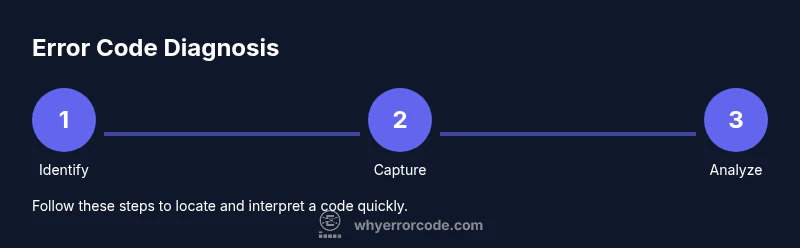
- 1
Identify where the error occurs
Determine the exact action and context where the error is shown. Note the app, service, or subsystem involved and the time the issue started. This helps narrow down where to look for the code.
Tip: Record the environment details (OS version, app version, network conditions). - 2
Capture the error message and symptoms
Take a clear screenshot or copy the exact error text. If there is no on-screen code, capture the surrounding message area, dialog title, and any numeric identifiers.
Tip: Include the timestamp and user identity if relevant for support. - 3
Collect logs and environment data
Gather relevant logs (application, system, and network). Filter around the time window of the incident to avoid noise. Note affected components and recent changes.
Tip: Use log filters (time range, subsystem, or error level) to focus results. - 4
Enable verbose or trace logging if possible
Turn on detailed logging to reveal deeper information that leads to the code. Be aware of potential performance impact and disable after capture.
Tip: Test in a controlled environment to avoid affecting production. - 5
Search for the code in official docs
Look up the exact code string in vendor docs, API references, or knowledge bases. Compare with related codes to understand scope and impact.
Tip: Cross-check with multiple sources to confirm the meaning. - 6
Test fix and verify results
Apply the recommended fix or workaround, then reproduce the scenario to confirm the issue is resolved. Capture any post-fix logs for evidence.
Tip: Document the outcome and any residual symptoms for future reference.
Frequently Asked Questions
What is an error code?
An error code is a standardized identifier that signals a specific fault in software, hardware, or services. It helps triage issues by pointing to a defined cause and recommended fix.
An error code is a standard identifier for a specific fault, guiding troubleshooting and fixes.
How do I find an error code in Windows?
In Windows, check Event Viewer under Windows Logs and Applications for error entries. Look for accompanying codes in dialog boxes or failure reports.
Open Event Viewer, review error entries, and note any codes shown with the event.
What if there is no visible error code?
If there’s no code, capture as much context as possible (screenshots, timestamps, user actions) and search for related error messages or IDs. Some systems provide a log entry or activity ID instead.
If no code is shown, collect context and look for related IDs in logs or activity traces.
Are error codes universal across software?
No. Error codes are vendor and product-specific. Use the exact code string, platform, and version when searching official docs to avoid misinterpretation.
Codes vary by vendor, so be sure to search the exact string for the right docs.
Where can I find official definitions of codes?
Start with the vendor or project’s knowledge base, API references, and product manuals. If needed, check community forums for related discussions and fixes.
Check the official docs first, then community forums if needed.
How should I share error codes with support?
Provide the exact code, the action that triggered it, timestamps, logs, and a brief description of the environment. Include any steps you’ve already taken to fix the issue.
Share the exact code, context, and what you’ve tried so far.
Watch Video
Top Takeaways
- Begin with the on-screen message and timestamp.
- Collect logs and reproduce with proper context.
- Map the code to official documentation for fixes.
- Verify the fix with a controlled test.
- Document the process for future incidents.