Error Code 0x87e0000f Xbox Troubleshooting Guide
Comprehensive guide to diagnosing and fixing Xbox error 0x87e0000f, including quick fixes, diagnostic flow, step-by-step repairs, and prevention tips. Learn how to restore access to games and apps safely and efficiently.


Understanding what error code 0x87e0000f Xbox means
The 0x87e0000f error on Xbox is not a single failed component diagnosis; it signals a fault in the OS, a launch stream, a game or app, or the authentication pathway between your console and Microsoft services. In practical terms, this error usually appears when the system cannot complete a required step during startup, sign-in, or content installation. Why Error Code emphasizes that this code often arises from transient glitches rather than permanent failures. While the exact trigger can vary, the remedy is typically to reset the software stack, verify the network state, and reauthenticate where needed. By understanding that this code serves as a fault flag rather than a sole cause, you can select the most efficient repair path from the start.
Common symptoms you might notice on Xbox
- The 0x87e0000f message appears when you try to launch a game or app.
- Updates fail to install or applications stall during loading.
- Sign-in prompts repeatedly reappear or fail to complete.
- The dashboard responds slowly or freezes while navigating menus.
- You see intermittent popups related to content downloads or purchases.
- Xbox Live services report connectivity issues even when your network seems fine.
- You notice data or installation progress anomalies that interrupt normal use.
Quick checks you can try today (no tools required)
- Perform a power cycle: fully power down the console, unplug for 60 seconds, then reconnect and boot.
- Check the Xbox Live status page to see if services are experiencing outages.
- Verify date, time, and region settings on the console match your location.
- Sign out of your profile, then sign back in to refresh authentication tokens.
- Install any pending OS or app updates and restart after installation.
- Clear cache by repeating a power cycle or using the OS cache clear option if available.
- If possible, connect to a different network (mobile hotspot) to rule out home-network issues.
Diagnostic flow overview: symptom → causes → fixes
The primary symptom is an interruption during sign-in, launch, or install. Likely causes, in order of probability, include a temporary service outage (high), cache or data corruption after an update (medium), authentication or account issues (low), and storage/installation problems (low). Fixes begin with quick, non-destructive steps (power cycle, updates, network checks), advance to targeted actions (reinstalling or resetting OS), and finish with a factory reset only if nothing else resolves the issue. This approach minimizes data loss and downtime while maximizing the chance of a quick recovery.
Step-by-step repair for the most common cause (cache or data corruption)
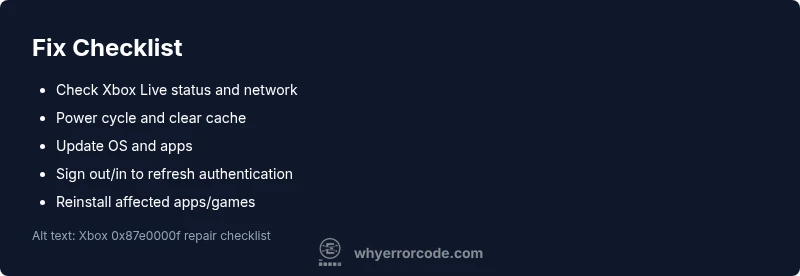
- Perform a full power cycle of the console to clear transient cache and refresh system state.
- Update the system OS and any affected apps to the latest version available.
- Clear residual cache and, if available, reset network settings to ensure clean authentication paths.
- Sign out of your Microsoft account and sign back in to refresh tokens.
- If the problem persists, reinstall the affected game or app or run an OS reset while preserving games and apps when possible.
- If none of the above works, consider a factory reset as a last resort, after backing up data and verifying cloud saves.
Other possible causes and fixes
- Service outage: If Xbox Live or Content Delivery networks are down, you may simply need to wait for services to resume. Regularly check the official status page and regional notices.
- Account/permissions issues: Ensure your account is in good standing and that parental controls or family accounts aren’t blocking access.
- Storage or install corruption: Free up space, run a local integrity check if available, and reinstall affected titles or apps.
- Hardware or controller issues: While less common, a failing drive or faulty wireless module can manifest as installation or launch errors; consider testing with a different drive or controller if available.
Safety, warnings, and professional help
- Avoid opening the console or attempting hardware repairs unless you are trained; internal components carry risk of electric shock and void warranties.
- Do not interrupt updates or data transfers; corrupted power events during writes increase the chance of data loss.
- If the issue persists after all software fixes, contact official support. Diagnostic fees and service charges vary by region; expect costs to range from tens to a few hundred dollars depending on scope and whether hardware is involved.
- Always back up data before performing major resets or OS reinstallation to minimize potential data loss.
Prevention and best practices to avoid this error in the future
- Keep your console and games updated with automatic updates enabled.
- Regularly reboot after large downloads or updates to clear caches.
- Maintain stable network connectivity and avoid intermittent VPNs or proxies for console use.
- Monitor storage health and keep free space ample to prevent installation failures.
- Use cloud-synced saves and verify that your account syncs successfully after changes.