How to fix Xbox error code 0x87e5002c
Facing Xbox error code 0x87e5002c? This urgent guide explains its meaning, quick fixes you can try now, and a step-by-step repair for persistent issues.


Xbox error code 0x87e5002c usually signals a network or update fault that blocks loading. The most common fix is to power cycle the console, verify your internet connection, and perform a clean cache update. If the issue persists, contact Xbox Support for advanced diagnostics and guided fixes.
What this error means
The Xbox error code 0x87e5002c is a broad signal indicating something is preventing the console from loading content, signing in, or applying a critical update. It is not a single fault, but a collection of potential network, cache, or service-related problems that disrupt startup or gameplay. In practical terms, you may see it during boot, when loading a game, or while launching apps. According to Why Error Code, this code is most often tied to connectivity or update integrity issues rather than a hardware failure. The key is to stay methodical: confirm the network, refresh software caches, and rule out temporary service outages before diving into deeper repairs. Momentum builds from small, fast fixes to more thorough maintenance, so begin with the simplest actions and proceed step by step.
What this error means
The Xbox error code 0x87e5002c is a broad signal indicating something is preventing the console from loading content, signing in, or applying a critical update. It is not a single fault, but a collection of potential network, cache, or service-related problems that disrupt startup or gameplay. In practical terms, you may see it during boot, when loading a game, or while launching apps. According to Why Error Code, this code is most often tied to connectivity or update integrity issues rather than a hardware failure. The key is to stay methodical: confirm the network, refresh software caches, and rule out temporary service outages before diving into deeper repairs. Momentum builds from small, fast fixes to more thorough maintenance, so begin with the simplest actions and proceed step by step.
Steps
Estimated time: 30-45 minutes
- 1
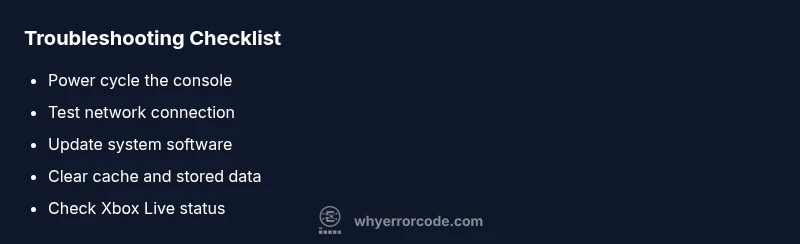
Power cycle the Xbox
Shut down the console completely, unplug the power cable, wait 60 seconds, reconnect, and power on. This clears transient caches that can block updates or sign-in attempts.
Tip: If you use a power strip, unplug at the strip rather than just the outlet to ensure a full reset. - 2
Test and stabilize the network
Go to Settings > General > Network settings and run a network test. If the NAT type is strict or you see latency spikes, reset your router and reconnect the Xbox to the network. Consider using a wired Ethernet connection for stability.
Tip: Wired connections reduce wireless interference and improve consistency during updates. - 3
Update or offline update if needed
Check for updates in Settings > System > Updates. If the console cannot download updates, download the offline update package from the official Xbox site onto a USB drive, then follow the on-console steps to apply it.
Tip: Ensure the USB drive is properly prepared and the file matches your console version. - 4
Clear caches without removing games
In Settings > System > Storage, clear caches and temporary data for local storage. Reboot and test again. This step helps if a corrupted cache blocks loading.
Tip: Clearing caches does not uninstall games or apps. - 5
Check service status and retry
Visit the Xbox Live status page or the Xbox app to confirm there are no service outages affecting sign-in or content delivery. If services are degraded, wait and retry after a short interval.
Tip: Outages often resolve quickly; set a reminder to try again in an hour.
Diagnosis: Xbox shows error 0x87e5002c during startup or while loading content
Possible Causes
- highFlaky or blocked network connection
- mediumCorrupted cache or temporary files
- mediumPending or failed system update
- lowTemporary Xbox Live service outage
Fixes
- easyPower cycle the console (hard reboot)
- easyRestart router/modem and test a wired connection
- easyCheck for system updates and install; use offline update if online fails
- easyClear local cache and temporary data
- easyVerify Xbox Live service status and retry after outage
Frequently Asked Questions
What does error 0x87e5002c mean on Xbox?
0x87e5002c generally indicates a network or update fault preventing startup or loading. The fix usually involves network checks, updating the console, and clearing caches.
It typically means a network or update problem is stopping startup; start with network checks and updates.
Is this error caused by my home network or by Xbox Live service?
Both can cause this error. Most often it’s a local network or cache issue, but outages on Xbox Live can trigger similar symptoms. Check service status first.
Usually it's your network or cache, but outages can cause it too.
Can I fix this without contacting support?
Yes, many cases resolve with a power cycle, network reset, and updates. If the problem persists after these steps, seek help from Xbox Support or an expert.
Often you can fix it yourself, but persistent issues may need support.
Should I reset my Xbox if the error continues?
Factory reset is a last resort and will erase apps and saved data. Back up what you can before considering a reset, and try other fixes first.
Only consider a factory reset if nothing else works and you’ve backed up your data.
Does this error affect all Xbox models equally?
The error is not model-specific; it can appear on Xbox Series X|S as well as Xbox One where network or update issues occur. The fixes are the same across models.
It can appear on multiple Xbox models; fixes are similar across versions.
Watch Video
Top Takeaways
- Power cycle first to clear transient faults
- Verify network stability before deeper fixes
- Install updates or use offline update if needed
- Call Xbox Support if issues persist