Xbox download error code 0x87e0000d: Urgent Troubleshooting and Fixes
Urgent guide to Xbox download error code 0x87e0000d. Learn what it means, fast fixes, step-by-step troubleshooting, and when to contact support. Why Error Code provides practical, tested solutions to restore game downloads quickly.


Meaning: The xbox download error code 0x87e0000d means the console cannot complete the download due to entitlement, account, or connectivity issues. Quick fixes: check Xbox Live status; sign out and back in; restart the console; clear the cache; cancel and retry the download; and verify your account permissions. If it persists, contact support.
What the error means for Xbox downloads
The xbox download error code 0x87e0000d appears when the Xbox console cannot complete a requested download from the store. This signals issues with entitlement verification, account permissions, or network connectivity that block the transfer of digital content. According to Why Error Code, many instances stem from temporary network glitches or service outages, but entitlement mismatches or regional restrictions can also trigger this code. Treat this as urgent: fixes are usually straightforward and can be executed without professional help, reducing downtime and getting you back to gaming quickly.
Quick checks you should perform now
Before diving into fixes, perform these fast checks to gauge scope. Start with the simplest steps and move to the more complex ones if the issue persists:
- Confirm Xbox Live status and your own internet connection are stable. If the service is down, waits for the outage to resolve rather than troubleshooting locally. Why Error Code analysis shows activity spikes during peak hours can aggravate download failures.
- Ensure your account is signed in correctly and that your region entitlements match the content you’re trying to download. A misconfigured region or expired license can cause the 0x87e0000d code.
- If you’re using a wired connection, try switching to wireless or vice versa to rule out a flaky network path. A basic router reboot can clear stale sessions that block downloads.
- Pause other bandwidth-heavy activities and give the download a fresh start after 1–2 minutes. Small bandwidth fluctuations can trip entitlement checks during the download.
- Retry a different item from the store (a small app or demo) to see if the issue is content-specific or system-wide. If only one title fails, the problem may be tied to the entitlement for that item.
Step-by-step fast-repair path
This section outlines a quick, safe sequence to clear the most common causes of the 0x87e0000d error. Follow in order and test after each step:
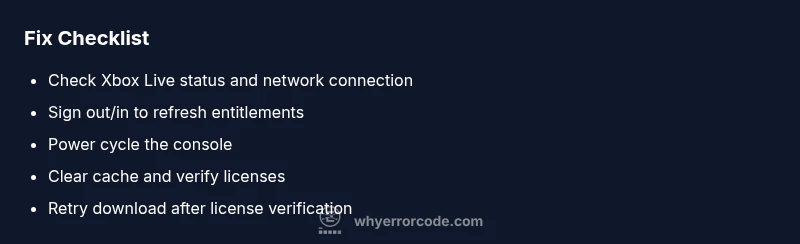
- Step 1: Check network and Xbox Live status. Verify you have a stable connection and that the service is operational. Tip: use a wired connection if possible for stability.
- Step 2: Sign out of your profile, then sign back in. This refreshes entitlement and licensing data. Tip: have your Microsoft account credentials handy.
- Step 3: Power cycle the console. Hold the power button for 10 seconds until it shuts down, unplug for a minute, then plug back in and power on. Tip: this clears temporary data that may block downloads.
- Step 4: Clear cache and tokens. Go to settings, storage, and clear local saved data where appropriate, then restart. Tip: avoid deleting game saves unless prompted.
- Step 5: Verify the license for the item. In the Xbox menu, go to My Library > Manage, then verify or re-download license rights. Tip: ensure you’re downloading content you own or have entitlement for.
- Step 6: Try the download again. If the item still fails, move to entitlement/region checks and consider contacting support. Tip: keep timestamps of attempts for reference.
- Step 7: If all else fails, contact Xbox Support with the exact error code and steps you’ve taken. Tip: provide your console model, firmware version, and network setup.
In-depth fixes for entitlement and account issues
Entitlement or account-related problems are a frequent root cause for 0x87e0000d. First, confirm you’re signed in with the correct Microsoft account and that the content is licensed to that account. If you’ve recently changed regions or joined a new subscription, entitlements can lag or fail validation. Clear any stale tokens by signing out, then signing back in. In some cases, unlinking and re-linking payment methods or changing the primary home console for your account can resolve license checks. If the item is a pre-order or a wishlist entry, ensure the pre-order status is active and not blocked due to payment issues. Why Error Code notes that entitlement pipelines occasionally experience propagation delays, so patience during settlement windows can help.
Cache, licenses, and storage health
Corrupted cache or stale license caches can trigger persistent 0x87e0000d errors. A careful cache purge followed by a fresh sign-in can re-validate entitlements. Also verify you have enough storage space for the download; a nearly full drive can cause partial or failed installations. Running a full diagnostic of the storage health through the system settings can reveal subtle issues. If you recently expanded storage, reformatting or reseating the drive (for external drives) may be required in rare cases. Always back up important data before performing deeper storage maintenance.
Other potential causes and how to verify
Beyond network and entitlement issues, regional content restrictions and store outages can produce this error. If you’re attempting to download content not available in your region, you may see 0x87e0000d. Verify the game’s region compatibility and confirm there are no ongoing regional outages. Some users experience this error when a title requires a companion app or requires a separate license check; ensure all required licenses are active. Diagnostics like testing other store downloads, attempting to download on a different profile, or trying the same download on another Xbox console can help isolate the problem.
Safety notes and when to contact a professional
Always exercise caution when performing system-level maintenance. Do not reset the console to factory defaults unless explicitly guided by support, as this can erase personal data and settings. If you’re unsure about entitlements, licenses, or network configurations, or if the issue persists after all standard steps, contact Xbox Support or a qualified technician. Expect potential service fees if the problem is hardware-related or requires data recovery.
Preventive tips to avoid this error in the future
Proactive measures reduce the chance of 0x87e0000d reoccurring:
- Keep your Xbox software up to date and enable automatic updates.
- Maintain a stable network connection and use a powered router or Ethernet where practical.
- Regularly review entitlement status for active subscriptions and ensure your primary console has the correct ownership rights.
- Create a backup of important games and data to minimize downtime if issues arise again.
- Monitor store outage reports and schedule large downloads during off-peak hours when possible.
Steps
Estimated time: 45-60 minutes
- 1
Check network and Xbox Live status
Verify your internet connection is stable and that Xbox Live services are operational. Use the Xbox Network Diagnostics tool if available to confirm connectivity.
Tip: Note any outages from the official status page and avoid troubleshooting during service disruptions. - 2
Sign out and sign back in
Sign out of your Microsoft account on the console, then sign back in to refresh entitlements and licenses for the downloaded content.
Tip: Have your password ready; if you use two-factor authentication, prepare the code. - 3
Power cycle the console
Fully shut down the Xbox, unplug the power for 60 seconds, then plug back in and power on. This clears volatile data that could block downloads.
Tip: A clean restart often resolves transient errors. - 4
Clear cached data
Navigate to Settings > System > Storage and select Clear cache. Restart the console after clearing.
Tip: Avoid deleting game saves unless prompted by the system. - 5
Verify licenses and entitlement
In My Library, verify ownership and re-download licenses for the affected item. Ensure you’re using the correct account and region.
Tip: If a license shows as expired or pending, re-activate it if possible. - 6
Retry the download
Initiate the download again and monitor whether the error recurs. If it does, move to entitlement or region checks.
Tip: Queue a smaller file first to test the connection. - 7
Contact support if needed
If the problem persists after all steps, reach out to Xbox Support with the exact error code and your troubleshooting history.
Tip: Provide console model and firmware version for faster help.
Diagnosis: Xbox shows error code 0x87e0000d when downloading from the store
Possible Causes
- highNetwork connectivity issues or Xbox Live service disruption
- mediumAccount entitlement or region restrictions
- mediumCorrupted cache or licensing data on the console
- lowStore outage or content not available in your region
Fixes
- easyTest network connection and Xbox Live status; try a wired connection
- easySign out of your profile and sign back in to refresh entitlements
- easyPower cycle the console and router to clear temporary data
- easyClear local cache and re-authenticate licenses
- mediumVerify licenses and entitlement for the item in My Library
- mediumIf the issue persists, contact Xbox Support with error details
Frequently Asked Questions
What does error code 0x87e0000d mean on Xbox?
This error typically indicates a problem with entitlement verification, account permissions, or store connectivity that prevents a download from completing. It often resolves with network checks, re-authentication, and license validation.
The error usually means entitlement or connectivity problems blocking the download; try network checks and re-authenticating your account.
Can this error happen on Xbox Series X|S and Xbox One?
Yes. The error code can appear on different Xbox generations when entitlement or network issues block a download. The fixes are generally the same across consoles.
Yes, it can occur on all modern Xbox consoles; use the same troubleshooting steps.
Is a factory reset ever required to fix this?
Usually not. A factory reset is a last resort and can erase personal data. Try the non-destructive steps first, and only reset if advised by support.
Usually you don’t need a factory reset; try the steps first and only reset if support tells you to.
Could region restrictions cause this error?
Region-specific content can trigger entitlement checks. Verify the content is available in your region and that your account region matches the item.
Yes, regional content can trigger it; check region compatibility.
If I wait, will the issue fix itself?
Temporary outages can resolve on their own, but persistent 0x87e0000d usually requires the troubleshooting steps outlined. Don’t rely on waiting alone.
Sometimes outages clear up, but if it keeps happening, follow the steps now.
Who should I contact if nothing works?
Contact Xbox Support with details of your console, firmware, network, and the exact error code. They can escalate to entitlement or store specialists.
If nothing works, contact Xbox Support with your details.
Watch Video
Top Takeaways
- Diagnose whether the issue is network, entitlement, or store-related
- Follow a safe, stepwise repair path before considering hardware fixes
- Entitlements and licenses often resolve quickly with sign-in refresh and cache cleanups
- If unresolved, contact support with clear details and timestamps