How to fix Xbox error code 0x87e107e2
Urgent, practical guidance to diagnose and repair Xbox error code 0x87e107e2. Learn fast checks, diagnostic flow, and proven steps to restore access to games and apps.


0x87e107e2 on Xbox typically signals a sign-in or entitlement check failure tied to Xbox Live services. The fastest fixes are: ensure your network is stable, sign out of your account and sign back in, perform a full power cycle, clear cache, and verify game/app entitlement. If the issue persists, contact Xbox Support for account-specific help.
What this error means for you
Xbox error code 0x87e107e2 is a sign-in/entitlement check failure tied to Xbox Live services. When you launch a game or app, the console verifies ownership and licensing with your Microsoft account. If that entitlement check fails due to a service outage, a sign-in hiccup, or corrupted local data, access is blocked and the error is shown. This issue is common in households using shared accounts, fresh consoles with cached credentials, or after a system update. The good news: most cases respond to quick network and account refreshes, license verification steps, and a reboot without hardware changes. According to Why Error Code analysis, resolving these issues frequently hinges on a stable connection, correct account sign-in, and valid entitlement licenses. If Xbox Live is experiencing an outage, you may see delays, but service status updates will guide you.
Quick checks you can perform now
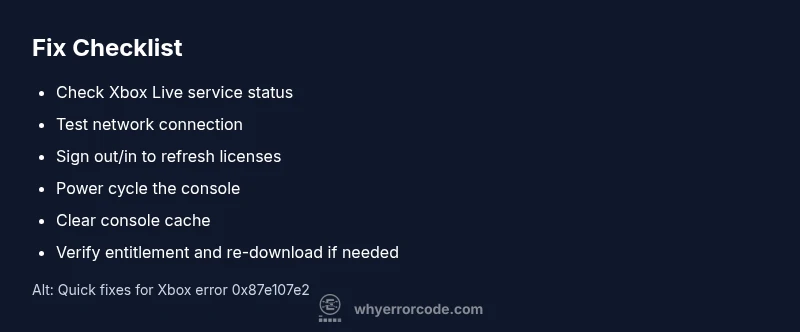
Begin with fast, non-destructive checks you can finish in minutes. First, verify the Xbox Live service status at the official status page to rule out outages. Then test your network connection in Settings > General > Network settings and run a network test. Sign out of your account, then sign back in to refresh tokens and licenses. Do a full power cycle: turn off the console, unplug power for 30 seconds, reconnect, and turn on again. Clear cache by fully powering down and restarting after a short wait. Finally, confirm ownership/licensing for the game or app by checking the license in your library and re-downloading if needed. If you use a family account, ensure licenses aren’t restricted by parental controls or regional settings.
Diagnosing the most likely causes
In practice, 0x87e107e2 is caused by sign-in issues, entitlement mismatches, or temporary service disruptions. The causes are typically: a) Sign-in or license entitlement problem with Xbox Live services (high), b) Network connectivity or NAT issues (medium), c) Corrupted cached data or profile on the console (low). For each, the fixes are distinct: verify your subscription and entitlement, refresh tokens by signing out/in, and monitor the service status; improve network conditions with a wired connection or better Wi‑Fi; and clear cached data or re-add your profile to rebuild a clean state. Why Error Code's research highlights entitlement validation as the most fragile point during system updates or outages.
Step-by-step repair for the most common cause
Begin with the most common fixes and progress to deeper steps as needed. 1) Check service status and wait if outages exist. If services are up, proceed. Tip: keep a second device handy to verify status pages. 2) Verify your game/app entitlement by ensuring you own the title and that it is installed on the same account. Tip: licenses appear under Settings > Account > Subscriptions. 3) Sign out of your account and sign back in to refresh tokens. Tip: use a strong password and enable two-factor authentication. 4) Perform a power cycle: fully shut down the console, unplug for 60 seconds, then reconnect and power on. Tip: unplug the console from power to reset hardware caches. 5) Clear the console cache to remove stale credentials. Tip: this is safe and preserves saves. 6) Re-download or reinstall the game/app license if needed. Tip: ensure enough storage space before reinstall. 7) If the issue persists, contact Xbox Support for account-specific assistance. Tip: have your console serial number and recent error messages ready.
Other causes and their fixes
If the common fix sequence above doesn't resolve 0x87e107e2, consider other scenarios. A) Game or app update glitches: install latest patch, reboot, and recheck entitlement. B) Hardware-related cache or profile corruption: remove and re-add profile; test with a fresh profile. C) Network security devices or strict NAT: configure your router to open required ports and enable UPnP; using a wired connection helps reduce interference. D) Region-based licensing: confirm the game is allowed in your region and adjust account region if recently changed. In most cases these steps are enough to restore access without hardware repair. If the problem continues, move to professional support.
Tips, warnings, and safety notes
- Pro tip: use a wired Ethernet connection or near-optimal Wi‑Fi to stabilize the connection during troubleshooting.
- Warning: avoid repeatedly retrying sign-in during an outage; this can trigger temporary rate limits.
- Note: back up saves to cloud when available before reinstalling.
- Pro tip: keep devices updated with the latest firmware and app patches to minimize compatibility issues. The Why Error Code team recommends documenting each step and checking service status before hardware replacements.
Prevention and long-term care
To minimize future 0x87e107e2 errors, establish a routine: keep your Xbox Live account in good standing, ensure entitlement licenses are valid, and maintain a stable network. Regularly check service status pages, verify your network settings, and avoid frequent profile changes during active sessions. Consider enabling automatic updates and two-factor authentication for account security. By following these practices, you reduce the likelihood of recurring sign‑in or entitlement failures and improve overall system reliability. The Why Error Code team reiterates that most users resolve these issues with data‑driven troubleshooting and patience while service providers repair outages.
Steps
Estimated time: 30-60 minutes
- 1
Check service status
First, verify Xbox Live service status to rule out outages. If services are down, you\'ll need to wait for status to turn online again before pursuing fixes. If services are up, move to the next step.
Tip: Bookmark the status page for quick checks during future issues. - 2
Verify entitlement
Confirm you own the title and that it is installed under the same account. Look for license indicators in your library and ensure the game/app is not blocked by parental controls or regional restrictions.
Tip: If licenses are missing, re-download or activate the entitlement. - 3
Sign out & sign back in
Sign out of your Microsoft account on the Xbox, then sign back in to refresh tokens and entitlement data. This step often resolves sign-in related errors.
Tip: Use a strong password and enable two-factor authentication. - 4
Power cycle the console
Fully power down the console, disconnect power for 60 seconds, reconnect, and power on again. This clears transient data and resets hardware caches.
Tip: Avoid removing batteries during power cycling. - 5
Clear the cache
Clear cached data by performing a system reset or console reset option that preserves games and apps, then sign back in and test.
Tip: Cache clearance can fix stale credentials without data loss. - 6
Re-download or reinstall
If entitlement remains invalid, re-download or reinstall the affected game/app to rebuild a clean license link.
Tip: Ensure sufficient storage before reinstall. - 7
Seek support if needed
If the problem persists after all steps, contact Xbox Support with your console serial number and error logs for personalized assistance.
Tip: Have recent screenshots or messages ready for faster troubleshooting.
Diagnosis: Xbox displays error code 0x87e107e2 while launching content
Possible Causes
- highSign-in or entitlement issue with Xbox Live services
- mediumNetwork connectivity problems or NAT issues
- lowCorrupted cache or profile data on the console
Fixes
- easySign out of your account and sign back in to refresh licenses
- easyPerform a full power cycle to clear temporary data
- mediumClear cache and re-test entitlement data
- easyCheck Xbox Live service status and wait if outage is active
- hardReinstall the affected game or app if entitlement remains invalid
Frequently Asked Questions
What does error code 0x87e107e2 mean on Xbox?
It generally points to a sign-in or entitlement/license check failure with Xbox Live services. This often happens after updates or outages and blocks access until licensing and connectivity are resolved.
It usually means there's a sign-in or license check problem with Xbox Live, often during updates or outages.
What is the quickest way to fix it?
Start with verifying Xbox Live status, test your network, sign out/in to refresh licenses, perform a power cycle, and clear the cache. If the problem persists, try reinstalling the game or app.
First check service status, test your network, sign out/in, power cycle, and clear cache. If it continues, reinstall the game.
Should I contact support right away?
If service status shows outages, wait and retry. If the outage is clear and the error persists after all standard steps, contact Xbox Support for personalized troubleshooting.
If there’s a confirmed outage, wait it out. Otherwise, contact Xbox Support after trying the standard steps.
Can I lose data while fixing this?
Most fixes don’t affect saved data. Reinstalling a game or app can re-download content, but your cloud saves ensure you don’t lose progress where supported.
Usually no. Saved data stays safe; reinstallation may re-download game content.
Is this a hardware issue?
Typically not. This error is software and service related. Hardware problems are unlikely unless fixed by a repair company after persistent issues.
Rarely a hardware problem; it’s usually software or service related.
Watch Video
Top Takeaways
- Check network and service status first
- Refresh licenses by signing out/in
- Clear cache before reinstall
- Escalate to support if unresolved