Error Code 404 Roblox Join Game: Quick Fixes and Diagnostics
Urgent guide to error code 404 Roblox join game. Learn what it means, quick checks, common causes, step-by-step fixes, and prevention tips to get back into Roblox sessions fast.


Error code 404 Roblox join game means the requested game or session cannot be found or loaded. The quickest fixes are to verify the game URL, ensure the game is publicly accessible, and refresh your Roblox cache and network connection. If issues persist, follow the diagnostic flow to rule out server, account, or client problems.
What Error Code 404 Roblox Join Game Means
When you see a 404 on Roblox while trying to join a game, it typically indicates that the specific game or session could not be located by Roblox servers at that moment. This can happen if the game was moved, unpublished, set to private, or if the join link is outdated. In Roblox, a 404 is essentially a not-found error for the game you attempted to access. The user experience is immediate: you click a link or press join, and the game either fails to load or returns you to a page that says the game isn’t available. Understanding this distinction helps you triage quickly: is the issue with the link, the game’s accessibility, or your connection? According to Why Error Code, many 404 join failures stem from access settings, not necessarily a permanent outage. This makes a systematic approach crucial in urgent troubleshooting.
Key takeaway: A 404 means something isn’t located or accessible at that moment, not necessarily that your account is banned or the platform is down. The fix often involves verifying access, link validity, and local networking first, then moving to more advanced checks if needed.
Symptoms You Might See and Quick Verifications
Common symptoms of Roblox error 404 when attempting to join a game include a clear 404 message, a blank or empty join screen, or a redirect to a Roblox home page with a “Game not found” notice. You might also see the error after clicking a direct invite, joining from a friend’s profile, or using a bookmarked link. Quick verifications can save time:
- Re-check the exact URL or invite link; copy-paste from a trusted source.
- Try a different device (mobile, PC, or console) to see if the issue is device-specific.
- Open Roblox in a fresh browser or the official app and search for the game by name rather than using a link.
- Confirm the game’s status on the official Roblox status page or community announcements for outages or policy changes.
- If you’re behind a VPN or proxy, disable it temporarily to rule out routing issues.
If these quick checks don’t resolve the problem, you’re likely facing one of several common causes that require deeper investigation.
Common Causes in the Roblox Ecosystem
There are multiple plausible causes for a 404 on Roblox join attempts. Prioritize by likelihood and impact:
- The game URL or session link is incorrect or outdated (high). Invite links can expire or be replaced after updates.
- The game is private, unpublished, or restricted to certain players (high).
- The game is temporarily unavailable due to a Roblox server issue or regional block (medium).
- Your account has restrictions or the game enforces minimum requirements (low).
- Local network DNS or caching issues interfere with resolving the game’s server address (medium).
Understanding these causes helps you decide whether to retry, adjust settings, or escalate to support. Remember that some 404s are transient during server maintenance, and trying again after a short interval often succeeds.
How to Fix: Quick Wins You Can Try Now
Before you dive into deeper fixes, try these fast actions that resolve a large portion of 404 join problems:
- Verify the game link: re-copy from an official source or your friend’s invitation.
- Open Roblox from the official site or app and search for the game by name, avoiding direct links.
- Refresh your network: disconnect and reconnect, or switch networks (e.g., mobile hotspot).
- Clear cache and cookies for the Roblox app or browser; sign out and back in.
- Check if the game is private or requires an invitation; request access from the owner if needed.
If you continue to see 404, move to the diagnostic flow to systematically rule out server, account, or client issues.
Step-By-Step Fix for the Most Common Cause (Detailed)
This section deepens the most frequent root cause: an inaccessible or private game. Follow these steps in order:
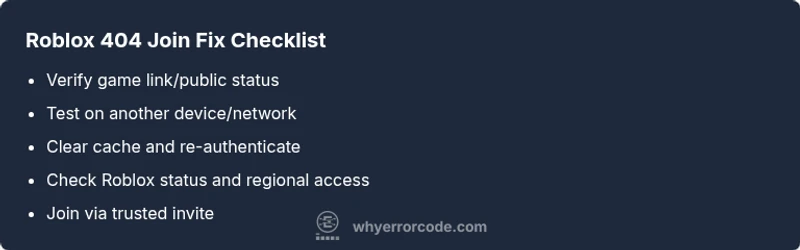
- Confirm game accessibility: Ensure the game is public or you have permission to join. If you are unsure, contact the game owner or check the official Roblox page for the game’s visibility status. Tip: owners can toggle access in game settings; verify with the owner if possible.
- Use a fresh link: Obtain a verified invite or link from an official source or a trusted friend. Old or expired links often trigger 404 responses. Tip: avoid bookmarking direct links that may expire.
- Test with a different device: If you can, join from another device or network to isolate device-specific issues. Tip: some devices throttle network requests differently; cross-device tests reveal this.
- Clear and re-authenticate: Sign out of Roblox, clear the app cache, then sign back in. Tip: clearing cached credentials can address token or session issues causing not-found errors.
- Check status and regional access: Look up Roblox server status and regional restrictions. If outages or maintenance occur, waiting a few minutes before retrying is wise. Tip: follow official status channels for timely updates.
- Reattempt via official paths: Join from the game’s official page or directly from your friend’s profile rather than a forwarded link. Tip: use the “Join Game” button when available on a trusted source. These steps cover most transient 404s and lay groundwork if you need to escalate to support.
Other Potential Causes and How to Address Them
If the common cause isn’t the culprit, explore alternatives:
- DNS or local network issues: Flushing DNS cache and changing DNS servers (e.g., Google DNS 8.8.8.8) can resolve not-found routing problems.
- Client version mismatch: Ensure you are running the latest Roblox client; update if needed. Some games require the newest client features.
- Account-level blocks or restrictions: If your account is flagged or restricted in a game, contact game support or Roblox help.
- Regional restrictions or IP blocking: A game owner might limit access by region; consider asking for access if permitted or joining from another region. If none of these work, collecting logs (duration, timestamps, device, network) helps when you contact support.
Safety, Warnings, and When to Call a Professional
- Safety: Never share your account credentials or auth tokens; Roblox support will never ask for your password.
- Warnings: Avoid clicking suspicious links; verify sources before entering personal information or credentials.
- When to call a professional: If you suspect a persistent platform-wide outage, an account-specific issue, or you cannot resolve access after all standard steps, contact Roblox support or a trusted IT professional for a deeper network or client analysis.
Steps
Estimated time: 15-25 minutes
- 1
Verify the game link/public status
Confirm the game is public and the link is current. If the owner sent an invite, verify it hasn’t expired and that you have the correct permissions to join.
Tip: When in doubt, ask the game owner for a fresh invite link. - 2
Test on an alternate path
Try joining via the Roblox search bar or the game’s official page instead of a forwarded link. This helps determine if the problem is link-specific.
Tip: Avoid using old bookmarks that may point to archived pages. - 3
Isolate network factors
Switch networks (mobile data vs Wi‑Fi) and reset your router. Clear Roblox app caches and sign out/in.
Tip: A quick router power cycle can clear stale routes. - 4
Confirm server status
Check Roblox status pages or official social channels for outages affecting join services in your region.
Tip: If there’s an outage, patience often beats attempting repeated joins. - 5
Retry with direct access
Join via a friend invite or a direct join button from a trusted source once access is confirmed.
Tip: Keep a list of reliable sources for quick invites.
Diagnosis: Error code 404 displayed when attempting to join a Roblox game
Possible Causes
- highThe game URL/session link is incorrect or outdated
- highGame is private or unpublished
- mediumRoblox server outage or regional block
- lowAccount or device restrictions related to the game
Fixes
- easyDouble-check the join link or copy-paste from a trusted source
- easyOpen the game from Roblox search or homepage to ensure public access
- easyCheck Roblox server status and regional access; retry after outages
- easyTest joining on a different device/network or reset the connection
Frequently Asked Questions
What does error code 404 mean in Roblox when joining a game?
A 404 error means the game or session isn’t found or accessible at that moment. It often stems from an inaccessible game, an expired link, or a temporary platform issue. Use the diagnostic flow to identify whether the problem is link-related, access settings, or a server outage.
A Roblox 404 means the game isn’t found or accessible right now; start by checking the link and game visibility, then move through quick fixes and server checks.
Why would a Roblox game be private or unpublished?
Owners can set a game to private or restrict access to certain players. If you lack permission, you’ll see a 404 or a denial. Request access from the game owner or wait until access settings change.
If the game is private, you’ll need permission from the owner or wait until it’s public.
Can Roblox outages cause 404 errors, and how long do they last?
Yes, server outages can trigger 404 errors. Outages vary in duration; check Roblox’s official status page or social channels for updates and ETA before retrying.
Outages happen sometimes; check the status page for real-time updates before trying again.
Should I contact Roblox support for a 404 error?
If the issue persists after the diagnostic flow, contact Roblox Support with details like device, OS, time, and the exact link. They can investigate account or server-side problems.
If it keeps happening after trying fixes, reach out to Roblox Support with your details.
Will joining a different server or region help fix 404s?
Sometimes switching servers or regions avoids a regional routing issue. Try joining from a different region or have a friend invite you from another region.
Try a different server or region to see if it resolves the problem.
Is there a risk my Roblox account is banned due to 404 errors?
A 404 typically isn’t a ban; it’s an access or availability issue. If you see other login or gameplay blocks, contact support to verify account status.
A 404 isn’t usually a ban, but contact support if you experience other account issues.
Watch Video
Top Takeaways
- Verify the game link and visibility first
- Test across devices and networks to isolate the issue
- Check server status for outages or regional blocks
- Follow the diagnostic flow for structured troubleshooting