Fortnite Error Code 22: Quick Fixes and Diagnostics
Understand Fortnite error code 22, its causes, and quick fixes. This guide helps diagnose symptoms, apply practical network tips, and know when to seek help.


Fortnite error code 22 usually means a network connectivity or server authentication issue preventing you from joining matches. The quickest fixes are to check your internet connection, verify Epic Games server status, and restart the Fortnite client or device. If problems persist, try a wired connection and disable VPNs or firewall blocks.
What Fortnite error code 22 means
Fortnite error code 22 is not a mysterious bug; it indicates a connectivity problem between your game client and Epic's services. In practical terms, the game cannot authenticate your session or connect you to matchmaking servers, which prevents you from joining a lobby or starting a match. The error can stem from your local network, your computer or console's settings, or temporary issues on Epic's end. Note that error code 22 often appears alongside generic messages like Cannot connect or Lobby not found. For players, the most important takeaway is that resolving it usually comes down to stabilizing the network path to Epic's servers and verifying your account status. In other words, it's not a bug in your PC alone; it's a connection problem that you can systematically test and fix.
Common symptoms players notice
Players report a mix of messages and behavior when Fortnite error code 22 occurs. Typical symptoms include an inability to join a lobby or start a match, persistent Cannot connect to Epic servers prompts, latency spikes in the main menu, and occasional disconnections during matchmaking. Some players see the error appear only on certain platforms or networks, while others experience it across devices. If you notice consistent login failures, treat this as a network-connectivity issue rather than a game file problem. The overarching theme is: the game cannot establish a stable path to Epic's authentication and matchmaking services, which triggers the error code 22.
Immediate quick fixes you can try
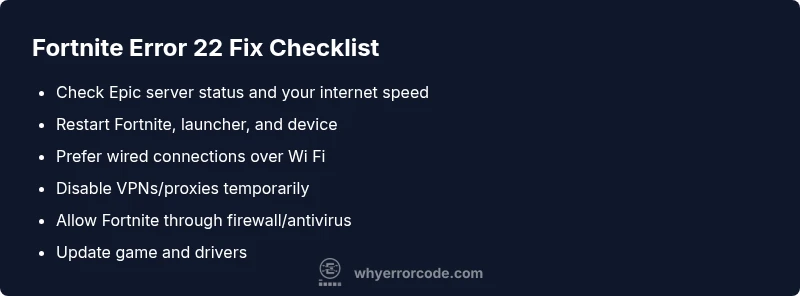
Start with the fastest wins: check Epic's server status and restart the Fortnite client. If you're still stuck, switch to a wired Ethernet connection instead of Wi Fi, and consider temporarily disabling VPNs or proxies that could block Fortnite traffic. Power cycle your router and modem, then reconnect. If it works, flush DNS on your device or renew the IP via your network settings. Finally, ensure your game is up to date and you’re running the latest launcher version. These quick fixes address the most common causes of error code 22 and save time before diving deeper.
Step-by-step network checks
Perform a structured test of your network path to Epic services. Start by measuring your current download and upload speeds to rule out a flaky connection. Try a different device on the same network to see if it’s network-wide or device-specific. If your mobile data is available, test with a trusted hotspot to compare results. Run a traceroute or ping test to Fortnite's endpoints if you can, watching for packet loss or high latency. Document any changes you make so you can reapply or rollback if needed.
Router and firewall adjustments
Your router and firewall can silently block Fortnite traffic, especially if NAT settings are strict or UPnP is disabled. Enable UPnP if available, set NAT type to open or moderate, and consider enabling gaming mode features if your router provides them. Add Fortnite and the Epic Games launcher as trusted apps in your firewall or antivirus, and temporarily disable firewall rules that might be overly restrictive during testing. If you use a corporate or campus network, consult the admin about port requirements and any outbound filters that could affect Epic's services.
Epic Games server status and account checks
Even if your local network is solid, Fortnite error code 22 can result from server-side issues or account problems. Check the Epic Games status page for any reported outages or service disruptions that could affect authentication. Sign in to your Epic account on a separate device to verify access, and ensure your account hasn't been flagged or restricted. If you have linked consoles or crossplay, test across platforms to identify platform-specific issues. When server-side problems are suspected, you'll need to wait for Epic to resolve them or contact support with requested diagnostics.
In-game settings and Fortnite launcher checks
Inside the Fortnite settings, switch to a stable display mode (eg fullscreen), disable overlays (like Discord or NVIDIA), and ensure your graphics drivers are up to date. In the Epic Games launcher, verify the game files and repair the installation if option available. Resetting in-game settings to default can also clear misconfigurations that lead to connectivity failures. Finally, consider performing a clean boot of your PC or console to rule out background software interference.
When to contact support
If you’ve methodically tried the steps above and Fortnite error code 22 persists, it’s time to contact Epic Games Support. Provide your device type, network setup, and a log of the steps you took so agents can reproduce the issue quickly. Expect to hear about potential account checks or server-side investigations. Costs for support are typically free for basic troubleshooting, but you may incur time or hardware costs if the problem lies with your router or modem and you choose paid support or replacement.
Preventive measures for future sessions
To reduce future occurrences of error code 22, keep both Fortnite and your operating system updated, maintain a stable home network, and avoid using VPNs or proxies during normal play. Regularly test your connection to Epic services, especially after ISP changes or router firmware updates. If you rely on Wi Fi, consider upgrading your router or adding a dedicated gaming QoS rule to prioritize gaming traffic and cut down on interruptions.
Steps
Estimated time: 60-90 minutes
- 1
Verify server status and test connection
Open the Epic Games status page and confirm there are no outages affecting Fortnite. While you’re there, test your own connection by running a quick speed test and comparing results with your usual performance. If you’re on mobile data, switch to Wi Fi or vice versa to see if the issue follows the network.
Tip: Keep the status page open in another tab to watch for updates. - 2
Restart app and device
Fully exit Fortnite and the Epic Games Launcher, then reboot your PC or console. After reboot, relaunch Fortnite and try to join a match again. A clean restart clears temporary files that can block connections.
Tip: Make sure there are no background downloads or streaming apps running. - 3
Switch to a wired connection
If you’re currently on Wi Fi, connect an Ethernet cable to your router or modem for a stable link. If you play on a console, disable any automatic power saving features that could limit network bandwidth during play.
Tip: Wired connections generally offer lower latency and fewer hiccups. - 4
Disable VPN or proxy and test again
Turn off any VPN or proxy service you’re using and try to connect directly to Epic services. Some VPNs route traffic through multiple hops that Fortnite may treat as suspicious or unstable.
Tip: If you need a VPN for privacy, test with it off first to confirm impact. - 5
Check firewall/antivirus and router settings
Temporarily disable firewall rules blocking Fortnite traffic or add exceptions for the game and the launcher. If you’re comfortable, reboot the router with default settings and reconfigure carefully.
Tip: Don’t leave security protections disabled for long. - 6
Update all software
Update Fortnite to the latest version and install any pending OS or driver updates. Even small patches can fix underlying connectivity issues.
Tip: Enable automatic updates to prevent repeated issues.
Diagnosis: Fortnite error code 22 appears when attempting to connect or join a match.
Possible Causes
- highPoor or unstable internet connection
- highEpic Games server status or authentication issue
- mediumVPN/proxy or firewall blocking Fortnite traffic
- mediumOutdated game client
- lowNAT type restrictions on router
Fixes
- easyCheck internet connection and speed
- easyCheck Epic Games server status
- easyRestart router, modem, and device
- easyTemporarily disable VPN or proxy
- easyUpdate Fortnite and launcher
- mediumAdjust firewall or add exceptions
- easyUse a wired Ethernet connection
- hardPort forwarding or NAT settings
Frequently Asked Questions
What does Fortnite error code 22 mean?
Fortnite error code 22 indicates a connectivity problem between the game client and Epic services, often related to authentication or matchmaking. It usually isn't caused by damaged game files, but by network or server-side conditions. Following a structured diagnostic flow helps each player isolate the cause and apply the right fix.
Fortnite error code 22 means a connectivity problem with Epic services. Follow the diagnostic flow to fix network or server issues.
Can my internet service provider cause error code 22?
Yes. An unstable or congested ISP connection can trigger error code 22. Running speed tests, trying a different network, or contacting your ISP if outages are reported can help clarify whether the problem lies outside your home network.
An unstable internet connection from your provider can cause error 22. Check your network and test other networks to confirm.
Will using a VPN trigger Fortnite error code 22?
VPNs or proxies can interfere with Epic's authentication and routing, potentially causing error 22. Disable VPNs during testing to see if the issue resolves, and only re-enable if necessary.
VPNs can cause the error; try connecting directly to Epic services to test.
Is there a patch specifically for error code 22?
There is no single patch solely for error code 22. Most users fix it by addressing network, firewall, or server status issues and keeping software up to date.
There isn’t a dedicated patch; fix becomes network and service related.
When should I contact Epic Games Support?
If you have methodically tried the standard fixes and the error persists, contact Epic Games Support. Provide your platform, network details, and steps you've taken to speed up troubleshooting.
If fixes fail, contact Epic Games Support with details.
Watch Video
Top Takeaways
- Prioritize network stability before complex fixes
- Check Epic server status and account status
- Use wired connections when possible
- Disable VPNs temporarily to test
- Keep Fortnite and drivers updated