Netflix error tvq rnd 100 Troubleshooting Guide
Learn how to diagnose and fix Netflix error tvq rnd 100 quickly. This urgent guide covers network checks, app updates, VPN considerations, and when to contact support for a reliable recovery.


Netflix error tvq rnd 100 usually signals a temporary playback problem tied to network or app state. Common quick fixes include restarting the device and router, checking your internet speed, signing out and back into Netflix, updating the app, and avoiding VPNs or proxies. If the error persists, check Netflix service status and contact support.
What Netflix error tvq rnd 100 means
Netflix error tvq rnd 100 appears when the streaming client cannot establish a stable connection to Netflix servers or when the app state becomes inconsistent during playback. This kind of error is not inherently tied to a single device; it often results from a mix of network hiccups, background tasks, or outdated app data. In urgent terms, this error asks you to pause, diagnose, and then act—because continued playback is not possible until the root cause is addressed. It is important to distinguish between a transient network blip and a longer-term service issue, which means you should test multiple paths (phone, tablet, computer) and different networks if possible. The Why Error Code team recommends starting with a quick network sanity check and updating the Netflix client to eliminate common causes right away.
Why this error happens now
The tvq rnd 100 error commonly stems from three broad categories: network instability, client-state inconsistencies, and service-layer interruptions. A fluctuating home Wi-Fi signal or a congested network can interrupt data flow between your device and Netflix, triggering the error. VPNs or proxies, if enabled, frequently clash with Netflix's regional protections and may trigger this code as a precautionary block. Outdated apps, browser extensions, or cached data can leave the player in a stale state, making it unable to negotiate a fresh streaming session. Finally, a rare but real cause is temporary service degradation on Netflix’s side, which affects many users simultaneously. In all cases, the goal is to restore a clean, direct path from your device to Netflix servers.
Quick checks you can do right away
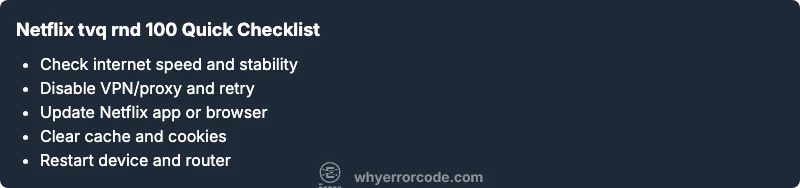
If you encounter tvq rnd 100, start with non-destructive checks and then move to targeted fixes. First, verify your internet speed using a trusted speed test and compare it to Netflix’s recommended bandwidth for your desired quality. Next, disable any VPNs or proxies to rule out regional blocks and try a direct connection. Update the Netflix app on your device or browser, and clear cache or cookies that may hold stale session data. Sign out of Netflix on all devices, then sign back in to refresh tokens. If possible, try another device or network to see whether the issue is device-specific or network-wide. Finally, check Netflix’s official service status page for current outages. These steps are fast, low-risk, and often resolve tvq rnd 100 without more drastic measures.
Step-by-step diagnosis of the most common causes
Symptom: Playback starts but stops with tvq rnd 100, or you see the error as soon as you attempt to play a title. Causes include: {cause: "Weak or unstable internet connection", likelihood: "high"}, {cause: "Using a VPN or proxy that Netflix blocks", likelihood: "medium"}, {cause: "Outdated Netflix app or browser extension", likelihood: "low"}, {cause: "Regional outage or service degradation", likelihood: "low"}. Fixes correspond to each cause: {fix: "Restart the device and router, then relaunch Netflix", difficulty: "easy"}, {fix: "Test your network speed and switch to a more stable connection", difficulty: "easy"}, {fix: "Disable VPN/proxy and attempt a direct connection", difficulty: "easy"}, {fix: "Update the Netflix app or browser and clear cache", difficulty: "easy"}, {fix: "Try a different device or network to isolate the issue", difficulty: "easy"}, {fix: "If the error persists, contact Netflix support for further guidance", difficulty: "medium"}.
Step-by-step fix: the most likely root cause
The most frequent culprit behind tvq rnd 100 is a momentary network hiccup combined with a stale app state. To address this, perform a controlled reset: reboot your router, then reboot the streaming device. After the device restarts, sign back into Netflix and play a title from a fresh start. If the issue recurs, proceed with a direct connection (no VPN) and verify that the device’s software is up to date. These actions resolve most instances without needing more invasive steps.
Other potential causes and fixes
Beyond the common causes, a misconfigured DNS, parental controls, or security software can interfere with streaming traffic. Adjust DNS settings to a reliable resolver, temporarily disable firewall rules that may block streaming, and ensure parental controls aren’t restricting playback on a specific profile or app. If you’re using a smart TV or streaming stick, a factory reset of the device may be necessary as a last resort. Always perform data backup where possible and avoid aggressive resets that could erase saved preferences.
Safety, privacy, and when to call a professional
Avoid sharing login credentials with untrusted apps or websites while troubleshooting. If you’re dealing with repeated outages across multiple devices and networks, don’t waste time on ad-hoc fixes—reach out to Netflix support or your ISP to rule out a broader problem. For businesses relying on Netflix for demos or client-facing content, consider documenting the steps you’ve taken and setting up a contingency plan in case of recurring tvq rnd 100 issues.
Steps
Estimated time: 20-40 minutes
- 1
Verify service status and device compatibility
Check Netflix’s official status page for any outages and confirm that your device supports the current Netflix requirements. If multiple devices are affected, the problem is likely service-wide or your network. If only one device is impacted, focus on that device’s settings and software.
Tip: Note the time of occurrence to correlate with any reported outages. - 2
Test network conditions
Run a speed test to confirm you have sufficient bandwidth for your chosen streaming quality. If speeds are low, troubleshoot your router, switch to a wired connection if possible, and reduce the streaming quality to minimize buffering.
Tip: Aim for at least the recommended Mbps for your quality level. - 3
Disable VPN/proxy and use direct connection
If you’re using a VPN or proxy, disable it temporarily and try Netflix again. VPNs can trigger Netflix blocks or alter routing in ways that cause tvq rnd 100.
Tip: Some networks require VPNs for regional content; test both with and without VPN if content access is essential. - 4
Update and clear cache
Update the Netflix app to the latest version and clear cache or data in the device settings. This clears stale credentials and fixes session token problems that can produce this error.
Tip: On browsers, clear cookies along with cache for a clean session. - 5
Restart devices
Fully power cycle your streaming device, router, and modem. Power cycling resets temporary configurations and can resolve transient issues.
Tip: Wait 30 seconds between power cycles to ensure clean resets. - 6
Try a different device or network
If another device on the same network plays normally, the problem is likely device-specific. If all devices fail, the network or service is the likely culprit.
Tip: This helps narrow down whether the issue is hardware or network related. - 7
Reinstall or reset the app
Uninstall and reinstall the Netflix app or perform a factory reset on the streaming device if available. This addresses deeper software corruption.
Tip: Backup profiles and watchlists before reset if possible. - 8
Contact support when needed
If the error persists after all steps, contact Netflix support or your ISP for advanced diagnostics and service validation.
Tip: Document your steps and times you attempted fixes to speed up support.
Diagnosis: Netflix playback fails with tvq rnd 100 on at least one device
Possible Causes
- highWeak or unstable internet connection
- mediumUsing a VPN or proxy Netflix blocks
- lowOutdated Netflix app or browser extension
- lowRegional outage or service degradation
Fixes
- easyRestart the device and router, then relaunch Netflix
- easyTest your network speed and switch to a more stable connection
- easyDisable VPN/proxy and attempt a direct connection
- easyUpdate the Netflix app or browser and clear cache
- easyTry a different device or network to isolate the issue
- mediumIf the error persists, contact Netflix support for further guidance
Frequently Asked Questions
What does Netflix error tvq rnd 100 mean?
Tvq rnd 100 is a playback fault indicating the client could not establish a stable stream with Netflix. It usually points to a connectivity issue, app state, or a service-side blip that disrupts playback.
Tvq rnd 100 means the player can’t start streaming. Check your connection and retry.
Will tvq rnd 100 affect all devices?
Not always. If the issue is network-wide or Netflix service-related, multiple devices may be impacted. If only one device is affected, the problem is likely device-specific.
It could hit all devices if there’s a service outage; otherwise, it’s usually device-specific.
Why am I seeing tvq rnd 100 after a recent update?
A recent app or browser update can introduce caching or compatibility issues that trigger tvq rnd 100. Clearing cache and updating again can help.
Updates can cause hiccups; clearing cache often fixes this.
Is there a cost to fix tvq rnd 100?
Most fixes involve free steps (restarts, updates, network changes). If you need professional help, costs vary by service provider, typically ranging from free to a modest diagnostic fee.
Usually free to fix; professional help may cost a diagnostic fee.
Should I contact Netflix support?
Yes, if the error persists after all standard steps. They can confirm outages, verify account status, or guide device-specific troubleshooting.
If it still won’t fix, reach out to Netflix support for hands-on help.
How long do outages typically last?
Outages vary by cause. Minor hiccups resolve within minutes; larger service degradations can last hours. Check the Netflix status page for real-time updates.
Outages differ; check status pages for current timelines.
Watch Video
Top Takeaways
- Identify tvq rnd 100 as a playback fault tied to connectivity or app state
- Run quick checks: network, VPN, app updates, cache
- Follow a step-by-step diagnosis to isolate the root cause
- If in doubt, contact Netflix support with your troubleshooting notes