Error Code 522 Cloudflare Fix: Urgent Troubleshooting Guide
Learn how to diagnose and fix error code 522 Cloudflare fix on protected sites. Rapid checks, step-by-step repairs, and prevention tips for developers and IT pros facing Cloudflare timeout issues.


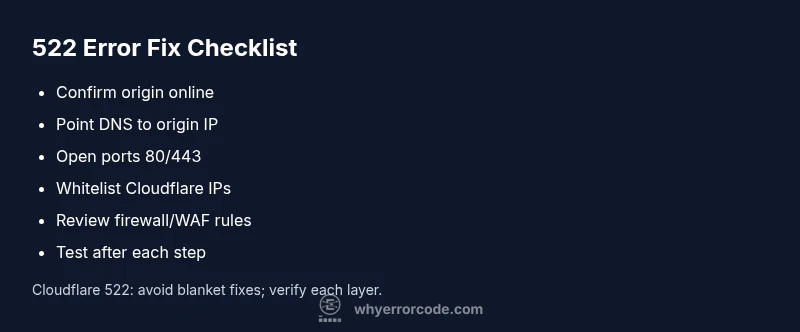
Error code 522 means Cloudflare cannot reach your origin server within the timeout window. The fastest path to a fix is to verify origin availability, confirm DNS points to the correct IP, and ensure ports 80/443 are open. If the issue persists, contact your hosting provider or Cloudflare support for deeper checks.
What error code 522 Cloudflare fix means
The error code 522 Cloudflare fix indicates a connection timeout between Cloudflare and your origin server. In practical terms, Cloudflare is reachable, but it cannot establish or maintain a stable connection to the server that actually hosts your site. The result is a failed page load for users attempting to access the site through Cloudflare. Common causes include origin downtime, firewall rules blocking Cloudflare IPs, DNS misconfigurations, or network issues between Cloudflare and the origin. Understanding this distinction helps you prioritize fixes: first confirm the origin is responsive, then check networking and DNS settings. If you see this error frequently, you may be dealing with intermittent connectivity rather than a single outage, which requires longer-term monitoring and mitigation. The focus is on restoring reliable communication between Cloudflare and the origin while preserving user access.
Quick Diagnostic Checks You Can Run
Before diving into deeper repairs, perform these fast checks to determine whether the issue is transient or systemic:
- Verify the origin server is online and responding via direct access or ping.
- Check that DNS A/AAAA records point to the correct origin IP and that there are no stale DNS caches.
- Ensure both port 80 (HTTP) and 443 (HTTPS) are open and reachable from Cloudflare IP ranges.
- Look for firewall rules that might block Cloudflare IPs or throttle connections.
- Review recent DNS or hosting changes that could affect routing. If a recent change coincides with the 522 error, consider rolling back or waiting for DNS propagation to complete.
If these checks pass but the error persists, it’s time to move to a structured fix strategy. The goal is to confirm connectivity and eliminate common blockers, then escalate to hosting or Cloudflare support if necessary.
How DNS and Firewall Settings Affect 522
Cloudflare 522 is often a symptom of misconfigured DNS or restrictive firewall settings. A misconfigured DNS A/AAAA record may point to an old or unreachable origin IP, causing Cloudflare to attempt a connection that never succeeds. Similarly, hosting or network firewalls can block Cloudflare IP ranges, effectively severing the path to the origin.
To mitigate this, ensure the DNS records are synchronized with the current origin IP, disable any temporary firewall rules that block known Cloudflare IPs during troubleshooting, and validate that the origin can accept connections from Cloudflare. Regularly review firewall logs for blocked Cloudflare attempts and adjust rules to allow Cloudflare traffic while maintaining security.
Step-by-Step Repair: Restore Origin Connectivity
This section provides a practical sequence to restore connectivity between Cloudflare and your origin when you encounter error code 522:
- Confirm the origin server is online and accessible from the same network as your testing environment. If it’s down, restart services or contact hosting support.
- Validate DNS resolution for your domain and verify that A/AAAA records point to the correct origin IP. Flush local and DNS caches to clear stale data.
- Check whether the origin is listening on ports 80 and 443; adjust server configuration if needed and restart web services.
- Review your hosting firewall and cloud security groups to ensure Cloudflare IP ranges are allowed. Add any missing IP ranges and test connectivity again.
- Temporarily disable any rate limiting or WAF rules that might block Cloudflare traffic during troubleshooting, then re-enable with refined rules.
- If you use a load balancer or reverse proxy, verify its health checks and backend pool configurations, ensuring healthy backends are reachable by Cloudflare.
Other Common Causes and Fixes
Beyond the origin being offline or DNS issues, several other factors can trigger a 522:
- Intermittent network outages between Cloudflare data centers and the origin network.
- Reverse proxy misconfigurations that drop or reset connections unexpectedly.
- IP blocking by the origin firewall or hosting provider due to suspected abuse.
- Cloudflare security settings that incorrectly identify legitimate requests as threats.
Fixes for these scenarios include enabling detailed logging on the origin, verifying health checks, narrowing WAF rules to allow Cloudflare traffic, and temporarily bypassing Cloudflare by using direct DNS to validate the behavior. Always reintroduce protections after confirming connectivity.
Safety, Costs, and When to Call a Professional
Resolving a 522 often involves low-level networking and server configuration. If you’re not comfortable editing firewall rules, network ACLs, or DNS records, it’s prudent to contact your hosting provider or an IT professional. In many cases, the fixes are straightforward (DNS alignment, port exposure, firewall allowances) and can be completed quickly. Do not disable Cloudflare protection entirely; instead, use development mode or a phased rollback to minimize risk while testing fixes.
Pro Tips to Prevent 522 in the Future
To reduce the likelihood of 522 errors recurring:
- Set up monitoring that pings the origin directly at regular intervals and alerts you when the origin becomes unreachable.
- Keep DNS records tidy and avoid frequent unexpected changes; implement a change control process.
- Maintain open ports 80 and 443 on your origin and ensure your firewall allows Cloudflare IP ranges.
- Utilize Cloudflare’s diagnostic tools and logs to identify patterns in 522 incidents, and resolutely fix root causes rather than just symptoms.
Steps
Estimated time: 25-60 minutes
- 1
Confirm the problem scope
Reproduce the error from multiple networks to confirm it’s not a local issue. Note the exact error timing and any patterns (time of day, traffic load).
Tip: Document the affected URL(s) and the Cloudflare status page readings during the incident. - 2
Test origin availability directly
Access the origin server directly by its IP or domain bypassing Cloudflare to verify it responds correctly and within expected response times.
Tip: Use curl or a browser to fetch http://origin-ip/; compare response with Cloudflare-proxied access. - 3
Verify DNS configuration
Check that A/AAAA records point to the current origin IP. Ensure there are no CNAMEs misdirecting traffic away from the origin.
Tip: Flush local DNS cache and consider a DNS TTL reduction temporarily during troubleshooting. - 4
Open necessary ports
Confirm that the origin’s port 80 and 443 are open and reachable from Cloudflare IP ranges. Check security groups, firewalls, and hosting rules.
Tip: If you run a load balancer, ensure health checks target healthy backends on the correct ports. - 5
Review firewall and WAF rules
Look for rules that might inadvertently block Cloudflare IPs. Whitelist Cloudflare’s IP ranges and test connectivity again.
Tip: Tighten rules after testing to prevent abuse while preserving access. - 6
Monitor and escalate if needed
If the issue persists after these steps, engage hosting support or Cloudflare help with logs, timestamps, and the steps you took.
Tip: Share Cloudflare error IDs and origin server logs to speed up diagnostics.
Diagnosis: Error code 522 Cloudflare fix displayed in browser, site fails to load via Cloudflare
Possible Causes
- highOrigin server offline or refusing connections
- mediumDNS misconfiguration or propagation delay
- lowCloudflare IPs blocked by firewall
- mediumServer firewall blocking port 80/443
Fixes
- easyCheck origin server status and restart services if needed
- easyVerify DNS A/AAAA records point to the correct origin IP; flush DNS cache
- easyEnsure port 80 (HTTP) and 443 (HTTPS) are open and reachable from Cloudflare
- mediumReview firewall rules to allow Cloudflare IP ranges
Frequently Asked Questions
What does error code 522 mean on a Cloudflare-protected site?
522 indicates Cloudflare can’t reach the origin server within the timeout, so the site cannot load. This is typically due to origin downtime, misconfigured DNS, or blocked connections.
522 means Cloudflare can’t reach your origin. Likely origin downtime, DNS issues, or blocked connections.
Why would direct access to the origin work but not via Cloudflare?
Direct origin work but Cloudflare fails usually points to a Cloudflare-origin path issue, DNS mismatch, or firewall rules blocking Cloudflare IPs.
If direct access works but Cloudflare doesn’t, check DNS and firewall rules blocking Cloudflare.
What is the quickest quick fix for a 522 error?
Perform quick checks: origin online, DNS correct, and ports open. If still failing, bypass Cloudflare temporarily or enable development mode while testing.
Quick fix: verify origin, DNS, and ports; consider a temporary Cloudflare bypass for testing.
Should I contact my hosting provider for a 522?
Yes. If you cannot restore connectivity, your hosting provider can investigate server status, firewall rules, and network routes.
If you can’t resolve it, contact your hosting provider for server and network checks.
Can Cloudflare itself cause a 522 error?
Cloudflare is not usually the root cause; it’s a signaling layer. The issue is typically on the origin side or in the path between Cloudflare and the origin.
Cloudflare rarely causes 522; it’s usually the origin or network path.
Watch Video
Top Takeaways
- Verify origin is online before deeper fixes.
- Ensure DNS points to the correct origin IP.
- Open ports 80/443 and allow Cloudflare IPs.
- Escalate to hosting or Cloudflare support if unresolved.