Meaning of error code 403: Forbidden Access Explained
Explore the meaning of error code 403 (Forbidden) and how to diagnose and fix access issues for developers and IT pros. Learn common causes, step-by-step fixes, and best practices to restore legitimate access fast.


Meaning: HTTP error code 403 means the server understood the request but refused to authorize it. It signals an access-control restriction, not a broken endpoint. The most common quick fixes are: verify the URL and resource permissions, check authentication tokens or cookies, ensure your IP or user agent isn’t blocked, and review server access controls or firewall rules. If the problem persists, contact the site admin or your IT team.
Meaning of the Meaningful 403: What it signals and why it matters
The meaning of error code 403, commonly labeled as Forbidden, is a signal that access to a specific resource is restricted by the server. In plain terms, the server understood your request but decided you are not allowed to view or manipulate the target resource. For developers and IT pros, this distinction matters because the remedy shifts from debugging a broken route to adjusting permissions, roles, or security rules. According to Why Error Code, the core of this error is an access-control decision rather than a technical fault in the network path. When you encounter a 403, you’re seeing a policy decision enforced by the application, the web server, or a security gateway. This nuance explains why simply retrying or reloading rarely solves the problem and why auditing permissions and authentication state is vital.
This section helps you internalize the meaning of error code 403 so you can approach remediation with clarity rather than guesswork. You’ll learn to differentiate between permission issues, authentication problems, and network blocks, and you’ll be prepared to marshal the right logs and configuration checks to move forward swiftly.
Common Causes of HTTP 403 Errors
403 errors arise from multiple layers of control, and the most common causes are typically related to permissions and access policies. Why Error Code analysis shows that permission misconfigurations are the leading source, followed by authentication-related blocks and network-level restrictions. Start by confirming you have explicit permission to access the resource and that the credentials you supply are current. A frequent pitfall is confusing user roles with required resource permissions; a role may exist, but it does not grant access to a particular file, API, or page. In some cases, an IP allowlist or geolocation rule restricts access from certain networks even for authenticated users. Another frequent culprit is expired or invalid sessions or tokens; if a session has lapsed, the server may treat you as unauthenticated, prompting a graceful denial rather than a cryptic error. Finally, consider server-side security rules such as rate limits, WAF blocks, or automated anomaly protections that may temporarily deny access while investigating suspicious activity.
Quick Fixes You Can Try Right Now
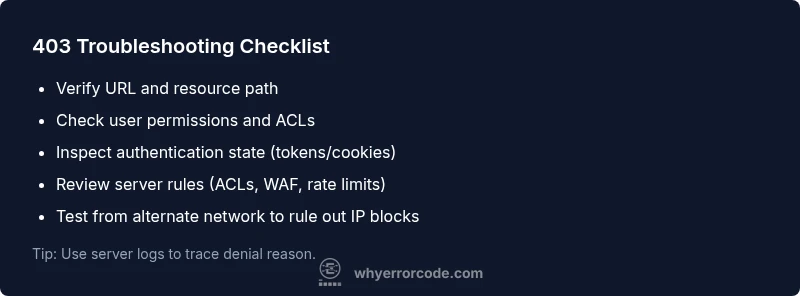
- Confirm you’re requesting the correct URL and that the resource is indeed accessible to your account. Small typos or outdated bookmarks can trigger 403s.
- Refresh authentication tokens or re-login to renew credentials that may have expired or been revoked.
- Clear your browser cookies or reset your session to eliminate stale state that could block access.
- Check for IP blocks or sponsor rules that might be denying access from your current network or country.
- Review any access-control lists (ACLs) or role-based permissions associated with your user or service account.
- If you’re debugging an API, ensure the right bearer tokens or API keys are present and included in the request header. If a resource is protected by a token scope, verify the scope includes permission to access the endpoint.
- Look at server logs or gateway logs to identify which policy denied the request and why.
In-Depth: How Access Control Works (ACLs, IAM, and Firewalls)
Access control spans several layers, and a 403 can be the result of rules at any of them. ACLs on a file system or web server control whether a given user or group is allowed to read, write, or execute a resource. Identity and Access Management (IAM) policies in cloud platforms or enterprise applications define roles and permissions that map to specific resources. Firewalls and WAFs enforce allow/deny rules based on IP, region, or user-agent patterns. When a request arrives, each layer can evaluate it and deny it if the criteria aren’t met. The net effect is a policy decision that prevents access, even if the resource exists and the request is technically valid. Understanding where the denial originates — application-level authorization, server configuration, or network rules — accelerates fixes and reduces unnecessary changes.
Client-Side Clues and How to Test
Browser-side clues can help you differentiate client-related issues from server-side enforcement. Use developer tools to inspect response headers and the body for hints about the rejecting policy. Look for headers like WWW-Authenticate, X-RateLimit-Remaining, or custom error messages that hint at required permissions. If you’re testing from a different network, try a VPN or mobile data to verify if an IP-based block is active. Clearing cache and forcing a fresh session can confirm whether stale credentials or cached permissions are the root cause. For API clients, ensure you’re not leaking credentials into logs and that your requests exactly match the required authentication scheme.
Server-Side Remedies: Permissions, Roles, and Rules
Most 403 issues stem from server-side decisions. Begin by auditing the resource’s required permissions and the user or service account’s actual permissions. Check file- or endpoint-level ACLs, folder permissions, and ownership. If the resource is protected by an IAM policy, verify that the policy grants the necessary role or scope. For web servers, review configuration blocks that enforce access restrictions, such as directory directives or location blocks. In firewalls or WAFs, validate allowlists, geo-blocks, and rate-limiting rules. If a temporary security measure blocks access, coordinate with security teams to adjust thresholds or exceptions while maintaining safety. Always document policy changes and align them with least-privilege principles.
When to Escalate: Security and Compliance Considerations
If the problem appears to involve sensitive data, regulatory controls, or potential security misconfigurations, escalate promptly. Provide the administrator with: the exact URL, user identity (or service account), timestamp, and any relevant headers or error messages. Include the steps you took, tests you ran, and the network path used. Escalation is prudent when you encounter blocks that cannot be reproduced locally, when misconfigurations affect multiple users, or when there’s evidence of an anomaly-based security rule that might require an exception process. While escalation may slow response time, it mitigates risk by ensuring access controls remain correct and auditable.
Common Pitfalls and Myths (Myth-Busting)
- Myth: A 403 always means a misconfigured server. Reality: It can be intentional security policy designed to protect data.
- Myth: Refreshing the page will fix a 403. Reality: If permissions or tokens are wrong, retries won’t help without corrective action.
- Myth: Clearing cookies is always the fix. Reality: It helps if state is corrupted, but it won’t resolve server-side permission gaps.
- Myth: All 403s are permanent. Reality: Some blocks are temporary (rate-limits or adaptive protections) and can lift after a cooldown.
Quick Recap: Why Understanding the Meaning of 403 Matters
Knowing the meaning of error code 403 helps you steer remediation toward proper authorization rather than chasing a broken resource. A disciplined approach — verify access, examine authentication state, audit server policies, and coordinate with admins — minimizes downtime and preserves security. The Why Error Code team emphasizes documenting fixes and applying least-privilege access to prevent recurrent issues.
Steps
Estimated time: 30-60 minutes
- 1
Reproduce and document the issue
Try to reproduce the 403 with the exact URL and account. Capture the timestamp, full request URL, headers, response code, and any error payload. This baseline helps you compare changes later and communicate with stakeholders.
Tip: Record the exact URL, user identity, and timestamp for audit trails. - 2
Confirm resource permissions
Check the resource’s access controls to verify whether your user or service account is allowed. Compare with other accounts that access the same resource to identify permission gaps.
Tip: If you’re unsure of the correct permission, consult the resource owner. - 3
Review authentication state
Inspect cookies or tokens in use and confirm they are valid and scoped correctly for the resource. Replace or refresh tokens if needed.
Tip: Avoid using shared credentials in logs or screenshots. - 4
Inspect server and gateway logs
Look for denied access events in server logs, WAF logs, or API gateway logs. Identify which policy rejected the request.
Tip: Filter logs by the exact request URL and IP to speed up the search. - 5
Test from alternative paths
Try accessing the resource from a different network, device, or account to determine if the block is network- or user-specific.
Tip: If another path works, compare permissions and route rules. - 6
Rectify permissions or credentials
Apply the necessary permission changes or update credentials. Re-test after changes to confirm the 403 is resolved.
Tip: Document changes and confirm least-privilege alignment. - 7
Escalate if necessary
If issues persist across users or endpoints, escalate to security or IT admin with a summary of findings and proposed fixes.
Tip: Provide reproducible steps and the exact error details to accelerate resolution. - 8
Validate after fix and monitor
Once access is restored, monitor for a few sessions to ensure the issue doesn’t recur due to transient blocks or policy changes.
Tip: Set up alerting on repeated 403s to catch regression early.
Diagnosis: 403 Forbidden pages appear when attempting to access a resource
Possible Causes
- highInsufficient permissions for the resource
- mediumIP address blocked by firewall or ACL
- mediumExpired or invalid authentication tokens or cookies
- lowIncorrect authentication method or credentials
- lowResource is restricted by server rules or rate limits
Fixes
- easyVerify user permissions and ACLs for the resource
- easyClear cookies and re-authenticate to refresh session state
- easyRefresh or reissue tokens/credentials and ensure correct scopes
- mediumCheck server ACLs, firewalls, and rate-limit rules for blocking policies
- hardCoordinate with admin to adjust blocks or lift restrictions
Frequently Asked Questions
What does HTTP 403 Forbidden mean?
HTTP 403 means the server understood the request but refuses to authorize it. It indicates an access-control decision rather than a broken resource. The remedy involves permissions and authentication checks rather than network faults.
HTTP 403 means access is forbidden—the server won’t let you through due to permissions or policies.
How is 403 different from 401 Unauthorized?
A 401 indicates missing or invalid authentication credentials. A 403 indicates valid authentication, but access is explicitly denied by permissions or policies.
401 is about missing credentials; 403 means you’re authenticated but not allowed access.
Why do I see 403 on my own website?
Common causes include misconfigured permissions, strict access controls, or blocks at the firewall or WAF. Review resource permissions and ensure the requesting entity has the proper privileges.
It’s usually a permissions or policy issue on the server side.
Can a 403 be temporary?
Yes, some blocks are temporary, such as rate-limiting windows or adaptive security rules. Access may return once the block or cooldown period ends.
Sometimes 403s are temporary and will lift after a cooldown.
What are quick steps to fix a 403 error?
Verify the URL, refresh credentials, clear cookies, and confirm you have permission. Check ACLs and server rules if the issue persists.
First check the URL and credentials, then permissions to fix a 403 quickly.
Is 403 a client or server error?
403 is an access-control decision enforced by the server. It’s server-side in nature, though the client is responsible for presenting valid credentials.
It’s a server-side access restriction, not a client fault.
Watch Video
Top Takeaways
- Identify root cause: permission vs authentication
- Check tokens, cookies, and session validity
- Review access control lists and server rules
- Escalate when required and document fixes