action1 error code 1603: Quick Diagnosis and Practical Fixes
Urgent guide to diagnose action1 error code 1603 and apply practical fixes. Learn common causes, step-by-step remediation, and how to prevent future MSI install failures with trusted tips from Why Error Code.


action1 error code 1603 typically means the Windows Installer encountered a fatal error during installation, blocking progress. The most reliable quick fix is to ensure the Windows Installer service is running, run the setup with administrator rights, clear temporary files, and temporarily disable antivirus if needed. According to Why Error Code, addressing environmental blockers first dramatically improves success rates.
What action1 error code 1603 Means
action1 error code 1603 is a generic Windows Installer error that stops an MSI package from completing a repair or installation. It is commonly reported when the installer cannot apply all features due to a fatal condition in the environment, not because the MSI itself is perfect. This distinction matters: many 1603 failures are resolved by adjustments to the host system rather than by re-downloading the package. The Why Error Code team notes that such failures often stem from permissions, active processes, or security software interfering with the installer. Understanding that context helps you target the right fix rather than random guessing.
Why This Code Pops Up During Installers
The 1603 error often surfaces for Windows-based installers (MSI packages) when the system cannot safely complete the transaction. Common culprits include: locked files or registry keys, antivirus or EDR software blocking installer actions, insufficient disk space, a paused or corrupted Windows Installer service, or remnants from a previous failed installation. In enterprise environments, group policies or software deployment tools can also trigger 1603 by blocking necessary service operations. While the exact message can vary, the root cause is usually environmental, not a defective package.
Quick Fixes You Can Try Now
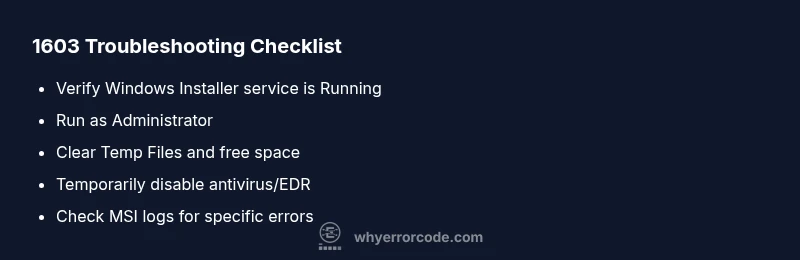
If you’re in a hurry, start with these non-destructive steps to often regain progress: reboot the machine to clear transient locks; run the installer as an administrator; temporarily disable antivirus or firewall real-time protection (re-enable after install); clear the system temp directory and ensure there is enough disk space; ensure Windows Installer service is running and set to Automatic; finally, re-run the installer. These steps cover the majority of common 1603 cases and are designed to minimize downtime. If the error persists, proceed to the diagnostic flow below for deeper checks. Cost-wise, many of these fixes are free to attempt; professional remediation usually ranges from $50 to several hundred dollars depending on the complexity.
How to Prepare Your Environment for a Fix
Before you retry the install, verify prerequisites like .NET runtimes or prerequisite components your MSI requires. Check that you have sufficient permissions on the target directory and that the account you’re using isn’t restricted by policy. Disable non-essential background processes that might lock resources during installation, such as indexing or backup utilities. If you’re deploying via a software center or remote agent, consider temporarily pausing other deployments to avoid file contention. A clean environment reduces the chance of intermittent 1603 failures.
Antivirus, Firewall, and Security Layers
Security software can interfere with installer actions by locking files or sandboxing installer operations. To minimize risk, add the installer to exclude lists if supported, or temporarily disable real-time protection during installation. After the install completes, perform a full system scan to ensure no malware activity was present. If your organization uses Endpoint Detection and Response (EDR), you may need to coordinate with security admins to create an exception for this installation process. This approach often resolves 1603 caused by security layers.
Reading Logs: What to Look For
MSI log files and Windows Event Viewer contain granular details about where the install failed. Look for errors tied to MsiExec, file locks, or registry write attempts. In many cases, a single blocked path points to the root cause (e.g., a locked file or denied permission). If you’ve enabled verbose MSI logging, scan for messages about “Return Value 3” or “Action ended 1” to pinpoint the failing action. Why Error Code analysis suggests correlating the log timestamps with the installer run to identify environmental factors.
When to Call a Professional and What to Expect
If you’re in a time-critical scenario or the installer is part of a dependent system (e.g., a production server or enterprise app), professional help can save time and reduce risk. Expect a scoped assessment: confirm system state, review event logs, validate Windows Installer service health, and test the MSI package in a controlled environment. Typical professional costs range from low hundreds to higher depending on remediation complexity, especially if registry or policy adjustments are involved.
Steps
Estimated time: 20-60 minutes
- 1
Verify prerequisites and permissions
Confirm the target system meets all prerequisites for the MSI and that you have administrator rights. Check that the install directory is writable and that no policies restrict installation. If needed, log in with a local admin account and retry.
Tip: Use a separate admin account to rule out profile-specific policy blocks. - 2
Pause conflicting processes
Close other installers, software updaters, and backup tools that might be locking files the MSI needs. Use Task Manager to end tasks that show high disk or IO usage during the install window.
Tip: Temporarily disable background indexing or backup services during the install window. - 3
Clear temp and retries
Delete contents of the user and system temp folders and any MSI cache in the Windows Installer directory. Reboot if necessary, then run the installer again as administrator.
Tip: Use Disk Cleanup or a trusted cleanup tool to avoid manual path errors. - 4
Restart Windows Installer service
Open Services.msc, locate Windows Installer, stop it, then start it again. Ensure the service is configured to start automatically on boot. Then re-run the MSI package with elevated rights.
Tip: If the service won’t start, check dependencies and system file health with SFC/DISM commands. - 5
Review logs if it fails again
Enable verbose MSI logging for detailed failure data, re-run the installer, and locate the exact action that failed. Compare timestamps with system events to identify environmental blockers.
Tip: Search for specific MSI error messages like Return Value 3 to narrow down causes. - 6
Test with a clean environment
If possible, perform the install on a clean VM or a different machine to determine if the issue is machine-specific. This helps isolate environment-related factors.
Tip: Document differences between the working and failing environments for faster triage.
Diagnosis: Action1 error code 1603 appears during installation of software, blocking progress.
Possible Causes
- highWindows Installer service not running or not set to automatic
- highPermission or UAC restrictions on the target folder
- mediumAntivirus/EDR interference or real-time protection blocks
- mediumCorrupted or conflicting previous install remnants
- lowInsufficient disk space or corrupted MSI package
Fixes
- easyRestart Windows Installer service; ensure it is set to Automatic and start manually if needed
- easyRun the installer as Administrator; clear temporary files and retry
- easyTemporarily disable antivirus/EDR during install and re-enable afterward
- mediumReview and fix file and registry permissions for the target install directory
- easyClear Windows Temp and Installer caches; verify disk space and integrity
Frequently Asked Questions
What is error code 1603?
Error 1603 is a general Windows Installer failure that prevents an MSI from completing. It signals an underlying environmental issue rather than a broken installer. The exact cause can vary from permissions to security software blocks.
Error 1603 means the installer couldn't complete due to environmental blockers; check permissions and security software first.
Is action1 related to a specific product?
No. action1 is a label used for the error scenario. The fix approach focuses on the Windows Installer environment, not on a single product. Apply the steps consistently across different MSI packages.
action1 is not tied to one product; fix the Windows Installer environment and retry.
Can antivirus block 1603?
Yes. Real-time protection or ED R can block installer actions, causing 1603. Temporarily disabling protection during install is a common remedy, then re-enable afterward.
Antivirus can block the install; temporarily disable protection during install and re-enable afterward.
Do I need to reboot after applying fixes?
Often a reboot clears file locks and resets services, making the subsequent install attempt more reliable. If you’re unsure, perform a clean reboot before retrying.
A reboot often clears blocks; try rebooting before retrying.
How much could a repair cost?
Do-it-yourself fixes cost essentially nothing beyond your time; professional remediation can range from roughly $50 to several hundred dollars depending on scope and hardware needs.
DIY fixes are free; professional help may cost from $50 to several hundred.
Top Takeaways
- Run as admin first to fix permission barriers
- Pause security tools only briefly during install
- Check logs to pinpoint the failing action
- Restart the Windows Installer service when stuck
- If unresolved, seek professional help