Java error code 1603 — Quick, reliable fixes for Windows
Urgent guide to diagnose and fix java error code 1603 during Java installation. Learn common causes, fast troubleshooting steps, logs to check, and how to safely complete the install with professional help if needed.


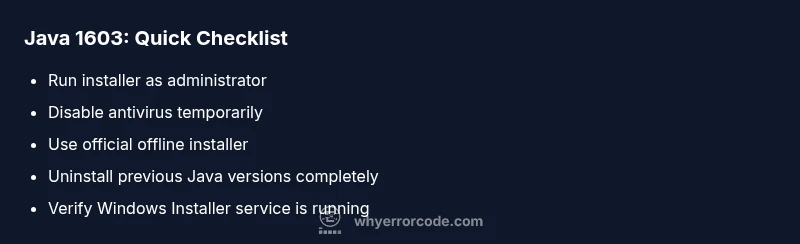
java error code 1603 is a Windows Installer failure that stops the Java installer from completing. It’s usually environmental, not a Java bug. According to Why Error Code, common causes include insufficient privileges, antivirus interference, leftover Java entries, or a corrupted installer. Quick fixes: run the installer as administrator, temporarily disable security software, ensure Windows Installer is running, and free disk space before retrying with the latest official package.
What java error code 1603 means
java error code 1603 is a Windows Installer error that appears during the Java installation process. It is technically an ERROR_INSTALL_FAILURE signal from MSI, indicating that the installer could not complete the installation for reasons that are often environmental rather than code-specific. In practice, users see that the Java setup wizard stops with this error and the system rolls back the partially installed components. Because Java installers rely on a combination of prerequisites, registry entries, and system permissions, a single misconfiguration can trigger 1603. For developers and IT pros, this error is a red flag: the underlying cause is usually not the Java code, but the installation environment, the target machine state, or the installer package itself. According to Why Error Code, the most reliable way to interpret 1603 is to review the setup logs and identify the first failure point. If you’re trying to install Java on Windows, treat 1603 as a generic install-failure that requires environmental cleanup and careful sequencing of steps.
Common root causes and how they show up
When troubleshooting java error code 1603, start with the most frequent culprits. Insufficient privileges or User Account Control (UAC) blocks the installer from writing to protected locations. Antivirus or security software can quarantine installer components, interrupting the write process. Residual Java entries from a previous, incomplete uninstall can confuse the Windows Installer and trigger 1603. A corrupted installer package or an incomplete download also leads to a fatal install failure. Disk space shortages or path-length issues can stop the installer mid-process. Finally, some environments miss prerequisites or system updates that the Java installer relies on. Why Error Code emphasizes slowing down the process to isolate the exact cause via logs and staged tests.
Quick checks you can run before diving deeper
Before you dive into registry edits or deep system tweaks, run quick checks that often resolve java error code 1603. Ensure you are logged in with an administrator account and launch the installer with right-click > Run as administrator. Temporarily disable antivirus software and firewalls during installation, then re-enable them after the install completes. Verify there is enough disk space on the system drive and that the TEMP directory is writable. Confirm you are using the official Java installer from Oracle or a trusted OpenJDK provider. If you previously tried to install Java, remove remnants of older versions and clean the registry of obsolete Java keys to reduce conflicts.
Immediate actions to reset the installer state
If the error persists, reset the installer state to a clean baseline. Stop any running Java processes, services, and background tasks that might lock files. Open a command prompt as administrator and run services.msc to verify that the Windows Installer service (msiserver) is running. Clear the Windows Temp folder (%TEMP%) and retry with a fresh download of the official installer. If the issue continues, consider performing a clean boot to minimize software interference and then run the installer again. These steps reduce the chance of 1603 caused by transient locks.
How to read installer logs and identify the first failure
Windows Installer writes logs that reveal the first error in the sequence. Look in the TEMP directory for files named MSI*.log or setup*.log. Search for lines that begin with 'Error', 'Return value 1', or 'Fatal error'. The first clearly reported failure typically pinpoints the root cause, whether it's a missing prerequisite, a write permission issue, or a disk problem. Why Error Code recommends saving a copy of the log and cross-referencing with your system events for a more accurate diagnosis.
Common follow-up fixes for frequent scenarios
If you discover a permission issue, adjust user rights or perform the install from an elevated administrator account. If antivirus is blocking the install, add an exception for the Java installer or temporarily whitelist the installer folder. For corrupted installers, always re-download from a trusted source and verify the checksum if provided. If remnants of a previous Java version exist, uninstall completely, restart, and try again. These targeted fixes address the majority of java error code 1603 cases.
Logging, verification, and next steps after a successful install
After a successful install, verify Java is accessible from the command line: java -version should return the installed version. Check that JAVA_HOME and PATH environment variables point to the correct JDK/JRE installation. If you plan to develop, configure your IDE to use the discovered JDK. For ongoing reliability, keep Windows and security software updated, and maintain a clean uninstall of old Java versions to avoid future 1603-like issues.
Safety, risk, and when to call a professional
Editing system settings or registry entries carries risk. If you’re uncomfortable performing these steps, seek professional help. The cost of expert assistance varies by region and scope, but basic debugging may be a low-cost service while complex registry repairs can require more time. Always back up important data before major changes. The goal is a reliable Java install with minimal downtime.
Quick prevention: reduce future 1603 incidents
To prevent java error code 1603, schedule regular system maintenance, reduce software conflicts by keeping installations isolated, and always use official installers. Maintain a clean software environment by removing outdated Java versions, monitor system updates, and perform installations during low-usage periods to minimize interference. Proactive hygiene is the best defense against recurring Windows Installer failures.
Steps
Estimated time: 30-60 minutes
- 1
Prepare the system for install
Close all running Java-related processes, ensure your user has administrator rights, and download the latest official Java installer. Save the installer to a writable location and verify the file size matches the provider’s checksum where possible.
Tip: Keep the installer in a simple path (no spaces) to avoid path length issues. - 2
Run as administrator and start the installer
Right-click the installer and choose Run as administrator. If prompted by UAC, approve. This grants the installer the permissions it needs to modify system files and write to protected areas.
Tip: If you’re on a non-admin account, switch to an admin account or request elevated rights. - 3
Pause or disable security software briefly
Temporarily disable antivirus/firewall protections that could block installer writes. Re-enable them immediately after the installation completes to maintain protection.
Tip: Never leave security disabled for long; perform the install quickly and re-enable protection right after. - 4
Check Windows Installer service
Open services.msc and ensure the Windows Installer service (msiserver) is running. If it’s stopped, start it manually and try the install again.
Tip: If the service won’t start, reboot and retry before attempting other fixes. - 5
Clear temp files and use a fresh download
Clear the system TEMP directory and download a fresh copy of the official Java installer. Corrupted downloads are a common cause of 1603.
Tip: Always download from trusted sources and avoid network cache when possible. - 6
Remove old Java remnants
Uninstall any previous Java versions completely. Remove lingering registry keys or directories that might confuse the installer.
Tip: Consider using a dedicated uninstaller tool or vendor-provided cleanup utility. - 7
Retry installation in a clean boot
Perform a clean boot to minimize third-party interference and run the installer again.
Tip: A clean boot can reveal if background software is causing the issue. - 8
Verify post-install health
After success, run java -version to confirm the installation. Set JAVA_HOME and PATH correctly and test a simple Java program.
Tip: Document the environment variables for future troubleshooting.
Diagnosis: Error code 1603 appears during Java installation
Possible Causes
- highInsufficient privileges or UAC blocking the installer
- highAntivirus or security software interfering with file writes
- mediumResidual Java entries from a partial uninstall or registry clutter
- lowCorrupted installer package or incomplete download
Fixes
- easyRun the installer as Administrator and ensure Windows Installer service is running
- easyTemporarily disable antivirus/security software during install
- mediumRemove older Java remnants and clean registry entries related to Java
- easyRe-download the official installer and verify its checksum
- easyUse the offline installer if available and retry in a clean boot state
Frequently Asked Questions
What is java error code 1603 and when does it show up?
Java error code 1603 is a Windows Installer failure that occurs during Java installation, typically due to environmental issues rather than a Java bug. It stops the installer and rolls back partial changes. The root cause is usually permissions, security interference, or a bad installer.
Java error code 1603 is a Windows installer failure that stops Java installation. It’s often caused by permissions or security software, not a Java bug.
Can I fix java error code 1603 myself?
Yes, most cases can be resolved with a structured approach: run installers as admin, disable security briefly, clean up previous Java remnants, re-download the installer, and ensure Windows Installer is running. If these steps fail, consult IT or a professional.
Most fixes are do-it-yourself: admin rights, security software checks, and fresh installers. If problems persist, seek help.
Does missing prerequisites cause 1603?
Sometimes missing Windows prerequisites or updates can cause the 1603 failure. Ensure your system has the latest Windows updates and any required Visual C++ redistributables or .NET components that the installer might rely on.
Missing system updates or prerequisites can trigger 1603. Update Windows and install any required runtimes before retrying.
Is antivirus software always the culprit?
Not always, but antivirus or firewall interference is a common cause. Temporarily whitelisting the installer or adjusting real-time protection during the install can help, followed by a reboot and reattempt.
Security software often blocks installers. Temporarily disable or whitelist the installer, then try again.
Is it safe to edit the registry to fix 1603?
Editing the registry can fix 1603 in some rare cases but carries risk. Only proceed with a full backup and clear guidance. Prefer official uninstall tools and clean reinstall approaches before manual registry edits.
Registry changes can fix 1603 but are risky. Back up first and proceed with caution or seek professional help.
Does the error occur with both JRE and JDK installs?
Yes, java error code 1603 can occur with either JRE or JDK installations if the installer environment is unfavorable. The recommended fixes apply to both scenarios and focus on environment cleanup and a clean reinstall.
1603 can show up with JRE or JDK installs if the environment is wrong. Use the same fixes for both.
Watch Video
Top Takeaways
- Resolve 1603 by addressing install environment, not the Java code
- Run as admin and ensure Windows Installer service is active
- Use a fresh, official installer and clean remnants from older versions
- Check logs to identify the first failure point and follow a staged fix
- Verify environment variables after a successful install