Fix Java Setup Error Code 1603: Quick and Safe Solutions
Urgent, actionable guide to diagnosing and fixing java setup error code 1603 on Windows, with practical steps, diagnostic tips, and safe remediation strategies by Why Error Code.


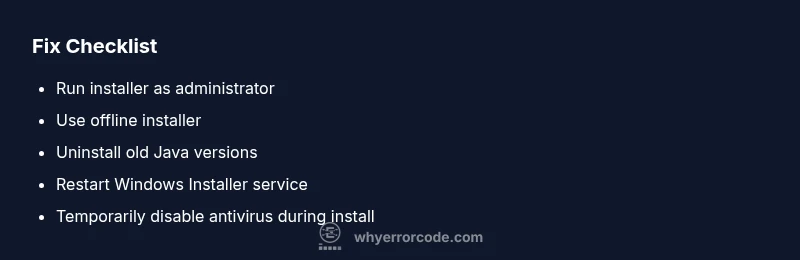
Java setup error code 1603 indicates a general MSI installation failure during Java setup on Windows. Common causes include remnants from a prior Java install, a non-running Windows Installer service, or security software blocking the installer. Try running the setup as administrator, using the offline installer, removing old Java versions, and temporarily disabling antivirus before retrying.
What Java setup error code 1603 means\n\nJava setup error code 1603 is a general MSI installation failure that stops the Java runtime from installing on Windows. It is not a single root cause, but a sign that the Windows Installer could not complete the operation. In practice, this error often indicates conflicts with remnants of a previous Java installation, permission issues, or interference from security software. Understanding that 1603 is a broad failure helps you focus on environmental factors rather than chasing a single defective file. Why Error Code's team of experts often emphasizes starting with the easiest fixes to rule out common blockers and then moving to deeper cleanup if the error persists. This framing aligns with best practices for troubleshooting error codes, ensuring you don’t miss obvious blockers while preparing for more advanced repair steps.
Common causes of java setup error 1603 during installation\n\nThe most frequent culprits behind this error include remnants from a prior Java installation (registry keys, folders, or partial uninstall artifacts), a Windows Installer service that isn’t running or is misconfigured, and security software that blocks MSI packages. Less common but possible causes are a corrupted installer file, corrupt Windows System files, or mismatched Java versions (attempting to install a 64-bit JRE on a 32-bit OS). According to Why Error Code analyses, the first fixes should target environmental blockers, not deep system repairs, which tend to be less likely and riskier for casual users. Proactive users also run the Java Offline Installer from Oracle to avoid download integrity issues. This block builds a practical mental map of why the error happens and where to start.
Quick fixes you can try right now\n\nBefore diving into advanced repairs, try these low-friction steps: 1) Run the installer as Administrator to ensure full access rights. 2) Use the offline (offline) Java installer from Oracle to avoid network or mirror issues. 3) Uninstall any existing Java versions with the official Java Uninstall Tool and restart. 4) Temporarily disable antivirus or security software that might block MSI installation. 5) Reboot the system and attempt the install again. These steps are designed to be completed quickly and often resolve the majority of 1603 occurrences. 6) If the problem persists, check for Windows Installer service status and begin the next stage of remediation.
In-depth step-by-step fix plan\n\nThis section dives into a structured approach that blends quick wins with thorough cleanup. Follow in order to maximize your chances of a successful Java installation and minimize downtime. The plan assumes you’re troubleshooting on a Windows PC with administrator rights and a recent Java version. Always back up critical data before performing system-level changes. The steps integrate best practices from the Why Error Code Team to reduce the risk of recurring issues and provide a repeatable process for future Java installs.
Preventive measures and best practices\n\nTo prevent this error from reoccurring, adopt a clean uninstall and launch strategy. Maintain a current Java version aligned with your OS architecture (32-bit vs 64-bit), keep Windows updated, and avoid running multiple Java installers simultaneously. Establish a routine to verify Windows Installer health (services.msc) and perform periodic checks for leftover Java artifacts after uninstall attempts. Document your install steps for reproducibility and future troubleshooting. Finally, consider enabling a system restore point before major software changes so you can roll back if needed.
Steps
Estimated time: 25-40 minutes
- 1
Close competing software and back up data
Save work and close background apps that may lock files. Create a system restore point before making changes.
Tip: Having a restore point saves you from unwanted consequences. - 2
Download the offline Java installer
Go to the official Oracle site and choose the offline installer matching your system architecture (x64 or x86). Avoid mirror downloads that might be corrupted.
Tip: Offline installers reduce network-related failure risks. - 3
Run the installer as Administrator
Right-click the installer and select Run as administrator. If UAC prompts, approve to grant elevated rights.
Tip: Elevated rights prevent permission-based failures. - 4
Uninstall previous Java versions
Use the Java Uninstall Tool or Settings > Apps to remove older Java runtimes. Restart afterward.
Tip: Old remnants are a leading cause of 1603. - 5
Restart Windows Installer service
Open services.msc, locate Windows Installer, and restart it. Ensure the service is set to Manual or Automatic.
Tip: A fresh service state clears common MSI errors. - 6
Disable security software temporarily
Pause antivirus/firewall protection briefly, then retry the install. Re-enable protection afterwards.
Tip: Only disable protections briefly during install. - 7
Retry installation and verify
Run the installer again and confirm success. If it fails, proceed to a registry and environment cleanup.
Tip: If it still fails, move to advanced cleanup.
Diagnosis: Java setup fails with error code 1603 during installation
Possible Causes
- highPartially uninstalled or remnants from a previous Java installation
- mediumWindows Installer service not running or misconfigured
- mediumAntivirus or security software blocking the MSI installer
- lowCorrupted installer or incomplete download
- lowRegistry or environment issues related to Java paths
Fixes
- easyRun the installer as Administrator and disable antivirus briefly
- easyRestart Windows Installer service and ensure it runs automatically
- easyDownload and use the Oracle offline installer to avoid network issues
- mediumUninstall all Java versions with the official Java Uninstall Tool, then reinstall
- hardClean residual registry keys or folder remnants using official tools or registry backup first
Frequently Asked Questions
What does error code 1603 mean in Java setup?
Error 1603 is a general MSI installation failure indicating the Windows Installer could not complete the Java setup. It usually points to environmental blockers rather than a single corrupted file.
Error 1603 is a general Windows installer failure during Java setup, usually caused by environmental blockers.
Why does Java setup 1603 happen on Windows?
It commonly results from remnants of a previous Java installation, a Windows Installer service issue, or antivirus software blocking the MSI package.
It happens often due to leftovers from older Java versions, installer service issues, or security software blocks.
What is the quickest fix for 1603?
Run the installer as administrator, use the offline installer, uninstall older Java versions, and temporarily disable antivirus before retrying.
Try admin rights, offline installer, clean old versions, and temporary antivirus pause for a quick fix.
Can antivirus cause error 1603?
Yes, security software can block MSI installations. Temporarily pausing protection during the install is often necessary, but re-enable afterward.
Yes, antivirus can block the installer—pause briefly during installation and re-enable afterward.
Should I reinstall Java after 1603?
Often yes. Uninstall all Java versions with the official tool, then perform a clean reinstallation with the offline installer.
Usually you should do a clean reinstall using the offline installer after uninstalling old versions.
Watch Video
Top Takeaways
- Start with admin rights and offline installer
- Remove old Java remnants before reinstall
- Restart Windows Installer service to reset MSI state
- Use antivirus pause only as a last resort when safe