Cannot find module error in vs code: Troubleshooting Guide
A comprehensive, urgent guide to diagnose and fix the cannot find module error in vs code, with practical steps, diagnostics, and best practices for developers.


Most often this error means the module isn’t installed, the import path is incorrect, or VS Code isn’t using the project’s node_modules. Start by reinstalling dependencies, verify the correct module name in your import, and restart the TypeScript server and VS Code. If the issue persists, check tsconfig paths/baseUrl and ensure consistent Node.js versions across terminals.
Understanding the cannot find module error in vs code
The phrase cannot find module error in vs code typically appears when the runtime cannot locate a requested package during execution or compilation. In VS Code, this can be caused by a missing local dependency, a broken node_modules folder, or a misconfigured module resolver. The quickest way to approach the problem is to treat it as a missing supply chain issue: confirm installation, confirm the exact import, and validate the project’s configuration. The Why Error Code team emphasizes that the majority of these issues stem from local environment mismatches rather than fundamental language problems. Start with the simplest checks and move toward deeper configuration if needed. By following a disciplined, stepwise method, you can get back to productive coding quickly.
Common scenarios and symptoms you might see
You might encounter errors such as “Cannot find module 'express'” or “Cannot find module './utils/helpers'” when opening a project in VS Code. Common symptoms include a red squiggly under the import, TypeScript compilation errors, or runtime failures in Node.js. Some symptoms appear only in the editor, others only at runtime after a build. Understanding where the error originates—dev dependency, peer dependency, or a path alias—helps narrow down the root cause. If you see the message after upgrading Node or dependencies, suspect a path or cache issue first, then move to a reinstall.
Quick checks you should perform first
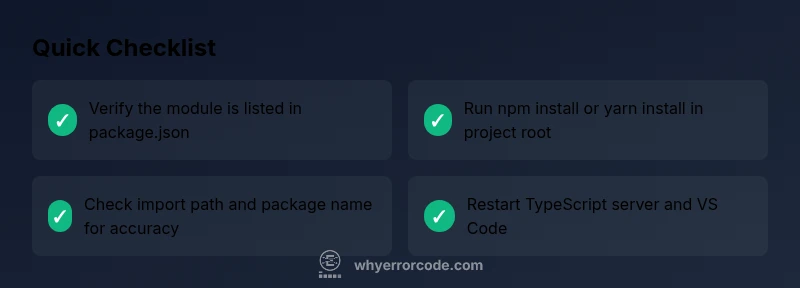
Begin with the low-effort checks: ensure the module is listed in package.json and installed in node_modules, verify the import path, and confirm you’re operating in the project root. In VS Code, use the integrated terminal to run installation commands and run a minimal repro to confirm the failure is not tied to the editor’s cache. Clear the TypeScript / JavaScript language service cache if needed. These quick checks often resolve the issue without deeper debugging.
How module resolution works in Node.js and vs code
Node.js resolves modules by looking in node_modules folders up the directory tree, honoring package.json exports, and honoring path aliases if configured. VS Code mirrors this behavior for IntelliSense and the TypeScript server, so misconfigurations in tsconfig.json or webpack alias definitions can trigger the same error even when node_modules exist. When working with TypeScript, baseUrl and paths help TS resolve non-relative imports, but a mismatch here can produce false negatives. Understanding this flow helps you decide whether to adjust imports, config, or both.
Environment and configuration pitfalls in practice
In practice, the error is frequently caused by a mismatch between the project’s dependencies and what VS Code sees in its environment. This includes installed Node.js versions, package managers (npm/yarn/pnp), monorepo workspaces, or symlinked folders. Ensure your editor uses the project’s Node.js version, and avoid mixing global install artifacts with local project modules. If you use workspaces, confirm each package.json lists the correct dependencies and that hoisting doesn’t alter resolution unexpectedly.
When to escalate to professional help
If you’ve verified installation, imports, and configuration but the error persists across a fresh install and a minimal repro, seek input from a teammate or a senior developer. Persistent module resolution issues can indicate deeper problems with workspace setup, monorepo tooling, or CI differences. The goal is to rule out project-specific configuration before engaging broader support channels.
Steps
Estimated time: 25-40 minutes
- 1
Confirm the module exists in package.json
Open package.json and verify the module is listed under dependencies or devDependencies, then run the appropriate install command to bring it into node_modules.
Tip: If the module isn’t listed, add it and install. - 2
Install dependencies in project root
In the terminal, run npm install or yarn install to install all dependencies. Watch for peer dependency conflicts.
Tip: Use npm ci for clean installs in CI environments. - 3
Check the import statement
Ensure the module name matches the package exactly and that the relative path (if importing a local file) is correct. Check file extensions.
Tip: Case sensitivity matters on many OSes. - 4
Restart TypeScript server and VS Code
Reload the TypeScript server via the Command Palette (TypeScript: Restart TS Server) and restart VS Code to clear caches.
Tip: Sometimes you must fully quit VS Code processes. - 5
Inspect tsconfig/webpack aliases
If you use TypeScript or bundlers, review tsconfig.json paths, baseUrl, and webpack resolve aliases for correctness.
Tip: Alias misconfigurations are a common source of this error. - 6
Test with a minimal repro
Create a small isolated file that imports the module to verify whether the error persists outside the main project.
Tip: This helps isolate whether the issue is project-wide or environment-specific.
Diagnosis: Cannot find module error in vs code
Possible Causes
- highModule not installed in node_modules
- mediumIncorrect import path or module name
- lowVS Code/terminal using a different working directory or Node version
- lowCorrupted node_modules or lockfile
Fixes
- easyRun npm install or yarn install in the project root to install dependencies
- easyDouble-check import statements for exact package name and file extension
- mediumDelete node_modules and reinstall to fix potential corruption
- mediumConfigure VS Code to use the project’s Node.js version and reopen the editor
- mediumVerify tsconfig.json baseUrl/paths if using TypeScript and adjust moduleResolution
Frequently Asked Questions
What does 'Cannot find module' mean in VS Code?
It usually means the runtime cannot locate the requested module in node_modules or via path aliases. Validate installation and import paths first.
That error means the code can’t locate the module, often due to missing dependencies or wrong import paths.
My project has node_modules installed, why still the error?
There could be a mismatch between the import path and the package name, a corrupted node_modules folder, or a misconfigured tsconfig/alias.
Sometimes the install didn’t complete properly, or the import path is wrong.
Should I fix this in VS Code or in package.json?
Both matter. Ensure dependencies are listed in package.json and that VS Code uses the project root settings and correct Node version.
Fix dependencies in package.json and configure VS Code to use the right Node version.
What if I'm using TypeScript and baseUrl/paths are wrong?
Adjust tsconfig.json baseUrl and paths to match imports, and ensure moduleResolution is appropriate.
BaseUrl and paths can break module resolution in TS.
Can a global install cause this error?
Yes, importing a module installed only globally won't satisfy local imports. Prefer local installs in the project.
Global installs usually don’t satisfy local imports.
When should I escalate to professional help?
If the error persists after checks and a clean install, seek help to review project configuration and environment setup.
If it keeps failing after checks, get a second pair of eyes on it.
Watch Video
Top Takeaways
- Verify module in package.json and installed dependencies
- Check import paths and file extensions for accuracy
- Restart TS server and VS Code to clear caches
- Review tsconfig/baseUrl/paths for TypeScript resolution
- Test with a minimal repro to isolate issues