Module Not Found Error in VS Code: Troubleshooting Guide
Urgent troubleshooting guide for 'module not found' errors in VS Code. Learn common causes, diagnostics, and step-by-step fixes to restore imports, dependencies, and path resolutions fast.


Most often, the module not found error in VS Code is caused by a missing dependency or a misconfigured import path. Quick fix: run npm install to restore packages, verify the correct Node version and workspace root, and ensure the import path matches the file system. If the error persists, clear the npm cache and reinstall dependencies.
Overview: What the error really means in VS Code
When you see a message like “Cannot find module 'xyz'” or “Can't resolve './utils'” in VS Code, it signals a failure in module resolution. This can happen at compile time, during TypeScript type checking, or in the browser bundle if you use a tool like Webpack. In VS Code, the language service and any integrated build tasks rely on a coherent view of the project’s node_modules and local files. The phrase module not found error in vs code is common across JavaScript and TypeScript projects and often points to a simple mismatch between what your code imports and what actually exists in your workspace. According to Why Error Code, these errors usually trace back to dependencies, path aliases, or misnamed files. Start with the simplest checks, then progressively verify configuration and environment differences between your editor and your terminal.
Quick checks to perform at the start
- Confirm you are in the right workspace folder in VS Code. Open the project root, not a parent directory, to ensure the language server reads the correct tsconfig/jsconfig and package.json.
- Look for obvious typos or case differences in the import statement. On Windows, case is ignored in the filesystem but not in TS/JS resolution on some tooling; on Linux, it matters.
- Ensure the module actually exists in node_modules or as a local file. If you just added a package, run npm install (or yarn install) to refresh node_modules and package-lock.json.
Diagnostic mindset: narrowing down causes
A module-not-found error can originate from multiple layers: the package manager, the project’s code, and the editor’s configuration. Use a structured approach: verify dependencies first, then confirm file paths, then inspect path aliases or module resolution settings. If you can reproduce the error in the terminal with node -e, you’ll have a baseline that helps distinguish issues in VS Code from those in the runtime environment.
Deep dive into common causes and how to spot them
- Missing dependency in package.json: The package might be absent from dependencies or the lockfile. The fix is usually to run npm install or npm ci to synchronize node_modules with package.json.
- Incorrect import path or filename mismatch: Relative paths like ../utils/index.js vs ./utils.js or incorrect folder depth can trigger resolution failures. Always trace the exact path from the importing file to the target.
- Path alias misconfiguration (tsconfig/jsconfig): If your project uses baseUrl, paths, or webpack aliases, ensure they map correctly to actual folders. A mismatch here will cause VS Code to fail resolution while the runtime might succeed in some builds.
- Node module resolution differences: If you switch between npm and yarn, or upgrade Node, cached resolutions may break. Running a clean install often resolves these discrepancies.
Step-by-step approach to fixes (order matters for speed)
- Reproduce and capture the exact module name from the error message. Copy the exact import string. 2) Check package.json to confirm the dependency is declared. If missing, add it with the correct version and run npm install. 3) Inspect the import path to ensure it points to an existing file and respects case sensitivity. 4) If using TypeScript, review tsconfig.json or jsconfig.json for baseUrl and paths mappings; adjust as needed. 5) Clear caches and reinstall: delete node_modules and package-lock.json, then run npm install again. 6) Restart VS Code (and optionally the TS server) to reinitialize the language service. 7) Verify in the terminal that the module resolves with node -e "require('./path/to/module')". 8) If webpack or Babel is involved, double-check resolve.alias and extensions; rebuild the project and reload.
Editor-focused and environment considerations
Sometimes the issue is not code but the editor state. Ensure VS Code is using the correct Node and npm/yarn versions via your PATH, and that the terminal integration in VS Code mirrors the global environment. Restart the TypeScript server (Command Palette > TypeScript: Restart TS Server) after changes to tsconfig or path aliases. In mono-repo setups, confirm you’ve opened the right workspace with all packages accessible. If you’re on a remote or containerized environment, verify the workspace mapping is correct and that node_modules exist in the mounted volume.
Verification, prevention, and best practices
After applying fixes, run a quick smoke test by importing the module in a small script or running your app’s build. Keep a consistent package manager (npm or yarn) across the team to avoid lockfile drift. Commit changes to package.json and lockfiles together, and consider adding a pre-commit hook or CI step to validate imports and dependency integrity. Regularly review tsconfig/jsconfig aliases and Webpack resolve settings to prevent future misconfigurations. Document any unusual environment-specific quirks so teammates know how to reproduce and fix quickly.
Real-world scenarios and templates you can adapt
- A project recently upgraded to Node 18, and a local utility import started failing due to a case-sensitivity change in the folder name. The fix involved renaming the folder to match the import and clearing node_modules before reinstall. - In a TypeScript project with path aliases, an import like '@/utils/helper' failed after a new tsconfig path was added. The solution was to update baseUrl to '.' and adjust paths accordingly, then restart the TS server. These templates illustrate how a disciplined approach reduces downtime and frustration when facing module resolution errors.
Steps
Estimated time: 45-60 minutes
- 1
Identify the missing module
Read the error message carefully to extract the exact module name. Copy the import path as shown and locate the file in the project tree. Confirm whether it is a local file or an external package.
Tip: Use the error path to locate the file in the repository; avoid guessing from memory. - 2
Verify dependencies in package.json
Open package.json and check if the module is listed under dependencies or devDependencies. If missing, add it with an appropriate version and run npm install or yarn install to refresh node_modules.
Tip: If you recently upgraded, ensure the version range satisfies the project’s code expectations. - 3
Check the import path for accuracy
Ensure the import path is relative to the importing file or uses a correct alias. Pay attention to folder depth, extension, and case sensitivity. In TS, prefer path aliases only if TS config aligns with them.
Tip: Copy and paste the path from the error into the editor; the IDE will often highlight mismatches. - 4
Review path aliases and tsconfig/jsconfig
If you use baseUrl, paths, or webpack aliases, verify they point to existing directories. Adjust settings and re-run the build to verify the resolution changes apply.
Tip: After changes, run TypeScript: Restart TS Server to refresh type resolution. - 5
Reinstall dependencies and clean caches
Delete node_modules and the lockfile, then reinstall dependencies. This clears stale resolutions that can cause module-not-found errors after upgrades or network changes.
Tip: Use npm ci if your environment relies on a pristine lockfile for builds. - 6
Validate with a quick runtime check
Run a small Node script or a minimal import to confirm the module resolves at runtime. This helps distinguish editor-only issues from runtime failures.
Tip: If the runtime works but the editor shows an error, focus on editor caches and TS server state.
Diagnosis: Module not found error appears in VS Code when opening a project or during build
Possible Causes
- highMissing dependency in package.json
- highIncorrect import path or filename case sensitivity
- mediumPath alias misconfiguration in tsconfig/jsconfig or webpack
- lowWorkspace root not opened or node_modules not found
Fixes
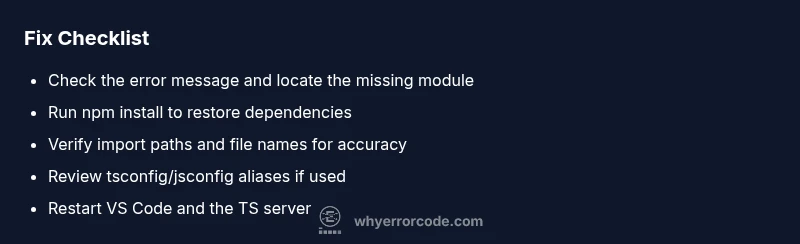
- easyRun npm install to restore dependencies and ensure package-lock.json matches package.json
- easyVerify and correct import statements for exact paths and file names (watch for case sensitivity)
- mediumReview tsconfig/jsconfig and webpack config to ensure path aliases map to real directories
- easyClear npm/yarn caches and reinstall node_modules; delete lockfile if necessary, then install again
- easyRestart VS Code and, for TypeScript, restart the TS server to refresh the language service
- easyEnsure the correct workspace is opened in VS Code and that node_modules exists in the project root
Frequently Asked Questions
What causes a module not found error in VS Code?
A module-not-found error happens when the code imports a module that the resolver cannot locate. This can be due to a missing dependency, an incorrect import path, or misconfigured path aliases. It may also occur if the workspace root isn’t opened correctly or if node_modules are out of sync with package.json.
This usually means the module isn’t found by the resolver due to a missing dependency or wrong path.
How do I fix a missing dependency in a Node.js project?
Start by running npm install (or yarn install) to synchronize node_modules with package.json. If the package isn’t listed, add it to the dependencies section with the correct version, then install again. Check for network issues or proxies if installation fails.
Run your package manager to install missing dependencies, and verify your package.json lists the correct package.
Why does my import path look correct but still fail?
The issue is often a case-sensitivity mismatch, an incorrect relative path, or a missing extension in the import. Verify the exact path from the importing file, ensure file names match case, and include extensions if required by your environment.
Check the exact path and file name; case sensitivity and relative depth often cause this error.
How can tsconfig paths affect module resolution?
If you use baseUrl and paths, mismatches will break resolution. Ensure the paths map to actual directories, and that your editor and build tooling pick up the same tsconfig. After changes, restart the TS server to refresh mappings.
Path aliases can mislead the resolver; verify tsconfig mappings and restart the TS server.
Is restarting the TypeScript server helpful?
Yes. Restarting the TS server clears cached type information and forces VS Code to re-evaluate imports with updated configs. This can resolve phantom module-not-found errors after configuration changes.
Restarting TS server often fixes editor-only resolution issues after changes.
When should I seek professional help?
If the error persists after a thorough check of dependencies, paths, and editor config, consider consulting a colleague or a support forum. In enterprise environments, open a ticket with your build tool or IDE vendor for deeper investigation.
If the problem remains after your checks, escalate to a teammate or vendor support.
Watch Video
Top Takeaways
- Verify dependencies are installed and up-to-date
- Double-check import paths and file names for accuracy
- Review tsconfig/jsconfig aliases and webpack resolves
- Restart the editor and TypeScript server after changes
- Use a consistent package manager to prevent drift