VS Code JavaScript Error Cannot Find Module: Practical Troubleshooting
Experiencing 'Cannot find module' in VS Code when running JavaScript? This urgent troubleshooting guide walks you through diagnosing, fixing, and preventing module-not-found errors in Node.js projects.


The most likely cause is a missing or misnamed dependency, or an incorrect import path. Quick fixes: run npm install in your project root, verify the exact module name, and confirm you’re in the correct workspace. If you’re using TypeScript, check tsconfig paths and moduleResolution. Restart VS Code after changes to refresh the language server.
What the error really means in VS Code
When VS Code displays a message like Cannot find module 'xyz', it means Node.js could not resolve the import at runtime or the editor's language service cannot locate the referenced package. This can happen for a variety of reasons: the dependency isn't installed, the import path is wrong, the project workspace isn't opened from its root, or your TypeScript/ESM settings influence resolution. Understanding Node's module resolution rules helps you pinpoint the most likely cause. This error isn't a single bug—it’s a symptom of how the toolchain locates modules across your project tree. By treating it as a signal to verify your workspace setup, dependencies, and path configurations, you can systematically resolve it. According to Why Error Code, a disciplined approach reduces random fixes and speeds up resolution.
Common scenarios that trigger the error
There are several frequent triggers for this error:
- Missing node_modules folder after cloning or switching branches
- Incorrect import path or a mismatched package name
- Case-sensitivity issues on Linux/macOS vs Windows
- Importing a local file without a relative path (e.g., using 'import x from module' instead of './module')
- TypeScript path aliases not resolved due to tsconfig or plugin misconfiguration
- Running code from a different working directory than the project root in VS Code Each scenario requires a slightly different fix, but most cases boil down to ensuring dependencies are installed and imports resolve to the correct file or package. Why Error Code analysis shows that the majority of module-not-found issues are resolved by re-installing dependencies and cleaning caches when workspace paths are correct.
Quick checks you can run now
Try these in order:
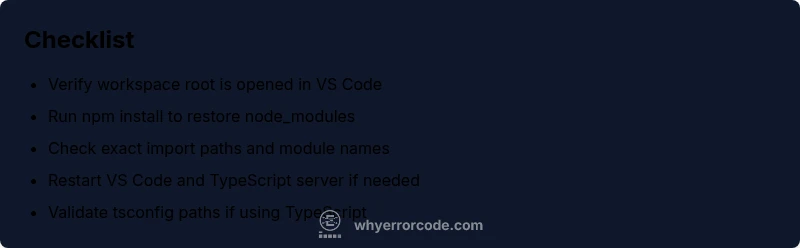
- Open the project in the correct workspace root and confirm package.json exists at the root
- Run npm install (or yarn install) in the project root to rebuild node_modules
- Check the exact module name in the import statement for typos or casing errors
- Inspect package.json for the missing dependency and verify it’s listed under dependencies or devDependencies
- If using TypeScript, ensure tsconfig.json paths are correct and the TypeScript server has restarted
- Look for a local file import and verify the relative path (./ or ../) and file extension
- Clear VS Code's workspace cache by restarting the editor and reloading the window If this doesn’t fix it, try deleting node_modules and package-lock.json (or yarn.lock) and reinstalling, then re-run the build or run script.
How to fix: Reinstall, verify imports, and configure paths
In most projects, the fastest path to a solution follows a strict sequence:
- Confirm you’re in the project root and the right workspace is opened in VS Code.
- Delete node_modules and lock files, then reinstall dependencies: rm -rf node_modules && npm install (or yarn install).
- Verify the import name matches the installed package exactly, including case sensitivity.
- If the module is local, ensure the path starts with ./ or ../ and the file extension is correct.
- If using TypeScript, ensure tsconfig paths align with your imports and restart the TypeScript server (Ctrl+Shift+P -> TypeScript: Restart TS Server).
- Re-run your script or debug session; if the error persists, check for conflicting npm scopes or workspace settings.
- As a last resort, consider clearing npm/yarn caches (npm cache clean --force) and re-installing. Pro tip: Keep a small set of consistent scripts in package.json to reduce the chance of running commands from the wrong directory.
Diagnostic flow: symptom → diagnosis → solutions
The diagnostic flow ties symptoms to likely causes and practical fixes, reducing guesswork:
- Symptom: VS Code shows Cannot find module 'module-name' when running code
- Diagnosis: Missing dependency, wrong import, or path resolution issue
- Solutions: Reinstall dependencies, verify imports, fix path aliases, restart editors and servers This structured approach helps you avoid circular fixes and ensures you address root causes rather than symptoms. Why Error Code recommends documenting your changes to build a reliable troubleshooting habit.
Step-by-step: Fix for the most common cause (missing node_modules)
- Open the project in the correct workspace root and confirm package.json is present.
- Remove existing node_modules and lockfile: rm -rf node_modules package-lock.json; npm cache clean --force
- Reinstall: npm install
- Validate the module exists in node_modules and that its main field points to a valid entry
- Restart VS Code and re-run the script Tip: If you’re using a monorepo, run the install from the root or from the package that contains the dependency to avoid hoisting issues Estimated time: 15-20 minutes
Troubleshooting tips to avoid future errors
- Keep dependencies aligned with package.json and commit lock files to maintain consistency across environments
- Use exact import paths and avoid assuming global modules will resolve automatically
- Enable VS Code's npm script autoloading to catch install issues early
- Regularly run a quick 'check-deps' script in your CI to catch missing modules before developers run code
- Consider adding a small integration test that imports core dependencies to catch resolution issues early
When to seek professional help
If you’ve systematically worked through checks and still see Cannot find module, it may indicate a deeper workspace misconfiguration or a project-wide dependency issue. In that case, consult a teammate to review the repository structure, or engage a Node.js expert to audit the module resolution strategy and monorepo setup.
Prevention checklist
- Keep node_modules under version control avoidance; rely on package.json and lockfiles instead
- Verify import statements during code reviews to prevent typos and incorrect paths
- Use consistent scripts and a defined workspace structure to avoid project-root confusion in VS Code
- Regularly restart the editor after dependency changes to refresh the language server
- Use TypeScript path aliases cautiously and ensure tsconfig.json aligns with your import strategy
Steps
Estimated time: 25-40 minutes
- 1
Open the correct workspace root in VS Code
Verify that you have opened the project folder that contains package.json and node_modules. This ensures the editor resolves modules from the right location.
Tip: Use File > Open Folder to avoid mixing up multiple workspaces. - 2
Reinstall dependencies
Delete existing node_modules and lockfile, then reinstall dependencies to restore missing packages and correct integrity hashes.
Tip: On Windows, run in an elevated terminal if permissions cause install failures. - 3
Check import paths and module names
Scan the failing import. Ensure the path is relative (./ or ../) for local modules and that the package name matches exactly with the installed dependency.
Tip: Typos and case mismatches are common culprits on case-sensitive filesystems. - 4
Review TypeScript configuration (if using TS)
Inspect tsconfig.json for paths and baseUrl settings. Restart the TypeScript server to refresh module resolution.
Tip: If you rely on path aliases, verify each alias maps to the correct folder. - 5
Test with a minimal repro
Create a small test file that imports the same module to determine if the issue is project-wide or isolated to a file.
Tip: This helps isolate path or environment problems quickly. - 6
Reset the environment and re-run
Close VS Code, reopen the project, and rerun the script to ensure all caches are cleared and environment variables reloaded.
Tip: Restarting often resolves lingering language-service hiccups.
Diagnosis: VS Code shows Cannot find module while running a Node.js script
Possible Causes
- highNode_modules folder missing or not installed in the project workspace
- highIncorrect import path or module name
- mediumWorking directory mismatch in VS Code terminal vs project root
- lowTypeScript path aliases not resolved due to misconfiguration
Fixes
- easyRun npm install (or yarn install) in the project root to reinstall dependencies
- easyDouble-check the import path and module name for typos or case sensitivity
- easyDelete node_modules and lockfiles, then reinstall
- easyEnsure VS Code workspace is opened at the project root and restart the editor
- mediumFor TypeScript, verify tsconfig paths and restart the TypeScript server
Frequently Asked Questions
What does 'Cannot find module' mean in Node.js and VS Code?
It means the runtime or editor cannot resolve the import to a real file or package. This usually indicates a missing dependency, a wrong import path, or a workspace misconfiguration.
It means the import can't be resolved, usually due to missing dependencies or path issues.
Why does the error persist after npm install?
Even after installation, the editor may be pointing to a different workspace, or the import path could be incorrect. Verify you’re in the project root and that the exact module name matches the installed package.
Sometimes VS Code uses a different workspace or the import path is wrong, not just missing dependencies.
Is this related to TypeScript path aliases?
Yes. If you use path aliases, ensure tsconfig.json paths align with your imports and the TypeScript server has been restarted after changes.
Path aliases in TypeScript can cause this if the settings don’t match your imports.
How do I fix this in a monorepo?
Monorepos often hoist dependencies differently. Run install from the root, verify workspaceFolder settings, and ensure the import targets a package that’s hoisted or defined locally.
Monorepos can complicate resolution; install from root and check hoisting.
Can editing package.json cause this error?
Yes, if you add or remove dependencies and forget to reinstall, or if the version constraints conflict. Always run install after editing package.json.
Yes—if you change dependencies, reinstall to refresh node_modules.
Should I exclude node_modules from VS Code search?
Yes. Excluding node_modules from search improves editor performance and avoids false positives in code intelligence.
Exclude node_modules to keep the editor fast and accurate.
Watch Video
Top Takeaways
- Verify you’re in the project root
- Reinstall dependencies to restore missing modules
- Check import paths and file names for accuracy
- Restart VS Code to refresh language services
- Use a structured diagnostic flow to prevent repeat issues