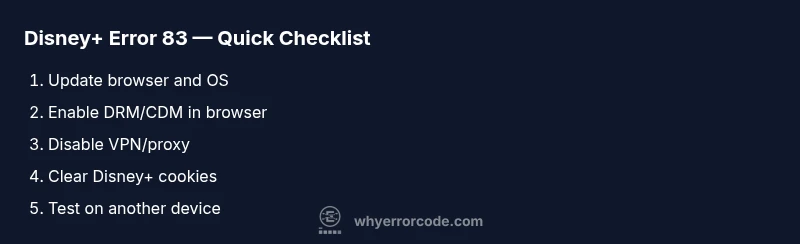
Disney Plus error code 83 on laptop: Quick fix guide
Urgent, practical guide to diagnose and fix Disney Plus error code 83 on laptop. Learn common causes, step-by-step repairs, and prevention tips to get back to streaming fast.


Disney Plus error code 83 on laptop typically signals a playback block tied to DRM or browser compatibility. The fastest fixes usually involve updating your browser and OS, ensuring Widevine/CDM is active, and removing VPNs or proxies. If playback still fails, check network security settings, firewall rules, and any conflicting security software.
What Disney Plus error code 83 on laptop actually means
When Disney Plus displays error code 83 on laptop, it indicates a blocked playback attempt before the stream can start. This is usually triggered by a Digital Rights Management (DRM) check or a security constraint in the browser or OS. It isn’t generally about your subscription or the title itself. In urgent cases, focus on restoring proper DRM communication between Disney+, your browser, and the operating system. This often comes down to software compatibility, updated security protocols, and a stable network path. According to Why Error Code, the error commonly appears when the browser’s DRM module or security settings conflict with Disney+ expectations, so the quickest path is to reestablish that trust between components.
Quick checks you should run now
Before diving into deeper diagnostics, perform a rapid triage to rule out obvious blockers:
- Verify you have an active internet connection with stable throughput suitable for streaming.
- Check Disney+ service status to confirm there’s no outage on their end.
- Update your browser to the latest version and restart it.
- Ensure your operating system is up to date with the latest security patches.
- Verify cookies and cross-site tracking are allowed for Disney+ in browser settings.
- Temporarily disable VPNs or proxies to see if they’re interfering with the DRM handshake.
- Review security software (antivirus/firewall) to allow Disney+ traffic and DRM domains.
- Try an incognito/private window if privacy extensions are causing interference.
Likely causes in order of probability
Many users see error 83 due to the most common culprits first. High likelihood causes include an outdated browser or OS that can’t properly negotiate DRM handshakes, and DRM/CDM modules that are blocked or malfunctioning in the browser. A medium likelihood factor is VPNs, proxies, or aggressive firewall rules that block Disney+ streaming paths. Low-likelihood issues involve hardware acceleration conflicts or HDCP errors at the GPU level, which are rarer but possible on older hardware.
Step-by-step fix: the most common cause
This section focuses on the top fix—updating browser/OS and ensuring DRM is active.
- Update your browser to the latest version and restart it. Then visit a site that uses DRM (like a streaming test page) to confirm Widevine/CDM is loading. If not, proceed to step 2.
- Update your operating system (Windows/macOS) to the latest supported build and reboot.
- Check browser settings to ensure DRM-related features are enabled and no extensions block scripts from media domains.
- Clear cache and cookies for the Disney+ site, then sign back in.
- Disable any VPN/proxy temporarily and test playback again on an unmodified local network.
Tip: If you still see the error, try another browser to determine if the issue is browser-specific.
Other fixes: when the primary fix doesn’t resolve it
If the primary browser/OS update doesn’t fix the error, explore these alternate paths:
- Reinstall the browser or install an alternate compatible browser for testing.
- Verify Widevine CDM status in your browser experiments; some browsers require manual enabling of Content Decryption Module support.
- Check device security settings that might block DRM domains; add Disney+ to allowed sites or exceptions lists.
- Test on a different device (another laptop or tablet) to isolate whether the issue is device-specific.
Safety, privacy, and when to escalate
Streaming errors can sometimes expose misconfigurations that affect your privacy or security posture. Do not permanently disable security features as a workaround. If the issue persists across multiple devices and networks, contact Disney+ support with your diagnostics and error code details. When in doubt, a professional IT check can verify DRM handshake integrity and network policy rules in professional environments.
Prevention and long-term maintenance
To minimize recurrence of error 83 on laptop, establish a regular maintenance habit:
- Keep software, drivers, and security tools up to date.
- Use a single consistent browser for streaming that is known to work with Disney+.
- Periodically clear caches and re-check DRM module status after major OS updates.
- Monitor VPN usage; if you must use a VPN for other reasons, test streaming with and without the VPN to identify clashes.
- Maintain a stable home network and minimize router-level blocks that could impede streaming domains.
Steps
Estimated time: 20-40 minutes
- 1
Update browser and OS
Check for the latest browser update and install it. Then verify your operating system has the latest security patches and reboot. This ensures the DRM handshake can proceed without compatibility gaps.
Tip: Back up bookmarks and form data before updating. - 2
Verify DRM/CDM is active
In your browser settings, locate the content protection or DRM section and confirm Widevine (or the equivalent CDM) is enabled. If not, enable and restart the browser.
Tip: If you’re unsure, try a different browser to confirm DRM behavior. - 3
Clear cache and cookies for Disney+
Clear site data for disneyplus.com and sign back in. A clean session can resolve stale DRM state or cookie-related blocks.
Tip: Prefer a clean session in an incognito/private window first to test. - 4
Disable VPN or proxies
Temporarily disconnect any VPN or proxy service and run a test on a direct connection. Some networks interfere with DRM handshakes.
Tip: If streaming on mobile data, switch to a secure Wi-Fi network and retry. - 5
Test another browser or device
If the error persists, try another supported browser or a different device to determine whether the problem is browser-specific or device-limited.
Tip: Make a note of each environment you test and the results. - 6
Contact support if needed
If none of the fixes work, gather your error code, timestamps, and environment details and contact Disney+ support or your IT team for deeper DRM diagnostics.
Tip: Provide replication steps and any diagnostics you ran.
Diagnosis: Disney Plus error code 83 on laptop appears during playback attempt
Possible Causes
- highOutdated browser or OS failing the DRM handshake
- highDRM/CDM module blocked or not functioning in the browser
- mediumVPN/proxy or security software interfering with streaming traffic
- lowHDCP or hardware acceleration issues on older GPUs
Fixes
- easyUpdate browser and OS; restart and re-test DRM
- mediumEnsure Widevine/CDM is enabled and functioning in the browser
- easyDisable VPN/proxy and adjust firewall rules to allow Disney+ domains
- easyTemporarily disable hardware acceleration or test with a different device
Frequently Asked Questions
What does Disney Plus error code 83 mean on a laptop?
Error 83 typically indicates a DRM or browser compatibility block that prevents streaming from starting. It isn’t about the subscription and is usually resolved by updating software and re-establishing DRM communication.
Error 83 usually means DRM or browser compatibility is blocking playback. Update software and re-enable DRM to fix it.
Will a VPN trigger this error?
Yes, VPNs or proxies can interfere with the DRM handshake and cause error 83. Temporarily disable them to test streaming and then re-enable if needed.
VPNs can cause this, so try turning them off to test streaming.
Does clearing cookies fix error 83?
Clearing cookies and site data can resolve stale DRM state and login issues that contribute to error 83. If it works, re-login and test again.
Clearing cookies often clears the DRM state that blocks playback.
Should I try another device?
If the error persists across browsers on one device but not another, the issue may be device-specific DRM or network settings. Testing on another device helps isolate the cause.
Testing on another device helps you identify if it’s device-specific.
When should I contact Disney Plus support?
If the error remains after all standard fixes and testing across environments, contact Disney Plus support with details of your environment and steps taken.
If nothing fixes it, reach out to support with details.
Is this error related to a service outage?
Error 83 is typically client-side, but service outages can manifest as playback issues. Check Disney+ status pages and recent announcements.
Outages can look similar, so check status pages too.
Can hardware issues cause error 83?
Hardware-related DRM problems are rare but possible on very old GPUs or systems with restricted media hardware support.
In rare cases, old hardware can cause DRM issues.
Watch Video
Top Takeaways
- Update browser and OS first
- Enable DRM/CDM and test without VPN
- Clear cache and cookies for Disney+
- Test on another device if needed
- Seek official support if unresolved