Disney Plus Login Error 83: Quick Fix Guide for 2026
Urgent guide to Disney Plus login error code 83, with causes, quick fixes, step-by-step repairs, and escalation paths. Learn how to regain access across devices and networks fast.


Disney Plus login error code 83 indicates a login verification issue that blocks streaming. It often stems from session conflicts, outdated apps, or temporary server blocks. The fastest fix is a short reset: sign out of all devices, clear caches, update the app, then re‑sign in with fresh credentials. If that fails, test from another device or network, and check for service outages.
What Disney Plus login error code 83 means
The Disney Plus platform uses token-based authentication to verify your account during sign‑in. Error code 83 signals a problem with that verification, which can be triggered by stale session data, outdated app versions, or transient server issues. Because streaming access hinges on a valid login token, even small mismatches can trigger 83 and stop playback. The feeling is urgent: you want to resume binge-watching, not wait for a back‑and‑forth with support. According to Why Error Code, many users see this when switching networks or after a prolonged session on multiple devices. The underlying principle is simple: your device must present current, valid credentials to Disney Plus servers.
Key takeaway: When you see 83, start with quick, device-wide resets and app updates before diving into deeper diagnostics.
Quick wins to try before troubleshooting
Before you jump into a full diagnostic, run through these fast checks that fix the majority of 83 occurrences. They’re inexpensive, take minutes, and reduce the chance you’ll chase a problem that isn’t there. First, sign out of Disney Plus on every device you’ve used recently, then close the app completely. Clear cached data on mobile devices or browsers to remove stale tokens. Update the Disney Plus app to the latest version, as developers routinely fix login edge‑cases in releases. If you still see 83 after these steps, reboot your router or switch networks to rule out local network blocks. Finally, attempt a fresh login on one device to confirm whether the issue is isolated.
Common causes mapped to symptoms
Error code 83 isn’t a single bug; it’s a class of session‑level problems. Common causes include: 1) Outdated app version failing to negotiate tokens with servers, 2) Corrupted or stale session cookies and local storage data, 3) Conflicting active sessions across devices, 4) Temporary service outages or regional blocks. Symptoms often present as a sudden stop after a sign‑in, a loop of “loading” with no access, or a message suggesting re‑authentication. Diagnosing which cause is at play is crucial because the fix changes depending on the root issue. The fastest path is to eliminate local causes first (app version and cache) before considering server problems.
Step-by-step repair for the most common cause: stale session and cache
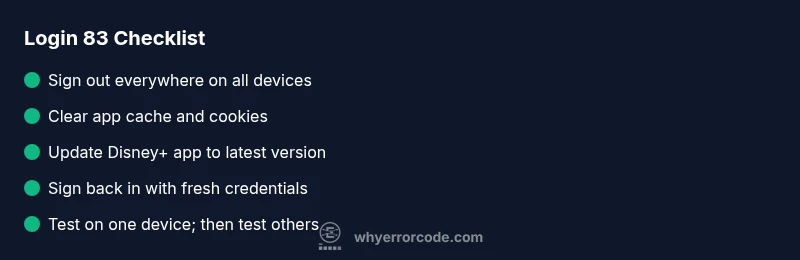
- Sign out on all devices. Open each app, navigate to account settings, and choose Sign Out Everywhere. This breaks all active sessions and forces a fresh token on next login.
- Clear cache and data. On mobile, go to Settings > Apps > Disney Plus > Storage > Clear Cache/Data. On browsers, clear cookies and site data for disneyplus.com.
- Update the app. Check your device’s app store for an update and install it. Restart the device after installation.
- Sign back in with fresh credentials. Use a new login session, ideally on a single device first to confirm access.
- Verify by streaming a short video. If 83 reappears, proceed to device testing and network checks for residual issues.
TIP: If the error persists after this sequence, perform these steps on a second device to confirm whether the issue is device‑specific or account/network‑wide.
How to verify your account status and device compatibility
After clearing local issues, verify the fundamentals. Ensure your Disney Plus subscription is active and not blocked by a payment issue. Confirm which device you’re using is supported and running a compatible OS version. Some older devices lose support when platforms update their authentication methods. Check for any active parental controls or account restrictions that might block login attempts. If you recently changed your password, ensure the new password is updated across all devices. Finally, review your account’s login activity to spot unfamiliar sessions that might trigger security blocks.
Network and DNS considerations impacting Disney Plus login
Network health plays a surprising role in authentication. Intermittent connectivity can lead to timeouts during the sign‑in process, triggering error code 83. Start by testing your connection on a different network (mobile hotspot, another Wi‑Fi network, or wired Ethernet if available). Run a quick DNS check: switch to a public DNS like 8.8.8.8 and 8.8.4.4 or your router’s default DNS. If your ISP imposes regional blocks or throttling on certain streaming endpoints, a VPN or alternate DNS may temporarily bypass it (note: use VPNs in compliance with terms of service). Finally, ensure there’s no firewall rule blocking Disney Plus domains.
Device-specific guidance: TV apps, mobile, and browsers
Different devices behave differently when authentication errors occur. On smart TVs and streaming devices, a full reboot of the device and reinstallation of the Disney Plus app solves many 83 cases. On mobile, clearing cache and re‑installing is effective. Desktop browsers may require clearing cookies for the site and trying an incognito window to avoid cached credentials. If a particular device remains stubborn, test sign‑in on another supported device to isolate whether the problem is with the device or the account.
When to contact support and what to prepare
If the problem persists after you’ve exhausted the quick fixes, contact Disney Plus support or your streaming device vendor. Prepare: a concise description of the issue, exactly when it began, the devices and networks tested, and screenshots of any error messages. Provide your account email and the approximate time of sign‑in attempts. If possible, share the diagnostic details from the app (log files or error codes observed). Support may ask you to confirm your device, OS version, and a recent app version to reproduce the issue. If there’s a known outage, monitor official status pages for updates and expected resolution times. The cost of professional help, if needed, typically ranges from free (online chat) to service call fees of $50–$150 depending on the provider and device.
Preventing future 83 errors with best practices
Proactive steps lessen the odds of recurrence. Keep Disney Plus and device OS updated. Sign out of other devices regularly if you share your account. Use a password manager to maintain strong, unique credentials and enable two‑factor authentication where available. Regularly clear app caches on mobile devices and browsers after updates. If you rely on networks with strict firewalls, whitelist DisneyPlus endpoints in your router, and monitor service status pages so you know when outages occur. Finally, maintain a record of your recent sign‑in activity to quickly spot unfamiliar access.
Steps
Estimated time: 15-30 minutes
- 1
Prepare and verify basics
Confirm you have an active Disney Plus subscription, note the devices you’ll test on, and ensure you have the latest app installed. This avoids chasing issues that aren’t related to login credentials.
Tip: Gather your account email and last successful login time for quicker verification. - 2
Sign out everywhere
Open each device and sign out of Disney Plus across all active sessions. This clears token conflicts that can trigger error codes like 83.
Tip: If you can’t reach some devices, start with the most frequently used one. - 3
Clear cache and data
On mobile, clear cache/data; on browsers, clear cookies and site data for disneyplus.com. This removes stale tokens that cause verification failures.
Tip: Do not skip this step if you’ve recently updated the app. - 4
Update and re‑sign in
Install the latest Disney Plus update, restart the device, and sign back in with fresh credentials. This ensures the server validates a current, unblocked session.
Tip: Use a new password only if you suspect credential compromise. - 5
Test across one device
Try streaming on a single device after the reset to confirm if the issue persists. If it works, test other devices one by one to isolate the cause.
Tip: Document which device first succeeds for odds on root cause.
Diagnosis: Users see error code 83 when signing into Disney Plus.
Possible Causes
- highOutdated Disney Plus app version
- highCorrupted cache or cookies on the device
- mediumMultiple active sessions causing token conflicts
- lowTemporary service outage or regional block
Fixes
- easyUpdate the Disney Plus app to the latest version
- easySign out from all devices and clear app/cache data
- easyClear browser cookies or app data completely and sign back in
- easyTry a different device or network to isolate the issue
- easyIf outage, wait for service to restore; monitor official status pages
Frequently Asked Questions
What does Disney Plus error code 83 mean?
Error 83 indicates a login verification problem. It often results from stale credentials, an outdated app, or a temporary service block. The first steps are to refresh tokens by signing out everywhere, clearing caches, and updating the app.
Error 83 means the login verification didn’t go through. Start by signing out on all devices, clearing cached data, and updating the app, then sign back in.
Can I fix error 83 without contacting support?
In many cases, yes. Following the quick reset steps—sign out everywhere, clear caches, update the app, and re‑sign in—resolves 83. If the issue persists across devices and networks, you’ll likely need to contact support.
Most of the time you can fix it yourself by refreshing the login process, but if it keeps happening, reach out to support.
Is error 83 related to my Disney Plus password?
Not always. 83 is usually tied to session tokens rather than password correctness, but changing your password can help if tokens were compromised. Always ensure you’re using the right credentials after any password change.
It’s usually about tokens, not the password itself, but changing the password and signing in again can help reset things.
Could a service outage cause error 83?
Yes. An outage or regional block can trigger authentication errors like 83. Check Disney Status pages or third‑party outage trackers, and retry after the service indicates restoration.
Outages can cause 83, so check status pages and try again later.
Does device type affect whether I see error 83?
Yes. Some devices handle tokens and updates differently. If one device keeps failing, test another device or browser to identify if the issue is device‑specific.
Different devices can behave differently; if one fails, try another to isolate the cause.
What information should I have when contacting support?
Have your account email, device list, OS/app versions, steps you already tried, and any error timestamps. This helps support reproduce the issue quickly and propose a fix.
When you contact support, share your device list and what you already tried to fix it.
Watch Video
Top Takeaways
- Sign out everywhere and clear caches first
- Update the app to the latest version
- Test on multiple devices to isolate the issue
- Check for service outages and regional blocks
- Escalate to support if the problem persists