Error Code 0 YouTube Fix: Quick Recovery Guide for Playback
Discover practical, fast strategies to fix YouTube error code 0. This guide covers quick resets, cache clearing, browser checks, app updates, and when to seek professional help to restore smooth playback.


Error code 0 on YouTube indicates a playback failure that prevents video playback or processing. Quick fixes include refreshing the page, clearing browser or app cache, disabling problematic extensions, and trying a different browser or device. If the issue persists, verify network stability, update the YouTube app, or reinstall. Contact support for unresolved cases.
What error code 0 means on YouTube
Error code 0 on YouTube is a generic, non-specific error displayed when the player cannot load or render the video. Unlike explicit network errors, a code 0 often signals that the client failed to obtain or decode the stream, or the embedded player encountered an unexpected condition. This can happen on desktops, mobiles, across browsers and in the YouTube app. Root causes may range from a stale cache to a flaky network or a temporary app compatibility issue. For developers and IT pros, approach this as a fault-distribution problem: reproduce the issue on multiple devices, isolate the environment (network, app, browser), and avoid assuming the video file itself is corrupted on YouTube’s servers. The goal is to rule out local factors first and escalate if the problem stays unsolved.
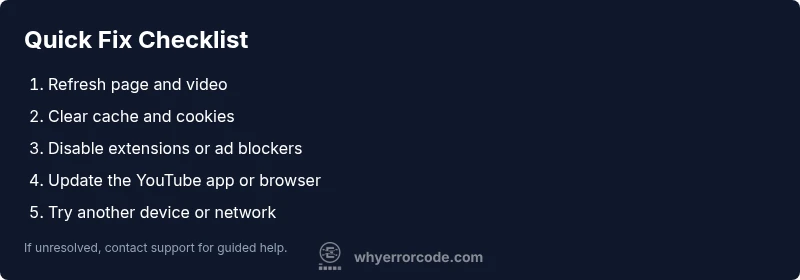
Quick-fix checklist you can try first
- Refresh the page and video
- Clear cache and cookies
- Disable extensions or ad blockers
- Try a different browser or device
- Update the YouTube app or browser
- Reboot your router if you’re on a shared network
These fixes cover the most common local causes and are safe to perform before deeper troubleshooting.
Network and device readiness for streaming
Streaming quality hinges on a stable network and compatible hardware. Before diving into deeper fixes, verify your connection speed is steady, disable VPNs or proxies that may throttle traffic, and ensure your device isn’t placed in a high-latency environment. If you’re on mobile, test on both Wi‑Fi and cellular data to see if the issue follows the network. Lowering video quality temporarily can also help determine whether the problem is bandwidth-related. Keeping your device power-saving modes off during tests can prevent throttling that affects streaming apps.
Common causes behind error code 0
There are several frequent culprits behind error code 0. Outdated software (whether the YouTube app or a web browser) is a top offender. Cache or cookies that have accumulated over time can corrupt session data. Conflicting browser extensions or ad blockers may block essential scripts. In some cases, network constraints (firewalls, hot‑spots, or corporate proxies) can disrupt streaming. Finally, occasional server-side hiccups at YouTube can trigger transient code 0 errors, though these are rarer and typically short-lived.
Step-by-step fix overview
For the most common cause—outdated software and corrupted cache—start with quick, reversible steps and move toward deeper repairs if needed. This section outlines a practical path to restore playback, including app updates, cache clearing, extension management, and network checks. If you want a concise, repeatable sequence, jump to the dedicated Step-by-Step section below for detailed actions and time estimates.
More advanced fixes if the problem persists
If basic fixes don’t resolve error code 0, consider deeper interventions: reinstall the YouTube app or browser, perform a full device restart, reset network settings, or test on a different user profile or guest account. Hardware acceleration can sometimes interfere with video playback; disabling it in browser settings may help. As a last resort, backing up data and performing a factory reset on the device or consulting a professional is advised, especially in enterprise environments.
Safety, privacy, and when to contact a professional
When troubleshooting, avoid downloading unfamiliar software or accepting prompts from untrusted sources. Do not bypass security features or disable core protections without understanding the consequences. If the issue persists across devices, networks, and accounts, or if you’re in a business environment with heavy compliance requirements, it’s prudent to contact a professional or your IT department. Always document error codes and steps taken to speed up support.
Steps
Estimated time: 20-45 minutes
- 1
Verify device and network
Check that your device isn’t in low power mode, confirm you have a stable connection, and switch between Wi‑Fi and mobile data to reproduce the issue. If it only happens on one network, the network may be the bottleneck.
Tip: Document whether the error occurs on all apps or only YouTube to narrow down the cause. - 2
Update YouTube app or browser
Open your app store or browser settings and install any available updates. After updating, restart the app or browser and retry playback.
Tip: Enable automatic updates for future reliability. - 3
Clear cache and cookies
Clear cached data from the browser or app. Reopen YouTube and attempt playback again to see if the issue remains.
Tip: On mobile, clearing storage for the YouTube app can achieve a deeper reset. - 4
Disable extensions/ad blockers
Temporarily disable all extensions, including ad blockers, then reload YouTube to determine if any are causing the conflict.
Tip: Reenable essential extensions one by one to identify the culprit. - 5
Try a different device or network
If the problem persists, test YouTube on another device or network to see if the issue is device- or network-related.
Tip: If it works elsewhere, there’s likely a local setting to adjust on the original device. - 6
Disable hardware acceleration
In some browsers, hardware acceleration can cause video playback issues. Turn it off and reload the page.
Tip: Restart the browser after changing this setting. - 7
Reinstall the app or browser
If none of the above steps work, reinstall the YouTube app or a clean browser installation to reset all components.
Tip: Back up favorites and login data before reinstalling. - 8
Test again with a fresh profile
Create a new user profile on the device or use an incognito/private window to rule out profile-specific settings.
Tip: Avoid syncing multiple accounts during testing to reduce variables. - 9
Escalate if persistent
If error code 0 persists across devices and networks, collect logs and contact support with the exact steps you've taken.
Tip: Provide timestamps, error codes, and device specs to speed up diagnosis.
Diagnosis: Error code 0 displayed in YouTube, video fails to load/play
Possible Causes
- highOutdated YouTube app or browser
- mediumWeak or unstable internet connection
- mediumCorrupted cache or cookies
- lowBrowser extensions or ad blockers interfering
- lowTemporary YouTube server issue
Fixes
- easyUpdate YouTube app or browser to the latest version
- easyClear cache and cookies for the affected browser/app
- easyDisable extensions/ad blockers and reload
- easyTest on another device or network to isolate the environment
- hardReinstall the app or browser if problems persist
Frequently Asked Questions
What does error code 0 mean on YouTube?
Error code 0 is a generic playback error indicating the player couldn’t load or render the video. It requires systematic troubleshooting across device, network, and app settings.
Error code 0 is a generic playback error but you can fix it by trying quick resets and checking your network.
Can clearing cache fix this error?
Yes, clearing cache and cookies often resolves session or script-loading issues that trigger error code 0.
Clearing cache often fixes the problem by refreshing stored data.
Is error code 0 related to internet connection?
Network problems commonly contribute to playback errors. Test on different networks to determine if the issue is connectivity-related.
Yes—often the error stems from network trouble, so test other networks.
Does this affect mobile YouTube?
Yes, the same fixes apply on mobile: update the app, clear cache, disable conflicting apps, and test on another network.
Mobile users should update the app and clear cache as a first step.
When should I contact support?
If the error persists after completing all quick fixes and device/network tests, contact support with your steps and device information.
If it keeps happening after the steps, reach out for help with details.
Watch Video
Top Takeaways
- Identify whether the issue is device- or network-related
- Apply quick fixes before deeper repairs
- Keep apps updated to prevent recurrence
- Document steps and error codes for support
- Escalate when unresolved after basic fixes