Why YouTube Error Code 4: Urgent Fix Guide
An urgent, practical guide to understanding and fixing YouTube error code 4, covering quick fixes, diagnostic flow, and step-by-step repair to restore streaming fast.


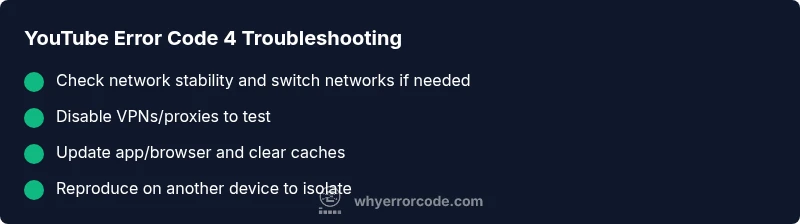
According to Why Error Code, error code 4 on YouTube indicates a transport or startup failure during playback initialization. Common triggers include unstable network, VPN/proxy interference, or an outdated app/browser. The quickest path is to check connectivity, disable VPNs, and update the YouTube app or browser. If the issue persists, clear cache and try a different device to confirm the fault is not device-specific.
What YouTube Error Code 4 Means
When you see YouTube error code 4, it signals a startup or transport failure preventing the player from initializing properly. This isn’t a definitive server outage notice; rather, it points to an issue in the path from your device to YouTube’s playback service. In most cases, the root cause sits at the edge of your network, your device, or the app itself. The phrase "error code 4" is a catch-all for a range of initialization problems, from DNS lookups failing to negotiation errors between client and server. For developers and IT pros, this error maps to a failure in establishing a reliable stream pipeline, which means the fix is often quicker than a full system rebuild. According to Why Error Code Team, rapid triage should prioritize connectivity and app state before blaming the platform.
Why YouTube Error Code 4 Appears: Common Scenarios
Error code 4 tends to show up in several predictable contexts. On mobile devices, it’s frequently driven by flaky Wi‑Fi, cellular data drops, or aggressive power-saving modes that throttle background network activity. On desktop, VPNs, proxies, or DNS misconfigurations can disrupt the initial handshake with YouTube’s servers. Corporate or school networks with strict firewall rules also sometimes misroute streaming requests, triggering 4 as a defensive measure. You’ll often notice the problem resolves when you switch networks, disable VPNs, or update to the latest version of the app or browser. In some cases, browser extensions can interfere with YouTube’s scripts, causing initialization to fail.
Quick Fixes You Can Try Right Now
If you’re encountering error code 4, start with fast, safe checks that don’t require special tools:
- Check your internet connection: run a speed test; ensure you have stable latency and download speeds.
- Disable VPNs or proxies temporarily to see if they’re the culprit.
- Update the YouTube app on mobile or refresh the browser to the latest version.
- Clear cache and cookies in your browser, or reset the app’s cache on mobile.
- Try incognito/private mode or a different browser to rule out extensions or cached data.
- Reboot your router or switch to a different network (e.g., mobile hotspot) to verify network reliability.
- Sign out and back into your Google account if YouTube’s account-specific state might be causing contention.
Step-by-Step Repair Guide for the Most Likely Cause
This section walks through a structured repair for the most common trigger: network/connectivity or edge-device issues.
- Verify the network path: restart your router, test with a wired connection if possible, and run a reliability test on another device.
- Disable VPNs and proxies: temporarily remove them from the device and router; refresh DNS by flushing it or switching to a public DNS provider.
- Update and restart: ensure your YouTube app/browser is current; install any pending updates and relaunch the app.
- Clear cache data: wipe cache and cookies on the browser or the app, then reopen YouTube and try again.
- Test across platforms: check if the issue occurs on a different device (phone, tablet, PC) to determine if the fault is device-specific.
- Check firewall or security software: some products block streaming ports; temporarily disable or create an exception for YouTube.
- Check for outages or service notices: verify whether YouTube is experiencing regional or platform-wide issues and plan accordingly.
Tip: If you’re a developer or admin, log relevant metrics (latency, DNS responses, TCP handshakes) to identify where the handshake fails. Document steps taken to avoid repeating troubleshooting for the same user session.
Other Potential Causes and Their Fixes
Beyond network and VPN causes, a handful of other issues can trigger error code 4:
- Device clock drift or incorrect regional settings: synchronize time and region settings to ensure certificate and token validity.
- Corrupted YouTube data: reinstall the app or clear app data entirely to reset local state.
- Browser-specific problems: disable experimental features and reset the browser profile to default.
- In-app permissions or storage limits: ensure the app has necessary permissions and sufficient storage for caching.
- Experimental features or beta apps: switch back to stable releases if 4 appears after enabling new features.
- DNS resolution problems: change DNS servers (e.g., to a reputable public DNS) and verify domain resolution from the device.
Fixes for these scenarios range from easy (adjusting settings) to medium (reinstalling apps) to hard (reconfiguring network gear or enterprise firewall rules).
Safety, Costs, and When to Call a Pro
Proceed with standard safety steps first: avoid unsafe network configurations or editing firmware without guidance. If you rely on streaming for business or critical workflows, consider professional support. Typical costs for professional troubleshooting vary by region and scope, often ranging from free (basic remote guidance) to the mid-hundreds for on-site diagnostics. For most home users, fixes are free or low-cost when following the steps outlined above. If the issue persists after all self-service steps, it’s reasonable to escalate to a qualified IT technician or your internet service provider to examine local network integrity and device compatibility.
Prevention and Best Practices
Adopt proactive habits to minimize future error code 4 occurrences:
- Keep devices up to date with the latest OS and YouTube app versions.
- Maintain a stable network with reliable DNS and avoid long VPN sessions during streaming.
- Regularly clear cache data and review extensions or plugins that could impact YouTube loads.
- Monitor device performance and network health; set up alerts for sudden drops in speed or packet loss.
- Document a standard troubleshooting checklist so users follow a consistent path when problems arise.
- Schedule periodic reboots of routers and modems and test alternate networks to ensure resilience.
Quick Summary Checklist
- Check network stability
- Disable VPN/proxy and refresh DNS
- Update app/browser and clear cache
- Test across devices
- Reinstall app or clear data if needed
- Review firewall and permissions
- Verify regional/news outages
Steps
Estimated time: 45-90 minutes
- 1
Verify network stability
Run speed tests, check for packet loss, and ensure your connection is steady. If the WAN light on your router blinks inconsistently, resolve the underlying connection issue first.
Tip: Use a wired Ethernet when possible to eliminate wireless variability. - 2
Disable VPN/Proxy temporarily
Turn off any VPNs or proxies and re-test YouTube. If the service loads normally, the VPN path was disrupting the startup handshake.
Tip: If you must use a VPN, try a different server or a split-tunneling setup for YouTube traffic. - 3
Update or reinstall
Update the YouTube app or browser to the latest version. If already up to date, reinstall to refresh all app components and cached data.
Tip: Before reinstalling, back up any account data stored locally if needed. - 4
Clear cache and cookies
Clear browser cache or app cache to remove corrupted data that can stall initialization. Sign back in after clearing.
Tip: In mobile apps, clear data instead of just clearing cache for a deeper reset. - 5
Test across devices
Attempt to reproduce the error on another device (phone, tablet, laptop) to determine if the issue is device-specific.
Tip: If the issue is device-specific, investigate device settings or hardware limitations. - 6
Check network hardware
Reboot router/modem, check for firmware updates, and ensure no firewall rules block YouTube domains.
Tip: Suspend QoS features temporarily to rule out bandwidth shaping. - 7
Consult service status
Look for YouTube service status notices in your region to rule out platform-wide issues while you troubleshoot locally.
Tip: Bookmark the official status page for quick reference during future incidents.
Diagnosis: User reports YouTube error code 4 during playback initialization on multiple devices
Possible Causes
- highUnstable or blocked network connection
- highVPN/proxy or firewall interference
- mediumOutdated app or browser cache corruption
- lowDNS resolution issues or router misconfiguration
Fixes
- easyTest and stabilize the network connection; try a wired connection if possible
- easyDisable VPN/proxy and flush DNS; switch to a reliable DNS provider
- easyUpdate or reinstall the YouTube app/browser; clear cache/data
- mediumRestart router and test on a different network; verify firewall settings
- hardIf the issue persists, consult ISP or device support for deeper diagnostics
Frequently Asked Questions
What does YouTube error code 4 mean?
Error code 4 on YouTube typically indicates a startup or transport failure during playback initialization. It often points to network or device issues rather than a server outage. Resolving it usually involves checking connectivity, updating apps, and clearing cached data.
Error code 4 means YouTube couldn’t start playback due to a startup or transport failure. Try updating the app and checking your network.
Is YouTube down if I see error code 4?
Not necessarily. Error code 4 frequently results from your local network or device state. However, it can coincide with regional service outages, so always check the official status page and try alternate networks to confirm.
It might be your setup rather than a full outage, but check status pages to be sure.
What’s the quickest fix for error code 4?
The fastest fixes are to restart the router, disable VPNs, update the YouTube app or browser, and clear caches. If it still fails, test on another device or network to confirm where the fault lies.
Restart router, disable VPN, update apps, and clear caches first.
Should I contact support for error code 4?
If the error persists after all standard steps across multiple devices and networks, contact your ISP or device support. For business-critical streaming, seek professional IT support to perform deeper network diagnostics.
If it won’t fix after all steps, seek professional help.
Do VPNs cause YouTube error code 4?
Yes, VPNs or proxies can disrupt the initial handshake with YouTube. Temporarily disabling them helps determine if they’re the root cause. If you must use a VPN, try different servers or split tunneling.
VPNs can trigger code 4; test without them first.
Can clearing cache fix error code 4 on mobile?
Yes. Cached data can become corrupted and block startup. Clearing cache (and app data, if needed) often resolves the issue on mobile devices.
Clearing cache on mobile often fixes it.
Top Takeaways
- Identify whether the issue is network, device, or app-related.
- Start with quick, safe fixes before deeper repairs.
- Test across devices to isolate the problem quickly.
- Keep a simple diagnostic log for future incidents.