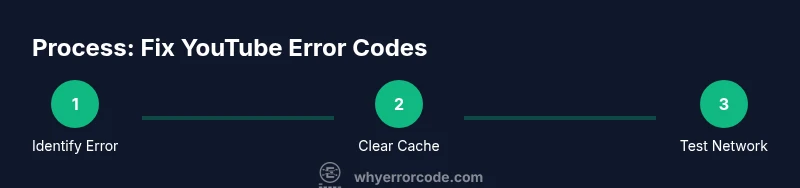
How to Fix YouTube Error Codes: Quick Step Guide
Learn how to fix YouTube error codes with a clear, step-by-step approach: diagnose the error, clear caches, adjust network settings, update apps, and verify on alternative devices for reliable playback.


What causes YouTube error codes
According to Why Error Code, YouTube error codes typically arise from a mix of factors: unstable or restricted network access, outdated software, conflicts with browser extensions, or corrupted cached data. Some errors appear only in a specific environment (e.g., a browser on desktop), while others are tied to the YouTube mobile app. Understanding the underlying cause is crucial because it determines which fixes are most effective. In practice, most error codes fall into a few common categories: connection or network problems, outdated app or browser, account-related issues, and client-side data conflicts. By identifying the root cause, you can apply targeted steps without wasting time on unnecessary actions. As you work through this guide, keep the context: the same approach generally resolves both transient hiccups and longer-standing faults.
- Look for whether the error occurs on desktop, mobile, or both.
- Note if it happens with a specific video, channel, or on all videos.
- Decide whether you’re troubleshooting the app, the browser, or the network.
Quick diagnostic checks you can perform today
Before diving into fixes, perform a quick sweep to gauge scope and potential causes. These checks are fast, non-destructive, and help you decide which fixes are most likely to work. Start by verifying your network status: can other websites load without issue? If yes, the problem might be YouTube-specific rather than a general internet outage. Next, try playing the same video on a different device or network (for example, switch from wifi to mobile data or use a different browser). If the problem is present on all devices, the fault is more likely server-side or account-related. If it’s isolated to one device, focus on that device’s software, extensions, and cache. Finally, check YouTube’s status page or social channels for any announced outages. These quick checks help you avoid unnecessary steps and guide you toward the most impactful fixes.
- Test multiple sites to confirm general connectivity.
- Attempt playback on another device or network to isolate scope.
- Check for official outage notices on YouTube's status channels.
Clear cache and cookies
Clearing cached data is one of the most effective, low-risk fixes for many YouTube error codes. Start with your browser: open the settings menu, clear browsing data, and select cached images and files along with cookies for a recent time range. After clearing, close all tabs and reopen YouTube to test again. If you’re using the YouTube mobile app, go to your device’s app settings, clear cache (and data if necessary), then reopen YouTube. This step refreshes stored credentials and video data without altering your account.
- In Chrome/Edge/Firefox: clear cached images and files + cookies for the last day to week.
- On iOS/Android: clear the YouTube app cache or reinstall if needed.
- Revisit the same video to confirm if the error reappears.
Disable extensions and test in incognito
Browser extensions can interfere with YouTube playback by injecting scripts, blocking trackers, or modifying network requests. Disable all extensions and open an incognito/private window to test YouTube. If playback works, re-enable extensions one by one to identify the culprit. A common trick is to disable ad blockers or privacy-focused plugins first, as they often affect video streaming and ads loading.
- Disable all extensions and retry.
- If it works, re-enable selectively to identify the offender.
- Consider using a different browser profile to test persistence.
- If you’re on mobile, disable any YouTube-related browser add-ons or security apps that filter traffic.
Check network connectivity and DNS settings
YouTube requires a stable network path. Start by ensuring you’re not on a congested or unreliable network. If possible, switch from Wi‑Fi to a wired connection or a different Wi‑Fi network. Consider flushing DNS on your device to ensure it’s resolving quickly; use commands like ipconfig /flushdns (Windows) or sudo dscacheutil -flushcache (macOS). If you use a custom DNS (like 1.1.1.1 or 8.8.8.8), test with the default DNS temporarily to compare results. A misconfigured VPN or corporate firewall can block YouTube traffic; temporarily disable them to test.
- Try a different DNS server.
- Temporarily disable VPNs or corporate proxies.
- Reboot your router after changes to apply settings.
Update or reinstall the YouTube app or browser
Outdated software can cause compatibility issues with YouTube’s latest features. Update your browser to the latest version, or update the YouTube app on mobile devices. If updates don’t resolve the issue, reinstall the app or reset your browser to its default settings. After reinstalling, sign back in and test again. This clean slate approach eliminates corrupted files or misconfigured preferences as the root cause.
- Check for the latest browser version and apply updates.
- Reinstall the YouTube app on mobile devices.
- If using a browser, consider a fresh profile or reset settings.
- Avoid installing unnecessary plugins that affect video playback.
Sign in status and account-related checks
Account-related issues can trigger errors, especially if YouTube flags content or protects access to certain services. Sign out and sign back in to refresh credentials. Verify your account status, review recent password changes, and confirm two‑factor authentication prompts aren’t interrupting playback. If you’re part of a family or business account, check permissions and restrictions. In rare cases, regional restrictions or content flags can appear as error codes.
- Sign out, then sign back in.
- Check for password or security prompts that interrupt playback.
- Ensure your account has the necessary permissions for the content.
- If the problem persists, try a different account to verify scope.
Proxies, VPNs, and firewall considerations
Network routing tools can accidentally block or throttle video streaming. If you’re using a VPN or proxy, disable it and try YouTube directly. Some corporate or school networks route traffic through firewalls that block streaming traffic or enforce strict classification. Temporarily turning off firewall rules for YouTube (or adjusting them to allow traffic on typical video ports) can help identify if the firewall is the culprit. Always revert advanced network changes if you’re on a shared network to avoid policy violations.
- Disable VPN/proxy temporarily to test.
- Check firewall rules to ensure YouTube traffic is allowed.
- Test with both a mobile hotspot and a wired connection to compare results.
- If you can’t modify network settings, contact your administrator with test results.
If the error persists: advanced steps
If the error remains after the above steps, move to advanced diagnostics. On Android devices, you can reset app preferences to restore default behavior without removing data; this can fix misconfigured app settings. On desktop systems, verifying the system clock/time zone accuracy can affect certificate validation and network services. As a last resort, capture log files or screenshots of the error, along with timestamps, and contact official support channels with your device model, OS version, and video URL. This information helps support teams reproduce and resolve the issue faster.
- Use system tools to reset app preferences (Android).
- Verify time/date settings (all platforms).
- Collect logs and error timestamps before contacting support.
- Reach out to YouTube Help or community forums for known-edge-case fixes.
Prevention and best practices to reduce future YouTube errors
Preventive maintenance reduces the frequency of YouTube error codes. Regularly update apps and browsers, clear cache periodically, and monitor network stability. Consider setting up a simple troubleshooting checklist you can run when playback issues begin. Staying on a consistent, compatible software stack minimizes compatibility problems. Finally, maintain healthy network practices, such as using reliable DNS, avoiding unstable VPN routes, and regularly rebooting your router to refresh connections. With consistent precautions, you’ll experience fewer interruptions and faster recovery when issues do occur.