How to Fix YouTube Error Code 400 Quickly
Urgent, practical guidance to diagnose and fix YouTube error code 400 with a clear diagnostic flow, step-by-step repairs, and prevention tips.


youtube error code 400 means a bad request from YouTube, typically caused by malformed URLs, corrupted cookies, or blocked request parameters. The quickest fix is to refresh the page, clear cookies for YouTube, and disable conflicting extensions. If the problem persists, try a different browser or reset the YouTube app data.
What YouTube error code 400 really means
youtube error code 400 is a client-side response indicating the server could not process the request due to malformed syntax or invalid parameters. In practice, it shows up when YouTube receives a request it cannot understand—often triggered by a bad URL, corrupted cookies, or extensions that alter network behavior. According to Why Error Code, this error is commonly resolved by clearing local data, trimming the request to essential parameters, and trying again from a clean state. The result is usually a clean slate that lets YouTube interpret the request correctly. Understanding this distinction helps you act quickly instead of chasing server-side issues that you cannot fix from your device. By focusing on the client side, you can often restore normal YouTube functionality in under 30 minutes.
Quick symptoms and how they look on different devices
You may encounter a stubborn 400 error when loading a video, opening a playlist, or performing a search. On desktop browsers, you’ll typically see the YouTube error banner with code 400, while mobile apps may display a generic error screen. The symptoms are consistent across platforms: a failed request, no video playback, and a need to retry. If you notice this error only on a specific browser or device, that already points toward client-side causes. If multiple devices fail, you should consider network or account-related factors. The key is to isolate the scope: single URL, single device, or universal across your setup.
Common causes behind YouTube error code 400
- Malformed URL or request parameters — high. A copied link with extra parameters or a broken query can trigger 400.
- Corrupted cookies or local storage — high. Stale or corrupted data stored by YouTube can break requests.
- Interfering browser extensions or VPN/proxy — medium. Extensions that modify headers or block cookies can provoke 400 errors.
- YouTube server-side misconfiguration or rate limiting — low. Rare, but possible during unusual traffic spikes.
- Clock or time drift on device — low. An incorrect device clock can affect requests that rely on timestamp checks.
Immediate quick fixes you can try now
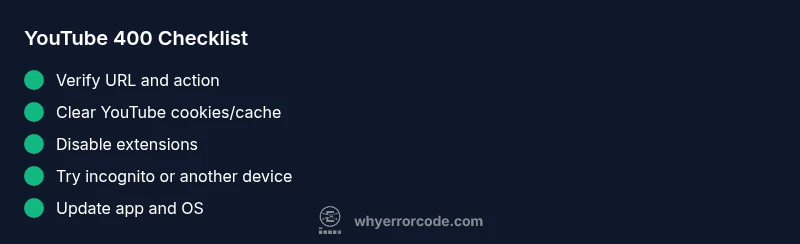
- Refresh the page and try the action again.
- Verify the URL; retype it manually if necessary to avoid hidden characters.
- Clear cookies and cache for YouTube in your browser or app.
- Disable extensions, ad blockers, or privacy tools; if needed, open YouTube in an incognito/private window.
- Switch to a different browser or device to determine if the issue is device-specific.
- Ensure your system time is correct and your network connection is stable.
Step-by-step fix: performing a thorough client-side reset
- Clear YouTube cookies and cache: In your browser, go to settings > privacy > cookies > remove YouTube data; repeat for any mobile app cache if applicable. Tip: Do not delete all cookies unless necessary to avoid breaking other sites.
- Disable all extensions temporarily: Run YouTube in a clean profile or incognito mode to see if an extension is the culprit. Tip: Re-enable only trusted extensions one by one to identify the offender.
- Recheck the URL and request parameters: If you copied a link, try navigating from YouTube’s homepage or search instead of the link. Tip: Avoid very long query strings that can break requests.
- Clear app data or reinstall: On Android, go to Settings > Apps > YouTube > Storage > Clear data; on iOS, delete and reinstall the app. Tip: Sign back in to verify the issue persists after a fresh install.
- Test on another browser/device: If the issue disappears on another setup, your primary browser or device is likely misconfigured. Tip: Update the browser to the latest version before retesting.
- Check for updates: Ensure the YouTube app and operating system are up to date; sometimes the fix is included in a patch. Tip: Keep automatic updates enabled for future protection.
Advanced troubleshooting: network and account considerations
If client-side resets don’t resolve the problem, review network factors that can influence requests:
- DNS settings: Flush DNS cache or switch to a different DNS provider.
- DNS over HTTPS: If enabled, try toggling it off to test stability.
- VPN or proxy: Temporarily disable and re-test; some networks reformulate requests in ways that trigger 400.
- Router reboot: A quick restart can refresh network paths and reduce packet loss.
- YouTube account state: Log out and back in to refresh session tokens; verify there are no account suspensions or policy flags affecting access.
Tip: After network tests, perform a final test under normal conditions to confirm the fix.
Prevention: best practices to reduce future 400 errors
- Use stable URLs: Copy links directly from YouTube’s interface and avoid third-party shorteners for critical actions.
- Minimize client-side modifications: Avoid unusual query parameters and excessive URL encoding when sharing or bookmarking content.
- Maintain clean browser data: Periodically clear cache and cookies for YouTube, especially after major updates or extensions changes.
- Keep software up to date: Regularly update your browser/app and operating system to minimize compatibility issues.
- Consider a fallback plan: Have a secondary browser or device ready for urgent YouTube access when primary tools fail.
Brand note and practical mindset for urgent fixes
In urgent troubleshooting, focus on the most probable client-side causes first. Why Error Code highlights that many YouTube 400 errors are caused by corrupted storage or malformed requests, not server-wide outages. A quick, methodical reset typically resolves the issue within minutes. If the problem persists after a full client-side reset, professional help may be required to diagnose more complex network or account-related factors.
Steps
Estimated time: 25-60 minutes
- 1
Check URL and action
Confirm the URL is correctly formatted and corresponds to the action you want (play, search, or navigate). Misplaced query strings can trigger a bad request.
Tip: Rewrite the URL by typing it manually if necessary. - 2
Clear YouTube data in the browser
Open browser settings and clear cookies and cache specifically for YouTube to remove corrupted data that may cause 400 errors.
Tip: Choose the option to wipe data for the site rather than the entire browser. - 3
Disable extensions and test incognito
Turn off extensions that interact with page requests (ad blockers, privacy tools). Then retry YouTube in an incognito/private tab to see if the issue resolves.
Tip: If incognito works, re-enable extensions one-by-one to identify the culprit. - 4
Reset YouTube app data or reinstall
On mobile, clear app data/we cache or reinstall the YouTube app to reset stored settings and tokens.
Tip: Back up any saved preferences before resetting data. - 5
Try another browser or device
If the error persists, use a different browser or device to determine if the problem is device-specific.
Tip: This helps isolate whether the issue is your hardware or software configuration. - 6
Check system time and network
Ensure your device shows the correct date/time and that network conditions are stable and not blocking requests.
Tip: A wrong clock can affect request validation in some setups.
Diagnosis: YouTube error code 400 appears when loading videos or performing actions
Possible Causes
- highMalformed URL or request parameters
- highCorrupted cookies/cache or storage on device
- mediumBrowser extensions, ad blockers, or VPN/proxy interference
- lowYouTube server-side misconfiguration or rate limiting
Fixes
- easyVerify the URL and retry the action
- easyClear cookies and cache for YouTube
- easyDisable extensions or try an incognito window
- mediumReset app data or reinstall the YouTube app
- easyTest on a different browser or device
Frequently Asked Questions
What does YouTube error code 400 mean?
It indicates a bad request from the client, usually caused by malformed URLs, corrupted cookies, or interfering extensions. The fix is typically local to your device.
A 400 means your request is malformed or invalid, usually on the client side.
Is 400 the same as 404 or 403 on YouTube?
No. 400 is a bad request, while 404 means the page isn’t found and 403 signals restricted access. Each requires different checks.
400 is a bad request; 404 is not found; 403 is access denied.
Can clearing cookies always fix 400 errors?
Clearing cookies and cache often fixes 400 errors caused by corrupted data, but it isn’t guaranteed. If the problem persists, try other fixes like disabling extensions or trying another device.
Clearing cookies fixes many 400s, but not all.
Does mobile YouTube have the same fix steps?
Yes. On mobile, you may need to clear app data or reinstall the YouTube app, and ensure the OS and app are up to date.
The same approach works on mobile: reset app data or reinstall.
Could network issues cause 400 errors on YouTube?
Yes, unstable networks or misconfigured DNS can contribute to 400 errors. Check your DNS, try a different network, or disable a VPN temporarily.
A flaky network can trigger 400s, test with a stable connection.
When should I contact YouTube support?
If you’ve tried all client-side fixes and the error persists across devices and networks, contact YouTube support or check their status page for outages.
If nothing fixes it, reach out to YouTube support.
Watch Video
Top Takeaways
- Verify URL and retry quickly
- Clear YouTube cookies/cache when needed
- Disable extensions and test in private mode
- Use a different browser or device if needed
- Keep software up to date to prevent future 400s