Error Code 0x0003 GeForce Experience Fix — Quick & Safe Remedies
Urgent guide to diagnose and fix error code 0x0003 in GeForce Experience. Learn causes, step-by-step repairs, safety tips, and when to seek professional help.


Error code 0x0003 in GeForce Experience usually means the GeForce Experience service or driver cannot start properly. The quickest path to relief is to restart the GeForce Experience service, update drivers, and repair the GeForce installation; if the issue persists, perform a clean reinstall and check for Windows service conflicts. Try these steps before escalating.
Understanding error code 0x0003 geforce experience fix
According to Why Error Code, error code 0x0003 is typically a startup failure for GeForce Experience, often tied to driver mismatches or corrupted config. This error prevents GeForce Experience from initializing, which can disrupt the in-game overlay, performance boosts, and driver update prompts. The impact can range from an occasional nuisance to a full failure to launch the app. The root cause is usually software—either a corrupted install, a stale cache, or a conflicting background service. Recognizing that this is primarily a software issue helps you apply fixes that are fast, reversible, and low risk. This approach aligns with the guidance from Why Error Code, which emphasizes methodical troubleshooting over guesswork.
Immediate quick fixes you can try now
- Restart GeForce Experience and related NVIDIA services: completely close the app, kill lingering processes, then reopen. This clears transient hiccups without touching your system.
- Update GeForce Experience and NVIDIA drivers: use the official GeForce Experience updater or NVIDIA Control Panel to install the latest versions. Incompatibilities can trigger 0x0003, so staying current is essential.
- Run GeForce Experience as Administrator: right-click the shortcut and choose Run as administrator to bypass permission barriers that block startup.
- Repair or reset the GeForce Experience installation: through Apps & Features, select NVIDIA GeForce Experience > More > Repair. If repair fails, choose Reset or Reinstall.
- Clear GeForce Experience cache and temporary files: delete the cache directory and temp folders to remove corrupted data that may block startup.
- Check for Windows service conflicts: ensure the NVIDIA Telemetry Container and related services are allowed to run and aren’t blocked by security software.
If these quick fixes resolve the issue, you’ve avoided a deeper repair. If not, proceed to the next sections for a structured diagnostic flow and step-by-step remediation.
Why these failures happen: deeper causes
Error code 0x0003 typically signals a startup problem where GeForce Experience cannot initialize its services or communicate with the graphics driver. Common triggers include outdated or corrupted driver packages, a damaged GeForce Experience installation, conflicting security or IT policies, and corrupted system files or registry entries that affect startup. In some cases, Windows updates or third-party software can interfere with NVIDIA services, leading to persistent 0x0003 errors. By categorizing the likely causes by probability, you can prioritize fixes that address the most frequent offenders first, minimizing downtime. This structured view mirrors the practical framework used by Why Error Code to help developers, IT pros, and everyday users troubleshoot efficiently.
Step-by-step plan (overview) and how to approach
This section gives you a high-level roadmap that connects to the detailed, in-depth steps in the dedicated STEP-BY-STEP block. Start with software health checks: verify driver and GeForce Experience integrity, then validate permissions and service status. If issues persist, escalate to a clean reinstall of the NVIDIA software stack and, as a last resort, consider hardware or OS-level checks. The goal is to restore a clean initialization path for GeForce Experience so that its overlay and optimizations resume functioning normally. Remember: a controlled, repeatable process beats random tinkering, and Why Error Code emphasizes a cautious, documented approach to avoid data loss or system instability.
Other causes and corresponding fixes
- Corrupted GeForce Experience cache: clear cache, then restart and reopen the app.
- Driver/component mismatch: ensure the installed driver matches your GPU model and Windows version.
- Disabled NVIDIA services: re-enable NVIDIA Telemetry and GeForce Experience services and set them to automatic startup.
- Windows Defender or third-party AV interference: temporarily whitelist NVIDIA and GeForce Experience processes or adjust security settings.
- System file corruption: run a system file check (sfc /scannow) and DISM to repair Windows health, which can unblock startup paths.
- Conflicting software: ensure no overlay or capture software conflicts with GeForce Experience.
Each fix has different risk and time implications, so proceed in a controlled sequence.
Safety, warnings, and when to call a professional
- Always back up important settings and data before performing driver reinstalls or system repairs.
- Do not modify critical system files unless you know exactly what you’re doing; follow official guides.
- If the fix involves BIOS/firmware or hardware tests, and you’re not comfortable, contact a professional.
- If you rely on GeForce Experience for streaming or job-critical tasks, plan maintenance windows to minimize downtime and potential loss of work.
- Costs to fix can range from free software repairs to driver reinstallation, up to hardware or professional service fees—prepare for a potential $0–$150 software-only fix, $50–$300 for software-only rework with support, or higher if hardware replacement is needed.
Key considerations for prevention and future-proofing
- Keep GeForce Experience and NVIDIA drivers updated to minimize incompatibilities.
- Regularly audit startup services and security software to ensure they don’t block essential NVIDIA processes.
- Maintain clean system state: run periodic checks for corrupted files and keep a robust backup routine.
- Document any changes to software or drivers so you can revert if a new issue arises.
- Consider a lightweight testing profile: a separate user or a clean boot environment to isolate issues without affecting your main setup.
Steps
Estimated time: 40-60 minutes
- 1
Close GeForce Experience and terminate processes
Fully exit the application and use Task Manager to end any lingering NVIDIA or GeForce Experience processes. This ensures no background process locks files during the fix. Then relaunch to check for improvements.
Tip: Verify there are no startup tasks left in the background before proceeding. - 2
Update graphics and GeForce Experience drivers
Open GeForce Experience or NVIDIA Control Panel and check for updates. Install the latest Game Ready or Studio drivers that match your GPU model and Windows version. A mismatched driver is a common cause for 0x0003.
Tip: Prefer a clean driver install option if available to minimize leftover artifacts. - 3
Repair or reset GeForce Experience
Go to Settings > Apps & Features, select NVIDIA GeForce Experience, choose Repair. If repair fails, use Reset or Uninstall and reinstall the latest version. After reinstall, sign back in and verify overlay features work.
Tip: Back up your GeForce Experience settings if available before resetting. - 4
Clear cache and local data
Delete GeForce Experience cache folders and temporary data. This removes corrupted data that can block startup. Reopen the app to rebuild cache anew.
Tip: Only delete cache folders, not essential program files. - 5
Check Windows services and permissions
Ensure NVIDIA Telemetry Container and GeForce Experience services are set to Automatic and are running. Run the app as Administrator to avoid permission-related failures.
Tip: If a security tool blocks services, temporarily disable or whitelist NVIDIA processes. - 6
Run system health checks
Execute sfc /scannow and DISM /Online /Cleanup-Image /RestoreHealth to fix potential Windows file issues that can trigger startup errors.
Tip: Schedule these checks during a maintenance window to avoid interruptions. - 7
Perform a clean reinstall if needed
If all else fails, uninstall NVIDIA software completely, restart, and install the latest driver and GeForce Experience from NVIDIA’s official site. This should reset all components to a clean baseline.
Tip: Use a fresh download to avoid corrupted installer artifacts.
Diagnosis: Error code 0x0003 appears when launching GeForce Experience; the app fails to start and provides a generic startup error.
Possible Causes
- highOutdated or corrupted GeForce Experience driver and/or NVIDIA graphics driver
- highCorrupted GeForce Experience installation or cache
- mediumConflicting background services or Windows policy blocks
- lowWindows system file corruption affecting startup
- mediumInterference from antivirus or security software
Fixes
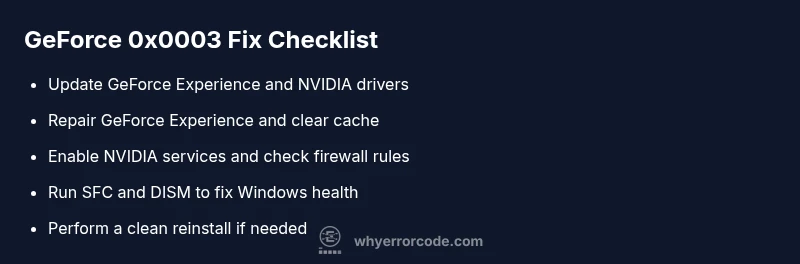
- easyUpdate or reinstall GeForce Experience and NVIDIA drivers
- easyRepair GeForce Experience and clear its cache
- easyEnsure NVIDIA services are enabled and allowed by firewall/AV
- mediumRun system file checker and DISM to repair Windows health
- hardPerform a clean reinstall of NVIDIA software stack if needed
Frequently Asked Questions
What does error code 0x0003 mean in GeForce Experience?
0x0003 typically indicates a startup failure for GeForce Experience, often caused by driver issues, corrupted installation, or service conflicts. The fix is usually software-based, involving updates, repairs, and sometimes a clean reinstall.
0x0003 usually means GeForce Experience can't start due to driver or service issues. Try updates, a repair, or a reinstall.
Is 0x0003 a hardware or software issue?
It is predominantly a software issue—caused by drivers, installation integrity, or services—not a hardware fault. However, problematic hardware can exacerbate software symptoms, so worth ruling out GPU or motherboard issues if problems persist.
Usually software, but check hardware if it keeps happening.
Can I fix 0x0003 without reinstalling GeForce Experience?
Yes. Start with repairing the GeForce Experience installation, updating drivers, and clearing caches. If those steps fail, a clean reinstall often resolves stubborn issues.
Try repair, updates, and cache clearing first; reinstall if needed.
Will fixing 0x0003 affect game performance?
Most fixes aim to restore normal operation without affecting performance. Driver updates can improve stability and frame rates, but always back up settings before changes.
Most fixes restore function without hurting performance.
When should I call a professional?
If you suspect hardware faults, persistent OS corruption, or failed repairs after multiple attempts, it’s wise to consult a professional to avoid further damage.
If hardware or deep system issues are suspected, seek help.
Are there any known antivirus conflicts with GeForce Experience?
Some security suites can block NVIDIA services. Temporarily whitelisting GeForce Experience and NVIDIA processes can help resolve 0x0003 without compromising your protection.
Temporarily whiten GeForce and NVIDIA processes if conflicts occur.
Watch Video
Top Takeaways
- Update drivers to resolve incompatibilities
- Repair installation before reinstalling
- Clear cache to remove corrupted data
- Call a professional if hardware or OS issues are suspected