Fortnite Error Code 11: Quick Fixes and Troubleshooting Guide
Urgent guide to diagnosing Fortnite Error Code 11 with quick fixes, a diagnostic flow, step-by-step repairs, safety tips, and prevention strategies from Why Error Code.


According to Why Error Code, Fortnite error code 11 usually signals a connectivity issue that blocks login or joining matches. The Why Error Code Team recommends fast checks you can perform now: verify your internet connection, test with a wired setup if possible, check Epic Services status, and update both Fortnite and the Epic Games launcher. If issues persist, follow the diagnostic flow and step-by-step fixes for deeper troubleshooting.
What Fortnite Error Code 11 Really Means
Fortnite error code 11 is commonly reported by players who are unable to sign in, launch, or queue for a game. While Epic’s servers can experience regional outages, most instances point to connectivity problems between your device and Fortnite services. The Why Error Code Team notes that quick, targeted checks usually resolve the majority of cases. Expect a clear path from a simple network test to more involved updates if the basic steps don’t resolve the issue. Remain calm: a methodical approach often uncovers a straightforward fix.
Common Symptoms and Early Clues
Users typically see one or more of the following symptoms when error code 11 is active: the login screen stalls, matchmaking fails to start, you receive a time-out message, or the game crashes back to the desktop while attempting to join a server. In many cases, symptoms appear across multiple devices on the same network, suggesting a local connectivity issue rather than a single console or PC problem. If only one device is affected, focus on device-specific settings or software conflicts. Why Error Code’s analysis shows that most root causes are network or client-related rather than a rare server fault.
Quick Fixes You Can Try Right Now
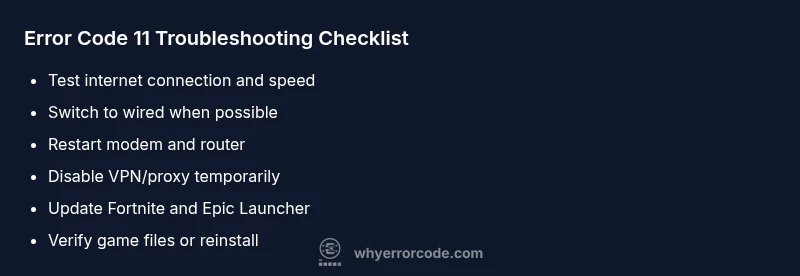
Start with the quickest, safest steps before digging into deeper troubleshooting. First, run a speed test to confirm you have stable broadband (aim for at least 5–10 Mbps for gaming). If you’re on Wi‑Fi, switch to a wired connection or move closer to the router. Restart your router and modem, then reboot your device. Temporarily disable VPNs or proxies, and ensure Fortnite and the Epic Games launcher are up to date. Clear DNS cache and renew your IP if needed. These steps resolve many cases without additional tools or service calls. Note: always re-enable security features after testing if you temporarily disabled them.
Deep Dive: Causes Ranked by Likelihood
The most common culprits behind error code 11 are local network issues (high likelihood), followed by firewall or NAT restrictions (medium), and outdated clients or launcher software (medium). In rare scenarios, an intermediate Epic server hiccup or regional routing problem can trigger the error (low). Corrupted game files or third-party overlays may also contribute (low). Understanding the hierarchy helps you apply fixes efficiently and avoid chasing unlikely culprits.
Step-By-Step Repair Guide for the Most Likely Cause
- Verify your internet connection and run a quick speed test to ensure stability. 2) If possible, switch to a wired Ethernet connection or move closer to your router for a stronger signal. 3) Restart your router and modem; give the network a minute to re-establish. 4) Disable VPNs or proxies that could interfere with Fortnite’s traffic routing. 5) Ensure the Fortnite client and Epic Games launcher are fully updated. 6) If issues persist, verify game files or consider a clean reinstall of the Epic Launcher to repair corrupted components. If you are unsure about any step, contact your ISP or device manufacturer for guidance.
Additional Causes and How to Verify Them
Even when the basics are covered, a few other factors can cause error code 11. A misconfigured firewall, strict NAT settings, or active parental controls can block Fortnite traffic. Router-level DNS issues or IPv6 misconfigurations can also give false negatives. Test by temporarily disabling firewall rules, trying a different DNS server (like 8.8.8.8 or 1.1.1.1), or rolling back recent router changes. If a server-side outage is suspected, you can confirm via Epic’s status pages or trusted outage trackers.
Safety, Warnings, and When to Call a Pro
Never bypass safety protections to fix connectivity. Do not disable antivirus software permanently, avoid sharing credentials, and never install unverified third-party tools. If you’ve exhausted all steps and still face error code 11, contact Epic Games Support with a detailed bug report and the diagnostics you ran. Professional help should be sought when hardware issues, router misconfigurations, or persistent software corruption affect multiple devices.
Prevention Tips to Minimize Recurrence
Maintain a stable home network with updated firmware, standardized DNS settings, and a clean startup routine that minimizes software conflicts. Schedule regular driver and software updates, and keep a backup of game data. For shared networks, ensure QoS rules and port forwarding are correctly configured for Fortnite. Regular testing during peak hours can help you catch issues before they disrupt play.
],
diagnosticFlow-Placeholder?
Steps
Estimated time: 30-60 minutes
- 1
Check network stability
Run a speed test to confirm you have consistent latency and bandwidth. If speeds are below baseline, pause large downloads and retry.
Tip: Prioritize a wired connection if possible. - 2
Switch to wired or optimize Wi‑Fi
If you can, connect via Ethernet. If not, move closer to the router, reduce interference, and set your channel to a cleaner option.
Tip: Avoid streaming or other high‑bandwidth tasks during gaming. - 3
Restart networking gear
Power cycle the modem and router. Wait 60 seconds before turning them back on to allow full reinitialization.
Tip: Note the time for outages that may occur after a restart. - 4
Check firewall and VPN settings
Disable VPNs temporarily and ensure Fortnite is allowed through the firewall. Consider adding an exception for the Epic Games launcher.
Tip: If you must use a VPN, try a different server or disable it for gaming. - 5
Update and verify
Update the Fortnite client and the Epic Games Launcher. If available, use the 'Verify' or 'Repair' option to check game files integrity.
Tip: Back up important game data before a complete reinstall. - 6
Reinstall as a last resort
If all else fails, reinstall Fortnite and/or the Epic Games Launcher to repair corrupted files.
Tip: This may take 30–60 minutes depending on your connection.
Diagnosis: Fortnite error code 11 appears when attempting to connect or start a game
Possible Causes
- highLocal network connectivity issues
- mediumNAT/firewall restrictions blocking Fortnite services
- mediumOutdated game client or launcher
- mediumVPN/proxy interference or third-party overlays
- lowEpic server outage or regional routing problem
Fixes
- easyTest your internet connection with a speed test and ensure stability
- easySwitch to a wired connection or improve wireless signal
- easyRestart router/modem and reinitialize all devices
- mediumDisable VPNs/proxies and adjust firewall/NAT settings for Fortnite
- easyUpdate Fortnite and the Epic Games Launcher; verify integrity of game files
Frequently Asked Questions
What does Fortnite error code 11 mean?
Error code 11 generally points to a connectivity issue that prevents you from signing in or joining a match. It often results from local network problems, firewall or NAT blocks, or outdated game software. Following a structured troubleshooting path usually resolves the majority of cases.
Fortnite error code 11 usually means there’s a connectivity issue. Start with basic network checks and updates to fix it quickly.
Is error code 11 caused by Epic server outages?
Outages on Epic’s side can cause sign-in or matchmaking failures, which may appear as error code 11. Check Epic’s official status page or trusted outage trackers to confirm if the issue is server-side.
Sometimes the issue is on Epic’s end; check the status page to be sure.
Will using a VPN fix error code 11?
A VPN can disrupt routing and trigger error codes. If you’re using a VPN, disable it to test if the error clears. Do not rely on VPNs as a permanent fix.
Usually, turning off a VPN helps resolve the error.
How can I tell if the problem is my network or Fortnite servers?
If multiple devices on the same network experience the error, it’s likely a network or router issue. If only one device is affected, focus on that device’s settings and software. Check Epic’s status page for server-side problems.
If several devices are affected, your network is the likely culprit.
When should I contact support?
If you’ve tried the full diagnostic flow and no solution works, contact Epic Games Support with a summary of steps taken and timestamps of events. This helps them diagnose the problem faster.
If fixes fail, reach out to support with details of what you tried.
Watch Video
Top Takeaways
- Fixes start with simple network checks
- Update and verify game files for common faults
- Disable VPNs and adjust firewall settings when needed
- Consult Epic status pages for regional outages
- If issues persist, seek professional help with evidence