How to fix Windows error code: a practical guide
Learn a practical, step-by-step method to diagnose and fix Windows error codes using built-in tools, safe troubleshooting steps, and best practices to prevent recurrences.


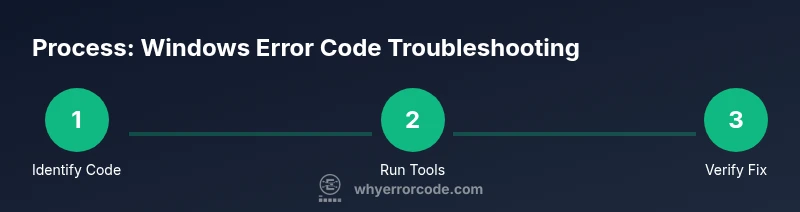
By following this guide, you'll diagnose and fix common Windows error codes using built-in tools, safe troubleshooting steps, and preventative practices. You’ll start with quick checks, run SFC/DISM scans, verify system files, and isolate software conflicts before applying updates. This plan emphasizes data safety, repeatable steps, and clear verification. It also outlines when to escalate issues to professional support. It answers the question: how do i fix windows error code, with a structured path you can trust.
Understanding Windows error codes
If you’re facing a Windows error code, you’re not alone. Error codes are numeric signals that guide you toward the underlying problem, whether it’s a corrupted system file, a faulty driver, a failing disk, or a software incompatibility. According to Why Error Code, the most effective troubleshooting starts with a clear diagnosis rather than random fixes. Recognize that codes are rarely cryptic magic; they’re pointers to a family of possible causes. In many cases, the error code points you toward one or two likely culprits, allowing you to test hypotheses quickly and safely. This section lays the foundation for a repeatable workflow: confirm the scope, identify the symptom, and map it to a likely cause. You’ll also learn to distinguish between transient glitches and persistent faults, so you don’t overreact to momentary alerts.
To get value from this guide, keep your data protected and document each step. Note the exact code, when it appeared, and what you did just before the error surfaced. The ultimate goal is not just to fix the immediate issue but to establish a reliable baseline system state and a plan for preventing recurrence. Remember, the phrase how do i fix windows error code is best answered with a structured, testable process rather than guesswork. In practice, you’ll follow a sequence of checks, targeted repairs, and verification steps that apply across most Windows error codes.
Quick checks you can perform before deep fixes
Before diving into diagnostic tooling, run through fast, low-risk checks that can resolve many common errors. Reboot the computer to clear temporary states, and check for pending Windows Updates, driver updates, and app updates. If you’ve recently installed software or changed system settings, consider rolling back those changes temporarily to see if the error clears. Enable Safe Mode to isolate software from normal startup, and run basic operations in this minimal environment. These quick checks reduce noise and confirm whether the issue is tied to a recent change or a broader system problem. During this phase, document every action and its result to identify patterns.
Diagnostic tools built into Windows
Windows provides a suite of built-in tools designed to diagnose and repair common error conditions. Start with the System File Checker (SFC) to verify and repair corrupted system files: run sfc /scannow in an elevated Command Prompt. If SFC finds problems it cannot fix, DISM (Deployment Image Servicing and Management) can repair the underlying Windows image: run DISM /Online /Cleanup-Image /RestoreHealth. For memory issues, use Windows Memory Diagnostic, and for storage problems, run CHKDSK /f /r. The Event Viewer and Reliability Monitor give you a chronological view of system errors, crashes, and warnings, helping correlate events with the error code.
Keep in mind that some repairs require a restart, and some operations may take a while. Treat these tools as a guided triage rather than a one-click fix. Record the results and any repaired files so you can confirm success after reboot.
System file integrity and component health
If the error code points to core Windows components, focus on system integrity and component health. Start with SFC to check for corrupted protected files and repair them automatically. When SFC reports repairs or cannot fix certain files, run DISM to restore the health of Windows image components. After these operations, re-run SFC to ensure all protected files are now intact. If memory or disk health is questionable, perform a RAM test and a disk surface scan. These steps address the most frequent root causes of persistent error codes and often restore normal function without a full reinstall.
Document each phase and keep a log of the before-and-after state. If you discover recurring corrupt files, consider a more thorough backup and refresh strategy to prevent future occurrences.
Addressing boot and startup issues
Some Windows error codes appear during boot or immediately after startup. When that happens, try startup repair from the Windows Recovery Environment (WinRE). If the system still won’t boot, use a System Restore point to revert to a known-good state, or perform a repair install that preserves files and apps. Check boot configuration data (BCD) for anomalies, and ensure boot order and drive health are intact. These steps resolve issues that block the operating system from loading correctly and often fix stubborn codes tied to boot problems.
Always back up critical data before performing repair installations. If you must proceed with more invasive repairs, plan for potential downtime and communicate expectations to users who rely on the machine.
Driver and hardware considerations
Drivers are common sources of Windows error codes, especially after major updates or new hardware. Update or roll back drivers to find a stable configuration. Use the Device Manager to check driver status and roll back problematic devices when available. If a hardware component appears to be failing, run manufacturer diagnostics for that device and consider testing with a known-good component to isolate the root cause. In some cases, firmware updates can resolve compatibility issues that trigger error codes. Maintain a hardware inventory and test plan to reproduce issues and confirm fixes across devices.
Clean boot and software conflict resolution
Software conflicts and background services can trigger error codes unexpectedly. A clean boot starts Windows with a minimal set of startup programs and services, enabling you to verify whether background software is the culprit. If the error code disappears in a clean boot, re-enable services step by step to identify the offender. Once you’ve isolated the conflicting software, remove or update it, or adjust its interactions with Windows services. This approach reduces unnecessary changes and helps you pinpoint conflicts without destabilizing the entire system.
Backups, updates, and long-term prevention
Backup strategy is essential to prevent data loss when dealing with recurring errors. Establish a regular backup routine to external storage or a cloud solution, and verify backups are complete. Stay on a predictable update cadence, installing security and quality updates promptly but testing them in a controlled environment when possible. Consider enabling System Restore points or creating a full system image before major changes. Finally, implement a monitoring plan that periodically reviews event logs for new error codes and tracks whether fixes remain effective over time.
Verification, monitoring, and next steps
After applying fixes, verify by re-running the steps that previously reproduced the error. Open the affected applications and perform the tasks that usually triggered the code, then monitor for a recurrence. Maintain a change log and ensure automatic updates remain enabled for ongoing protection. If the error persists, collect diagnostic data (logs, screenshots, error codes) and reach out for support with a clear remediation history. The goal is to minimize downtime and establish a reliable baseline state for future troubleshooting.
Tools & Materials
- Administrative access to Windows PC(Admin rights required to run SFC/DISM and system changes)
- Backup storage (external drive or cloud storage)(Back up personal and work data before major repairs)
- Command Prompt or Windows PowerShell (Admin)(Run as administrator for system repair commands)
- Stable internet connection(Needed for DISM/online repairs and updates)
- Windows Update troubleshooter(Useful to resolve update-related error codes)
- Event Viewer access(Helpful for correlating errors with times and apps)
Steps
Estimated time: Estimated total time: 1-2 hours
- 1
Open elevated Command Prompt or Windows Terminal
Right-click the Start menu and select 'Windows Terminal (Admin)' or 'Command Prompt (Admin)'. Confirm any User Account Control prompts. This grants the necessary privileges to perform repairs.
Tip: Use the keyboard shortcut Windows key + X to access quick admin options. - 2
Run System File Checker (SFC) scan
In the elevated window, type 'sfc /scannow' and press Enter. Let the scan complete; it will repair corrupted protected files automatically whenever possible.
Tip: If SFC reports issues it cannot fix, note the file paths for later DISM repair. - 3
Run DISM repair health
In the same window, run 'DISM /Online /Cleanup-Image /RestoreHealth'. This replenishes the Windows image with healthy components from Windows Update.
Tip: Ensure you have an active internet connection during this operation. - 4
Check for and install updates
Open Settings > Update & Security > Windows Update and install any pending updates. Reboot if prompted and re-test to see if the error recurs.
Tip: If updates fail, note error codes and retry after a clean boot. - 5
Run Windows Memory Diagnostic
Search for 'Windows Memory Diagnostic' and choose 'Restart now and check for problems'. Allow the tool to test your RAM during reboot.
Tip: If memory errors are reported, consider reseating or replacing the RAM modules. - 6
Check disk health with CHKDSK
Open an elevated prompt and run 'chkdsk /f /r'. You may be prompted to schedule the scan on next restart; approve and reboot.
Tip: Back up important files before performing this operation if the disk is failing. - 7
Review Event Viewer and Reliability Monitor
Open Event Viewer and Reliability Monitor to locate error codes and timestamps that align with the issue. This helps confirm root causes and verify fixes.
Tip: Export log files for sharing with support teams. - 8
Perform a clean boot to isolate conflicts
Disable non-essential startup programs and services, then reboot. If the error disappears, re-enable components gradually to find the culprit.
Tip: Document each change to reproduce the exact condition that caused the error. - 9
Test drivers and hardware and plan next steps
Update or roll back key drivers; if a device is faulty, test with a known-good component. After fixes, perform a final reboot and verify the error does not reappear.
Tip: Keep a hardware inventory and firmware versions for future troubleshooting.
Frequently Asked Questions
What is a Windows error code and why does it appear?
Windows error codes are numeric identifiers that signal faults in the OS or installed software. They help you narrow down the area where the problem originates, such as system files, drivers, or applications. Understanding the code guides you toward the appropriate repair steps.
Windows error codes are numbers that tell you where the problem is, guiding you to the right repair steps.
Do I need to reinstall Windows to fix errors?
Usually not. Most Windows error codes can be resolved by using built-in repair tools, updating drivers, or rolling back conflicting software. A reinstall is a last resort if the problem persists after all standard fixes.
A reinstall is typically a last resort if standard fixes don’t work.
Can antivirus software cause Windows error codes?
Yes, antivirus or security software can conflict with system processes, leading to error codes. Temporarily disabling real-time protection or testing in Safe Mode can help determine if security software is the cause.
Security software can occasionally trigger errors; test with Safe Mode to confirm.
What should I do if the error persists after fixes?
If the error persists, collect logs, note exact codes, and seek targeted help. Escalate to support with a detailed remediation history and test results. Sometimes professional assistance is needed for deeper systemic faults.
If the error continues, gather logs and ask for targeted help with your findings.
Is Safe Mode sufficient for troubleshooting all errors?
Safe Mode is a useful diagnostic tool, but not a fix for every issue. It helps isolate software conflicts by running a minimal set of services. Use it as a step in a broader troubleshooting plan, not a final solution.
Safe Mode helps isolate issues but isn’t a catch-all solution.
Where can I find Windows error codes and logs?
You can find error codes in the Event Viewer and Reliability Monitor, and you can view repair logs from the SFC/DISM outputs in the Command Prompt. These sources help you correlate events with the code.
Check Event Viewer and Reliability Monitor to locate error codes and logs.
Watch Video
Top Takeaways
- Start with quick checks to rule out simple causes.
- Use built-in Windows tools (SFC, DISM, CHKDSK) for reliable repairs.
- Back up data before risky changes and document every step.
- Isolate software conflicts with a clean boot to identify the culprit.
- Verify fixes with targeted tests and monitor for recurrence.