How to Deal with Error Codes: Urgent Troubleshooting Guide
An urgent, step-by-step guide to diagnose and fix common error codes across devices and software. Learn quick checks, diagnostic flows, and prevention tips to minimize downtime and data loss.


Start with the simplest checks and escalate only as needed. Note the exact error code and when it occurs, then power cycle the device and reattempt the action. If the code is documented, follow the recommended fix steps precisely. If the error persists, proceed through the diagnostic flow and gather logs, timestamps, and recent changes.
The Urgency Behind Error Codes
Error codes are not just messages; they are early warning signs of deeper issues that can disrupt critical work. When you see a code, time matters. Acting quickly helps limit downtime, protect data, and prevent cascading failures across systems. In the What’s next: approach this as a safety-critical task, even if you feel confident handling routine fixes. According to Why Error Code, adopting a structured diagnostic mindset reduces guesswork and speeds resolution.
Common Error Codes and What They Mean
Error codes span categories like connectivity, authentication, file systems, and application logic. For each code, identify the context: the action being performed, the software or device, and any recent changes. Use official documentation as the primary source for interpretation. Keep a quick reference list handy of the most frequent codes you encounter and their remediation steps. This consistency helps across teams and reduces misinterpretation.
Quick Baseline Checks You Can Do Right Now
Before diving deep, complete a baseline set of checks: verify power and network connections, confirm the latest updates are installed, and restart affected components. Reproduce the steps that led to the code and note the exact timestamp. If you have logs, collect the error snippet and any preceding events. Do not rush to risky fixes; aim for safe, reversible actions first.
Diagnostic Flow Overview
Follow a simple flow: symptom → suspected causes → tested fixes → verification. First, confirm the code and its trigger. Next, test for immediate issues such as power, connectivity, or corrupted data. Then explore software/configuration issues, followed by hardware faults if the code persists. At every step, document findings and timebox experiments to avoid endless looping.
Practical Step-by-Step Fixes for the Most Common Causes
- Power and connections: power cycle the device, unplug and reinsert cables, and test with a different outlet or power strip. Reconnect peripherals one at a time to identify a flaky component. Keep a log of when you replaced cables to trace recurring issues.
- Software/firmware: download the latest patches from the official site, install them, and perform a clean reboot. After update, reproduce the failing action to confirm resolution. If the issue recurs, rollback to a stable version to compare behavior.
- Configuration and permissions: review recent configuration changes, environment variables, or access controls. Restore default settings if you suspect misconfiguration, and verify that user roles align with required permissions.
- Data integrity: run built-in data checks (e.g., checksums, hashes) and scan for corrupted files. If corruption is detected, restore from a known-good backup and verify the restore integrity.
- If none of these fixes work, collect comprehensive logs, reproduce steps, and escalate to vendor support with a reproducible test case.
Safety, Data, and Prevention
Always power down properly before unplugging hardware. Avoid open electrical work unless you are trained. Never attempt risky hardware repairs beyond your competence. Document every action, keep backups, and implement monitoring to catch issues early. Preventive practices include routine firmware updates, configuration drift audits, and standardized runbooks.
Steps
Estimated time: Estimated total time: 25-40 minutes
- 1
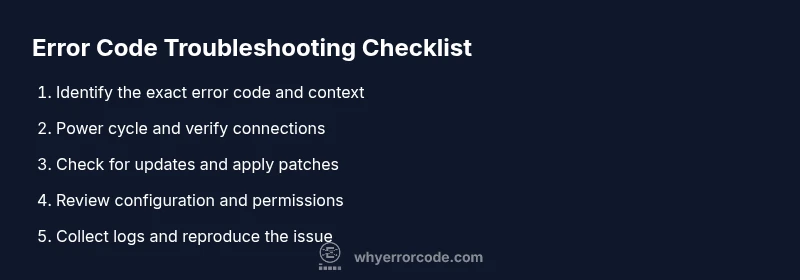
Identify exact error code and context
Note the code, where it appeared, which action was being performed, and any recent changes. Capture a timestamp and sequence of events to reproduce later.
Tip: Take a screenshot or copy-paste the error message for precise reference. - 2
Power cycle and verify connections
Power down the device, unplug, wait 15-30 seconds, then reconnect and power up. Check all cables and peripherals, replacing any that look damaged.
Tip: Test with a known-good outlet or power strip if available. - 3
Check for updates and apply patches
Visit the vendor or project site to install the latest software or firmware. Reboot after install and attempt the action again to see if the code reappears.
Tip: Back up critical data before major updates. - 4
Test with baseline inputs
Run the same operation using known-good data or configurations to determine if the issue is data- or environment-specific.
Tip: Document the inputs used for future reference. - 5
Review configuration and permissions
Assess recent changes to settings, environment variables, and access permissions. Revert to a stable baseline if needed and revalidate.
Tip: Keep a change log to trace drift over time. - 6
Document findings and escalate if needed
Record results from each step, time spent, and any residual error behavior. If unresolved, prepare a ticket with logs and reproducible steps for vendor or expert support.
Tip: Include all collected logs, timestamps, and test cases.
Diagnosis: Error code appears during operation or startup
Possible Causes
- highPower supply or connection problems (loose cables, faulty outlets)
- mediumSoftware or firmware bugs causing misinterpretation of code
- lowConfiguration errors or recent changes affecting the environment
Fixes
- easyCheck power outlets, reseat cables, and replace faulty hardware if needed
- easyUpdate software/firmware to the latest version and reboot
- mediumReview recent configuration changes and revert to a known-good baseline
- hardIf unresolved, collect logs and contact vendor support with a reproducible test case
Frequently Asked Questions
What is the first action I should take when I see an error code?
Note the exact code and context, then perform a safe power cycle. If the issue persists, proceed with the diagnostic flow.
Note the code and context, then power cycle. If unresolved, follow the diagnostic steps.
How do I know which fix to apply for a given error code?
Consult the official documentation for that specific code and apply the manufacturer’s recommended remediation steps. Avoid generic, unverified fixes.
Check the official docs for the code and follow the recommended steps.
When should I contact professional support?
If the code suggests possible hardware failure, data loss, or if standard fixes don’t resolve the issue, seek professional help.
If hardware or data risk is suspected, or fixes fail, contact support.
Can I ignore error codes?
No. Error codes point to root causes; ignoring them can lead to bigger problems and data loss.
Ignoring the code can cause bigger issues, so don’t skip it.
What logs should I collect during troubleshooting?
Collect the exact timestamp, actions taken, software version, environment details, and any preceding events.
Gather timestamps, steps taken, and software versions.
Are there safety precautions I should observe?
Power down properly before unplugging, avoid hazardous actions, and use protective equipment if dealing with hardware.
Power down properly and avoid risky hardware work.
Watch Video
Top Takeaways
- Start with simple checks before complex fixes
- Follow a documented diagnostic flow to reduce guesswork
- Collect and share logs for faster resolution
- Escalate promptly if data loss or hardware risk exists